
Sony XR55X90L
Sony BRAVIA XR X90L Series 4K Ultra HD Smart Google TV User Manual
Model: XR55X90L | Brand: Sony
Introduction
The Sony BRAVIA XR X90L Series TV delivers a vivid, crisp picture and immersive gaming experience, powered by the intelligent Cognitive Processor XR. It features Full Array LED and XR Contrast Booster for precise contrast control, and is equipped with Google TV for smart functionality. This manual provides essential information for setting up, operating, and maintaining your television.

Figure 1: Front view of the Sony BRAVIA XR X90L TV.
Safety Information
This product may expose you to chemicals including Styrene, which is known to the State of California to cause cancer. For more information, go to www.P65Warnings.ca.gov.
What's in the Box
- Power Cable
- Remote Control
- AAA batteries (2)
- TV Stand
Setup
Physical Setup
Carefully remove the TV from its packaging. Install the included stand according to the instructions in the separate installation manual (PDF available in documents section). The TV weighs approximately 39 pounds, so it is recommended to have assistance during setup.

Figure 2: Unboxing and initial physical setup of the Sony TV.
Connections
Connect your devices to the TV using the available ports. The TV supports various connectivity options including HDMI, USB, Ethernet, Wi-Fi, and Bluetooth.
- HDMI: For connecting devices like gaming consoles (PlayStation 5), Blu-ray players, and cable boxes. Supports HDMI 2.1 features like 4K/120Hz, VRR (Variable Refresh Rate), and ALLM (Auto Low Latency Mode) for optimal gaming performance.
- USB: For connecting external storage devices or accessories.
- Ethernet: For a stable wired internet connection.
- Wi-Fi: For wireless internet connectivity.
- Bluetooth: For connecting wireless audio devices like headphones or soundbars.

Figure 3: Rear view of the TV showing connectivity ports.
Initial Power On and Google TV Setup
Upon first power-on, the TV will guide you through the initial setup process for Google TV. This includes connecting to your network, signing into your Google account, and configuring basic settings. Google TV provides access to over 700,000 movies and TV episodes across 10,000+ apps.

Figure 4: Google TV interface on the Sony BRAVIA XR X90L.
Operating Instructions
Basic TV Functions
Use the included remote control to navigate the TV's interface. The remote provides direct access buttons for popular streaming services like Netflix and YouTube, as well as standard controls for power, volume, and channel selection.
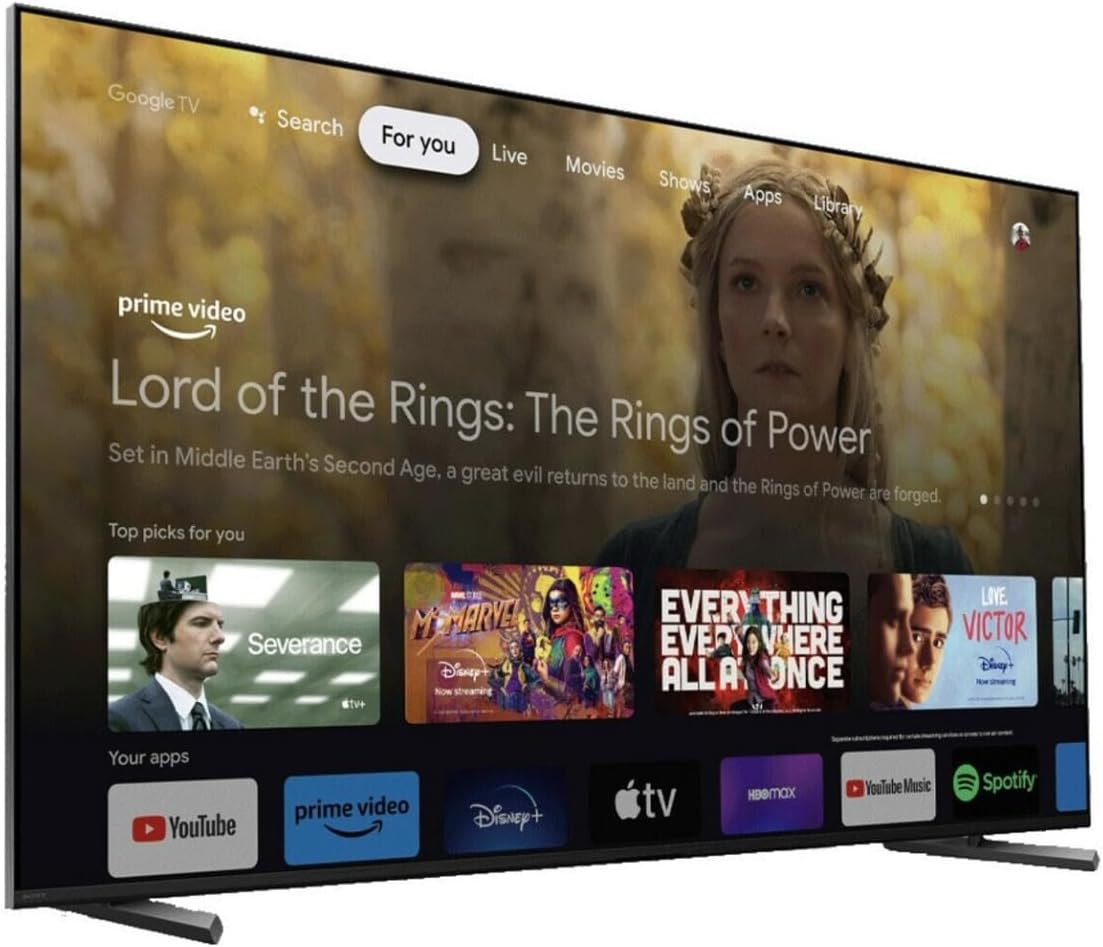
Figure 5: Sony TV remote control.
Smart TV Features
Your Sony BRAVIA XR TV comes with Google TV built-in, offering a personalized entertainment experience. You can use voice commands with Google Assistant to search for content, control smart home devices, and more. The TV also supports Apple AirPlay for seamless content sharing from your Apple devices.

Figure 6: Voice control with Google Assistant.
Gaming Features
The TV is designed to enhance your gaming experience, especially with PlayStation 5. It features Auto HDR Tone Mapping and Auto Genre Picture Mode for optimized picture quality. The Game Menu provides a centralized interface for all your gaming settings and assist features.

Figure 7: Exclusive features for PlayStation 5.
For optimal gaming, ensure your console is connected to an HDMI 2.1 port to utilize 4K/120Hz, VRR (Variable Refresh Rate), and ALLM (Auto Low Latency Mode).
BRAVIA CORE App
Enjoy high-bitrate, high-quality 4K UHD movies with the BRAVIA CORE app. The TV comes with 5 credits to redeem for the latest release movies and a 12-month subscription to hundreds of classics.

Figure 8: BRAVIA CORE app on the Sony TV.
Optional BRAVIA CAM
Enhance your TV experience with the optional BRAVIA CAM. It allows for video chats on the big screen and automatically adjusts picture and sound settings to your room's environment.

Figure 9: BRAVIA CAM integration for enhanced experience.
Maintenance
To ensure the longevity and optimal performance of your TV, regularly clean the screen with a soft, dry cloth. Avoid using harsh chemicals. Keep the software updated by checking for new versions through the TV's settings menu.
Troubleshooting
If you encounter issues with your TV, refer to the following common solutions:
- No Picture/Sound: Check all cable connections, ensure the correct input source is selected, and verify power supply.
- Poor Picture Quality: Adjust picture settings (brightness, contrast, color) in the TV menu. Ensure your content source is high-quality (e.g., 4K).
- Sound Issues: Check volume levels on both the TV and any connected audio devices. If using a soundbar, ensure it's properly connected and selected as the audio output.
- Smart TV/App Issues: Ensure a stable internet connection (wired is preferred). Try restarting the TV or reinstalling problematic apps.
- Bluetooth Connectivity: Ensure the Bluetooth device is in pairing mode and within range. Try restarting both the TV and the Bluetooth device.
For more detailed troubleshooting, consult the User Manual (PDF) available in the documents section or contact Sony support.
Specifications
| Feature | Detail |
|---|---|
| Brand | Sony |
| Model Number | XR55X90L |
| Screen Size | 55 inches |
| Display Technology | Full Array LED |
| Resolution | 4K Ultra HD |
| Refresh Rate | 120Hz |
| Processor | Cognitive Processor XR |
| Smart TV Platform | Google TV |
| Connectivity | Bluetooth, Wi-Fi, USB, Ethernet, HDMI (HDMI 2.1 supported) |
| Speaker Type | Acoustic Multi-Audio |
| Item Weight | 39 pounds |
| Product Dimensions | 13.63 x 48.25 x 29.13 inches |
Warranty & Support
This product comes with a standard manufacturer's warranty. Extended protection plans are available for 3-year or 4-year coverage. For detailed warranty information or technical support, please refer to the official User Manual (PDF) linked below or contact Sony customer service.
Official User Manual (PDF): Download Here
Related Documents - XR55X90L
 |
Sony HDR-CX/PJ Series Digital Video Camera Recorder Service Manual This document is the service manual (Version 1.1, September 2013) for Sony HDR-CX and HDR-PJ series digital video camera recorders. It provides detailed exploded views, part identification, and service notes for various models, including projector and non-projector types. |
 |
Sony BRAVIA 8 m II 55 & 65 Inch TV User Manual This comprehensive user guide provides detailed instructions and information for operating the Sony BRAVIA 8 m II series televisions, covering setup, remote control functions, connectivity options, picture and sound adjustments, app management, and troubleshooting tips. |
 |
Sony BRAVIA TV User Guide: Features, Setup, and Operation Comprehensive guide to Sony BRAVIA TVs, covering setup, remote control usage, app integration, network connectivity, and troubleshooting for models BRAVIA 9, 8, 8 II, 7, 5, and A95L. |
 |
Sony BRAVIA TV User Guide: Installation, Features, and Connectivity Comprehensive guide for Sony BRAVIA TVs (models BRAVIA 9, 8, 8 II, 7, 5, A95L) covering installation, remote control usage, connectivity options, picture and sound settings, app management, network features, and troubleshooting. |
 |
Sony BRAVIA TV User Guide: Features and Operation Comprehensive guide to Sony BRAVIA TVs, covering setup, remote control usage, app integration, connectivity, picture and sound settings, recording, and troubleshooting. |
 |
Sony BRAVIA TV User Guide: Installation, Features, and Operation Comprehensive guide for Sony BRAVIA TVs (BRAVIA 9, 8, 8 II, 7, 5, A95L) covering installation, remote control usage, connectivity, picture and sound settings, recording, and troubleshooting. |
Ask a question about this manual
Ask about setup, troubleshooting, compatibility, parts, safety, or missing instructions. Manuals+ will review the question and use this page’s manual context to help answer it.