
CAMECHO CAMECHO 2+64G
CAMECHO Android 13 Car Stereo User Manual
Model: CAMECHO 2+64G | Brand: CAMECHO
1. Introduction
This manual provides detailed instructions for the installation, operation, and maintenance of your CAMECHO 2+64G Android 13 Car Stereo. This advanced head unit offers a 9-inch touchscreen, wireless Apple CarPlay, Android Auto, GPS navigation, HiFi audio, WiFi, Bluetooth, FM/RDS radio, and supports a backup camera. Please read this manual thoroughly before installation and use to ensure proper functionality and safety.

Image 1.1: CAMECHO Android 13 Car Stereo with its primary components including the external microphone and backup camera.
2. Applicable Car Models
This CAMECHO Android 13 Car Stereo is designed for direct installation and compatibility with the following vehicle models:
- Kia Forte: 2013, 2014, 2015, 2016, 2017, 2018 (Without Canbus)
- Kia K3: 2013, 2014, 2015, 2016, 2017, 2018 (Without Canbus)
- Kia Cerato: 2013, 2014, 2015, 2016, 2017, 2018 (Without Canbus)
Important Note:
- This Android radio is NOT compatible with vehicles equipped with Premium Factory Sound Systems, Premium BOSE systems, Amplified Sound Systems, or Onstar.
- Compatibility is for models without Canbus.
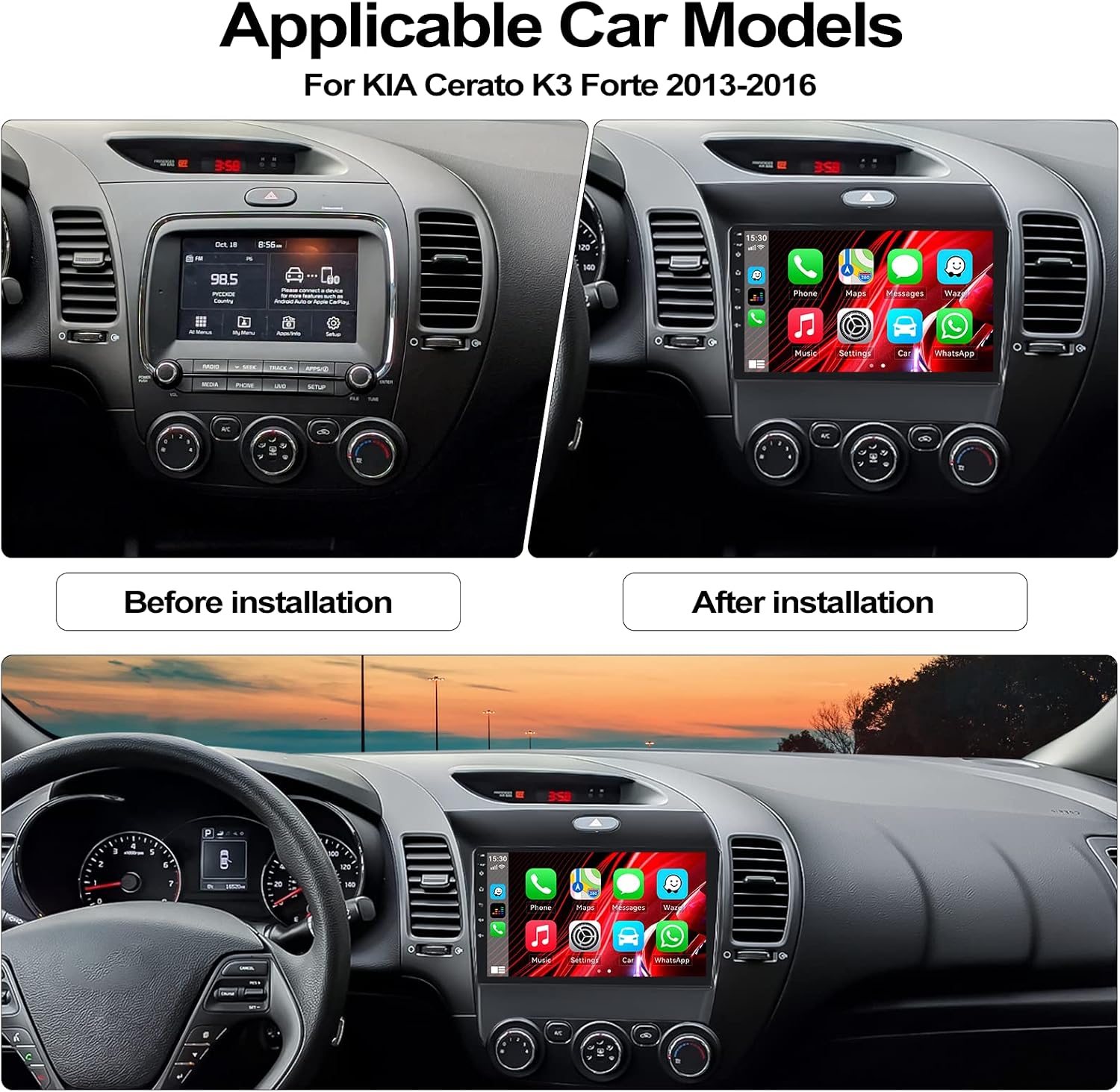
Image 2.1: Visual comparison of the car dashboard before and after the installation of the CAMECHO car stereo.
3. Package Contents
Please verify that all items listed below are included in your package:
- 1 x Android Head Unit
- 1 x AHD Backup Camera
- 1 x External Microphone
- 1 x GPS Antenna
- 1 x Radio Antenna
- 2 x Power Cable
- 1 x RCA Cable
- 2 x USB Cable
- 1 x Rear Camera Input Cable
- 1 x Accessories (various small parts for installation)
- 1 x Installation Tool Set
- 1 x Instruction Manual (this document)

Image 3.1: Visual representation of the head unit's dimensions and all components included in the package.
4. Specifications
| Feature | Specification |
|---|---|
| System | Android 13 |
| Chipset | 8227L-DEMO |
| Screen Size | 9 inches |
| Memory (RAM) | 2GB |
| Storage (ROM) | 64GB |
| Screen Resolution | 1024*600 |
| Radio Chip | MT6625 |
| Power Output | 4*45W |
| Power Amplifier Chip | TDA7388 |
| Radio Band | FM/RDS (87.5-108MHz) |
| Split Screen | Supported |
| Video Output | Supported |
| External Microphone | Supported (Included) |
| Reversing Input | AHD/CVBS |
| USB Interface | Double USB |
| Factory Setting Keyword | 8888 |
| Product Dimensions | 10.2 x 2.6 x 9.6 inches |
| Item Weight | 3.32 pounds |
5. Setup and Installation
Installation of the CAMECHO car stereo requires technical knowledge and familiarity with car electrical systems. It is highly recommended to seek professional installation to avoid damage to the unit or your vehicle. If you choose to install it yourself, please follow these general guidelines:
- Preparation: Disconnect the car battery's negative terminal before starting any electrical work. Gather all necessary tools, including those provided in the package.
- Remove Old Unit: Carefully remove the existing car stereo and dashboard trim. Refer to your vehicle's specific service manual or online resources (e.g., YouTube tutorials for your specific Kia model and year) for detailed removal instructions.
- Wiring Connections: Connect the provided power cables, RCA cables, USB cables, GPS antenna, and radio antenna to the new head unit. Ensure all connections are secure. Pay close attention to the wiring for the AHD backup camera and external microphone.
- Test Functionality: Before fully reassembling the dashboard, temporarily connect the car battery and test the basic functions of the stereo: power on/off, audio, radio, touchscreen response, and camera input.
- Secure Installation: Once tested, securely mount the new head unit into the dashboard. Reinstall all trim pieces carefully.
- Final Checks: Reconnect the car battery. Perform a comprehensive test of all features, including CarPlay/Android Auto, GPS navigation, Bluetooth, and steering wheel controls.
Note on Canbus:
This unit is designed for vehicles without a Canbus system. If your vehicle has a Canbus system, additional adapters or wiring modifications may be required, which are not included or supported by this product's standard installation.
6. Operating Instructions
6.1. Wireless Apple CarPlay & Android Auto
The head unit supports both wireless and wired Apple CarPlay and Android Auto. This allows seamless integration of your smartphone for navigation, calls, messages, and music.
- Connection: For wireless connection, enable Bluetooth and Wi-Fi on your phone and connect to the head unit. For wired connection, use your phone's original USB data cable.
- Voice Control: Access voice commands by saying "Hey Siri" (for Apple CarPlay) or "Hey Google" (for Android Auto).
- Note: Android Auto does not support Huawei phones. Always use your phone's original USB data cable for wired connections to ensure stable performance.

Image 6.1: Display of the Apple CarPlay and Android Auto user interfaces on the 9-inch touchscreen.
6.2. GPS Navigation & WiFi Connection
The unit features a built-in GPS module for navigation and supports WiFi connectivity.
- Navigation: Supports both offline and online maps (e.g., Google Maps, Igo, Waze). For offline maps, download them when the stereo has a stable internet connection.
- WiFi Hotspot: Connect to a WiFi network or your phone's hotspot to browse the internet, download apps, and update software.

Image 6.2: Examples of GPS navigation display and the WiFi hotspot connection interface.
6.3. FM/RDS Radio & Bluetooth
Enjoy your favorite radio stations and connect your devices via Bluetooth.
- FM/RDS Radio: Features 18 preset storage functions. Tune into real-time traffic, news broadcasts, and weather forecasts. Radio frequency range: 87.5-108MHz.
- Bluetooth: Built-in Bluetooth supports A2DP for hands-free calling and wireless music streaming. Make and receive calls directly from the head unit while keeping your focus on the road.

Image 6.3: User interface for FM/RDS radio tuning and the Bluetooth hands-free calling screen.
6.4. AHD Backup Camera & External Microphone
Enhance your driving safety and communication with the included accessories.
- Backup Camera: The included 720P AHD waterproof rear view camera provides clear reversing images. The wide 158° viewing angle helps prevent blind spots. The full-screen reverse image automatically switches when the car is in reverse gear.
- External Microphone: The lightweight, omnidirectional microphone clips to your collar for clear audio during calls or voice commands. It features a 145cm shielded cable for optimal placement.

Image 6.4: Visuals demonstrating the improved rear view with the AHD backup camera and details of the external microphone.
6.5. Additional Features
- Steering Wheel Control: Supports learning original steering wheel controls for convenient operation.
- Hi-Fi Effect: Built-in Hi-Fi audio system for enhanced sound quality.
- USB Playback: Dual USB ports support various media playback.
- Split Screen: Allows running two applications simultaneously on the screen.
- Video Output: Supports video output to external displays.
- Subwoofer and Amplifier: Ability to add external subwoofer and amplifier (not included).
7. Maintenance
To ensure the longevity and optimal performance of your CAMECHO car stereo, follow these maintenance guidelines:
- Cleaning: Use a soft, dry cloth to clean the touchscreen and unit exterior. Avoid abrasive cleaners or solvents. For stubborn marks, slightly dampen the cloth with water.
- Software Updates: Periodically check for system software updates via the WiFi connection to ensure the latest features and bug fixes.
- Temperature: Avoid exposing the unit to extreme temperatures. While designed for automotive use, prolonged exposure to direct sunlight in a parked car can affect performance.
- Connections: Ensure all cables and connections remain secure. Loose connections can lead to intermittent issues.
8. Troubleshooting
If you encounter issues with your CAMECHO car stereo, refer to the following common troubleshooting steps:
| Problem | Possible Cause / Solution |
|---|---|
| Unit does not power on. | Check power cable connections. Ensure car battery is connected and charged. Verify fuse. |
| No sound or distorted audio. | Check speaker wiring. Verify volume settings. Ensure unit is not in mute mode. Confirm compatibility if your car has a premium sound system (this unit is not compatible with Premium Factory Sound System, BOSE, or Amplified Sound Systems). |
| Apple CarPlay / Android Auto not connecting or unstable. | Ensure you are using your phone's original USB data cable for wired connections. For wireless, ensure Bluetooth and Wi-Fi are enabled on both devices and properly paired. Restart both phone and head unit. Note: Android Auto does not support Huawei phones. |
| GPS signal is weak or inaccurate. | Ensure the GPS antenna is properly installed and has a clear view of the sky (e.g., on the dashboard). Download offline maps if experiencing issues in areas with poor cellular data. |
| Steering wheel controls not working. | Access the steering wheel control learning function in the unit's settings. Ensure wiring for steering wheel controls is correctly connected. Check if a pin has come loose from the harness (as noted in user reviews). |
| External microphone not working or poor audio quality. | Ensure the microphone is securely plugged into the correct port. Test with another microphone if possible. Check microphone settings in the unit. |
| Unit is slow or lagging. | Close unnecessary background applications. Clear cache if available in settings. Restart the unit. |
| Backup camera not displaying. | Check the rear camera input cable connection. Ensure the camera is receiving power. Verify the camera settings in the unit. |
| Need to access factory settings. | The factory setting keyword is 8888. Use with caution as incorrect changes can affect unit performance. |
9. Warranty and Support
CAMECHO is committed to providing high-quality products and customer satisfaction. For any inquiries or support needs, please refer to the following:
- Return Policy: This product typically comes with a 30-day refund/replacement policy from the date of purchase. Please refer to your retailer's specific return policy for details.
- Customer Support: For technical assistance, troubleshooting beyond this manual, or warranty claims, please contact the seller directly. The seller for this product is typically Dongguan Yanningqiu Trading Company. You can usually find a 'Contact Seller' or 'Ask a question' option on the product's purchase page.
- Email Support: Some support inquiries can be directed to CAMECHOVIP@126.com for user manual and help.


Image 9.1: CAMECHO customer support information and brand logo.
Ask a question about this manual
Ask about setup, troubleshooting, compatibility, parts, safety, or missing instructions. Manuals+ will review the question and use this page’s manual context to help answer it.