
1. Introduction
Thank you for purchasing the TECURS GM003-1 Wired Gaming Mouse. This manual provides detailed instructions for setting up, operating, maintaining, and troubleshooting your new gaming mouse. Please read this manual carefully before use to ensure optimal performance and longevity of your device.

Image 1.1: The TECURS GM003-1 Gaming Mouse highlighting its adjustable DPI, polling rate, and RGB lighting features.
Key Features:
- 9 Programmable Buttons: Customize your gaming experience with assignable functions.
- Adjustable DPI: 5-stage DPI settings from 1200 to 7200 for precise control.
- 13 RGB Lighting Modes: Personalize your setup with various colorful backlight effects.
- Ergonomic & Lightweight Design: Ambidextrous design weighing only 90g for comfortable, extended use.
- Wide Compatibility: Supports Windows 11/10/8/7/XP/Vista and Mac OS.
2. Setup Instructions
2.1 Connecting the Mouse
- Unpack the TECURS GM003-1 Gaming Mouse from its packaging.
- Locate an available USB port on your computer (PC, laptop, Macbook, notebook).
- Plug the USB connector of the mouse into the USB port.
- Your computer should automatically detect and install the necessary drivers.
2.2 Software Installation (Optional)
For full customization of the 9 programmable buttons, DPI settings, and RGB lighting modes, it is recommended to install the dedicated software. The software can typically be downloaded from the official TECURS website or provided on an included disc (if applicable).
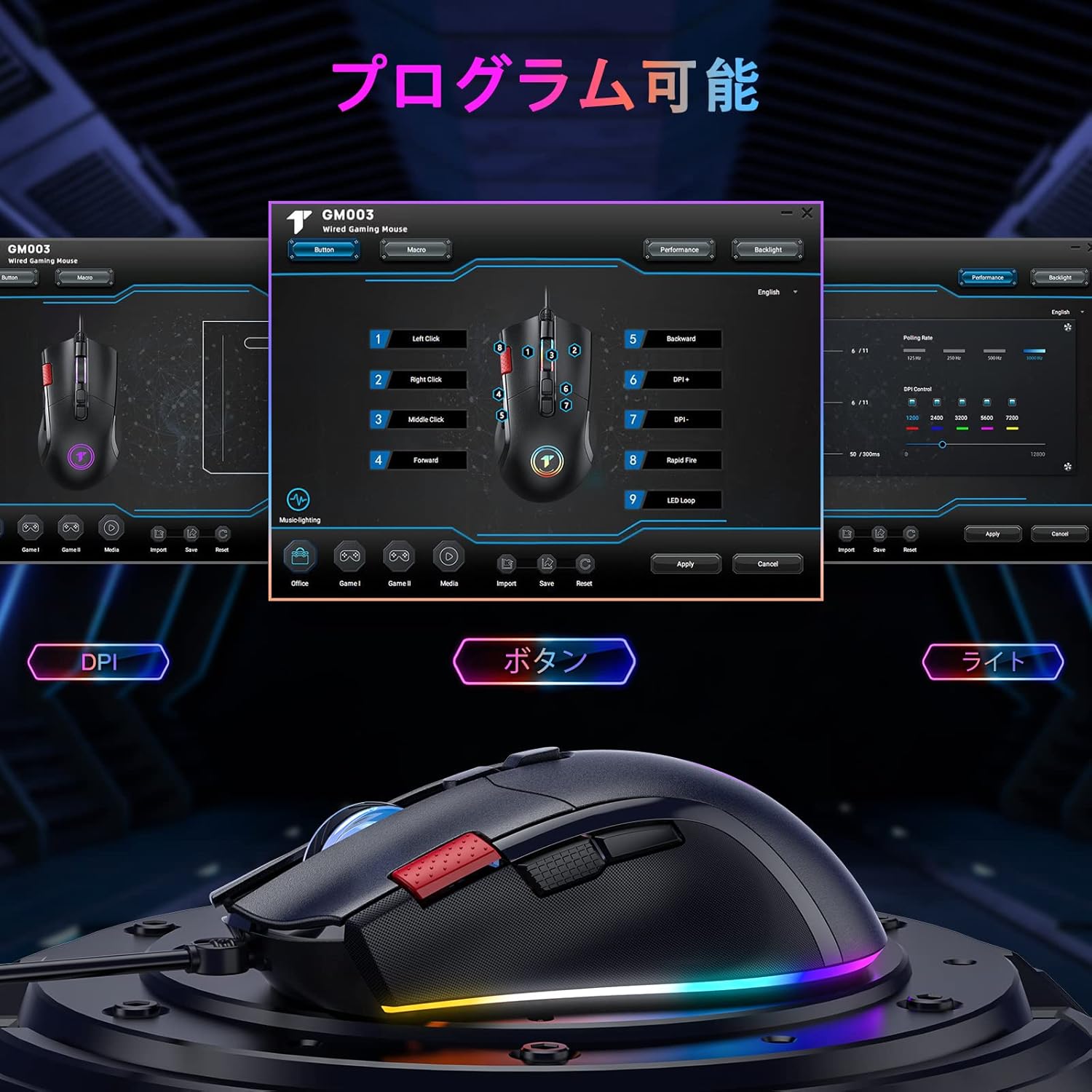
Image 2.1: The mouse software interface allows for comprehensive customization of buttons, DPI, and lighting.
Note: Side buttons and programmable functions are not supported on Mac OS.
3. Operating Instructions
3.1 Button Functions
The TECURS GM003-1 mouse features 9 buttons. Their default functions are as follows:

Image 3.1: Layout of the 9 programmable buttons on the GM003-1 mouse.
- Left Click: Standard primary click function.
- Right Click: Standard secondary click function.
- Middle Click (Scroll Wheel Press): Activates middle click function.
- Scroll Up/Down: Navigates content vertically.
- DPI+ Button: Increases DPI sensitivity.
- DPI- Button: Decreases DPI sensitivity.
- Forward Button: Navigates forward in web browsers or file explorers.
- Back Button: Navigates backward in web browsers or file explorers.
- Rapid Fire Button: Executes multiple clicks with a single press (programmable via software).
3.2 DPI Adjustment
The mouse offers 5 adjustable DPI levels: 1200, 2400, 3200, 5600, and 7200 DPI. Use the DPI+ and DPI- buttons (typically located near the scroll wheel) to cycle through these settings. The current DPI level may be indicated by a change in the mouse's LED color or through the software interface.
3.3 RGB Lighting Modes
The mouse features 13 distinct RGB lighting modes. These can be cycled through or customized using the dedicated software. Refer to the software interface for specific options to change colors, effects, and brightness.
4. Maintenance
4.1 Cleaning
- Disconnect the mouse from your computer before cleaning.
- Use a soft, dry, lint-free cloth to wipe the surface of the mouse.
- For stubborn dirt, lightly dampen the cloth with water or a mild cleaning solution. Avoid harsh chemicals.
- Use a cotton swab or compressed air to clean around buttons and the scroll wheel.
- Ensure the optical sensor on the bottom of the mouse is clean and free of debris for accurate tracking.
4.2 Storage
When not in use, store the mouse in a clean, dry environment away from direct sunlight and extreme temperatures. Avoid placing heavy objects on the mouse or tangling the cable.
5. Troubleshooting
5.1 Mouse Not Responding
- Ensure the USB cable is securely plugged into a working USB port on your computer. Try a different USB port.
- Restart your computer.
- Check if the mouse works on another computer to rule out a computer-specific issue.
5.2 Inaccurate Tracking or Cursor Lag
- Clean the optical sensor on the bottom of the mouse.
- Ensure you are using the mouse on a suitable surface (e.g., a mouse pad). Avoid highly reflective or transparent surfaces.
- Adjust the DPI settings using the DPI+ and DPI- buttons.
5.3 Programmable Buttons Not Working (Mac OS)
As noted, side buttons and programmable functions are not supported on Mac OS. This is a limitation of the operating system's compatibility with the mouse's advanced features.
5.4 RGB Lighting Not Working
- Ensure the mouse is properly connected.
- Check the mouse software to ensure RGB lighting is enabled and configured correctly.
6. Specifications
| Feature | Specification |
|---|---|
| Brand | TECURS |
| Model Number | GM003-1 |
| Connectivity Technology | USB (Wired) |
| Movement Detection Technology | Optical |
| Number of Buttons | 9 (Programmable) |
| DPI Settings | 1200 / 2400 / 3200 / 5600 / 7200 DPI (5-stage adjustable) |
| RGB Lighting | 13 Modes |
| Hand Orientation | Ambidextrous |
| Item Weight | 90 grams |
| Power Source | Corded Electric (No batteries required) |
| Compatible Operating Systems | Windows 11/10/8/7/XP/Vista, Linux, Mac OS (Note: Limited functionality on Mac OS) |
| Compatible Devices | PC, Laptop, Notebook, Macbook |

Image 6.1: The mouse offers broad compatibility with various operating systems.
7. Warranty and Support
TECURS products are designed for reliability and performance. For warranty information, technical support, or any inquiries regarding your GM003-1 gaming mouse, please refer to the warranty card included with your product or visit the official TECURS website. Please have your model number (GM003-1) and purchase details ready when contacting support.