
Introduction
The Qianli iCopy Plus 2.2+ Version is a versatile repair instrument designed for iPhone maintenance. It facilitates reading and writing original data for LCD screens, vibrators, and batteries, and also supports lightning board repair. This manual provides detailed instructions for its proper use and maintenance.
Important Safety Information
- Charging: Do NOT charge the product with a mobile phone charger. Only charge from a USB port of a computer to prevent damage.
- Battery Quality: For X Series models, if the battery quality is poor, the device may not be able to read or write data. This is a limitation due to battery condition, not the tool.
- Not for Cycle Reset: This tool is not designed for resetting battery cycle counts.
- Tag-on Flex: For iPhone 11 to 14 series batteries, a specific tag-on flex is required for read and write operations. This flex is for single use and must remain inside the phone with the battery after data transfer.
Package Contents
Upon opening the package, verify that all the following items are included:
- Qianli iCopy Plus 2.2v+ Main Unit (1 pcs)
- Tester Board (1 pcs)
- Battery Tester Board (6 to 14 PM series) (1 pcs)
- LCD Board (7 to 11 PM series) (1 pcs)
Note: The data cable required for charging and software connection is sold separately.

Image: The Qianli iCopy Plus 2.2+ main unit shown with the LCD, battery, and lightning boards.
Setup and Initial Use
1. Initial Charging
Before first use, ensure the iCopy Plus unit is fully charged. Connect the device to a computer's USB port using a compatible data cable. Do not use a mobile phone charger.
Video: This video demonstrates the unboxing of the Qianli iCopy Plus 2.2v, highlighting the included boards and the initial charging process using a computer's USB port. It also shows how to change the device's language.
2. Language Selection
The device supports Chinese, English, and Spanish. To change the language, double-click the "Write" button on the unit.
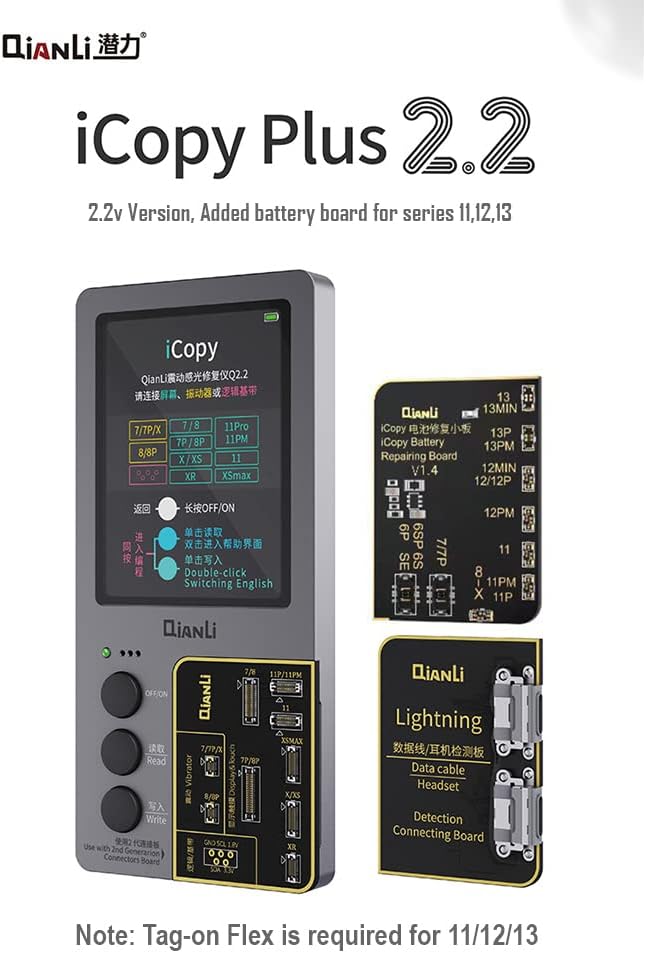
Image: The iCopy Plus 2.2+ unit displaying language options on its screen, with the various repair boards visible.
Operating Instructions
1. LCD Programming (7th to 11th Generation PM Series)
The iCopy Plus 2.2+ can read original LCD data and write it to non-original LCDs for iPhone models from the 7th to 11th generation PM series. This function helps restore features like True Tone.
- Connect the appropriate LCD board to the iCopy Plus unit.
- Connect the original LCD to the board to read its data.
- Disconnect the original LCD and connect the new (non-original) LCD.
- Initiate the write process to transfer the original data to the new LCD.

Image: A close-up of the iCopy Plus 2.2+ screen, highlighting the double-row connector base designed for improved accuracy in data reading.
2. Battery Programming (6th to 14th Generation PM Series)
The device supports reading and writing battery data for iPhone models from the 6th to 14th generation PM series.
- Connect the battery tester board to the iCopy Plus unit.
- For iPhone 11th to 14th series, a specific tag-on flex is required. This flex must be ordered separately and is for single use. After writing data, the flex must remain inside the phone with the battery.
- For 11th generation and newer models, the Qlhelper software (Windows-compatible only) is required for the programming process.
- Connect the battery to the board and follow the on-screen prompts or software instructions to read and write data.

Image: The iCopy Plus 2.2+ unit displaying detailed battery data, alongside a laptop running the Qlhelper software for advanced battery data recovery and modification.
3. Lightning Board Repair (Data Cable & Headset Detection)
Use the dedicated lightning board to check the originality of data cables and headsets. This function is applicable only for lightning models.
- Connect the lightning detection connecting board to the iCopy Plus unit.
- Plug the data cable or headset into the lightning board.
- The device will display information regarding the originality of the connected accessory.
Software and Firmware Updates
To ensure optimal performance and compatibility with the latest iPhone models, regularly update the iCopy Plus firmware using the Qlhelper software.
- Visit the official Qianli company website to download the latest Qlhelper software.
- Compatibility Note: The Qlhelper software is only compatible with Windows computers. macOS is not supported.
- Connect your iCopy Plus unit to your Windows computer via USB.
- Launch the Qlhelper software and follow the on-screen instructions to update the device's firmware.
Troubleshooting
- Device Not Powering On/Charging: Ensure the device is connected to a computer's USB port for charging. Avoid using mobile phone chargers.
- Unable to Read/Write Battery Data (X Series and newer): If the battery quality is poor, the device may not be able to perform read/write operations. This is an inherent limitation. Ensure you are using the correct tag-on flex for 11th-14th series batteries and the Qlhelper software for 11th generation and newer models.
- Language Issues: Double-click the "Write" button to cycle through available languages (Chinese, English, Spanish).
- Firmware Update Failure: Ensure your computer is running Windows and you have downloaded the correct Qlhelper software from the official Qianli website. Maintain a stable USB connection during the update process.
Specifications
| Model Number | iCopy Plus 2.2+ |
| Hardware Version | Q2.0 (Software upgraded to 2.2v) |
| Input Voltage | 5V |
| Battery Type | 1 Lithium Ion battery (included) |
| Item Weight | 8.4 ounces |
| Package Dimensions | 7.95 x 5.28 x 1.34 inches |
| Supported LCD Series | iPhone 7 to 11 PM series |
| Supported Battery Series | iPhone 6 to 14 PM series |
| Software Compatibility | Qlhelper (Windows only) |
Support
For further details, assistance, or any questions regarding the Qianli iCopy Plus 2.2+ Version, please contact the relevant support channels. The seller, YouEn Tech, offers 24/7 customer support.
You can also visit the official Qianli company website for additional resources and software downloads.

