
Introduction
Thank you for choosing the UHURU Wireless Gaming Mouse WM-02. This manual provides detailed instructions for setting up, operating, maintaining, and troubleshooting your new gaming mouse. Please read this manual thoroughly before use to ensure optimal performance and longevity of your device.
What's in the Box
The package for your UHURU Wireless Gaming Mouse WM-02 includes the following items:
- Wireless Gaming Mouse x 1
- 2.4GHz USB Dongle x 1
- Charge Cable x 1
- User's Manual x 1
Product Overview
The UHURU WM-02 Wireless Gaming Mouse is designed for comfort and performance, featuring multiple customizable options.

This image displays the top view of the UHURU Wireless Gaming Mouse, highlighting its six programmable buttons: Left Button, Right Button, Scroll Wheel, Backward button, Forward button, and DPI button.
Key Features:
- 5 Adjustable DPI Levels: Easily switch between 800, 1600, 3000, 5000, and 10000 DPI settings for precise control in various applications.
- 7-Color Changeable Backlight: Experience dynamic LED lighting that cycles through 7 colors automatically. Note: The LED colors are not programmable and do not stay on a single color.
- 6 Programmable Buttons: Customize button functions using the driver software (Windows only) to enhance your gaming and productivity.
- Rechargeable Battery: Built-in rechargeable battery eliminates the need for frequent battery replacements.
- Ergonomic Design: Designed for comfortable use, accommodating various grip styles.
Setup
- Charge the Mouse: Before first use, connect the included charge cable to the mouse's charging port and a USB power source. Allow the mouse to fully charge.
- Locate the USB Dongle: The 2.4GHz USB dongle is typically stored in a compartment on the underside of the mouse for safekeeping. Gently remove it.
- Connect the USB Dongle: Insert the USB dongle into an available USB port on your PC or laptop.
- Power On the Mouse: Flip the power switch located on the underside of the mouse to the 'ON' position. The mouse should automatically connect to the dongle.

This video demonstrates how to locate and remove the USB dongle from the mouse's storage slot and connect it to a computer. The video also shows the mouse being turned on.
Operating Instructions
DPI Adjustment
The mouse features 5 adjustable DPI levels (800/1600/3000/5000/10000). To change the DPI, press the DPI button located below the scroll wheel. Each press cycles through the available DPI settings, allowing you to adjust cursor speed for different tasks or games.
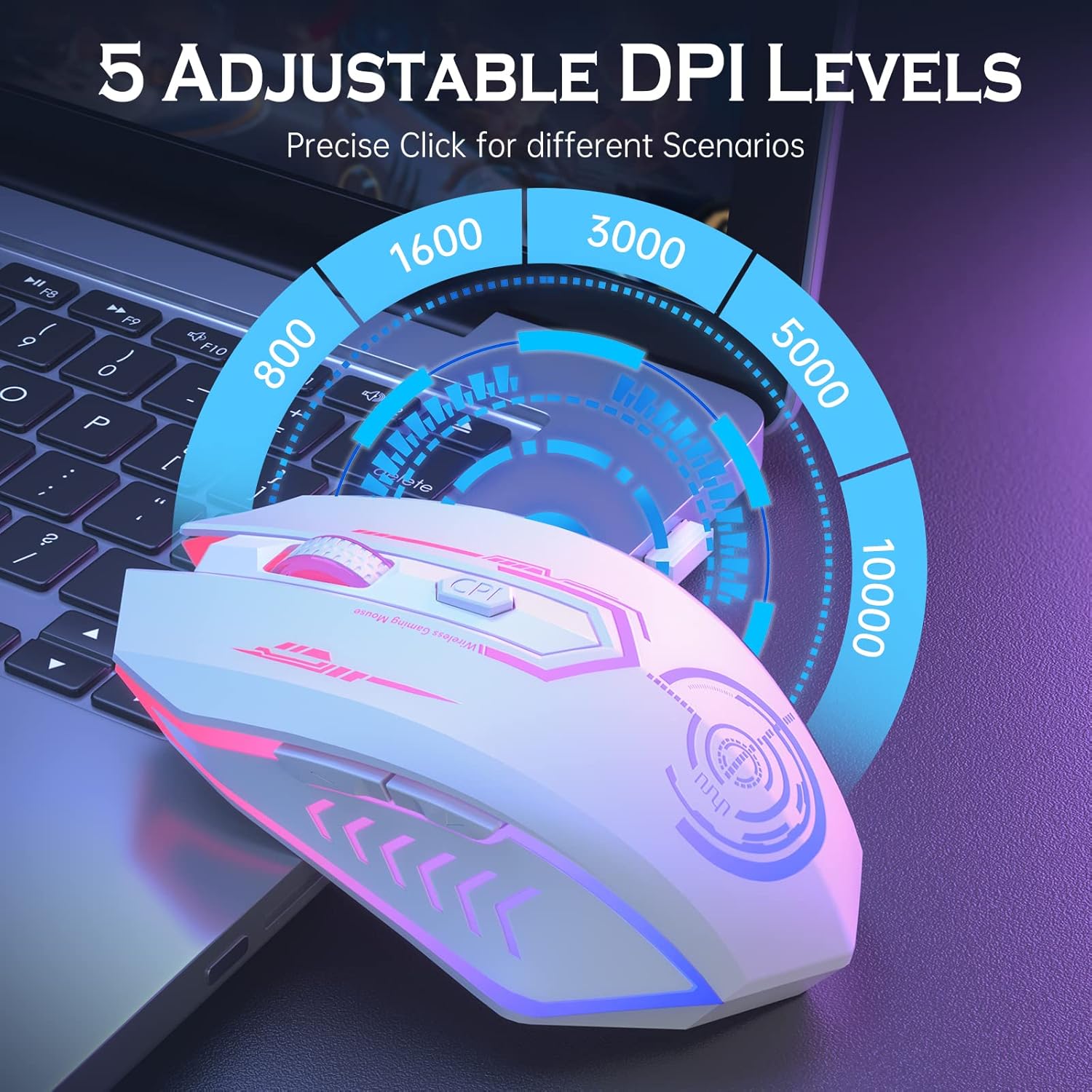
This image illustrates the different DPI levels available on the UHURU Wireless Gaming Mouse, ranging from 800 to 10000, and indicates the location of the DPI button.
LED Lighting
The mouse features a 7-color changeable backlight that cycles automatically. The LED lighting cannot be programmed to stay on a single color or be turned off independently. It provides ambient lighting during use.
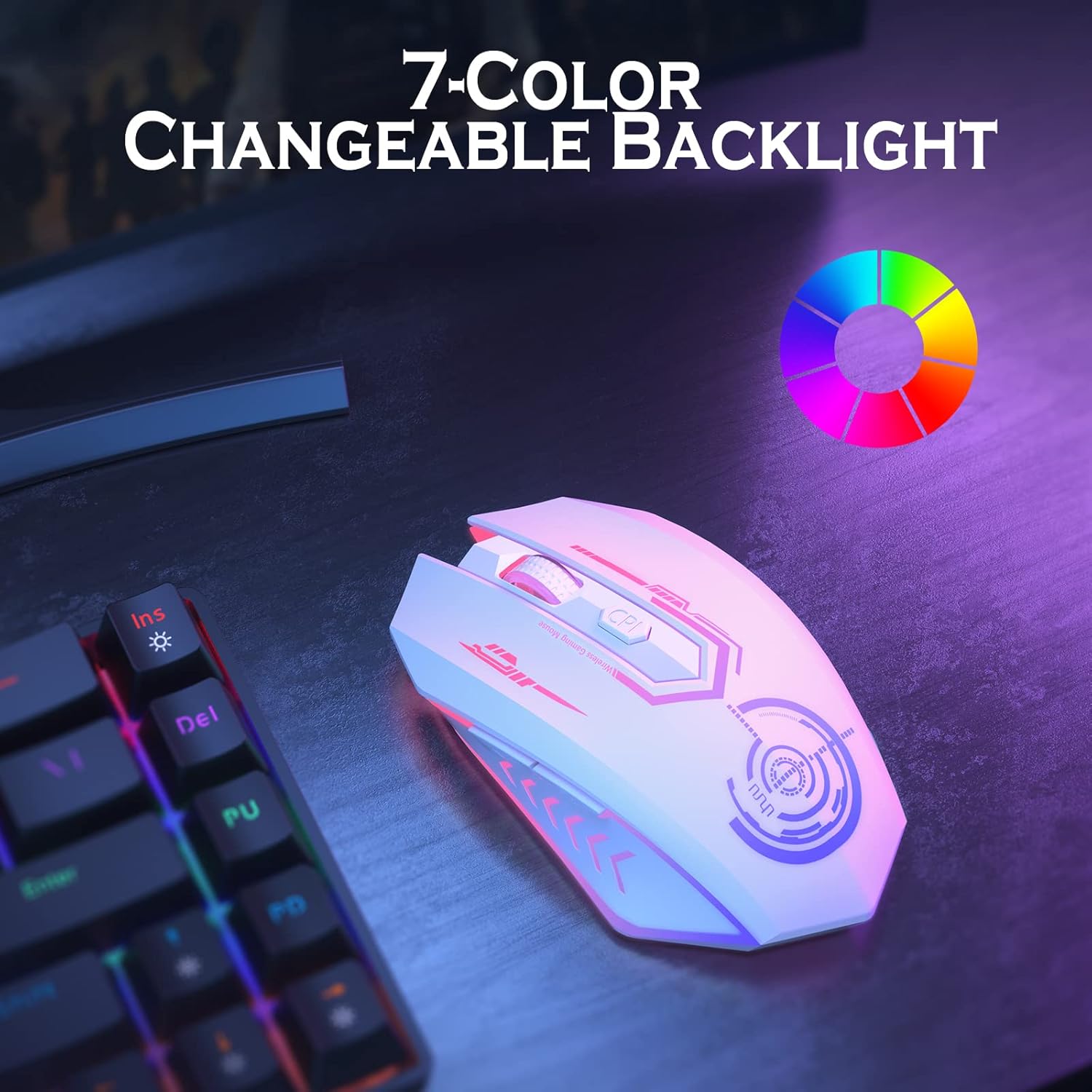
The image shows the UHURU Wireless Gaming Mouse illuminated with its dynamic 7-color changing LED backlight, demonstrating the visual effect.
Programmable Buttons
The 6 buttons on the mouse can be programmed using the dedicated driver software. This software allows for macro editing and custom button assignments, enhancing functionality for various games and applications. The driver is compatible with Windows operating systems only.
To download the driver software, please refer to the website mentioned in the included user manual or on the product packaging.
Charging the Mouse
The mouse is equipped with a built-in rechargeable battery. When the battery is low, connect the provided USB charge cable to the mouse and a USB power source (e.g., computer USB port, USB wall adapter). The mouse can be used while charging, functioning as a wired mouse during this time.

This image shows the UHURU Wireless Gaming Mouse connected to its charging cable, with an icon indicating the battery charging status.
Power Saving Mode
To conserve battery life, the mouse will automatically enter a sleep mode after 1 minute of inactivity. To wake the mouse, simply move it or click any button.
Maintenance
- Cleaning: Use a soft, dry cloth to clean the mouse. Avoid using harsh chemicals or abrasive materials.
- Storage: When not in use for extended periods, store the mouse in a cool, dry place. Ensure the USB dongle is securely stored in its compartment on the mouse.
- Battery Care: To prolong battery life, avoid fully discharging the mouse frequently. Charge it when the low battery indicator appears.
Troubleshooting
- Mouse not responding:
- Ensure the mouse is powered on.
- Check if the USB dongle is securely plugged into a USB port on your computer.
- Verify the mouse battery is charged. Connect the charging cable to see if it resumes function.
- Try plugging the USB dongle into a different USB port.
- Re-pair the mouse by turning it off, removing the dongle, reinserting the dongle, and then turning the mouse back on.
- Lagging or erratic movement:
- Ensure the mouse is within the effective wireless range (up to 10 meters).
- Check for interference from other wireless devices.
- Clean the optical sensor on the underside of the mouse.
- Ensure the mouse is used on a suitable surface.
- LED lights not working or stuck:
- The LED lights cycle automatically and cannot be set to a single color. This is normal operation.
- Ensure the mouse has sufficient battery charge.
- Buttons not functioning:
- If specific buttons are not working, ensure the driver software is correctly installed and configured (for programmable buttons).
- For general button issues, try restarting your computer and the mouse.
- Poor battery life:
- Ensure the mouse is fully charged before use.
- The mouse has an auto-sleep feature; ensure it's not being woken up frequently by accidental movement if not in active use.
- Battery performance can degrade over time with heavy use.
Specifications
| Brand | UHURU |
| Model Name | WM-02 |
| Color | White |
| Connectivity Technology | USB (2.4GHz Wireless) |
| Movement Detection Technology | Optical |
| DPI Levels | 800/1600/3000/5000/10000 |
| Button Quantity | 6 |
| Hand Orientation | Right |
| Compatible Devices | Personal Computer |
| Operating System (Driver) | Windows only |
| Battery Type | 1 Lithium Polymer battery (included) |
| Battery Average Life | Approximately 10.5 Hours of active use |
| Wireless Range | Up to 10 meters (33 feet) |
| Item Weight | 150 Grams |
| Enclosure Material | Plastic |
Warranty and Support
Your UHURU Wireless Gaming Mouse WM-02 comes with a 12-month warranty from the date of purchase. This warranty covers manufacturing defects and ensures your product is free from material and workmanship flaws under normal use.
For warranty claims, technical support, or any questions regarding your product, please contact the manufacturer, Rlg, through their official support channels. Refer to the contact information provided on the product packaging or the official UHURU website.
Please retain your proof of purchase for warranty validation.
