
1. Introduction
The Xsarius Avant 2+ Ultra is an advanced 8K-OTT multimedia player and IP receiver, designed to deliver high-resolution entertainment. Running on Android 9.0 PIE, this device integrates powerful hardware with a user-friendly interface for an optimal streaming experience.
Key Features:
- 8K UHD resolution at 30fps or 4K at 60fps.
- Powerful Quad-Core 1.9 GHz A55 processor (AmLogic S905X3).
- 4GB DDR4 RAM and 32GB eMMC Flash storage.
- Integrated Dual-Band Wi-Fi (2.4 & 5 GHz) and 1000 Mbps LAN Ethernet.
- HDMI 2.0, USB 3.0, USB 2.0, Micro-SD slot, and Bluetooth connectivity.
- Supports HDR10/HLG for enhanced visual quality.
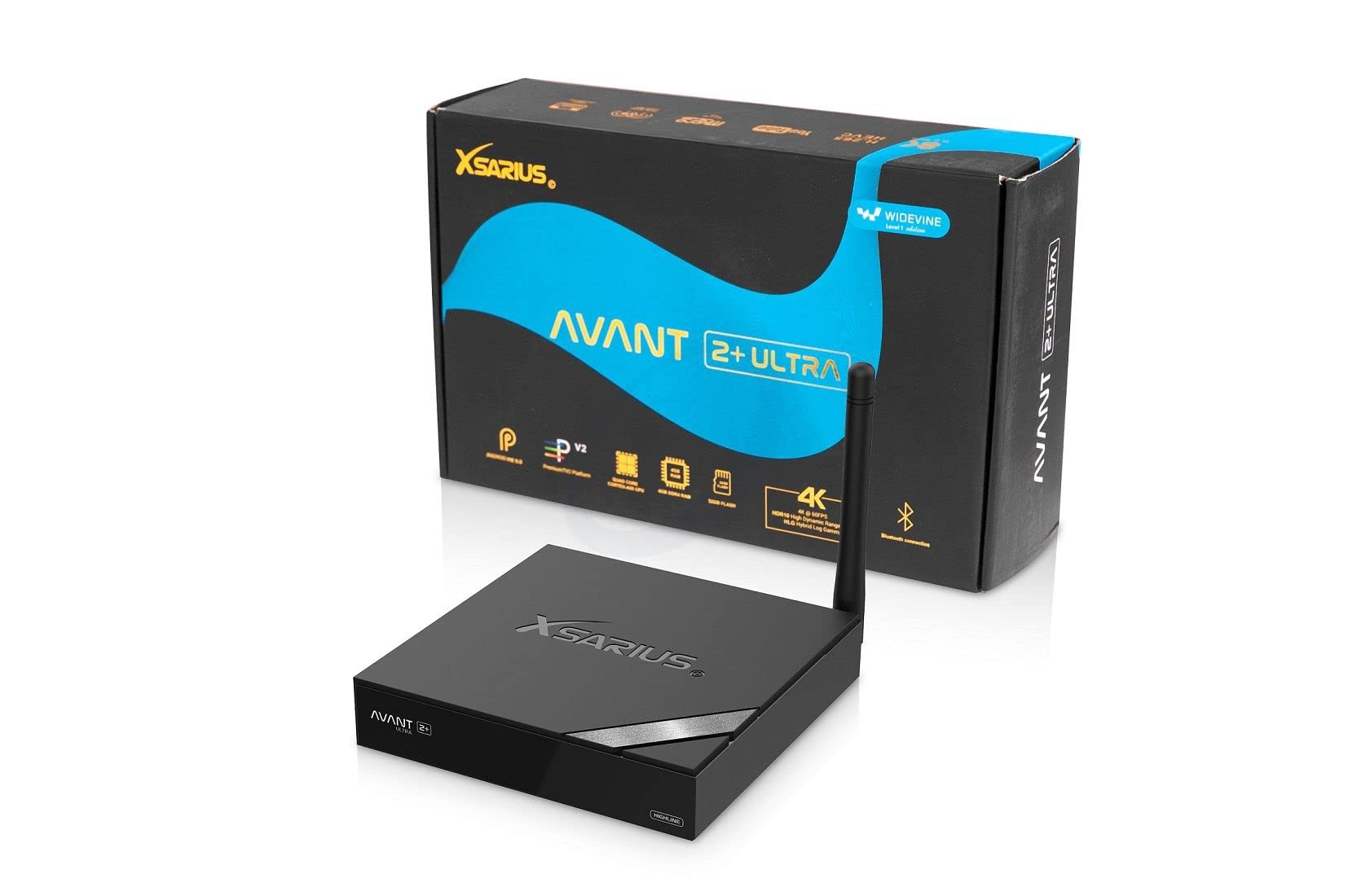
Figure 1: Front view of the Xsarius Avant 2+ Ultra IP Receiver with antenna.
2. Package Contents
Before proceeding with the setup, please ensure all items are present in the package:
- Xsarius Avant 2+ Ultra 8K UHD Android 9.0 IP Receiver
- Remote Control
- HDMI Cable
- 5V DC Power Adapter
- User Manual (this document)
3. Setup Guide
3.1 Connecting the Device
- Connect to TV: Use the provided HDMI cable to connect the HDMI port on the Xsarius Avant 2+ Ultra to an available HDMI input on your television.
- Connect Power: Plug the 5V DC power adapter into the DC IN port on the receiver, then plug the adapter into a wall outlet. The device will typically power on automatically or enter standby mode.
- Network Connection (Optional):
- Wired (LAN): Connect an Ethernet cable from your router to the LAN port on the receiver for a stable internet connection.
- Wireless (Wi-Fi): The device supports Dual-Band Wi-Fi. You will configure this during the initial setup process.
- Insert Batteries into Remote Control: Open the battery compartment on the back of the remote control and insert two AAA batteries (not included, typically) according to the polarity indicators.

Figure 2: Rear ports for power, LAN, HDMI, and digital audio output.
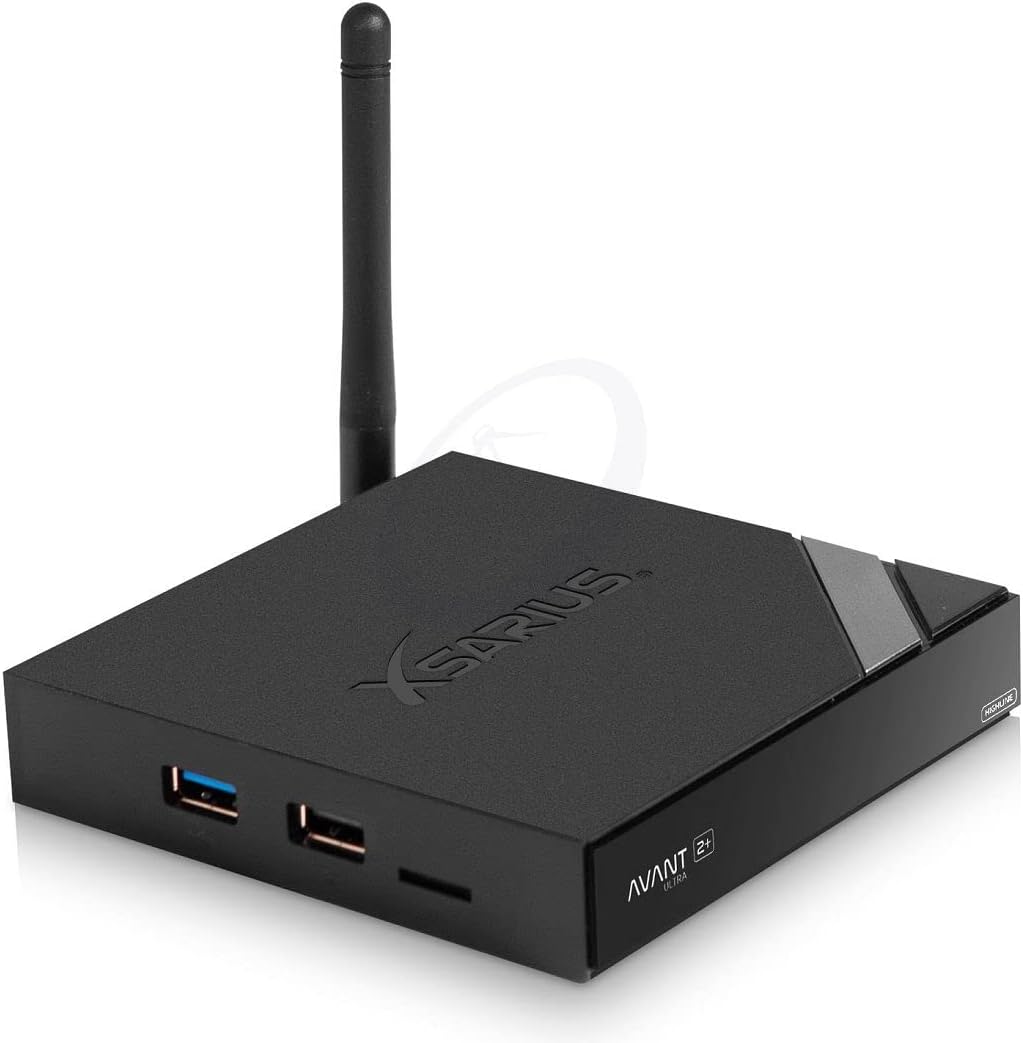
Figure 3: Side ports including USB 2.0, USB 3.0, and Micro-SD slot.
3.2 Initial Setup Wizard
Upon first power-on, the device will guide you through an initial setup wizard. Follow the on-screen instructions to configure:
- Language selection.
- Display resolution settings.
- Wi-Fi network connection (if not using wired LAN).
- Google account login (optional, for app downloads and services).
- Date and time settings.
4. Operating Instructions
4.1 Navigating the Android Interface
The Xsarius Avant 2+ Ultra runs on Android 9.0 PIE, offering a familiar and intuitive interface. Use the remote control to navigate through menus, select applications, and control media playback.

Figure 4: The remote control for the Xsarius Avant 2+ Ultra.
- Directional Pad (D-Pad): Use the arrow buttons to move between items on the screen.
- OK Button: Confirm selections or open applications.
- Back Button: Return to the previous screen or menu.
- Home Button: Return to the main Android home screen.
- Volume Buttons: Adjust the audio output level.
- Power Button: Turn the device on/off or put it into standby mode.
4.2 Media Playback
The device supports playback of various media formats, including 8K and 4K content with HDR10/HLG. Ensure your television is compatible with 4K/8K and HDR technologies to fully utilize these features.
- Streaming Services: Access pre-installed or downloadable apps like Netflix, Amazon Prime Video, and Maxdome.
- Local Media: Connect USB drives to the USB 2.0 or USB 3.0 ports, or insert a Micro-SD card into the dedicated slot to play local media files.
- Bluetooth Devices: Pair Bluetooth-enabled devices such as headphones or game controllers for an enhanced experience.
4.3 App Management
You can download and install additional applications from the Google Play Store (requires Google account login) or other compatible app stores. To manage apps, go to Settings > Apps.
5. Maintenance
- Cleaning: Use a soft, dry cloth to clean the exterior of the device. Avoid liquid cleaners or abrasive materials.
- Software Updates: Periodically check for system updates in the device settings to ensure optimal performance and access to the latest features.
- Storage Expansion: The internal storage can be expanded using a Micro-SD card inserted into the Micro-SD slot.
6. Troubleshooting
6.1 Common Issues and Solutions
- No Power:
Ensure the power adapter is securely connected to both the device and a working power outlet. Check if the power outlet is functional.
- No Video Output:
Verify the HDMI cable is correctly connected to both the receiver and the TV. Ensure the TV input source is set to the correct HDMI port. Try a different HDMI cable or TV port.
- No Audio Output:
Check the volume levels on both the receiver and your TV. Ensure audio settings on the receiver are correctly configured (e.g., HDMI audio output). If using external audio, check its connections.
- Remote Control Not Responding:
Check and replace the batteries in the remote control. Ensure there are no obstructions between the remote and the receiver's IR sensor.
- Network Connection Issues:
If using Wi-Fi, ensure the correct password is entered and the signal strength is adequate. For wired connections, check the Ethernet cable and router status. Restart your router and the receiver.
- Device Performance is Slow:
Close unused applications running in the background. Clear cache for frequently used apps. Consider a factory reset as a last resort (this will erase all data).
7. Specifications
| Model Name: | Avant 2+ Ultra |
| Operating System: | Android 9.0 PIE |
| Processor: | Quad-Core up to 1.9 GHz A55 (AmLogic S905X3, 21500 DMIPS) |
| Resolution: | 8K at 30fps, 4K at 60fps (UHD 3840 x 2160) |
| RAM: | 4 GB DDR4 |
| Internal Storage: | 32 GB eMMC (expandable via Micro-SD) |
| Connectivity: | Dual-Band Wi-Fi (2.4 & 5 GHz), Bluetooth, 1000 Mbps LAN |
| Ports: | 1x USB 2.0, 1x USB 3.0, 1x HDMI 2.0, 1x IR connector, 1x Micro-SD slot, 1x LAN, 1x S/PDIF Digital Audio Output, DC 5V Power Input |
| Power Supply: | DC 5 V / 2 A |
| Standby Power Consumption: | < 0.5 W |
| Dimensions (W x D x H): | 105 x 105 x 20 mm |
| Weight: | 175 g |
8. Support Information
For further assistance, technical support, or warranty inquiries, please refer to the official Xsarius website or contact your retailer. Keep your purchase receipt and product serial number handy when contacting support.
Online Resources:
- Official Xsarius Website: www.xsarius.com

