
RIITEK RIITEK-D2S-PEN
RIITEK PeriPage D2S Translation Pen User Manual
Model: RIITEK-D2S-PEN
1. Introduction
The RIITEK PeriPage D2S Translation Pen is a versatile electronic device designed to assist with language learning, translation, and text processing. It integrates multiple functions including text-to-speech, offline and online translation, scanning, voice recording, and MP3 playback. This manual provides comprehensive instructions for setting up, operating, and maintaining your device to ensure optimal performance.
2. Product Overview and Features
The PeriPage D2S is engineered for efficiency and ease of use, supporting a wide range of linguistic tasks.

Figure 2.1: Front and back view of the RIITEK PeriPage D2S Translation Pen.
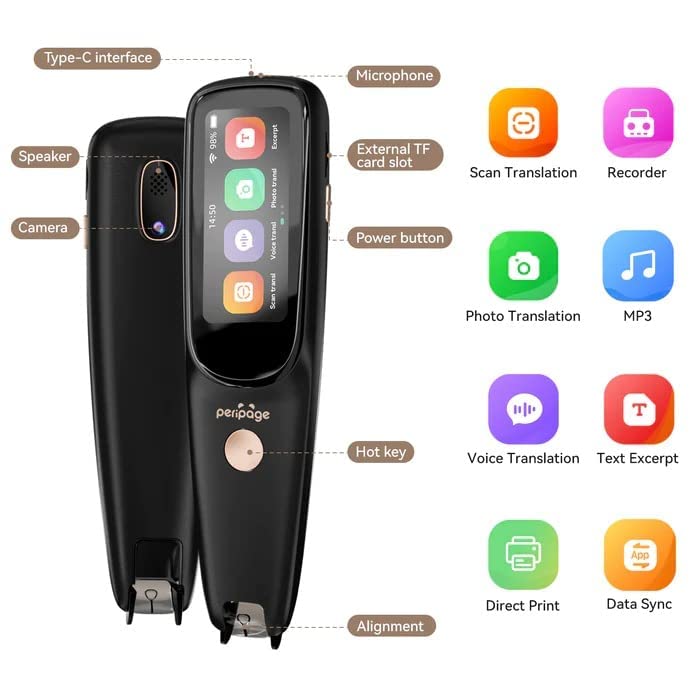
Figure 2.2: Detailed diagram of the PeriPage D2S, highlighting key components and their functions such as the speaker, microphone, camera, and various buttons.
Key Features:
- Text to Speech: Scans 3000 characters per minute, providing real-time audio playback with American and British accents. Beneficial for users with reading difficulties.
- Multi-Language Translation: Supports online OCR scanning translation in 55 languages, offline mutual translation in 4 languages (Chinese, English, Japanese, Korean), and online phonetic translation across 112 languages. Accents and speech output speed are adjustable.
- Offline/Online Capability: Functions both with and without internet connection. Full language capabilities require Wi-Fi.
- Upgraded Android System: Ensures fluent operation and precise translations. System languages increased from 4 to 9.
- Left-Handed Mode: Added for user convenience.
- Text Excerpt Function: High accuracy OCR for capturing and saving text from books, useful for students and professionals.

Figure 2.3: The PeriPage D2S functions as a translation pen, scanning pen, voice recorder, learning pen, and MP3 player.

Figure 2.4: Additional features include left/right-hand compatibility, Bluetooth earphone support, a 2.23-inch touch screen, lightweight design (60g), high-quality speaker, long battery life, and a 5MP camera.

Figure 2.5: The PeriPage D2S is suitable for diverse applications such as studying, business meetings, travel, speech recording, OCR printing, and makes a practical gift.
3. Package Contents
Please check the package for the following items:
- RIITEK PeriPage D2S Translation Pen
- USB Type-C Charging Cable
- User Manual (this document)
- (Optional) Protective Case
4. Setup Guide
4.1 Charging the Device
Before first use, fully charge the PeriPage D2S. Connect the provided USB Type-C cable to the charging port on the device and the other end to a compatible USB power adapter (not included) or a computer USB port. The charging indicator will show the charging status.
4.2 Powering On/Off
- To Power On: Press and hold the Power button (refer to Figure 2.2 for location) until the screen illuminates.
- To Power Off: Press and hold the Power button until a power-off prompt appears on the screen. Select "Power Off" to shut down the device.
4.3 Initial Setup and Wi-Fi Connection
Upon first power-on, the device will guide you through initial setup, including language selection for the system interface. To access full translation capabilities, connect the device to a Wi-Fi network:
- From the home screen, navigate to Settings.
- Select Wi-Fi.
- Toggle Wi-Fi On.
- Select your desired network from the list and enter the password if prompted.
- Once connected, the Wi-Fi icon will appear on the status bar.
5. Operating Instructions
The PeriPage D2S offers various modes accessible via its touch screen interface.

Figure 5.0: The PeriPage D2S supports scan translation, photo translation, and voice translation for comprehensive language support.

Figure 5.1: The scanning pen function allows for multiple line scans, text excerpts, direct printing, and data synchronization.

Figure 5.2: Utilize the learning pen mode for language study, vocabulary acquisition, and English-Chinese testing.
5.1 Scan Translation (Text to Speech & OCR)
This mode allows you to scan printed text and have it translated or read aloud.
- Select Scan Translation from the main menu.
- Choose your source and target languages.
- Position the pen's scanning tip over the text you wish to scan. Ensure the tip is flat against the surface.
- Slowly and steadily drag the pen across the text. The device will capture the text and display it on the screen.
- The scanned text will be translated (if a target language is selected) and can be read aloud by tapping the speaker icon.
- To enable left-handed mode, go to Settings > Left-Handed Mode and toggle it on.
5.2 Photo Translation
Translate text from images using the built-in camera.
- Select Photo Translation from the main menu.
- Position the camera over the text you want to translate, ensuring it is well-lit and clear.
- Tap the capture button on the screen. The device will process the image and display the translated text.
5.3 Voice Translation
Engage in real-time voice conversations with translation.
- Select Voice Translation from the main menu.
- Choose the two languages for mutual translation.
- Press and hold the microphone button (or designated hot key) and speak clearly into the device. Release the button when finished.
- The device will translate and speak the translation aloud.
- To adjust speech output speed, navigate to Settings > Speech Speed.
5.4 Text Excerpt and Data Sync
Capture and save important text passages.
- In Scan Translation mode, after scanning text, you can choose to save it as an excerpt.
- Saved excerpts can be accessed and managed within the device's memory.
- For data synchronization, connect the device to a computer using the USB Type-C cable. The device will appear as a removable storage device, allowing you to transfer saved text files.
5.5 Voice Recorder and MP3 Player
The device also functions as a voice recorder and MP3 player.

Figure 5.3: The device can record voice for business or speech, and play MP3 audio files.
- Voice Recorder: Select Recorder from the main menu. Tap to start/stop recording. Recordings are saved internally.
- MP3 Player: Select MP3 from the main menu. You can transfer MP3 files to the device's internal storage via USB connection.
6. Maintenance and Care
To ensure the longevity and optimal performance of your PeriPage D2S:
- Keep the device dry. Avoid exposure to water or excessive humidity.
- Clean the scanning tip and screen gently with a soft, dry, lint-free cloth. Do not use abrasive cleaners or solvents.
- Avoid dropping the device or subjecting it to strong impacts.
- Store the device in a cool, dry place when not in use.
- Regularly charge the battery to maintain its health, even if not used frequently.
7. Troubleshooting
If you encounter issues with your PeriPage D2S, refer to the following common problems and solutions:
| Problem | Possible Cause | Solution |
|---|---|---|
| Device does not power on. | Low battery; device frozen. | Charge the device for at least 30 minutes. If still unresponsive, perform a hard reset by holding the power button for 10-15 seconds. |
| Inaccurate scanning/translation. | Improper scanning technique; poor lighting; text too small/blurry; offline mode limitations. | Ensure the pen is flat and moved steadily. Provide adequate lighting. Connect to Wi-Fi for full language support. Ensure text is clear. |
| Cannot connect to Wi-Fi. | Incorrect password; out of range; network issue. | Double-check password. Move closer to the Wi-Fi router. Restart the device and router. |
| Audio output is unclear or silent. | Volume too low; speaker obstructed; Bluetooth earphone connected. | Adjust volume settings. Ensure speaker is not blocked. Disconnect Bluetooth earphones if not intended for use. |
If the problem persists, please contact customer support.
8. Specifications
| Attribute | Detail |
|---|---|
| Brand | RIITEK |
| Model Number | RIITEK-D2S-PEN |
| Color | As Shown |
| Item Weight | 200 g |
| Number of Items | 1 |
| First Available Date | 9 March 2023 |
| System | Android (Upgraded) |
| Screen Size | 2.23 inches (Touch Screen) |
| Camera | 5MP |
| Scan Speed | 3000 characters/minute |
| Online Translation Languages | 112+ (Phonetic), 55 (OCR Scanning) |
| Offline Translation Languages | 4 (Chinese, English, Japanese, Korean) |
9. Warranty and Support
For warranty information and technical support, please contact the manufacturer directly:
- Manufacturer: RIITEK
- Phone Number: +91 8885241706
- Email: care@justshop24x7.com
Please have your model number (RIITEK-D2S-PEN) and purchase details ready when contacting support.
Ask a question about this manual
Ask about setup, troubleshooting, compatibility, parts, safety, or missing instructions. Manuals+ will review the question and use this page’s manual context to help answer it.