
1. Introduction
This manual provides essential information for the proper setup, operation, and maintenance of your Ant Esports KM1600 Gaming Keyboard and Mouse Combo. Please read these instructions carefully before using the product to ensure optimal performance and longevity.
2. Package Contents
Upon opening the package, verify that all components are present and in good condition:
- Ant Esports KM1600 Wired Backlit Rainbow LED Gaming Keyboard
- Ant Esports KM1600 Wired 3200 DPI Gaming Mouse
- User Manual (this document)
Video: Unboxing the Ant Esports KM1600 Gaming Keyboard and Mouse Combo. This video demonstrates the contents of the package and initial presentation of the product.

Image: The retail packaging for the Ant Esports KM1600 Gaming Keyboard and Mouse Combo.
3. Setup
The Ant Esports KM1600 combo is designed for plug-and-play functionality, requiring no additional software installation.
- Locate an available USB port on your computer (PC or Laptop).
- Plug the USB connector of the keyboard into the USB port.
- Plug the USB connector of the mouse into another available USB port.
- The operating system will automatically detect and install the necessary drivers.
- The keyboard's rainbow LED backlighting will illuminate, and the mouse will be ready for use.
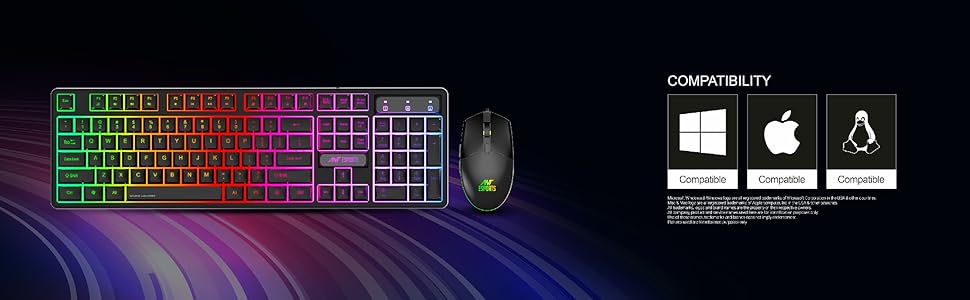
Image: The Ant Esports KM1600 combo is compatible with Windows, Mac, and Linux operating systems.
4. Operating Instructions
4.1. Keyboard Operation
The KM1600 keyboard features a standard 104-key layout with rainbow LED backlighting.
- Typing: Use the keys as you would a standard keyboard for typing and data entry.
- LED Backlighting: The keyboard features a fixed rainbow LED backlight. Specific function keys may control brightness or on/off states, typically indicated by an FN key combination (e.g., FN + Scroll Lock or FN + a dedicated light key). Refer to the keyboard's keycap legends for specific controls.

Image: The Ant Esports KM1600 keyboard showcasing its rainbow LED illumination.
4.2. Mouse Operation
The KM1600 mouse offers precise control with adjustable DPI settings.
- Basic Functions: Left-click, right-click, and scroll wheel operate as standard mouse functions.
- DPI Adjustment: The mouse features a dedicated DPI button (often located behind the scroll wheel) to cycle through different DPI settings (e.g., 800/1600/2400/3200 DPI). Adjust to your preferred cursor speed and sensitivity.
- Side Buttons: The mouse includes forward and backward side buttons for enhanced navigation in web browsers and other applications.

Image: The Ant Esports KM1600 mouse highlighting its 3200 DPI capability.

Image: Diagram illustrating the 6-button layout of the Ant Esports KM1600 mouse, including left click, right click, scroll wheel, DPI button, forward, and backward buttons.
5. Key Features
- Rainbow LED Backlighting: The keyboard features vibrant rainbow LED backlighting, enhancing visibility and aesthetic appeal in various lighting conditions.
- High DPI Gaming Mouse: The included mouse offers up to 3200 DPI, allowing for precise cursor control and quick adjustments to suit different tasks and gaming styles.
- Durable Construction: Both the keyboard and mouse are built with durable materials, designed to withstand extensive use. The keyboard is tested for over 5,000,000 keystrokes.
- Spill-Resistant Design: The keyboard features a spill-resistant design to protect against accidental liquid spills, offering peace of mind during use.
- Slim and Portable Keyboard: The keyboard's lightweight and slim profile make it easy to transport and suitable for various setups.
- Double Injection Keycaps: The keycaps are designed with double injection molding for enhanced durability and clear, long-lasting legends.
- Wide Compatibility: The combo is compatible with Windows (XP/7/8/10), Mac, and Linux operating systems, ensuring broad usability.
Video: A brief product demo highlighting the features of the Ant Esports KM1600 Gaming Keyboard and Mouse Combo, including its slim design, RGB lighting, and responsive keys.

Image: Detailed dimensions of the Ant Esports KM1600 keyboard, measuring 445mm in length, 133mm in width, and 36mm in height.
6. Maintenance
To ensure the longevity and optimal performance of your Ant Esports KM1600 combo, follow these maintenance guidelines:
- Cleaning: Use a soft, dry cloth to wipe down the keyboard and mouse regularly. For deeper cleaning, a slightly damp cloth can be used, ensuring no liquid enters the internal components.
- Avoid Harsh Chemicals: Do not use abrasive cleaners, solvents, or strong detergents, as these can damage the surface finish and internal electronics.
- Cable Care: Avoid bending or twisting the USB cables excessively to prevent internal wire damage.
- Storage: When not in use for extended periods, store the combo in a cool, dry place away from direct sunlight and extreme temperatures.
7. Troubleshooting
If you encounter any issues with your Ant Esports KM1600 combo, refer to the following common solutions:
- Keyboard/Mouse Not Responding:
- Ensure the USB cables are securely plugged into your computer's USB ports.
- Try plugging the devices into different USB ports.
- Restart your computer.
- Test the keyboard/mouse on another computer to determine if the issue is with the device or the computer.
- LED Backlighting Not Working:
- Ensure the keyboard is properly connected.
- Check if the LED function (e.g., FN + Scroll Lock or dedicated light key) has been accidentally turned off or dimmed.
- Mouse Cursor Jumps or is Erratic:
- Clean the optical sensor on the bottom of the mouse.
- Ensure you are using the mouse on a suitable surface (e.g., a mouse pad).
- Adjust the DPI setting using the DPI button.
If these steps do not resolve the issue, please contact Ant Esports customer support for further assistance.
8. Specifications
| Feature | Description |
|---|---|
| Brand | Ant Esports |
| Model | KM1600 |
| Color | Black |
| Connectivity | Wired USB |
| Keyboard Layout | 104 Keys |
| Keyboard Backlight | Rainbow LED |
| Keyboard Dimensions (LxWxH) | 44.5 x 13.3 x 3.6 cm |
| Keyboard Weight | Approx. 590 g |
| Mouse DPI | Up to 3200 DPI |
| Mouse Buttons | 6 Buttons |
| Operating System Compatibility | Windows (XP/7/8/10), Mac, Linux |
| Special Features | Backlit, Spill-Resistant Design, Double Injection Keycaps |
9. Warranty and Support
For warranty information, technical support, or any product-related inquiries, please refer to the official Ant Esports website or contact their customer service directly. Keep your purchase receipt as proof of purchase for warranty claims.
You can visit the Ant Esports Store for more information: Ant Esports Store


