1. Introduction
Welcome to the Fire-Boltt Phoenix Ultra Smartwatch user manual. This guide provides detailed instructions on how to set up, operate, maintain, and troubleshoot your device. Please read this manual carefully to ensure optimal performance and longevity of your smartwatch.
2. Safety Information
Please observe the following safety precautions to prevent damage to your device or injury to yourself:
- Do not attempt to disassemble or modify the smartwatch.
- Keep the device away from extreme temperatures, direct sunlight, and moisture.
- Use only the provided charging cable and a compatible adapter (3.7V to 5V).
- Avoid exposing the watch to strong impacts or drops.
- Consult a medical professional before starting any new exercise regimen or if you have health concerns, as the health monitoring features are for reference only and not for medical diagnosis.
3. Product Overview
The Fire-Boltt Phoenix Ultra Smartwatch is designed for a luxurious and functional experience, featuring a durable metal body and stainless steel magnetic closure straps. It offers advanced connectivity and health tracking capabilities.
3.1 Key Features
- Bigger Round Display: TFT Color Full Touch Screen with 240*240 Pixel High Resolution and 320 NITS Peak brightness.
- Bluetooth Calling: Make and receive calls directly from your watch via built-in speaker and microphone.
- 120+ Sports Modes: Track various activities effectively.
- Health Monitoring: SpO2, Heart Rate Monitoring, Sleep Monitoring, Female Health Care, Breath Training.
- AI Voice Assistant: Supports voice commands.
- Smart Notifications: Receive alerts from social media and other apps.
- Long Battery Life: Up to 7 days without Bluetooth calling, 4 days with Bluetooth calling.
- Additional Features: Inbuilt games, camera control, music control, drink water reminder, sedentary reminder, weather updates, alarm, stopwatch, timer.
3.2 Package Contents
- 1 x Fire-Boltt Phoenix Ultra Smartwatch
- 1 x Charging Cable
- 1 x Warranty Card
Video Overview
Video: An official overview of the Fire-Boltt Phoenix Ultra Smartwatch, highlighting its key features and design. Duration: 1 minute 22 seconds.
4. Setup Guide
4.1 Initial Charging
Before first use, fully charge your smartwatch. Connect the charging cable to the watch's charging points and plug the USB end into a 3.7V to 5V adapter or a laptop USB port.
- Full charge time: Approximately 3 hours.
- For a minimum 20% charge: Approximately 30-40 minutes.

Image: The back of the Fire-Boltt Phoenix Ultra Smartwatch, showing the charging points and heart rate sensor. An illustration of a battery indicates strong battery life and charging specifications.
4.2 Pairing with Your Smartphone
To unlock all features, pair your smartwatch with the companion app on your smartphone. The app name is typically "Da Fit" as mentioned in customer reviews, but please refer to the warranty card or product packaging for the exact app name and QR code.
- Download the recommended app from your smartphone's app store (Google Play Store for Android, Apple App Store for iOS).
- Ensure Bluetooth is enabled on your smartphone.
- Open the app and follow the on-screen instructions to add your device.
- Select "Fire-Boltt Phoenix Ultra" from the list of available devices.
- Confirm the pairing request on both your phone and the smartwatch.
5. Operating Instructions
5.1 Display and Navigation
The smartwatch features a full touch round display for easy navigation.
- Swipe Up/Down: Access quick settings or notifications.
- Swipe Left/Right: Navigate through different functions and widgets (e.g., heart rate, sports modes, weather).
- Tap: Select an option or open an application.
- Side Button: Press to return to the home screen or wake the display.

Image: A close-up of the Fire-Boltt Phoenix Ultra Smartwatch display, highlighting its 1.39-inch size and 240x240 pixel resolution. Below, several circular watch face designs are shown, indicating customization options.
5.2 Bluetooth Calling
Once paired, you can make and receive calls directly from your watch.
- Making a Call: Access the dial pad or contacts list on the watch to initiate a call.
- Receiving a Call: An incoming call notification will appear on the watch. Tap to answer or decline.
- Volume Control: While on a Bluetooth call, you can control the call volume directly from the watch. Note: There is no general volume control for media playback on the watch itself, only for calls.

Image: The Fire-Boltt Phoenix Ultra Smartwatch displaying its Bluetooth calling capabilities. It shows a quick dial pad, contact sync, and recent call history. An incoming call screen is also visible on the watch.
5.3 Sports Modes
The smartwatch supports over 120 sports modes for comprehensive activity tracking.
- Navigate to the Sports Modes section on your watch.
- Select your desired activity (e.g., walking, running, cycling).
- The watch will begin tracking metrics such as steps, distance, calories burned, and heart rate.
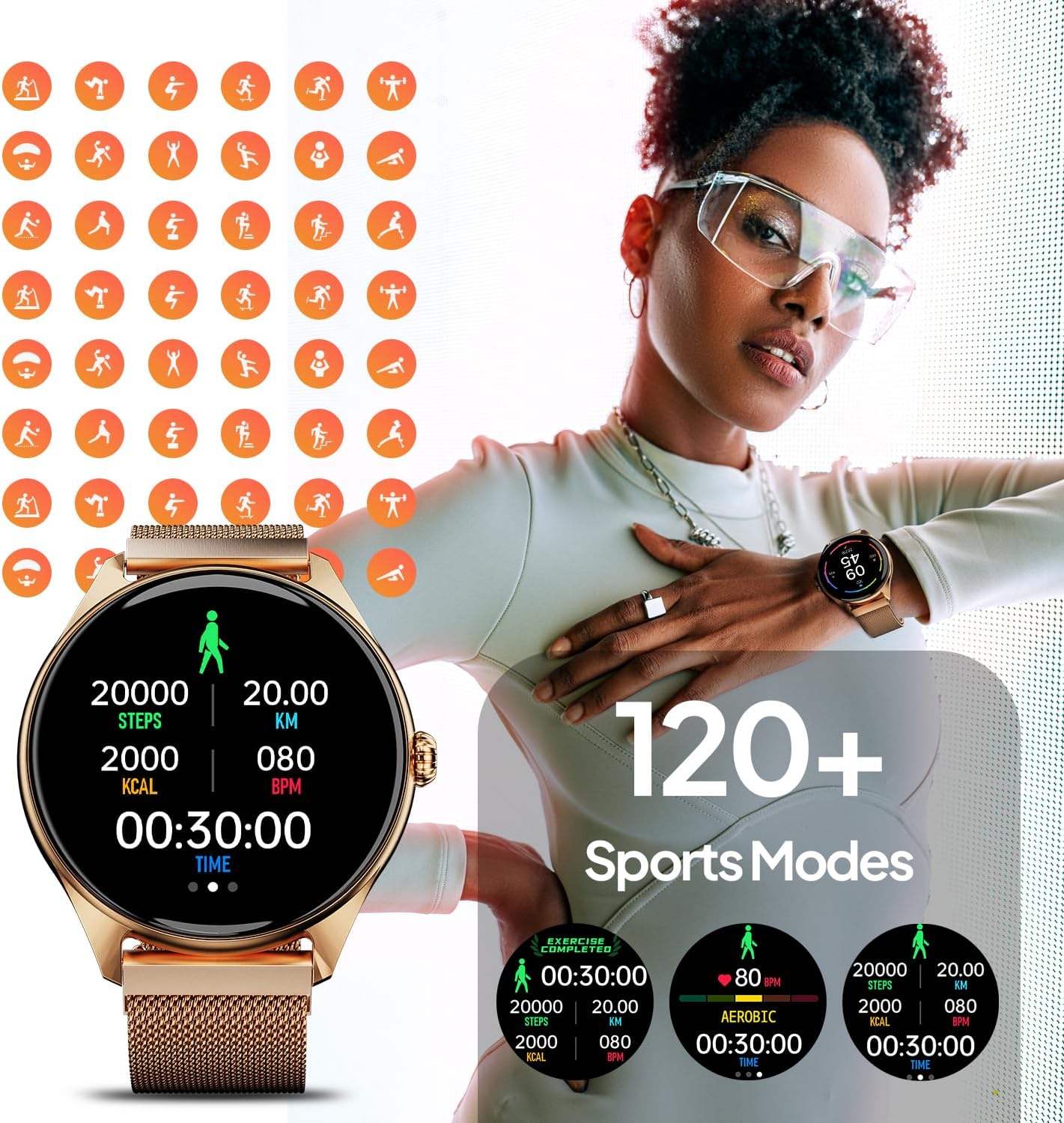
Image: A visual representation of the Fire-Boltt Phoenix Ultra Smartwatch's 120+ sports modes. The watch display shows activity metrics like steps, distance, calories, and heart rate during a workout. Various icons representing different sports are shown in the background.
5.4 Health Monitoring
Monitor your health metrics directly from your wrist.
- Heart Rate Monitoring: Access the heart rate function to measure your current heart rate.
- SpO2 Monitoring: Measure your blood oxygen saturation levels.
- Sleep Monitoring: The watch automatically tracks your sleep patterns. Note: Sleep detection is fixed from 8 PM to 10 AM.
- Female Health Care: Track menstrual cycles and related data.
- Breath Training: Guided breathing exercises for relaxation.

Image: The Fire-Boltt Phoenix Ultra Smartwatch displaying its health monitoring features, specifically SpO2 (blood oxygen) and Heart Rate tracking. The watch screen shows current readings and historical data for these metrics.

Image: The Fire-Boltt Phoenix Ultra Smartwatch highlighting its Smart Health Assistant features, including Female Health Care, Sleep Monitoring, and Breath Training. Icons represent each function, with the watch displaying sleep data.
5.5 AI Voice Assistant
Activate the AI Voice Assistant by tapping the designated icon on the watch or using a specific gesture (refer to app settings for customization). You can then use voice commands for various functions.

Image: The Fire-Boltt Phoenix Ultra Smartwatch demonstrating its Voice Assistant feature, showing an "AI voice" icon and text "Talk after tap". It also illustrates Smart Notifications from various social media and messaging apps.
5.6 Other Smart Features
- Music Control: Control music playback on your connected smartphone (play, pause, skip tracks). Music cannot be stored on the watch.
- Camera Control: Use your watch as a remote shutter for your smartphone camera.
- Inbuilt Games: Enjoy simple games like "Young Bird" and "2048" directly on your watch.
- Reminders: Set reminders for drinking water and sedentary alerts.
- Weather Updates: Get real-time weather information.
- Tools: Access stopwatch, timer, and alarm functions.

Image: The Fire-Boltt Phoenix Ultra Smartwatch showcasing its entertainment and utility features: Inbuilt Games (Young Bird, 2048), Camera Control (remote shutter), and Music Control (playback on connected phone).

Image: The Fire-Boltt Phoenix Ultra Smartwatch displaying a range of multi-function features including Drink Water Reminder, Weather Update, Sedentary Reminder, Adjust Brightness, Stopwatch, Timer, and Alarm. It also highlights IP67 Water Resistance, Shock Resistance, Highly Durable Body, and Metal Case.
6. Maintenance
Proper care ensures the longevity of your Fire-Boltt Phoenix Ultra Smartwatch.
- Cleaning: Wipe the watch and straps regularly with a soft, dry cloth. For stubborn dirt, a slightly damp cloth can be used, followed by drying.
- Water Resistance: The watch is IP67 water resistant, meaning it can withstand splashes and brief immersion. Do not wear it while swimming or showering, and avoid exposing it to hot water or steam.
- Storage: When not in use for extended periods, store the watch in a cool, dry place.
- Charging Port: Keep the charging contacts clean and free of debris to ensure efficient charging.
7. Troubleshooting
| Problem | Possible Cause | Solution |
|---|---|---|
| Watch not turning on/charging. | Low battery; improper charging connection; faulty charger. | Ensure the charging cable is securely connected. Use a 3.7V-5V adapter. Charge for at least 30-40 minutes. Try a different USB port or adapter. |
| Bluetooth connection issues. | Bluetooth off on phone/watch; watch too far from phone; app not running. | Ensure Bluetooth is enabled on both devices. Keep the watch within range of your phone. Restart the app and try pairing again. |
| Inaccurate health data. | Improper fit; sensor obstruction; not for medical use. | Ensure the watch is worn snugly on your wrist. Clean the sensor area. Remember, data is for reference only. |
| Sleep tracking not working correctly. | Sleep detection fixed to 8 PM - 10 AM. | The watch's sleep detection is designed for typical sleep schedules (8 PM to 10 AM). It may not accurately track sleep outside this window. |
| Cannot control music. | Music app not open on phone; Bluetooth not connected. | Ensure your phone's music player is active and Bluetooth is connected. |
8. Specifications
| Feature | Detail |
|---|---|
| Model Number | BSW138 |
| Display Type | TFT Color Full Touch Screen |
| Display Resolution | 240*240 Pixels |
| Peak Brightness | 320 NITS |
| Battery Life (without BT calling) | Up to 7 days |
| Battery Life (with BT calling) | Up to 4 days |
| Full Charge Time | 3 hours |
| Charging Requirement | 3.7V to 5V adapter or laptop output |
| Connectivity | Bluetooth |
| Water Resistance | IP67 |
| Dimensions | 10.83 x 1.77 x 0.47 inches |
| Item Weight | 1.94 ounces (55 Grams) |
| Operating System | Watch OS 7 |
| Memory Storage Capacity | 128 MB |
9. Warranty and Support
Your Fire-Boltt Phoenix Ultra Smartwatch comes with a warranty. Please refer to the included warranty card for specific terms and conditions, including warranty period and coverage.
For technical support, product inquiries, or warranty claims, please contact Fire-Boltt customer service. Contact information can typically be found on the warranty card, product packaging, or the official Fire-Boltt website.
Important: As noted in customer feedback, locating the serial number for warranty registration might require checking both the watch back and the product box. If you encounter issues, contact customer support.