
Introduction
This document provides instructions for the Generic Replacement Remote Control, designed for use with various Philips Signage LCD HD Displays. It is compatible with models that originally used remote controls such as Philips YKF326-019 and 398GRABDDNEPHT. This remote offers essential functions for controlling your display.
Important Note: This is a replacement unit and may not support all advanced or specific functions of your original remote control. No batteries are included with this product.
Setup: Battery Installation
To begin using your remote control, you must first install the batteries.
- Open the Battery Compartment: Locate the battery compartment cover on the back of the remote control. Slide the cover downwards or press the latch and lift to open it.
- Insert Batteries: Insert two (2) AAA batteries into the compartment. Ensure that the positive (+) and negative (-) terminals of the batteries align correctly with the indicators inside the compartment. Incorrect insertion can prevent the remote from functioning.
- Close the Compartment: Replace the battery compartment cover by sliding it back into place until it clicks securely.
- Test the Remote: Point the remote control towards your Philips display and press the Power button to verify functionality.

Image: Back view of the remote control, highlighting the battery compartment. This is where you will insert the two AAA batteries.
Operating Instructions
This remote control operates using infrared (IR) technology. For optimal performance, ensure there is a clear line of sight between the remote's IR emitter (located at the front tip) and your display's IR receiver.
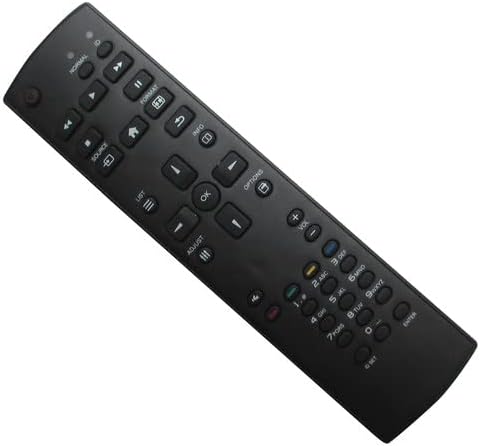
Image: Front view of the remote control, displaying all buttons.
Common Functions:
- Power Button: Turns the display on or off.
- Volume Up/Down: Adjusts the audio volume.
- Channel Up/Down: Changes the television channel (if applicable).
- Source/Input: Selects the input source (e.g., HDMI 1, HDMI 2, AV).
- Menu/Options: Accesses the display's on-screen menu or options.
- Navigation Buttons (Up, Down, Left, Right, OK): Used to navigate through menus and confirm selections.
- Number Pad: For direct channel entry or numerical input.
- Mute: Silences the display's audio.
Refer to your display's original user manual for specific functions and menu navigation details, as this replacement remote aims to replicate primary controls.
Maintenance
Proper care will extend the life of your remote control:
- Cleaning: Wipe the remote with a soft, dry cloth. Do not use liquid cleaners or abrasive materials.
- Storage: Store the remote in a dry place, away from direct sunlight, high temperatures, and humidity.
- Battery Replacement: If the remote becomes unresponsive or its range decreases, replace both AAA batteries with new ones. Remove batteries if the remote will not be used for an extended period to prevent leakage.
- Avoid Drops: Protect the remote from physical impact, as this can damage internal components.
Troubleshooting
If you experience issues with your remote control, try the following solutions:
- Remote Not Responding:
- Ensure there is a clear line of sight between the remote and the display's IR receiver.
- Check if the batteries are inserted correctly, observing the positive (+) and negative (-) polarity.
- Replace the batteries with fresh AAA batteries.
- Confirm that the display is powered on and not in standby mode.
- Limited Functionality:
- As a replacement remote, some advanced or specific functions of your original display remote may not be supported. This is normal for universal or replacement remotes.
- Ensure your display model is listed as compatible. If your model is not listed, full functionality cannot be guaranteed.
Specifications
| Brand | Generic |
| Compatible Model (Primary) | Philips YKF326-019 |
| Connectivity Technology | Infrared (IR) |
| Maximum Number of Supported Devices | 1 |
| Battery Type | AAA |
| Number of Batteries Required | 2 |
| Maximum Range | 10 Meters |
| Controller Type | Button Control |
Warranty and Support
This product comes with a 90-day warranty from the date of purchase, covering manufacturing defects.
For technical support, compatibility inquiries, or warranty claims, please contact the seller directly through your purchase platform. It is recommended to verify your display's model number against the compatible models listed in the product description before purchase.