
Introduction
This manual provides detailed instructions for the installation, operation, and maintenance of your ASHATA 4-inch 1080P Car Dash Camera DVR. Please read this manual thoroughly before using the device to ensure proper functionality and to prevent damage. Keep this manual for future reference.
Product Overview
The ASHATA Car Dash Camera is a high-definition driving recorder designed to capture video footage of your journeys. It features a 4-inch display, 1080P resolution, a 170° wide-angle lens, G-Sensor for collision detection, WDR (Wide Dynamic Range) for improved image quality, loop recording, motion detection, and parking monitoring capabilities.
Key Features:
- Full HD 1080P Recording: Captures clear video footage at 1920x1080 resolution.
- 170° Wide-Angle Lens: Provides a broad view of the road ahead.
- 3-Camera System: Includes a front camera, an in-car camera, and a rear-view camera for comprehensive coverage.
- G-Sensor (Gravity Sensor): Automatically detects sudden movements or collisions and locks the current video file to prevent overwriting.
- Loop Recording: Continuously records by overwriting the oldest unlocked files when the memory card is full, ensuring uninterrupted recording.
- Motion Detection: Automatically starts recording if movement is detected in front of the DVR when parked.
- Parking Monitoring: Activates recording if the vehicle is shaken or impacted while parked.
- WDR Technology: Enhances video quality in varying light conditions.
- 4-inch Display: Allows for real-time viewing and playback of recorded footage.
Product Components:
Familiarize yourself with the various parts of your dash camera:
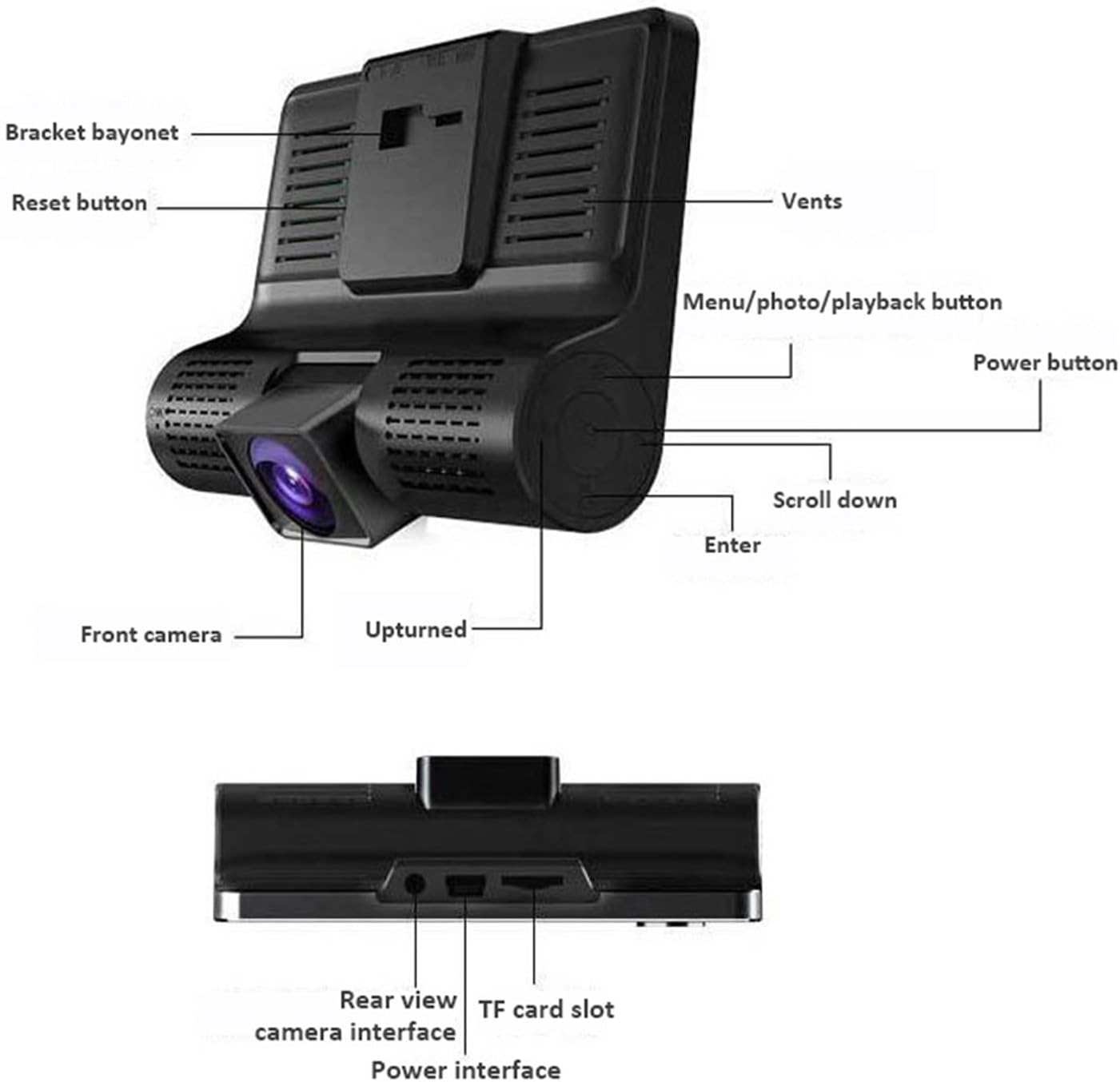
Image Description: A detailed diagram of the ASHATA dash camera, highlighting its various components including the bracket bayonet, reset button, vents, menu/photo/playback button, power button, scroll down button, enter button, front camera, and the upturned indicator. The bottom view shows the rear view camera interface, TF card slot, and power interface.

Image Description: Another view of the ASHATA dash camera, labeling the 4.0-inch IPS display screen, inside camera, navigation buttons (up, down, OK), power button, holder slot, reset button, louver, rear camera interface, power interface, TF slot, and front camera.
Setup
Package Contents:

Image Description: The complete ASHATA dash camera kit, showing the main dash camera unit, a suction cup mount, a car power adapter, a rear camera, and various connecting cables.
Before installation, ensure all components are present:
- Main Dash Camera Unit
- Suction Cup Mount
- Car Charger
- Rear Camera
- Rear Camera Cable
- User Manual (this document)
Installation Steps:
- Insert TF Card: Insert a Class 10 or higher TF (microSD) card (up to 32GB, not included) into the TF card slot on the side of the dash camera. Ensure it is inserted correctly until it clicks into place.
- Mount the Dash Camera: Attach the suction cup mount to the windshield, preferably behind the rearview mirror, ensuring it does not obstruct your view. Securely attach the main dash camera unit to the mount.
- Connect Power: Plug the car charger into your vehicle's cigarette lighter socket. Connect the other end of the charger cable to the power interface on the dash camera. Route the cable neatly along the windshield trim to avoid interference.
- Install Rear Camera (Optional): If using the rear camera, mount it on the rear windshield or near the license plate. Connect the rear camera cable to the rear camera interface on the main unit. Route the cable carefully to the back of the vehicle.
- Adjust Camera Angle: Power on the vehicle. The dash camera should automatically turn on and begin recording. Adjust the front camera lens angle to ensure it captures the road ahead clearly. Adjust the rear camera angle if installed.
Operating Instructions
Basic Operation:
- Power On/Off: The camera typically powers on automatically when the vehicle starts and powers off when the ignition is turned off. You can manually power it on/off by pressing and holding the Power button.
- Start/Stop Recording: Once powered on, the camera will automatically start loop recording. A red dot or recording icon on the screen indicates active recording. Press the OK button to manually start or stop recording.
- Switch Camera Views: During recording, press the Up/Down buttons to cycle through different camera views (front, in-car, rear, picture-in-picture combinations).
- Menu Navigation: Press the Menu/Mode/Playback button to enter the menu settings. Use the Up/Down buttons to navigate through options and the OK button to select. Press the Menu/Mode/Playback button again to exit the menu.
Advanced Features:
The dash camera includes several advanced features to enhance your driving safety and recording experience:
- Loop Recording: This feature ensures continuous recording. When the memory card is full, the camera automatically overwrites the oldest unlocked video files. You can set the loop recording duration (e.g., 1, 3, 5 minutes) in the settings.

Image Description: This image illustrates two key features: G-sensor based collision detection, where a collision automatically locks video files, and loop recording, which ensures continuous recording by overwriting old files.
- G-Sensor (Collision Detection): The built-in G-Sensor detects sudden acceleration, braking, or impacts. When triggered, it automatically locks the current video segment, preventing it from being overwritten by loop recording. The sensitivity of the G-Sensor can be adjusted in the settings.
- Motion Detection: When enabled in the settings, the camera will automatically start recording if it detects movement in its field of view while the vehicle is parked. This is useful for monitoring your vehicle when you are away.
- Parking Monitoring: If the camera detects a shake or impact to the vehicle while parked and the ignition is off, it will automatically power on and record a short video segment. This feature requires a continuous power supply or the camera's internal battery to be charged.

Image Description: A composite image explaining four features: Cyclic Recording (loop recording), G-Sensor (locking footage during impact), Moving Detection (recording when motion is detected), and Parking Monitoring (recording if the car is disturbed while parked).
Playback:
To view recorded videos or photos:
- Stop recording by pressing the OK button if it's currently recording.
- Press the Menu/Mode/Playback button repeatedly until you enter playback mode.
- Use the Up/Down buttons to navigate through your recorded files.
- Press the OK button to play a selected video or view a photo.
- Press the Menu/Mode/Playback button to exit playback mode.
Maintenance
- Cleaning the Lens: Regularly clean the camera lenses with a soft, lint-free cloth to ensure clear video quality. Avoid using abrasive cleaners.
- Cleaning the Screen: Use a soft, dry cloth to clean the display screen.
- Memory Card Management: It is recommended to format the TF card periodically (e.g., once a month) through the camera's settings menu to maintain optimal performance and prevent data corruption. Back up any important files before formatting.
- Operating Temperature: Avoid exposing the dash camera to extreme temperatures for extended periods, as this can affect battery life and device performance.
Troubleshooting
If you encounter issues with your ASHATA Dash Camera, refer to the following common problems and solutions:
- Camera not turning on:
- Ensure the car charger is properly connected to both the camera and the vehicle's power outlet.
- Check if the vehicle's cigarette lighter socket is functioning.
- The internal battery might be depleted. Charge the camera for a few hours.
- Camera not recording:
- Check if a TF card is inserted and properly seated.
- Ensure the TF card is not full. Format the card if necessary (back up important files first).
- Verify that loop recording is enabled in the settings.
- The TF card might be faulty or too slow. Use a Class 10 or higher TF card.
- Video footage is blurry or unclear:
- Clean the camera lens with a soft cloth.
- Ensure the protective film has been removed from the lens.
- Check if the windshield is clean where the camera is mounted.
- G-Sensor is too sensitive or not sensitive enough:
- Adjust the G-Sensor sensitivity level in the camera's settings menu.
- Camera freezes or malfunctions:
- Press the Reset button (usually a small pinhole, refer to the product overview image for location) using a thin object like a paperclip.
- Update the firmware if a new version is available (check the manufacturer's website).
Specifications
| Feature | Specification |
|---|---|
| Brand | ASHATA |
| Model Number | ASHATAbigdpv1h4x |
| Display Screen | 4.0 inch IPS Display |
| Video Resolution | 1080P (1920x1080) |
| Lens Angle | 170 Degrees (Ultra Wide Angle) |
| Memory Card Support | TF Card, up to 32GB (Class 10 or higher recommended) |
| G-Sensor | Yes |
| Loop Recording | Yes |
| Motion Detection | Yes |
| Parking Monitor | Yes |
| WDR | Yes |
| Batteries Included | Yes |
| Auto Part Position | Rear, Front |
Warranty and Support
Specific warranty information for the ASHATA 4-inch 1080P Car Dash Camera DVR is not provided in the product data. For warranty details, technical support, or customer service inquiries, please refer to the official ASHATA website or contact your retailer directly.