
VIZONY SQ6
VIZONY SQ6 Projector User Manual
Model: SQ6
1. Introduction
Thank you for purchasing the VIZONY SQ6 Projector. This manual provides essential information for setting up, operating, and maintaining your projector to ensure optimal performance and longevity. Please read this manual thoroughly before using the product and retain it for future reference.
2. What's Included
Upon unboxing, please verify that all items listed below are present and in good condition:
- 1 x VIZONY SQ6 FHD 1080P WiFi Bluetooth Projector
- 1 x Remote Control
- 1 x HDMI Cable
- 1 x Power Cord
- 1 x AV Cable
- 1 x User Manual (this document)
- 1 x Carrying Bag
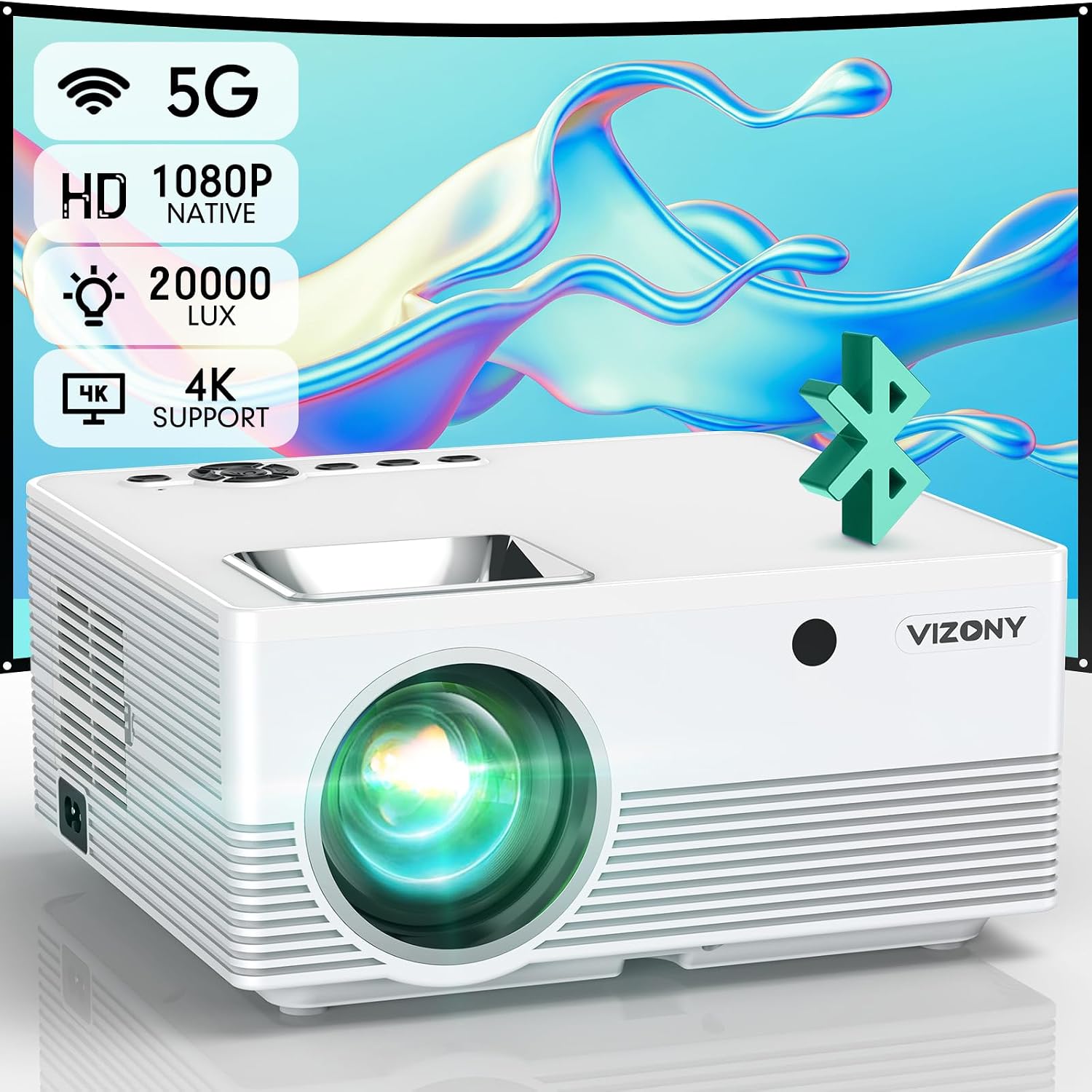
3. Product Overview
The VIZONY SQ6 is a high-performance projector designed for versatile home entertainment and professional presentations. It features native 1080P resolution with 4K support, dual-band WiFi, Bluetooth 5.1, and powerful built-in speakers.
3.1 Key Features
- Native 1080P Resolution & 4K Support: Delivers crisp, clear images with 1920x1080P native resolution and compatibility with 4K content.
- High Brightness & Contrast: Boasts 600 ANSI lumens brightness and a 12000:1 contrast ratio for vibrant and detailed visuals.
- Dual-Band WiFi (2.4G/5G): Ensures stable and fast wireless screen mirroring from your mobile devices.
- Bluetooth 5.1: Allows seamless connection to external Bluetooth speakers or headphones for enhanced audio.
- Large Display & Zoom Function: Projects screen sizes from 40" to 350" with a convenient 75% zoom feature.
- Integrated Stereo Speakers: Built-in 10W dual Hi-Fi stereo speakers provide immersive sound.
- Multiple Connectivity Options: Equipped with 2x HDMI, 2x USB, AV, and Audio ports for wide compatibility.
- Low-Noise Fan & Night Mode: Advanced cooling system reduces noise, and Night Mode optimizes viewing for eye protection.


4. Setup Guide
4.1 Placement
Choose a flat, stable surface for the projector. Ensure there is adequate ventilation around the device. The optimal projection distance ranges from 3.3 feet to 29 feet (approximately 1 to 9 meters) to achieve a screen size of 40 to 350 inches.
4.2 Power Connection
Connect the provided power cord to the projector's power input and then to a power outlet. The power indicator light will illuminate.
4.3 Initial Power On & Focus Adjustment
Press the power button on the projector or the remote control to turn on the device. Adjust the focus ring on top of the projector until the image appears clear and sharp on the screen.

4.4 Keystone Correction
If the projected image appears trapezoidal, use the keystone correction dial (usually next to the focus ring) to adjust it until the image is rectangular. This corrects distortion when the projector is not perfectly perpendicular to the screen.
5. Operating Instructions
5.1 Navigating the Interface
The projector features an intuitive home screen. Use the directional buttons on the remote or the projector's top panel to navigate through options like HDMI1, HDMI2, AV, Screen Mirroring, Setup, Movie, Photo, Music, and Text.
5.2 Connecting External Devices
The VIZONY SQ6 offers multiple ways to connect your devices:
- HDMI Ports (HDMI1/HDMI2): Connect TV sticks, laptops, gaming consoles (PS5, Xbox), or Blu-ray players.
- USB Ports: Insert USB flash drives to play movies, view photos, or listen to music directly.
- AV Port: Connect older devices using the provided AV cable.
- Audio Out: Connect external speakers or headphones via the 3.5mm audio jack.
5.3 Wireless Screen Mirroring (2.4G/5G WiFi)
The projector supports wireless screen mirroring for iOS and Android devices. This allows you to project your phone or tablet screen directly onto the large display.
- On the projector's home screen, select "Screen Mirroring".
- Choose "iOS Screen" for Apple devices or "Android Screen" for Android devices.
- Follow the on-screen instructions to connect your mobile device to the projector's WiFi network (or your home WiFi if prompted).
- On your mobile device, enable screen mirroring/casting and select the VIZONY projector from the list of available devices.
Important Note: Due to copyright restrictions, streaming services like Netflix, Amazon Prime Video, Hulu, etc., do not support direct screen mirroring from mobile devices. To watch content from these platforms, please connect a TV stick (e.g., Amazon Fire Stick, Roku Stick) or a laptop via HDMI.

5.4 Bluetooth Connection
Connect your VIZONY SQ6 Projector to external Bluetooth speakers or headphones for a more immersive audio experience.
- On the projector, navigate to "Setup" and then "Sound Settings".
- Enable Bluetooth and search for available devices.
- Select your Bluetooth speaker/headphone from the list to pair.

5.5 Zoom Function
To adjust the image size without moving the projector, use the 75% zoom function via the remote control. This allows you to fine-tune the display to fit your screen or wall perfectly.
5.6 Night Mode
Activate Night Mode in the settings to reduce brightness and fan noise, providing a more comfortable viewing experience in dark environments while protecting your eyes.
6. Maintenance & Care
- Cleaning the Lens: Use a soft, lint-free cloth or lens cleaning paper to gently wipe the projector lens. Avoid abrasive materials or harsh chemicals.
- Cleaning the Exterior: Wipe the projector's exterior with a soft, dry cloth. Do not use liquid cleaners directly on the surface.
- Filter Cleaning: Regularly check and clean the air filter to prevent dust buildup, which can affect performance and lifespan. Refer to the filter access panel on the side of the projector.
- Storage: When not in use for extended periods, store the projector in its carrying bag in a cool, dry place to protect it from dust and damage.
7. Troubleshooting
7.1 No Image or Poor Image Quality
- Ensure the power cord is securely connected and the projector is turned on.
- Check the input source: Verify that the correct HDMI, AV, or USB input is selected.
- Adjust focus and keystone correction for clarity and proper image shape.
- Ensure the projection surface is flat and clean.
- Check ambient light: Reduce room lighting for optimal brightness and contrast.
7.2 No Sound or Low Sound
- Adjust the volume on the projector and the connected device.
- Check audio cables (AV or HDMI) for secure connections.
- If using Bluetooth, ensure the external speaker/headphone is properly paired and its volume is up.
- Verify that the projector's internal speakers are not muted in the sound settings.
7.3 Screen Mirroring Issues
- Ensure both the projector and your mobile device are connected to the same WiFi network (or directly to the projector's hotspot if applicable).
- Restart both the projector and your mobile device.
- Confirm your streaming app (e.g., Netflix, Amazon Prime Video) is not blocking mirroring due to copyright protection. Use a TV stick or HDMI connection for these services.
Video 7.1: Easy steps for WiFi screen mirroring with iOS and Android phones.
7.4 Remote Control Not Working
- Replace the batteries in the remote control.
- Ensure there are no obstructions between the remote and the projector's IR sensor.
- Point the remote directly at the projector's front or rear IR sensor.
8. Specifications
| Feature | Specification |
|---|---|
| Brand | VIZONY |
| Model Number | SQ6 |
| Native Resolution | 1920 x 1080P (Full HD) |
| Supported Resolution | Up to 4K |
| Brightness | 600 ANSI Lumens / 20000 Lux |
| Contrast Ratio | 12000:1 |
| Projection Size | 40" - 350" |
| Projection Distance | 3.3 ft - 29 ft (1m - 9m) |
| Zoom Function | 75% |
| WiFi Connectivity | 2.4G / 5G Dual-Band |
| Bluetooth | Bluetooth 5.1 |
| Speakers | Built-in 10W Dual Hi-Fi Stereo Speakers |
| Ports | 2x HDMI, 2x USB, 1x AV, 1x Audio Out |
| Dimensions | 8.8 x 8 x 4.1 inches |
| Weight | 5.19 pounds |
9. Warranty & Support
VIZONY provides professional and reliable technical support for its products. For any questions, issues, or warranty claims, please contact VIZONY customer service through the platform where you purchased the product or refer to the contact information provided in the product packaging.
Please retain your proof of purchase for warranty service.
Related documentsSQ6


Ask a question about this manual
Ask about setup, troubleshooting, compatibility, parts, safety, or missing instructions. Manuals+ will review the question and use this page’s manual context to help answer it.