
Introduction
This manual provides comprehensive instructions for setting up, operating, maintaining, and troubleshooting your EVDO-LINK Verizon Wireless Jetpack Inseego MiFi 8800L mobile hotspot. This device offers portable 4G LTE Wi-Fi connectivity, suitable for various uses including travel, business, and home backup internet. Please read this manual carefully to ensure optimal performance and longevity of your device.
What's Included
Your EVDO-LINK Verizon Wireless Jetpack Inseego MiFi 8800L package should contain the following items:
- Hotspot Device with 1 Stock Battery
- QC Charger with USB Type C Cable
- Verizon SIM card (requires data plan)

Figure 1: Package Contents of the MiFi 8800L Jetpack.
Device Overview
Front Panel and Display
The front of the Jetpack features a touchscreen display that provides essential information and allows for device configuration. Key indicators include:
- Cellular Signal Strength: Indicates the strength of the 4G LTE connection.
- Wi-Fi Status: Shows if Wi-Fi is active and connected.
- Data Transmission Activity: Lights up when data is being sent or received.
- Traffic Counter: Displays data usage.
- Battery Charge Level: Shows the current battery percentage.
- Number of Users: Indicates how many devices are connected.
- Wi-Fi Name and Password: Displays the SSID and password for connecting devices.
- Router Settings Menu: Access advanced settings.
- Help Menu: Provides on-device assistance.
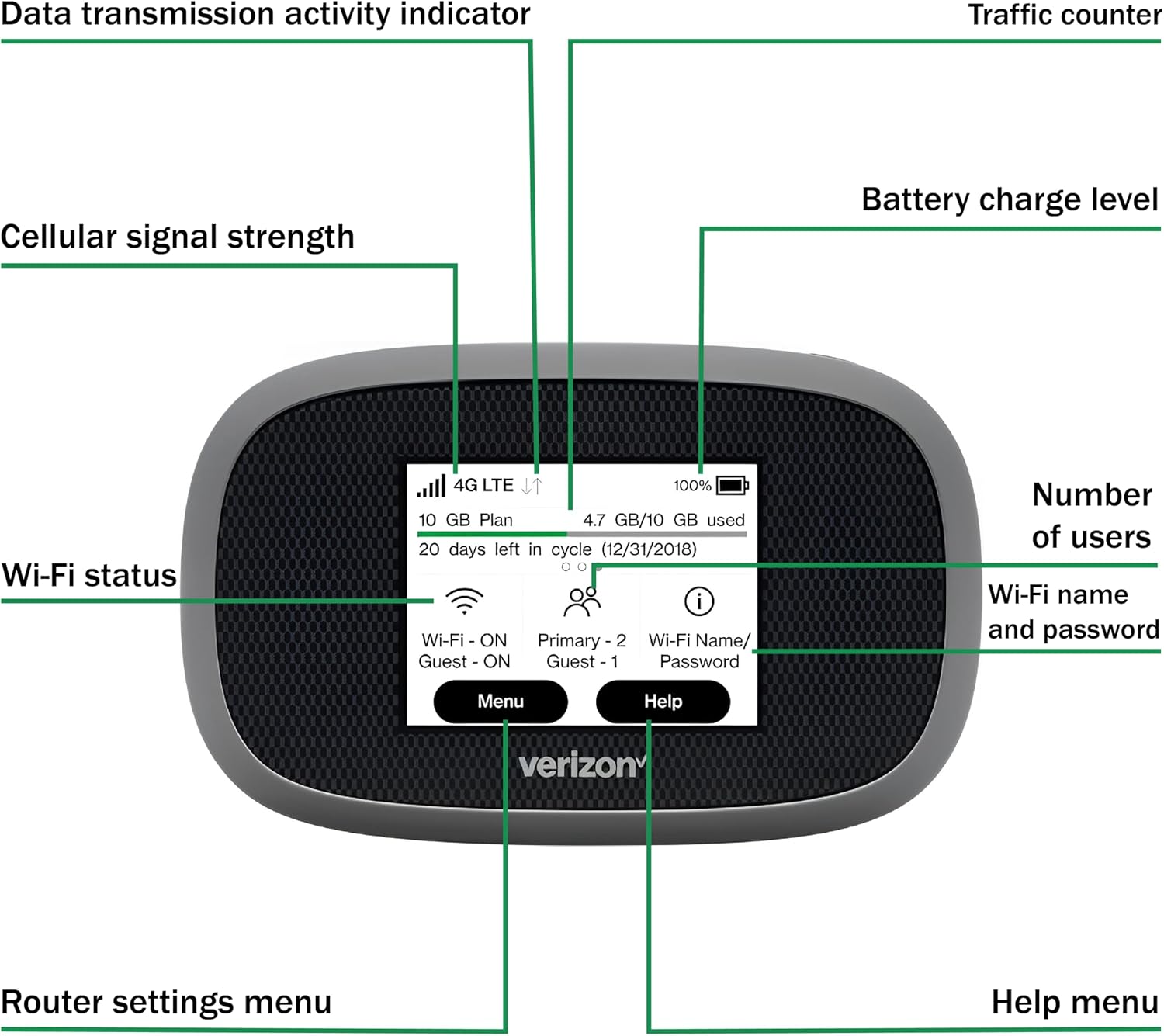
Figure 2: MiFi 8800L Front Display and Indicators.
Side Ports and Buttons
The sides of the device feature important ports and buttons for power and external connections:
- Power Button: Used to turn the device on/off and wake the screen.
- QuickCharge Port (USB-C): For charging the device and providing internet over USB-C (MiFi Share).
- Antenna TS-9 Ports (Port 1 & Port 2): Two connectors for optional external MIMO amplifying antennas (not included) to enhance signal in areas with poor coverage.

Figure 3: MiFi 8800L Side View with Ports.
Setup and Activation
1. SIM Card Installation
Before using your Jetpack, you must install the provided Verizon SIM card. Ensure the device is powered off before opening the SIM card slot. Refer to the device's physical manual for exact SIM card tray location and insertion instructions.
2. Verizon Activation Guide
To activate your Verizon-compatible mobile hotspot, follow these steps:
- Gather Necessary Information:
- Locate your device's IMEI number and the SIM Card ICCID number on the device's packaging box. (Note 1: Another way to find IMEI and SIM ICCID: Remove the battery, then view the IMEI printed inside the battery compartment. SIM card ICCID 20-digit number is printed on the back of a SIM holder.)
- Copy these numbers for reference.
- Begin Activation:
- Go to Verizon's Bring Your Own Device (BYOD) page: https://www.verizon.com/bring-your-own-device/
- Scroll to the bottom and click the "Connect with an expert" button.
- Provide Details to the Live Agent:
When connected with a Verizon live agent, share the following details:
- Inform them that you have purchased a Mobile Hotspot bundled with a Verizon SIM card.
- Request assistance in purchasing a suitable data plan for your hotspot.
- Customer Identification:
- Indicate whether you are a new Verizon customer or an existing customer. (Note 2: For new customers: If you are not a resident and do not have either a Tax Identification Number (TIN) or a Social Security Number, please ask a chat agent to provide you with a registration form for non-residents.)
- The agent will guide you through the appropriate verification process based on your customer status and location.
- Mobile Number Assignment:
- Provide the IMEI number and SIM Card ICCID number from the device packaging.
- The agent will assign a mobile number to your SIM Card ICCID.
- Complete Payment and Activation:
- The agent will send you a payment link for the data plan you have chosen. (Note 3: To ensure a successful checkout, please make sure to enter the same ZIP code in both the registration form (for new customers) and the payment link during checkout.)
- After a successful checkout, restart your device to initiate activation.
- Allow 1-2 hours for your data plan to be fully activated and added to your account.
- Start Using Your Hotspot:
- Once activation is complete, your Mobile Hotspot is ready for use with your new prepaid data plan.
Figure 4: Verizon Activation Guide (Part 1).

Figure 5: Verizon Activation Guide (Part 2).
Operation
Connecting Devices
Once your Jetpack is activated and powered on, you can connect up to 15 Wi-Fi enabled devices. Locate the Wi-Fi network name (SSID) and password displayed on the Jetpack's screen or on the device label. Select the network on your device and enter the password to connect.

Figure 6: Connecting to the Jetpack Wi-Fi.
VPN Functionality
The Jetpack includes an integrated VPN function, allowing you to configure your virtual location. This can be useful for accessing region-restricted content or maintaining privacy. Free activation requires technical skills; contact support for assistance. If using a paid VPN subscription, your provider will offer specific activation details.
Battery Life and Charging
The device is equipped with a 4400 mAh battery, providing up to 10 hours of active use and 24 hours of standby. Quick Charge (QC) technology allows for a full charge in approximately 2.5 hours. The Jetpack can also function as a power bank to recharge other devices via its USB-C port.
APN Configuration for AT&T Compatibility
While primarily designed for Verizon, this unlocked hotspot can be configured to work with other US carriers like AT&T by adjusting the Access Point Name (APN) settings. Follow these steps to change the APN:
- Connect to the Hotspot: Connect your computer or another device to the Jetpack's Wi-Fi network.
- Access Device Settings: Open a web browser and type 192.168.1.1 into the address bar, then press Enter. This will open the Jetpack's device settings page.
- Sign In: Navigate to the "Administrator" or "Settings" section. You will be prompted to enter the administrator password. This password is the same as the Wi-Fi password used to connect to the internet, which is displayed on your modem's screen.
- Go to Jetpack Settings: After successfully signing in, click on "Jetpack Settings" on the homepage.
- Access Advanced Settings: In the Jetpack Settings, click on "Advanced" and then "Continue" to proceed past the warning message.
- Locate APN Settings: Within the Advanced settings, navigate to the "Networks" tab. Here you will find the "APN Settings" section.
- Change APN: In the APN field, delete the existing word (e.g., "nxtgenphone") and type BROADBAND.
- Save Changes and Restart: Click "Save Changes." After the changes are saved successfully, restart your Jetpack device. Once it powers back on, your modem should be connected and ready to work with AT&T.
Video 1: How to set up APN on your Verizon device for AT&T compatibility. This video demonstrates the step-by-step process of accessing the modem's settings, logging in, navigating to APN settings, and changing the APN to "BROADBAND" to enable AT&T network usage.
Maintenance
Battery Care
- To prolong battery life, avoid exposing the device to extreme temperatures.
- Charge the device using only the provided QC charger and USB Type C cable.
- If storing the device for an extended period, charge it to approximately 50% and store in a cool, dry place.
Cleaning
- Wipe the device with a soft, dry cloth. Do not use liquid cleaners or abrasive materials.
- The device has a dust and water-resistant housing, but it is not waterproof. Avoid submerging it in water.
Troubleshooting
| Issue | Possible Cause | Solution |
|---|---|---|
| No Internet Connection |
|
|
| Device Overheating |
|
|
| Cannot Connect to Wi-Fi |
|
|
Specifications
| Feature | Detail |
|---|---|
| Brand | EVDO-LINK |
| Model Name | 8800L |
| Manufacturer | Inseego |
| Connectivity Technology | LTE, USB, Wi-Fi |
| Wireless Communication Standard | 802.11a (Wi-Fi 5) |
| Frequency Band Class | Dual-Band |
| Data Transfer Rate | Up to 1200 Mbps (Near 5G) |
| Battery Capacity | 4400 mAh |
| Battery Life (Active Use) | Up to 10 hours |
| Charging Time | Approx. 2.5 hours (with QC charger) |
| Antenna Ports | 2 x TS-9 (for external MIMO antenna) |
| VPN Feature | Integrated VPN function for virtual location configuration |
| Display | Informative touchscreen |
| Dimensions (L x W x H) | 2.4"L x 2.4"W x 2.4"H |
| Item Weight | 0.34 Kilograms |
| Operating System | Linux/RouterOS |
| Security Protocol | WPA, WPA2 |
| Coverage | Global (180+ countries, 17 LTE bands, 5 3G bands) |
Warranty and Support
Warranty Information
The EVDO-LINK Verizon Wireless Jetpack Inseego MiFi 8800L comes with a 1-Year Warranty from the manufacturer. Please retain your proof of purchase for warranty claims.
Customer Support
For technical assistance, troubleshooting, or warranty inquiries, please contact EVDO-LINK customer support. Refer to the product packaging or the seller's information on Amazon for specific contact details.
For Verizon-specific service questions, including data plans and activation, please contact Verizon customer service directly.
