
1. Introduction
This manual provides essential information for the safe and efficient operation of your LG 98UH5J-H 4K UHD Standard Signage display. Please read this manual thoroughly before using the product and retain it for future reference. The LG 98UH5J-H is a high-resolution display designed for professional signage applications, offering a 4K UHD resolution for clear and vibrant visuals.
2. Safety Information
Observe the following safety precautions to prevent electric shock, fire, or damage to the product.
- Do not expose the display to rain or moisture.
- Ensure proper ventilation to prevent overheating.
- Only use the power cord supplied with the unit.
- Do not block ventilation openings.
- Refer all servicing to qualified service personnel.
- Keep the display away from direct sunlight and heat sources.
3. Package Contents
Verify that all items are present in the package:
- LG 98UH5J-H 4K UHD Standard Signage Display
- Power Cord
- Remote Control (with batteries)
- User Manual (this document)
- Warranty Card
- Mounting Screws (if applicable for included stand/mount)
4. Setup
4.1 Unpacking and Placement
Carefully remove the display from its packaging. Place the display on a stable, level surface or mount it securely using a compatible VESA mount (sold separately). Ensure adequate space around the display for ventilation.
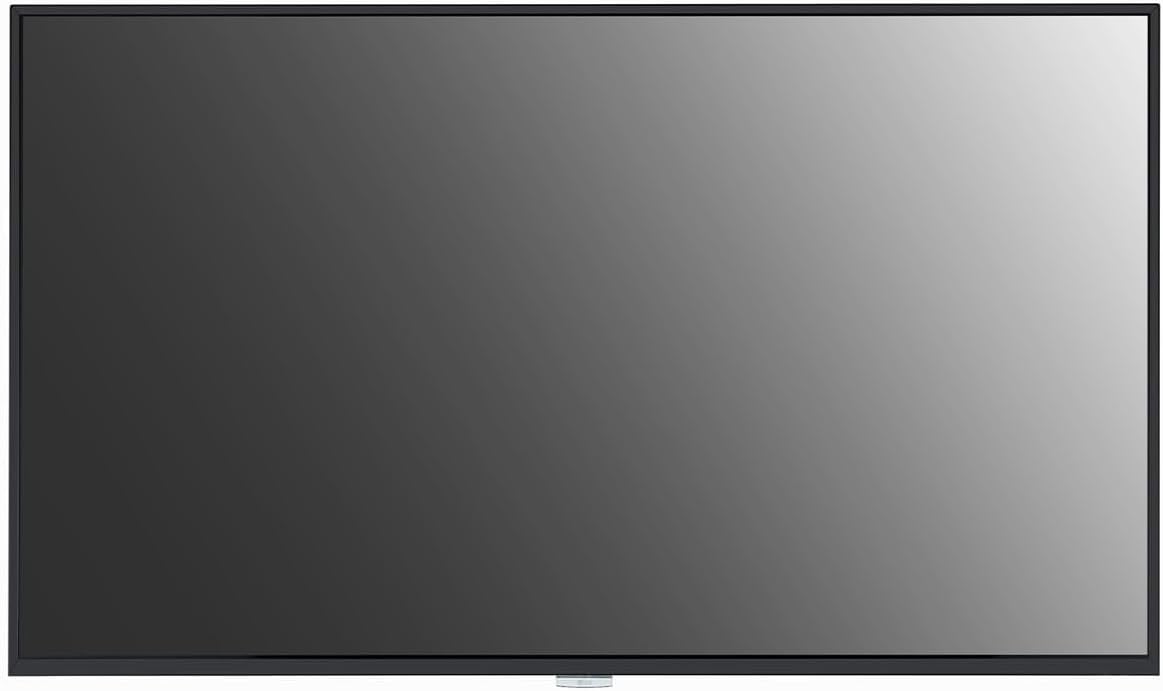
Figure 4.1: Front view of the LG 98UH5J-H display. This image shows the large, black-framed screen from a direct frontal perspective, highlighting its expansive display area.

Figure 4.2: Side view of the LG 98UH5J-H display. This image illustrates the slim profile of the display when viewed from an angle, emphasizing its modern design.
4.2 Connecting Cables
Connect the power cord to the display and a grounded electrical outlet. Connect your video source (e.g., PC, media player) to the appropriate input ports on the display using HDMI, DisplayPort, or other compatible cables.

Figure 4.3: Rear view of the LG 98UH5J-H display. This image displays the back panel, highlighting the arrangement of various input and output ports on the right side.

Figure 4.4: Close-up of the connectivity panel. This detailed view shows the various ports, including HDMI, DisplayPort, USB, and audio jacks, clearly labeled for connection.
Ensure all connections are secure before powering on the display.
4.3 Initial Power-On
Press the power button on the display or the remote control. The display will power on and typically show the LG logo before displaying the input source. If no signal is detected, the display may enter a power-saving mode or show a "No Signal" message.
5. Operating Instructions
5.1 Basic Controls
The display can be controlled using the remote control or the physical buttons on the unit. Common functions include:
- Power: Turns the display on or off.
- Input: Selects the desired input source (HDMI1, HDMI2, DisplayPort, etc.).
- Menu: Accesses the on-screen display (OSD) menu.
- Navigation Buttons: Used to navigate through menu options.
- OK/Enter: Confirms selections in the menu.
5.2 Menu Navigation and Settings
Press the Menu button on the remote control to access the OSD. Use the navigation buttons to browse categories such as Picture, Audio, General, and Network. Press OK/Enter to select an option and adjust settings like brightness, contrast, color temperature, and aspect ratio.

Figure 5.1: Display showing example content. This image illustrates the display actively showing a detailed graphical presentation, demonstrating its visual capabilities.
5.3 Connectivity (Wi-Fi)
The LG 98UH5J-H supports Wi-Fi connectivity. To connect to a wireless network:
- Access the OSD menu.
- Navigate to the Network settings.
- Select Wi-Fi Connection and enable it.
- Choose your desired network from the list and enter the password if required.
6. Maintenance
6.1 Cleaning the Display
To clean the display screen, gently wipe it with a soft, lint-free cloth. For stubborn marks, slightly dampen the cloth with water or a non-abrasive screen cleaner. Avoid using harsh chemicals or abrasive materials. Ensure the display is powered off and unplugged before cleaning.
6.2 Software Updates
Periodically check for software updates to ensure optimal performance and access to new features. Updates can typically be found in the General or Support section of the OSD menu, or downloaded from the official LG website.
7. Troubleshooting
If you encounter issues with your display, refer to the following common problems and solutions:
| Problem | Possible Cause | Solution |
|---|---|---|
| No power | Power cord disconnected; power outlet issue. | Ensure power cord is securely connected. Test the outlet with another device. |
| No signal | Incorrect input source selected; video cable disconnected. | Select the correct input source. Check video cable connections. |
| Poor image quality | Incorrect resolution; display settings. | Adjust resolution on the source device. Calibrate display settings (brightness, contrast). |
| Remote control not working | Dead batteries; obstruction. | Replace batteries. Ensure no obstructions between remote and display. |
8. Specifications
Key technical specifications for the LG 98UH5J-H 4K UHD Standard Signage display:
- Model Number: 98UH5J-H
- Screen Size: 98 Inches
- Resolution: 4K UHD (3840 x 2160)
- Response Time: 100 Milliseconds
- Connectivity Technology: Wi-Fi
- Product Dimensions: 19.69 x 19.69 x 11.02 inches
- Item Weight: 238 pounds
- Brand: LG
- ASIN: B0BXSP2924
- Date First Available: May 16, 2023
9. Warranty and Support
For warranty information and technical support, please refer to the warranty card included in your package or visit the official LG website. You can also contact LG customer service for assistance with product registration, troubleshooting, and service requests.
Official LG Support: www.lg.com/us/support