
1. Product Overview
This Hikity Android Car Stereo is designed for Hyundai Sonata models from 2010 to 2015. It features a 9-inch HD 1080P capacitive touchscreen, a 4-Core CPU processor with 2GB RAM and 64GB ROM, and supports wireless CarPlay, Android Auto, GPS navigation, WiFi, RDS, Bluetooth, and EQ settings. A backup camera is included.
Key Features:
- Operating System: Latest Android Operating System
- Processor: 4 Core CPU
- Memory: 2GB RAM + 64GB ROM
- Display: 9-inch HD 1080P Capacitive Touch Screen
- Connectivity: Wireless CarPlay, Wired Android Auto/Mirror Link, WiFi, Bluetooth, USB
- Navigation: Built-in GPS Navigation (online and offline support)
- Audio: FM RDS, Built-in EQ with various music effects
- Additional Features: Backup camera included, support for front camera/DVR, Steering Wheel Control (non-CANBUS), 2 USB inputs, Subwoofer and microphone output, customizable UI themes, Split Screen functionality.
Note: This unit does NOT support the original car amplifier. An extra protocol box and harness may be required if needed.
2. Setup and Installation
2.1 Package Contents
Before installation, please verify all components are present:
- 1 x Car Stereo
- 1 x Power Cable
- 1 x GPS Antenna
- 1 x Rear Camera Input Cable
- 1 x RCA Cable
- 2 x USB Cable
- 1 x Instruction Manual
- Accessories and Installation Tool (as pictured)

Image: Package contents including the car stereo, various cables, and a backup camera.
2.2 Car Model Compatibility
This car stereo is specifically designed for Hyundai Sonata models from 2010 to 2015. Please confirm your original car center console matches Model A as shown in the image below. This product only supports option A.

Image: Car Models Attention - Visual guide for compatible Hyundai Sonata console types.
2.3 Wiring Instructions
Follow the wiring diagram carefully for proper installation. Ensure all connections are secure.

Image: Autoradio Wiring Diagram.
Backup Camera Connection:
The included backup camera requires specific wiring:
- Connect the BACK line (usually red) to the positive pole of the car's reversing light.
- Connect the negative pole of the car's reversing light to the camera's ground.
- Plug the camera's video output into the 'Rear Camera Input' on the stereo.
Video: Demonstrates how to connect the backup camera to the car stereo system.

Image: Rear View Camera Wiring Diagram.
3. Operating Instructions
3.1 Basic Interface and Navigation
The stereo features a user-friendly Android interface. Swipe left or right to access different screens and applications. The main interface provides quick access to essential functions.

Image: Before and After installation of the car stereo in a Hyundai Sonata.

Image: Multiple UI Theme options for customization.
3.2 Radio Functions
Access the Radio application to tune into FM/AM stations. You can manually scan, auto-search, and save your favorite stations. The RDS feature provides additional station information.
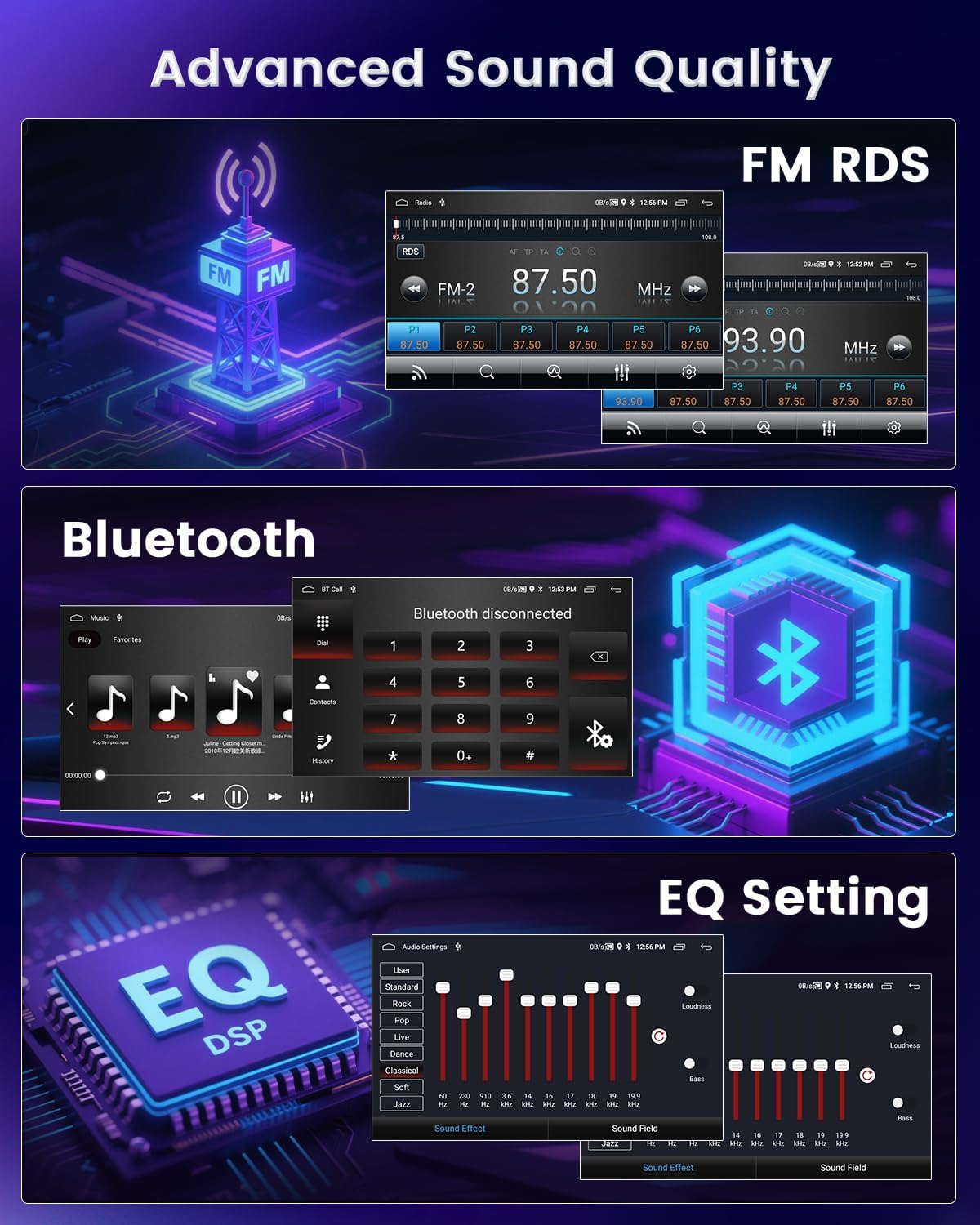
Image: FM RDS Radio Interface.
Video: Demonstrates various functions of the Android car radio, including music, radio, and settings.
3.3 Music and Video Playback
Play music and videos from local storage, USB devices, or streaming apps via WiFi. The 1080P capacitive touch screen ensures a clear viewing experience.

Image: 2.5D 1080P Touchscreen.

Image: Video playback on the car stereo.
3.4 Bluetooth Connectivity
Pair your smartphone via Bluetooth to make calls, send messages, and stream audio. The device name is typically 'CarBT' and the default PIN is '0000'.
Image: Bluetooth Interface.
Video: Demonstrates Bluetooth pairing and calling features on the Android car stereo.
3.5 Wireless CarPlay and Android Auto
Seamlessly integrate your iOS or Android phone for navigation, audio playback, and voice control. Connect via Bluetooth or USB for wired Android Auto/Mirror Link.

Image: Wired/Wireless Phone Connectivity.

Image: CarPlay and Android Auto Connection Steps.
Video: Wireless CarPlay and Android Auto Operating Instructions.
3.6 GPS Navigation
Utilize the built-in GPS for navigation. Connect to WiFi for online maps or use offline maps for areas without internet access.

Image: WiFi Connection and GPS Navigation.
3.7 Steering Wheel Control
Program your steering wheel buttons to control stereo functions for a safer driving experience. This unit supports non-CANBUS steering wheel controls.

Image: Steering Wheel Control setup.
3.8 Split Screen Functionality
The split-screen feature allows you to run two applications simultaneously, such as navigation and music playback.

Image: Split Screen Display.
3.9 EQ Settings and Voice Assistant
Customize your audio experience with the built-in EQ and various music effects. Use the voice assistant for hands-free control of functions like calling, navigation, and music.

Image: EQ Setting and Voice Assistant.
4. Maintenance
To ensure the longevity and optimal performance of your Hikity Android Car Stereo, follow these maintenance guidelines:
- Cleaning: Use a soft, dry cloth to clean the screen and exterior. Avoid abrasive cleaners or solvents that could damage the display or finish.
- Temperature: Avoid exposing the unit to extreme temperatures. While designed for automotive use, prolonged exposure to very high or low temperatures can affect performance.
- Software Updates: Periodically check for software updates to ensure you have the latest features and bug fixes. Updates can typically be found in the system settings or on the manufacturer's website.
- Cable Connections: Ensure all cables are securely connected. Loose connections can lead to intermittent functionality or poor performance.
5. Troubleshooting
If you encounter issues with your car stereo, refer to the following common problems and solutions:
- No Sound Output: If there is no sound, especially after installation, check all speaker wiring connections. Some vehicles may require additional adapters or modifications to integrate with the OEM sound system, particularly if an original car amplifier is present. The unit does not support original car amplifiers directly.
- Backup Camera Not Displaying: Ensure the rear camera input cable is securely plugged into the stereo. Verify the camera's power and ground connections to the car's reversing light are correct. Check the reverse video resolution settings in the stereo's menu.
- Wireless CarPlay/Android Auto Connectivity Issues: Ensure Bluetooth is enabled on both your phone and the stereo. Confirm the correct device is paired. For Zlink connections, follow the on-screen instructions for Bluetooth and hotspot setup.
- GPS Signal Problems: Ensure the GPS antenna is properly installed and has a clear line of sight to the sky. If using offline maps, ensure they are downloaded and up-to-date.
- Steering Wheel Controls Not Working: This unit supports non-CANBUS steering wheel controls. Ensure the steering wheel control wires are correctly connected and programmed through the stereo's settings menu.
- Screen Unresponsive/Incorrect Touch: Perform a touch calibration if the screen is unresponsive or registers touches incorrectly.
Video: Guide on how to check your car radio reverse video resolution settings.
6. Specifications
| Feature | Detail |
|---|---|
| Item Weight | 3.69 pounds |
| Product Dimensions | 18.5 x 12.9 x 3.5 inches |
| Display Size | 9 Inches |
| Display Resolution | 1024x768 |
| Voice Command | Microphone, Touchscreen |
| Model Name | GPS Car Stereo |
| Vehicle Service Type | Car |
| Connectivity Technology | Bluetooth, USB, Wi-Fi, Wireless |
| Map Type | Worldwide |
| Audio Output Mode | Stereo |
| Mounting Type | Dashboard Mount |
7. Warranty and Support
7.1 Warranty Information
Hikity offers a 15-day Money-Back Guarantee, a 12-month Replacement Warranty, and life-time Technical Support for this product.
7.2 Customer Support
For any technical assistance, troubleshooting, or warranty claims, please contact Hikity customer support. You can typically find contact information on the product packaging or the official Hikity website.