
1. Introduction
The Trayoo KIDS707 7-inch Kids Tablet is designed to provide a safe, educational, and entertaining experience for children. Featuring a powerful quad-core processor, Android 11 operating system, Wi-Fi, Bluetooth, and dual cameras, this tablet is GMS certified, allowing access to a wide range of applications from Google Play. It includes robust parental controls to manage screen time and content, ensuring a child-friendly environment.

Image 1: The Trayoo KIDS707 7-inch Kids Tablet, showcasing its vibrant display and protective casing, with logos of popular apps like YouTube, Disney, Netflix, and TikTok, indicating its GMS certification.
2. Setup
2.1. Initial Charging
Before first use, fully charge the tablet using the provided charging cable and adapter. Connect the small end of the charging cable to the tablet's charging port and the larger end to the power adapter. Plug the adapter into a wall outlet. The charging indicator will illuminate. A full charge typically takes several hours.
2.2. Power On/Off
To power on the tablet, press and hold the power button located on the side of the device until the screen lights up. To power off, press and hold the power button until a power-off menu appears, then select "Power Off."
2.3. Wi-Fi Connection
- From the home screen, tap the "Settings" icon.
- Select "Network & Internet."
- Toggle Wi-Fi to "On."
- Select your desired Wi-Fi network from the list.
- Enter the network password if prompted, then tap "Connect."
3. Operating Instructions
3.1. Kids Mode
The Trayoo Kids Tablet features a dedicated Kids Mode, pre-installed with educational resources and games that can function without an internet connection. These include Montessori activities, mini-games, and Kids TV. This mode is designed to stimulate creativity and imagination through play.
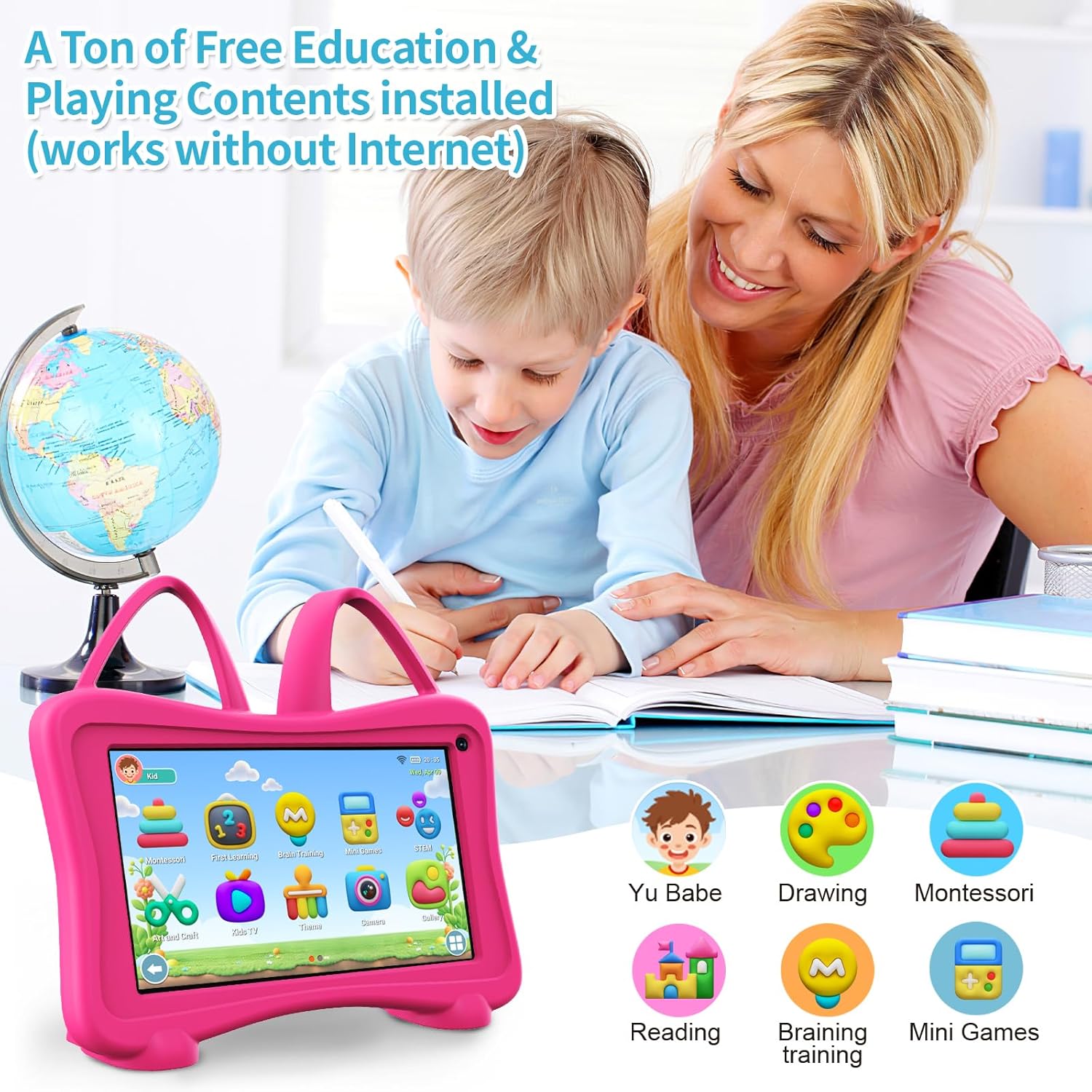
Image 2: A child engaged with the tablet, showing the interface of pre-installed educational applications designed for learning and entertainment.
3.2. Parental Control Mode
The tablet includes an advanced Parental Control Mode, allowing guardians to:
- Personalize screen time limits.
- Set educational goals.
- Filter age-appropriate content.
- Expand the child-friendly network as the child grows.
To exit Kids Mode and access the standard Android tablet interface, use the parental control password. This allows for downloading additional popular applications such as YouTube, Netflix, Disney+, HULU, and ABC Mouse from Google Play.

Image 3: The Parental Control interface, illustrating the various settings available to manage and customize the child's tablet experience.
3.3. Dual Cameras
The tablet is equipped with dual cameras, allowing children to capture photos and videos. The protective case features a design that accommodates the cameras.

Image 4: Children engaging with the tablet, showing the rear camera and the playful design of the protective case.
4. Key Features
- Powerful Configuration: Quad-core processor, Android 11, 2GB RAM, 32GB ROM (expandable to 64GB).
- GMS Certified: Access to Google Play for a wide range of apps.
- Durable Kids-Proof Case: Protects the tablet from bumps and drops with a soft silicone material and includes a stable stand.
- Eye Protection Screen: 7-inch LCD screen with 1024 x 600 HD display and low blue light technology for comfortable viewing.

Image 5: The tablet's durable, drop-proof design, highlighting its soft silicone case and integrated stable stand for enhanced protection and usability.
5. Maintenance
- Cleaning: Use a soft, dry cloth to clean the screen and exterior. Avoid abrasive cleaners or solvents.
- Storage: Store the tablet in a cool, dry place away from direct sunlight and extreme temperatures.
- Battery Care: To prolong battery life, avoid fully discharging the battery frequently. Charge the tablet regularly.
- Software Updates: Periodically check for and install software updates to ensure optimal performance and security.
6. Troubleshooting
6.1. Tablet Not Turning On
- Ensure the tablet is fully charged. Connect it to the charger and wait a few minutes before attempting to power on again.
- Press and hold the power button for at least 10-15 seconds to perform a hard reset.
6.2. Screen Unresponsive
- Restart the tablet by holding the power button.
- If unresponsive, perform a hard reset as described above.
6.3. Wi-Fi Connectivity Issues
- Ensure Wi-Fi is enabled in settings.
- Restart your Wi-Fi router.
- Forget the network in tablet settings and reconnect.
6.4. Apps Crashing/Slow Performance
- Close unused background applications.
- Clear app cache in Settings > Apps > [App Name] > Storage > Clear Cache.
- Ensure sufficient storage space is available.
7. Specifications
| Feature | Detail |
|---|---|
| Product Dimensions | 8 x 5 x 0.98 inches |
| Item Weight | 1.5 pounds |
| Item Model Number | KIDS707 |
| Batteries | 1 AAA batteries required. (included) |
| Standing Screen Display Size | 7 Inches |
| RAM Memory Installed Size | 2 GB |
| Memory Storage Capacity | 32 GB |
| Display Resolution Maximum | 1024*600IPS Pixels |
| Operating System | Android 11 |
8. Warranty and Support
The Trayoo Kids Tablet comes with a 30-day free return policy and lifetime technical service support. For any issues or inquiries regarding your tablet, please contact the Trayoo Support team directly. They are available to assist with troubleshooting and product-related questions.
9. Product Videos
9.1. Kids Tablet Android 11 Overview
Video 1: A detailed overview of the Kids Tablet running Android 11, demonstrating its features and user interface. (Source: MengDash)
9.2. Kids Tablet for Boys Girls Gift
Video 2: A presentation of the Kids Tablet, highlighting its suitability as a gift for children and showcasing its design and functionalities. (Source: TBLTACA Official)
9.3. KIDS707 Tablet for Toddlers
Video 3: A brief demonstration of the KIDS707 tablet in use by toddlers, focusing on its child-friendly interface and features. (Source: NUOQIDIANZI)
9.4. Kids Tablets and Internet Devices
Video 4: An overview discussing kids' tablets and their internet capabilities, relevant to the Trayoo tablet's features. (Source: Worlds End)