1. Introduction
The Trayoo Kids Tablet 7 is designed to provide a safe and engaging learning and entertainment experience for children. Featuring a durable design, robust parental controls, and a wide array of pre-installed educational content, this tablet is an ideal companion for your child's growth and development. This manual provides detailed instructions for setting up, operating, maintaining, and troubleshooting your device.
2. What's in the Box
- Trayoo Kids Tablet 7 (Model KIDS707) x 1
- Durable Kids-Proof Case (Pre-installed) x 1
- Charging Cable x 1
- User Manual (this document) x 1

Image: The Trayoo Kids Tablet 7 in its blue protective case, showing both front and back views. The case features handles and feet for easy handling and standing.
3. Product Overview
The Trayoo Kids Tablet 7 is equipped with features designed for optimal performance and child safety.
- Powerful Configuration: Quad-core processor, Android 11 operating system, 2 GB RAM, and 32 GB internal storage (expandable up to 64 GB via microSD card).
- Connectivity: Built-in WiFi and Bluetooth for seamless connectivity.
- Cameras: Dual cameras (front and rear) for photos and video calls.
- Display: 7-inch HD display with 1024 x 600 IPS pixels, featuring low blue light technology for eye protection.
- GMS Certified: Access to Google Play Store for downloading additional apps.

Image: An illustration highlighting the tablet's technical specifications: Android 10, 2GB RAM, 32GB ROM, large capacity, and 7-inch HD. It also shows popular streaming app logos like Netflix and YouTube, indicating compatibility.
4. Setup Guide
4.1 Initial Power On and Language Selection
- Press and hold the Power button located on the side of the tablet until the screen lights up.
- Upon first use, you will be prompted to select your preferred language. Choose "English (United States)" or another desired language.
- Tap "Start" to proceed with the setup process.
Video: A demonstration of the initial power-on sequence and language selection on the Trayoo Kids Tablet 7. The video shows the "Hi there" screen and the option to select "English (United States)" before tapping "Start".
4.2 Connecting to Wi-Fi
- From the setup screen, select your Wi-Fi network from the list of available networks.
- Enter the Wi-Fi password if prompted.
- Tap "Connect" to establish the connection.
- Once connected, the tablet will proceed with system updates or Google account setup.
4.3 Google Account Setup (Optional)
To access the Google Play Store and other Google services, you may sign in with an existing Google account or create a new one. This step is optional if the tablet will primarily be used in Kids Mode with pre-installed apps.
- Follow the on-screen prompts to sign in or create a Google account.
- Accept the terms of service and privacy policy.
5. Operating Instructions
5.1 Navigating the Interface
The tablet runs on Android 11, offering a user-friendly interface. Swipe left or right on the home screen to access different app pages. Tap on an app icon to launch it.
Video: A demonstration of navigating the tablet's interface, showing how to swipe between screens and open applications. It highlights the responsiveness of the touch screen.
5.2 Kids Mode (iWawa)
The tablet comes pre-installed with iWawa, a dedicated Kids Mode environment. This mode provides a curated selection of age-appropriate content and a safe browsing experience.
- Accessing Kids Mode: Locate and tap the iWawa app icon on the home screen.
- Educational Content: Explore pre-loaded resources such as Montessori learning games, Mini Games, Kids TV, and more.
- Learning by Playing: The content is designed to stimulate creativity and imagination through interactive activities.

Image: A child happily using the Trayoo Kids Tablet 7, which displays various educational and entertainment content suitable for multiple age groups.
5.3 Exiting Kids Mode
To exit Kids Mode and use the tablet as a standard Android device, you will need to enter the parental control password. This allows adults to access popular apps like YouTube, Netflix, Disney+, HULU, and ABC Mouse.
5.4 Using the Cameras
The tablet features dual cameras. To take photos or record videos:
- Open the Camera app.
- Switch between front and rear cameras as needed.
- Tap the shutter button to take a photo or start/stop video recording.
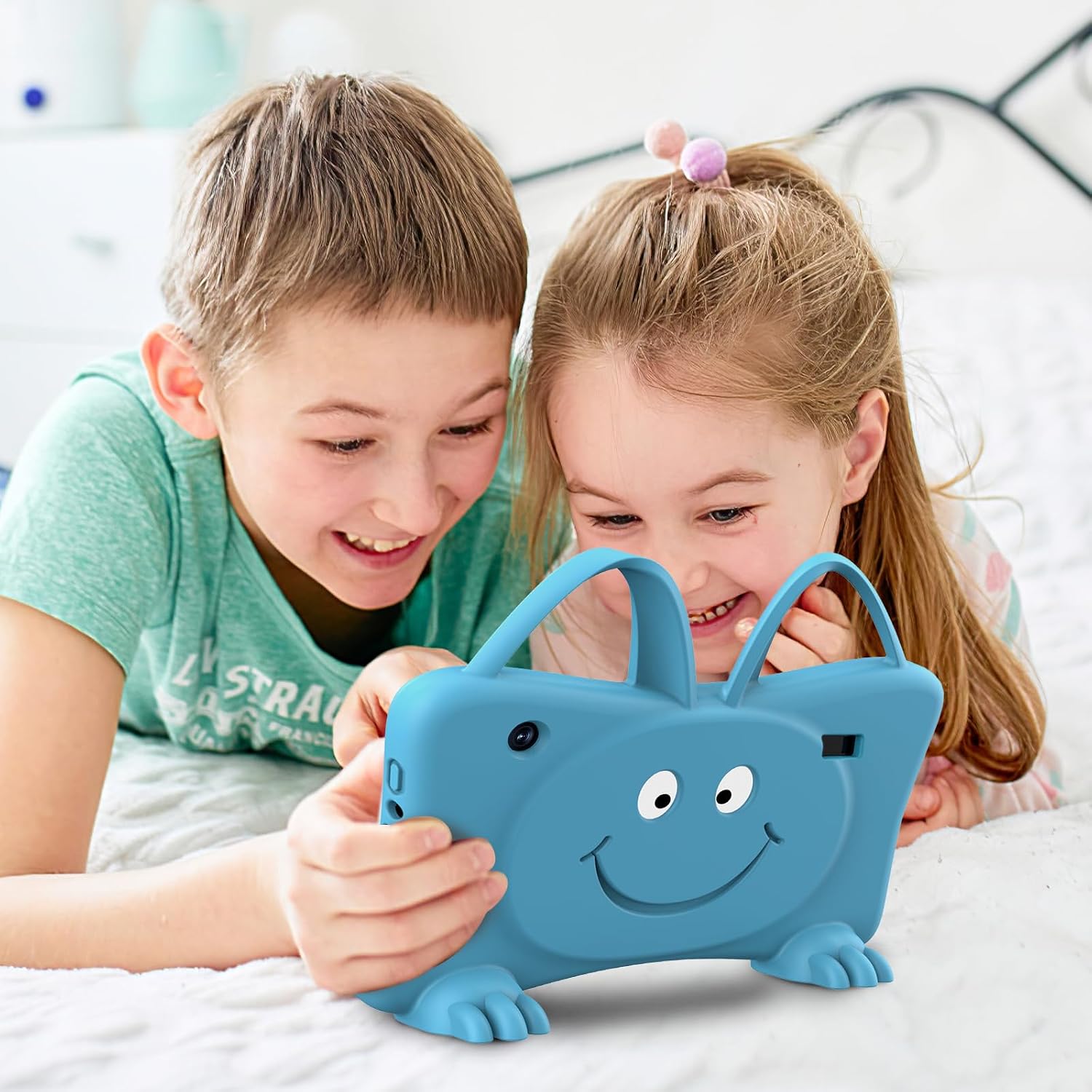
Image: Two children are shown lying on a bed, looking at the back of the blue Trayoo Kids Tablet 7. The tablet's rear camera is visible, suggesting they might be taking photos or videos.
6. Parental Control Features
The Trayoo Kids Tablet 7 offers advanced parental control features to ensure a safe digital environment for your child.
- Screen Time Limits: Set daily limits for tablet usage to manage screen time effectively.
- Content Filtering: Filter age-appropriate content and block access to unsuitable websites or applications.
- Educational Goals: Configure educational goals and monitor your child's progress.
- App Management: Control which applications your child can access within Kids Mode.
- Dual Mode Design: Easily switch between Kids Mode and a standard Android tablet experience using a secure password.

Image: The tablet screen displays the "Parents Control" interface, showing various options such as Safe Content, Child Lock, Time Limit, Website Filter, Dual Mode Design, and Accounts Creation, all designed to help parents manage their child's tablet usage.
7. Maintenance
7.1 Cleaning the Tablet
- Use a soft, lint-free cloth to gently wipe the screen and body of the tablet.
- For stubborn smudges, slightly dampen the cloth with water or a screen cleaner. Avoid harsh chemicals.
- Ensure the tablet is powered off and unplugged before cleaning.
7.2 Battery Care
- Charge the tablet using the provided charging cable.
- Avoid fully discharging the battery frequently, as this can reduce its lifespan.
- Do not expose the tablet to extreme temperatures, as this can affect battery performance.
7.3 Protective Case
The tablet comes with a durable kids-proof silicone case designed to protect it from bumps and drops. Keep the case on the tablet during use to maximize protection.

Image: A visual representation of the tablet's drop-proof design, emphasizing its anti-drop features, stable stand, and soft silicone case, with a child in the background appearing to drop the tablet without damage.
8. Troubleshooting
| Problem | Possible Cause | Solution |
|---|---|---|
| Tablet does not turn on. | Low battery; System crash. | Charge the tablet for at least 30 minutes. Press and hold the Power button for 10-15 seconds to force restart. |
| Touchscreen unresponsive. | Temporary software glitch; Screen protector interference. | Restart the tablet. Ensure the screen is clean and free of debris. If a screen protector is installed, check for proper application or try removing it temporarily. |
| Wi-Fi connection issues. | Incorrect password; Router issues; Out of range. | Verify Wi-Fi password. Restart your Wi-Fi router. Move closer to the Wi-Fi router. |
| Apps are slow or crashing. | Too many apps running; Low storage space. | Close unused apps. Clear app cache. Uninstall unnecessary apps or transfer files to an SD card. |
| Parental control password forgotten. | Password forgotten. | Refer to the tablet's built-in help or contact Trayoo customer support for password reset instructions. |
9. Specifications
| Feature | Detail |
|---|---|
| Model Number | KIDS707 |
| Operating System | Android 11 |
| Screen Size | 7 Inches |
| Display Resolution | 1024 x 600 IPS Pixels |
| RAM | 2 GB |
| Internal Storage | 32 GB (Expandable up to 64 GB via microSD) |
| Connectivity | Wi-Fi, Bluetooth |
| Cameras | Dual Cameras (Front & Rear) |
| Dimensions (L x W x H) | 8 x 5 x 0.98 inches |
| Item Weight | 1.1 pounds |
| Battery | Built-in Rechargeable Battery |
| Manufacturer | Trayoo |
| Country of Origin | China |
10. Warranty and Support
Trayoo is committed to providing excellent customer service and support for your Kids Tablet 7.
- 30-Day Free Return: If you are not satisfied with your purchase, you may return the product within 30 days for a full refund.
- Lifetime Technical Service Support: Trayoo offers lifetime technical support for your tablet. Should you encounter any issues or have questions, please do not hesitate to contact the Trayoo Support team.
For assistance, please refer to the contact information provided with your product packaging or visit the official Trayoo website for support resources.