
1. Introduction
Thank you for choosing the Gearlab G220 Wireless Keyboard. This manual provides detailed instructions for setting up, operating, and maintaining your new keyboard. The Gearlab G220 is designed for convenience and efficiency, featuring a US/International layout, wireless connectivity via Bluetooth, and an ergonomic design for comfortable use. Please read this manual thoroughly before using the product to ensure proper functionality and longevity.
2. Package Contents
Please check the package contents upon unboxing. If any items are missing or damaged, contact your retailer.
- Gearlab G220 Wireless Keyboard
- USB Charging Cable
- User Manual
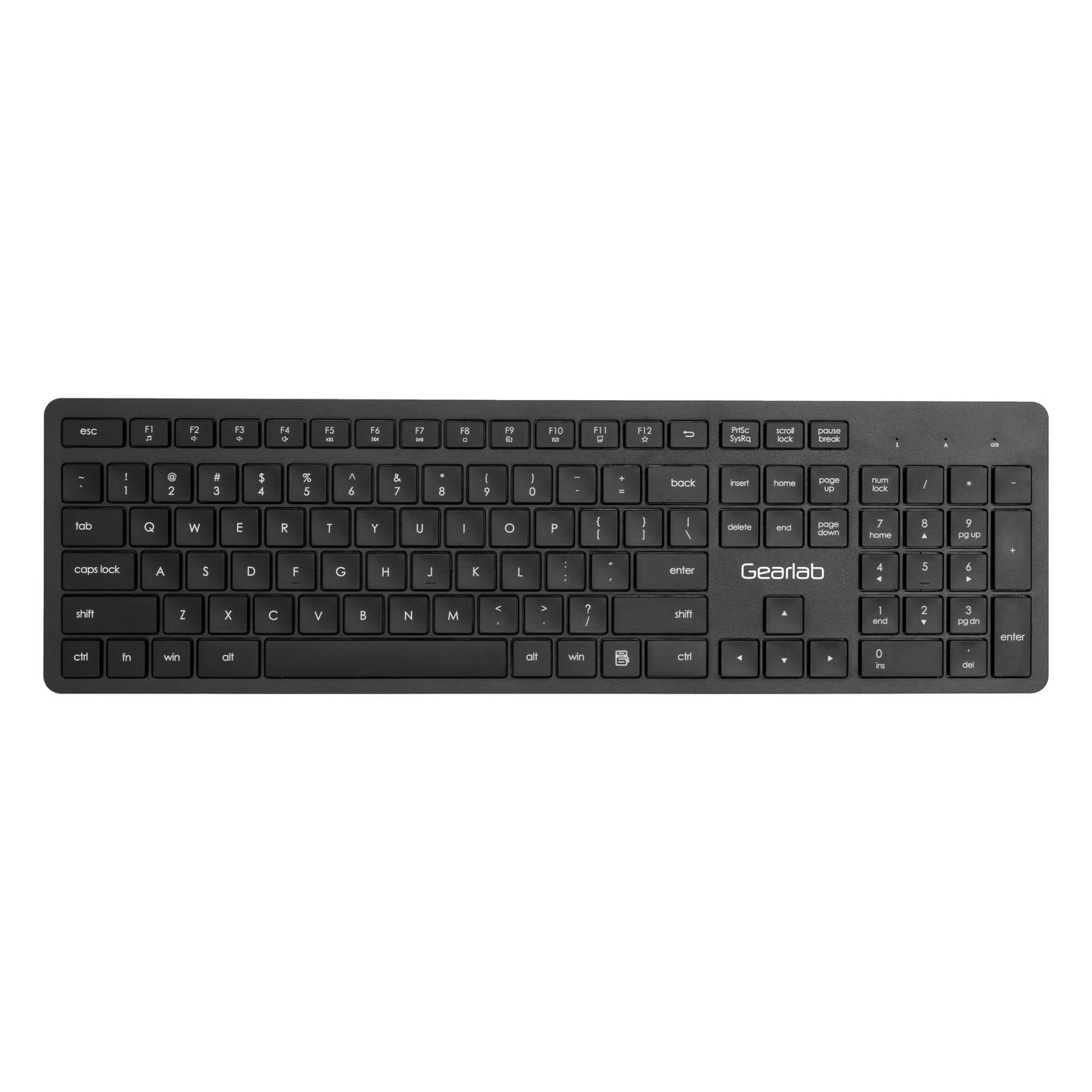
Image: The Gearlab G220 Wireless Keyboard, showcasing its US/International layout and compact design.
3. Setup
3.1 Charging the Keyboard
The Gearlab G220 keyboard is rechargeable. Before first use, ensure the keyboard is fully charged.
- Connect the supplied USB charging cable to the charging port on the keyboard.
- Connect the other end of the USB cable to a powered USB port (e.g., computer, USB wall adapter).
- The charging indicator light will illuminate. Once fully charged, the indicator light may change color or turn off.
3.2 Connecting to a Device (Bluetooth)
The Gearlab G220 uses Bluetooth for wireless connectivity. It is compatible with laptops and other devices supporting Bluetooth input.
- Turn on the keyboard using the power switch, usually located on the side or back of the keyboard.
- Activate Bluetooth pairing mode on the keyboard. This typically involves pressing and holding a dedicated Bluetooth pairing button or a function key combination (e.g., Fn + C or a specific Bluetooth icon key) until an indicator light flashes, signifying it's discoverable.
- On your device (e.g., laptop), go to the Bluetooth settings.
- Enable Bluetooth on your device if it's not already on.
- Search for new devices. The keyboard should appear as "Gearlab G220" or a similar name.
- Select the keyboard from the list to initiate pairing.
- If prompted, enter a pairing code on the Gearlab G220 keyboard and press Enter, or confirm the connection on your device.
- Once successfully paired, the indicator light on the keyboard will stop flashing and remain solid, or turn off.
4. Operating Instructions
After successful connection, the Gearlab G220 Wireless Keyboard is ready for use.
4.1 Basic Keyboard Functions
- Typing: Use the keys as you would a standard keyboard. The layout is US/International English.
- Function Keys: The top row of keys (F1-F12) may have secondary functions (e.g., media control, volume, brightness). These are typically accessed by holding down the Fn key and pressing the desired function key. Refer to the keycap legends for specific functions.
- Power Saving: The keyboard may enter a sleep mode after a period of inactivity to conserve battery. Press any key to wake it up.
4.2 Battery Status
The keyboard features a rechargeable battery. A low battery indicator light (if present) will typically flash or change color when the battery level is low, signaling that it needs to be recharged.
5. Maintenance
5.1 Cleaning
- Turn off the keyboard before cleaning.
- Use a soft, lint-free cloth slightly dampened with water or a mild cleaning solution to wipe the surface of the keyboard.
- Do not use harsh chemicals, abrasive cleaners, or spray liquids directly onto the keyboard.
- For cleaning between keys, use compressed air or a small brush.
5.2 Battery Care
- To prolong battery life, avoid fully discharging the keyboard frequently.
- Store the keyboard in a cool, dry place when not in use for extended periods.
- Recharge the keyboard regularly, even if not used daily, to maintain battery health.
6. Troubleshooting
If you encounter issues with your Gearlab G220 Wireless Keyboard, refer to the following common solutions:
| Problem | Possible Solution |
|---|---|
| Keyboard does not turn on. | Ensure the keyboard is charged. Connect it to a power source using the USB charging cable. |
| Keyboard does not connect via Bluetooth. |
|
| Keys are not responding or typing incorrectly. |
|
| Keyboard frequently disconnects. |
|
7. Specifications
| Feature | Detail |
|---|---|
| Brand | Gearlab |
| Model | W126339682 |
| Compatible Devices | Laptop |
| Connectivity Technology | Bluetooth, Wireless |
| Keyboard Description | Ergonomic |
| Special Feature | Rechargeable |
| Language | English |
| Hand Orientation | Ambidextrous |
| Number of Buttons | 78 |
| Product Dimensions | 25.4 x 5.08 x 6.86 cm; 560 g (approximately 10 x 2 x 2.7 inches; 1.23 lbs) |
| ASIN | B0BXM1MFCZ |
| First Available Date | March 7, 2023 |
8. Warranty and Support
The Gearlab G220 Wireless Keyboard comes with a standard manufacturer's warranty. Please refer to the warranty card included in your package or contact your retailer for specific warranty terms and conditions.
For technical support, troubleshooting assistance beyond this manual, or inquiries regarding parts and service, please contact Gearlab customer support through their official website or the contact information provided with your purchase.