1. Introduction
Welcome to the user manual for your HP ProDesk 600 G5 Small Form Factor (SFF) Desktop PC. This document provides essential information for the proper setup, operation, and maintenance of your computer system. This renewed system is equipped with an Intel Core i5-9500 processor, 16GB of RAM, and a 512GB Solid State Drive, running on Windows 11 Pro.
Please read this manual thoroughly before using your PC to ensure optimal performance and longevity.
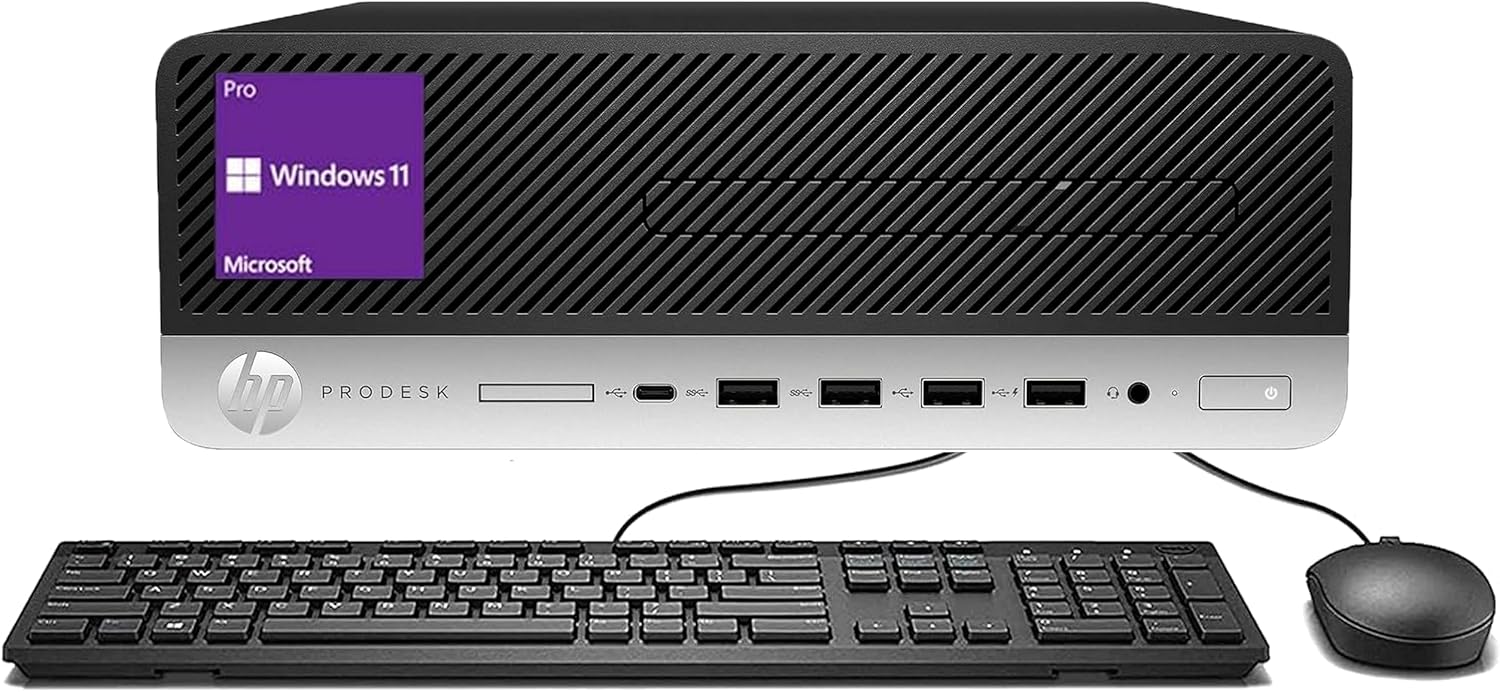
Image 1.1: HP ProDesk 600 G5 SFF Desktop PC with keyboard and mouse.
2. Package Contents
Verify that all items are present in your package:
- HP ProDesk 600 G5 SFF Desktop PC
- Keyboard
- Mouse
- Power Cable
- USB Wi-Fi/Bluetooth Adapter (may be included separately or integrated)
3. Setup Guide
3.1 Unpacking
Carefully remove the desktop PC and all accessories from their packaging. Retain the packaging for future transport or storage.
3.2 Connecting Peripherals
Refer to the port diagram below for connection points.

Image 3.1: Rear and side view of the HP ProDesk 600 G5 SFF with labeled ports.
- Monitor Connection: Connect your monitor's video cable to one of the DisplayPort connectors on the rear of the PC. Ensure the monitor is also connected to a power source and turned on.
- Keyboard and Mouse: Connect the USB cables of the keyboard and mouse to any available USB 2.0 or USB 3.1 ports on the front or rear of the PC.
- Network Connection:
- For a wired connection, connect an Ethernet cable from your router or modem to the Ethernet port on the rear.
- For a wireless connection, ensure the provided USB Wi-Fi/Bluetooth adapter is securely plugged into an available USB port.
- Power Connection: Connect the power cable to the Power In port on the rear of the PC, then plug the other end into a grounded electrical outlet.
3.3 Initial Boot-Up
Press the power button located on the front of the PC. The system will begin to boot. Follow the on-screen instructions to complete the initial setup of Windows 11 Pro, including language selection, network configuration, and user account creation.
4. Operating Instructions
4.1 Windows 11 Pro
Your HP ProDesk 600 G5 SFF PC comes pre-installed with Windows 11 Pro 64-bit. This operating system offers a modern interface and enhanced features for productivity and security. Familiarize yourself with the Start Menu, Taskbar, and File Explorer for basic navigation.
4.2 Power Management
- Turning On: Press the power button on the front panel.
- Shutting Down: Click the Start button, then Power > Shut down.
- Restarting: Click the Start button, then Power > Restart.
- Sleep Mode: Click the Start button, then Power > Sleep.
4.3 Network and Connectivity
To connect to a wireless network, click the Wi-Fi icon in the system tray, select your desired network, and enter the password if prompted. For Bluetooth devices, go to Settings > Bluetooth & devices to pair new devices.
5. Maintenance
5.1 Cleaning
Regularly clean the exterior surfaces of your PC and peripherals with a soft, dry, lint-free cloth. Ensure that the ventilation grilles are free from dust accumulation to prevent overheating. Do not use liquid cleaners directly on components.
5.2 Software Updates
Keep your Windows 11 operating system and device drivers updated. This ensures optimal performance, security, and compatibility. Access Windows Update via Settings > Windows Update.
5.3 Internal Component Considerations
While this system is designed for reliable performance, users considering internal upgrades such as additional RAM or storage should note the following:
- RAM: If upgrading RAM, be aware that memory modules with tall heatsinks may interfere with internal drive brackets or the side panel closure due to the SFF design.
- Storage: The system may have an additional slot for a secondary drive. If installing a 2.5-inch Solid State Drive (SSD), a 3.5-inch to 2.5-inch adapter bracket may be required for proper mounting.
6. Troubleshooting
This section addresses common issues you might encounter with your HP ProDesk 600 G5 SFF PC.
6.1 PC Does Not Power On
- Ensure the power cable is securely connected to both the PC and a working electrical outlet.
- Test the electrical outlet with another device to confirm it is supplying power.
6.2 No Display on Monitor
- Verify that the monitor is powered on and its video cable is firmly connected to the PC's DisplayPort.
- Check the monitor's input source settings to ensure it is set to the correct input (e.g., DisplayPort).
- If possible, test with a different monitor or video cable.
6.3 No Wi-Fi or Bluetooth Connectivity
- Confirm that the USB Wi-Fi/Bluetooth adapter (if external) is securely plugged into a USB port.
- Check Windows 11 network settings to ensure Wi-Fi and Bluetooth are enabled.
- Ensure necessary drivers for the adapter are installed and up to date.
6.4 System Performance Issues
- Close any unnecessary applications running in the background.
- Check Task Manager (Ctrl+Shift+Esc) for processes consuming high CPU, RAM, or disk resources.
- Ensure there is sufficient free space on your 512GB SSD.
- Run a system scan using Windows Defender or your preferred antivirus software.
7. Specifications
| Feature | Specification |
|---|---|
| Model | HP ProDesk 600 G5 SFF |
| Processor | Intel Core i5-9500 (3.0 GHz) |
| RAM | 16 GB DIMM |
| Storage | 512 GB SSD |
| Graphics | Integrated Intel UHD Graphics 630 |
| Operating System | Windows 11 Pro 64-bit |
| Wireless Connectivity | 802.11ac (via adapter), Bluetooth |
| Ports | DisplayPort, Ethernet, USB 2.0, USB 3.1 (front and rear) |
| Dimensions (LxWxH) | 10.6 x 11.6 x 3.7 inches |
| Weight | 11.58 pounds |
8. Warranty and Support
This HP ProDesk 600 G5 SFF Desktop PC is a renewed product. Warranty and support terms are typically provided by the seller of the renewed item. Please refer to your purchase documentation or contact the seller directly for specific details regarding your warranty coverage and return policy.
Generally, renewed products may include a return or replacement policy, such as a 90-day period from the date of purchase. For general product information or technical assistance not covered by the seller, you may refer to HP's official support resources.