
1. Introduction
This manual provides essential information regarding the FainWan USB Charging Port Flex Cable replacement part for compatible Lenovo M10 Plus tablet models. This component is designed to replace a faulty or damaged charging port, microphone, and associated ribbon flex cable.
Important: Installation of this component requires specialized tools and technical expertise. It is strongly recommended that installation be performed by a professional technician to prevent damage to the tablet or the replacement part. This manual does not include step-by-step installation instructions.
2. Product Overview
The FainWan USB Charging Port Flex Cable is a critical internal component responsible for the tablet's charging functionality and microphone input. It integrates the USB-C charging port, microphone, and a flexible ribbon cable that connects to the tablet's mainboard.
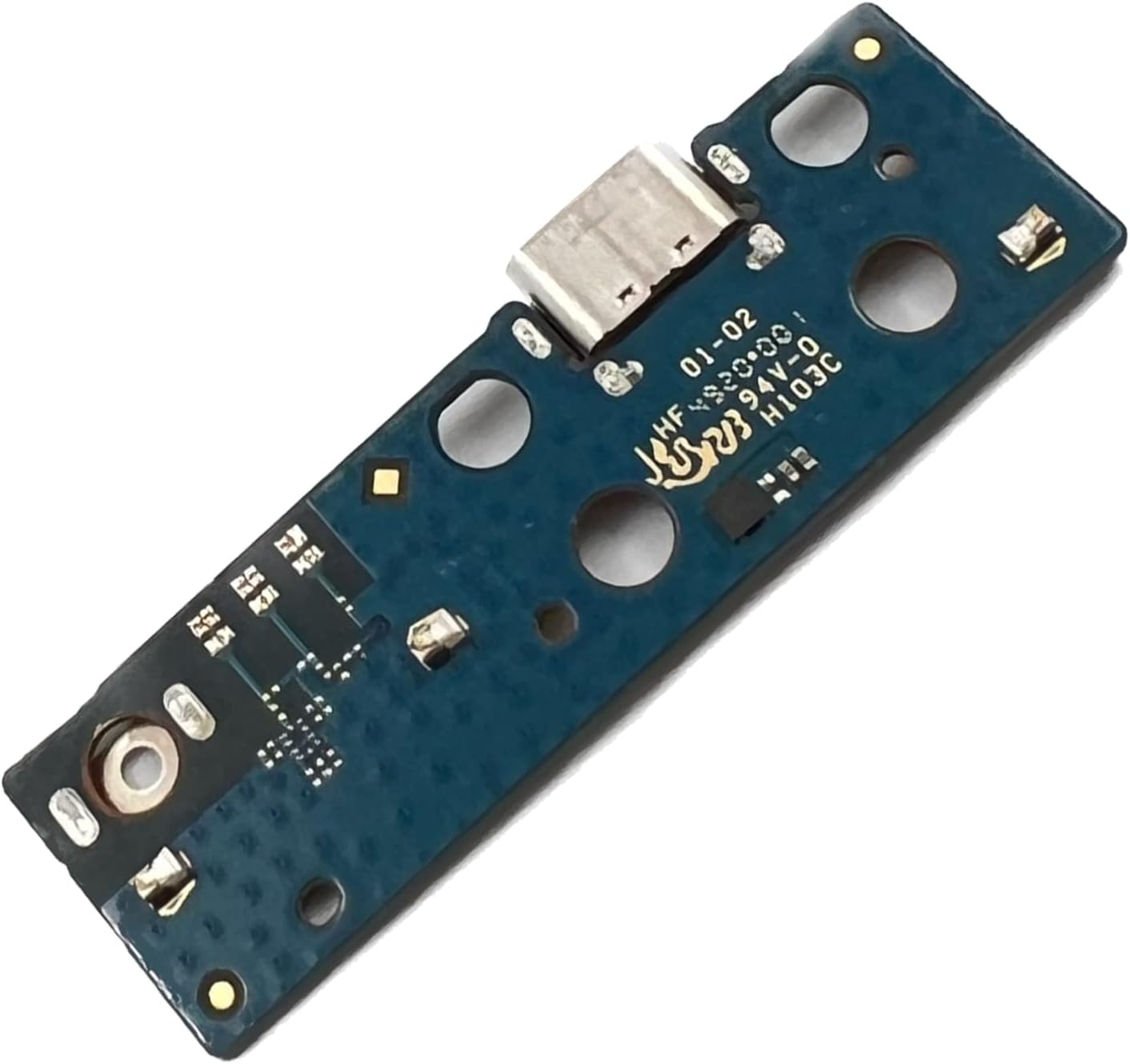
Image 2.1: Top view of the FainWan USB-C Charging Port Flex Cable. This image displays the USB-C port, various integrated circuits, and connection points on the circuit board.

Image 2.2: Detailed view of the USB-C charging port and surrounding components on the flex cable. This perspective highlights the precision required for connection.
3. Compatibility
This replacement part is compatible with the following Lenovo M10 Plus tablet models:
- Lenovo M10 Plus TB-X606
- Lenovo M10 Plus TB-X606F
- Lenovo M10 Plus TB-X606X
- Lenovo M10 Plus TB-X606V
Please verify your tablet's model number before purchasing and attempting installation to ensure compatibility.
4. Installation Guidelines
As stated, professional installation is highly recommended. The process typically involves disassembling the tablet, carefully removing the old charging port flex cable, and installing the new one. Key considerations include:
- Power Off: Ensure the tablet is completely powered off and disconnected from any power source before beginning.
- Battery Disconnection: Disconnect the tablet's battery before removing or installing any internal components to prevent short circuits.
- Static Discharge: Use anti-static precautions (e.g., an anti-static wrist strap) to protect sensitive electronic components from electrostatic discharge.
- Proper Tools: Utilize appropriate tools for tablet disassembly, such as precision screwdrivers, plastic spudgers, and heat guns (if adhesive is present).
- Flex Cable Handling: Handle the flex cable gently. Bending or creasing can damage internal traces and render the part inoperable.
- Connector Alignment: Ensure all connectors are perfectly aligned before applying pressure to seat them. Improper alignment can damage pins.
Disclaimer: Any damage incurred during self-installation is not covered by the product warranty. Proceed with caution or seek professional assistance.
5. Operating the Replacement Part
Once correctly installed, the replacement charging port flex cable will restore the original functionality of your tablet's charging port and microphone. There are no specific operating instructions for this component beyond its intended use within the tablet.
- Charging: Connect a compatible USB-C charger to the tablet's port. The tablet should indicate charging status.
- Data Transfer: Connect the tablet to a computer via a USB-C cable for data transfer.
- Microphone: The integrated microphone will function for voice recording, video calls, and voice commands.
6. Maintenance
The FainWan USB Charging Port Flex Cable is an internal component and requires no routine user maintenance. To ensure its longevity and proper function:
- Keep Port Clean: Avoid inserting foreign objects into the USB-C port. Regularly check for lint or debris and gently clean with a non-conductive tool if necessary.
- Gentle Handling: When connecting or disconnecting charging cables, do so gently to avoid stressing the port.
- Avoid Liquid Exposure: Protect the tablet from liquid spills, as moisture can damage internal electronics, including the charging port.
7. Troubleshooting
If you experience issues after installing the replacement part, consider the following troubleshooting steps:
- No Charging:
- Verify the charging cable and adapter are functional by testing them with another device.
- Ensure the charging port is free of debris.
- Re-open the tablet and check that the flex cable is securely seated in its connector on the mainboard.
- Confirm the battery connector is properly attached.
- Microphone Not Working:
- Check tablet settings to ensure the microphone is enabled and not muted.
- Test the microphone with different applications.
- Verify the flex cable connection to the mainboard.
- Intermittent Connectivity:
- This could indicate a loose connection. Re-seat the flex cable.
- Inspect the USB-C port for any physical damage or bent pins.
If issues persist after basic troubleshooting, it is advisable to consult a professional technician or contact the product seller for further assistance.
8. Specifications
| Part Type | USB Charger Charging Port Dock Connector Ribbon Flex Cable Mic Board |
| Brand | FainWan |
| Model Number | LX-M10PLUS-FC |
| Compatibility | Lenovo M10 Plus TB-X606, TB-X606F, TB-X606X, TB-X606V |
| Connector Type | USB-C |
| Package Dimensions | 4.72 x 4.72 x 0.47 inches |
| Item Weight | 2.82 ounces |
9. Warranty Information
Specific warranty details for this FainWan product are not provided in the available information. Please refer to the seller's return policy or contact the seller directly for warranty inquiries. Typically, replacement parts come with a limited warranty against manufacturing defects.
10. Support
For technical support, installation assistance, or questions regarding this product, please contact the seller or manufacturer directly through their official channels. When contacting support, please provide your purchase details and the product model number (LX-M10PLUS-FC).