
1. Introduction
The HP 710 Rechargeable Silent Mouse is designed for enhanced productivity across various operating systems and devices. This ambidextrous mouse offers versatile connectivity options, customizable features, and a compact design for portability.
Key features include multi-OS compatibility (Mac, Windows, Chrome, Android), dual connectivity via Bluetooth 5.3 or a 2.4GHz dongle, 6 programmable buttons, hyper-fast scrolling, and a long-lasting USB-C rechargeable battery.
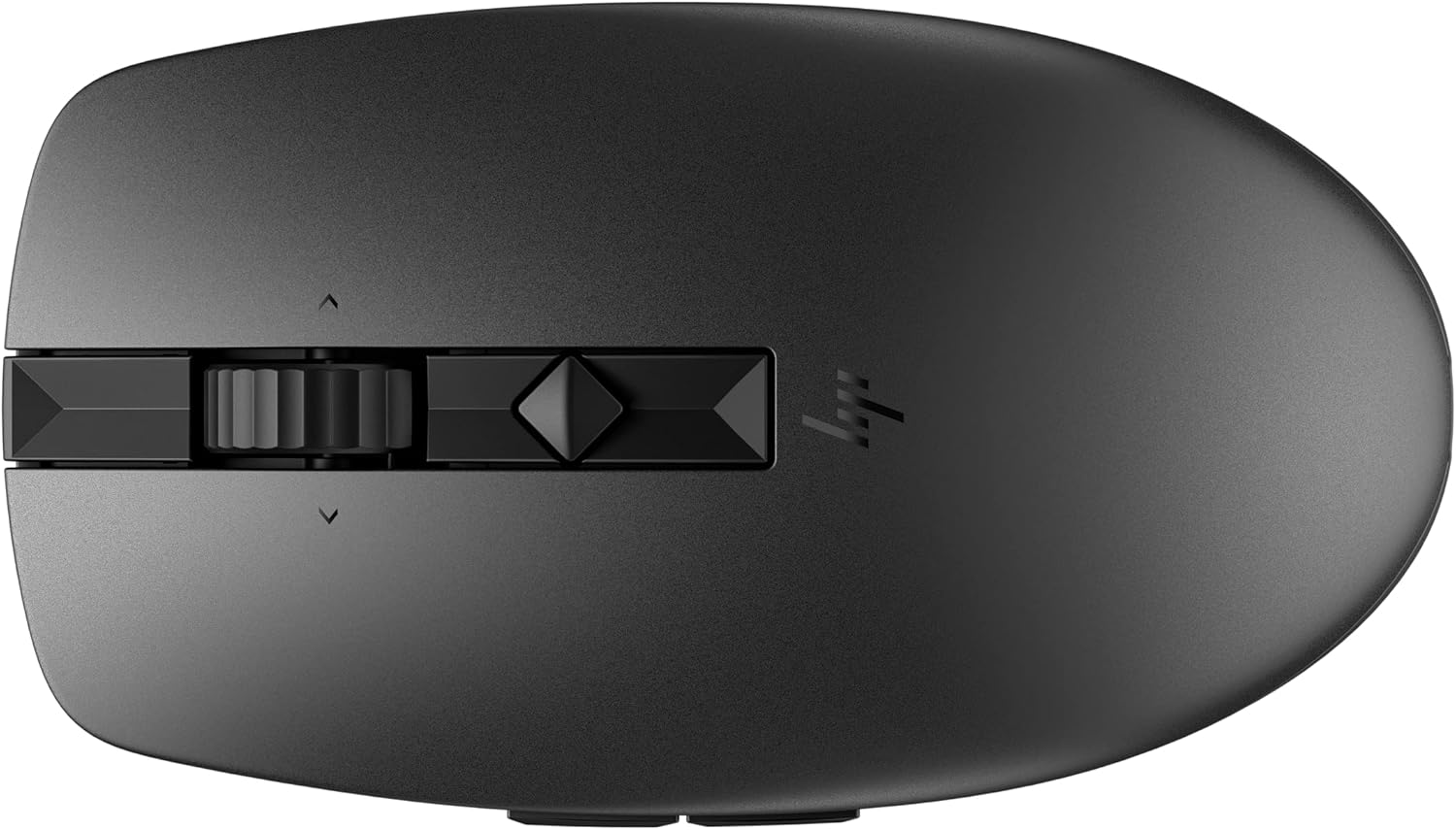
Image: Top view of the HP 710 Rechargeable Silent Mouse, showcasing its sleek design and central scroll wheel with programmable buttons.
2. What's in the Box
- HP 710 Rechargeable Silent Mouse
- USB 2.4GHz Wireless Dongle
- USB Type-C Charging Cable
- Quick Start Guide (not included in this manual)

Image: The HP 710 mouse, its USB wireless dongle, and the USB Type-C charging cable.
3. Setup and Connectivity
3.1. Charging the Mouse
The HP 710 mouse features a built-in rechargeable Lithium Ion battery. Before first use, or when the battery is low, connect the mouse to a power source using the provided USB Type-C charging cable.
- Locate the USB Type-C port on the front of the mouse.
- Connect one end of the USB Type-C cable to the mouse.
- Connect the other end of the cable to a USB power adapter or a powered USB port on your computer.
- The charging indicator light will illuminate. A full charge can provide up to 90 days of battery life, depending on usage.

Image: Front view of the HP 710 mouse, highlighting the USB Type-C charging port.
3.2. Connecting to Your Device
The HP 710 mouse supports two connectivity modes: 2.4GHz wireless via USB dongle and Bluetooth 5.3. It can connect to up to three devices simultaneously and switch between them.
3.2.1. 2.4GHz Wireless Connection (USB Dongle)
- Locate the USB wireless dongle. It is typically stored within the mouse itself or included in the packaging.
- Insert the USB dongle into an available USB port on your computer or laptop.
- Turn on the mouse using the power switch located on the bottom.
- The mouse should automatically connect to your device. If not, press the connectivity button on the bottom of the mouse to select the 2.4GHz channel (usually indicated by '1' or a dongle icon).
3.2.2. Bluetooth 5.3 Connection
- Turn on the mouse using the power switch on the bottom.
- Press the connectivity button on the bottom of the mouse to select a Bluetooth channel (usually '2' or '3'). The indicator light for the selected channel will blink rapidly, indicating pairing mode.
- On your computer or device, navigate to the Bluetooth settings.
- Search for new devices and select "HP 710 Mouse" from the list.
- Follow any on-screen prompts to complete the pairing process. The indicator light on the mouse will become solid when connected.

Image: Diagram illustrating the connectivity options on the bottom of the HP 710 mouse, including the 2.4GHz wireless dongle, Bluetooth 5.3, and the quick switch button for up to 3 devices.
4. Operation
4.1. Basic Functions
- Left Click: Primary selection and activation.
- Right Click: Accesses contextual menus.
- Scroll Wheel: Scrolls vertically through documents and web pages. The weighted wheel supports hyper-fast scrolling.
- Scroll Wheel Click: Often used for opening links in new tabs or auto-scrolling.
4.2. Programmable Buttons
The HP 710 mouse features 6 programmable buttons, including the side buttons and potentially the scroll wheel tilt functions. These can be customized for app-specific shortcuts and other functions using the HP Accessory Center software.
- Side Buttons: Typically used for 'Back' and 'Forward' navigation in web browsers and file explorers.
- Additional Buttons: The mouse may include other buttons or scroll wheel tilt functions that can be assigned custom actions.

Image: Side view of the HP 710 mouse, highlighting the two programmable side buttons.

Image: Diagram illustrating the programmable buttons on the HP 710 mouse, capable of functions like copy, paste, cut, 4-way scrolling, mute, and unmute.
4.3. HP Accessory Center Software
To unlock the full customization potential of your HP 710 mouse, download and install the HP Accessory Center (HPAC) software. HPAC allows you to:
- Assign app-specific shortcuts to the 6 programmable buttons.
- Adjust mouse sensitivity (DPI).
- Calibrate hyper-fast scroll speed.
HPAC is available for free download from the Microsoft Store or Apple App Store.
5. Maintenance
5.1. Battery Management
The HP 710 mouse is equipped with a rechargeable battery designed for long-term use. To maximize battery life:
- Recharge the mouse using the provided USB Type-C cable when the battery indicator shows low power.
- Turn off the mouse when not in use for extended periods to conserve battery.
- Avoid exposing the mouse to extreme temperatures.
5.2. Cleaning
To clean your mouse, use a soft, lint-free cloth slightly dampened with water or a mild cleaning solution. Avoid harsh chemicals or abrasive materials.
6. Troubleshooting
- Mouse not responding: Ensure the mouse is powered on and fully charged. Check the connectivity mode (2.4GHz or Bluetooth) and ensure it matches your device's connection. For 2.4GHz, ensure the USB dongle is securely inserted. For Bluetooth, verify pairing in your device's settings.
- Intermittent connection: Move the mouse closer to your device. Avoid using the mouse near strong interference sources (e.g., other wireless devices, large metal objects).
- Cursor movement is erratic: Clean the mouse sensor on the bottom of the mouse. Ensure you are using the mouse on a suitable surface; the track-on-glass sensor allows use on most surfaces, but extreme textures or highly reflective surfaces might affect performance.
- Buttons not working as expected: Verify button assignments in the HP Accessory Center software. Ensure the software is up to date.
- Battery not charging: Ensure the USB Type-C cable is properly connected to both the mouse and a working power source. Try a different USB port or charging adapter.
7. Specifications
| Feature | Detail |
|---|---|
| Model Number | 6E6F2AA#ABL |
| Connectivity | 2.4GHz Wireless (USB Dongle), Bluetooth 5.3 |
| Programmable Buttons | 6 |
| Movement Detection | Laser (Track-on-glass sensor) |
| Battery Type | Rechargeable Lithium Ion (1 included) |
| Average Battery Life | Up to 90 days |
| Charging Port | USB Type-C |
| Operating System Compatibility | Mac, Windows, Chrome, Android, iOS |
| Hardware Platform | Mac, PC |
| Item Weight | 3.04 ounces (86.2 grams) |
| Product Dimensions (LxWxH) | 4.02 x 2.25 x 1.43 inches (102.1 x 57.1 x 36.2 mm) |
| Color | Black |
| Special Features | Lightweight, Portable, Rechargeable, Silent Clicks |

Image: Diagram illustrating the length, width, and height dimensions of the HP 710 mouse.
8. Environmental Information
The HP 710 Rechargeable Silent Mouse is designed with environmental considerations:
- Made with 60% post-consumer recycled plastic.
- Shipped in 100% recyclable packaging (outer box/corrugate cushion packaging made from sustainably sourced certified and recycled fibers).

Image: Visual representation of the HP 710 mouse's commitment to sustainability, featuring recycled plastic content and recyclable packaging.
9. Warranty and Support
For warranty information, technical support, and additional resources, please visit the official HP support website or contact HP customer service. Details regarding specific warranty periods and service options are typically provided with your product purchase documentation.
For software downloads and further customization options, please refer to the HP Accessory Center (HPAC) software, available on the Microsoft Store and Apple App Store.