
Introduction
This manual provides comprehensive instructions for the installation, operation, and maintenance of your Podofo Wireless CarPlay Android Auto Portable Car Stereo. Please read this manual thoroughly before using the device to ensure proper functionality and safety. Keep this manual for future reference.
Product Overview
Key Features
- Suitable for All Car Models: Compatible with various car brands (7-32V), including Ford, Jeep, BMW, and Lexus. It can be installed without disassembling the central console, making it an ideal choice for vehicles without an original screen.
- Wireless CarPlay and Android Auto Support: Compatible with both CarPlay and Android Auto. After a wireless Bluetooth connection, you can use features like Siri, Maps, Music, and Phone.
- Integrated Driving Recorder and External Reversing Camera: The stereo includes a built-in driving recorder for front-view video recording, enhancing driving safety. An external reversing camera is also provided, supporting reverse input.
- Larger Screen: The 9.3-inch high-definition touchscreen offers a wider viewing angle. Its rectangular design minimizes obstruction of the driver's line of sight.
- Card Reader Function and Split Screen: Features a card reader function, allowing you to insert a 64GB memory card to view stored videos, music, and movies. Supports two-way split-screen video display, showing two different application interfaces simultaneously.
Package Contents
Verify that all items are present in the package:
- Portable Car Stereo Unit
- Power Cord
- Camera Extension Cord
- Monitor Base
- TF Card (64GB)
- Bracket Fixing Stickers
- Camera Accessories
- User Manual
- 3m AUX Cable
- Pull Back Camera (Backup Camera)
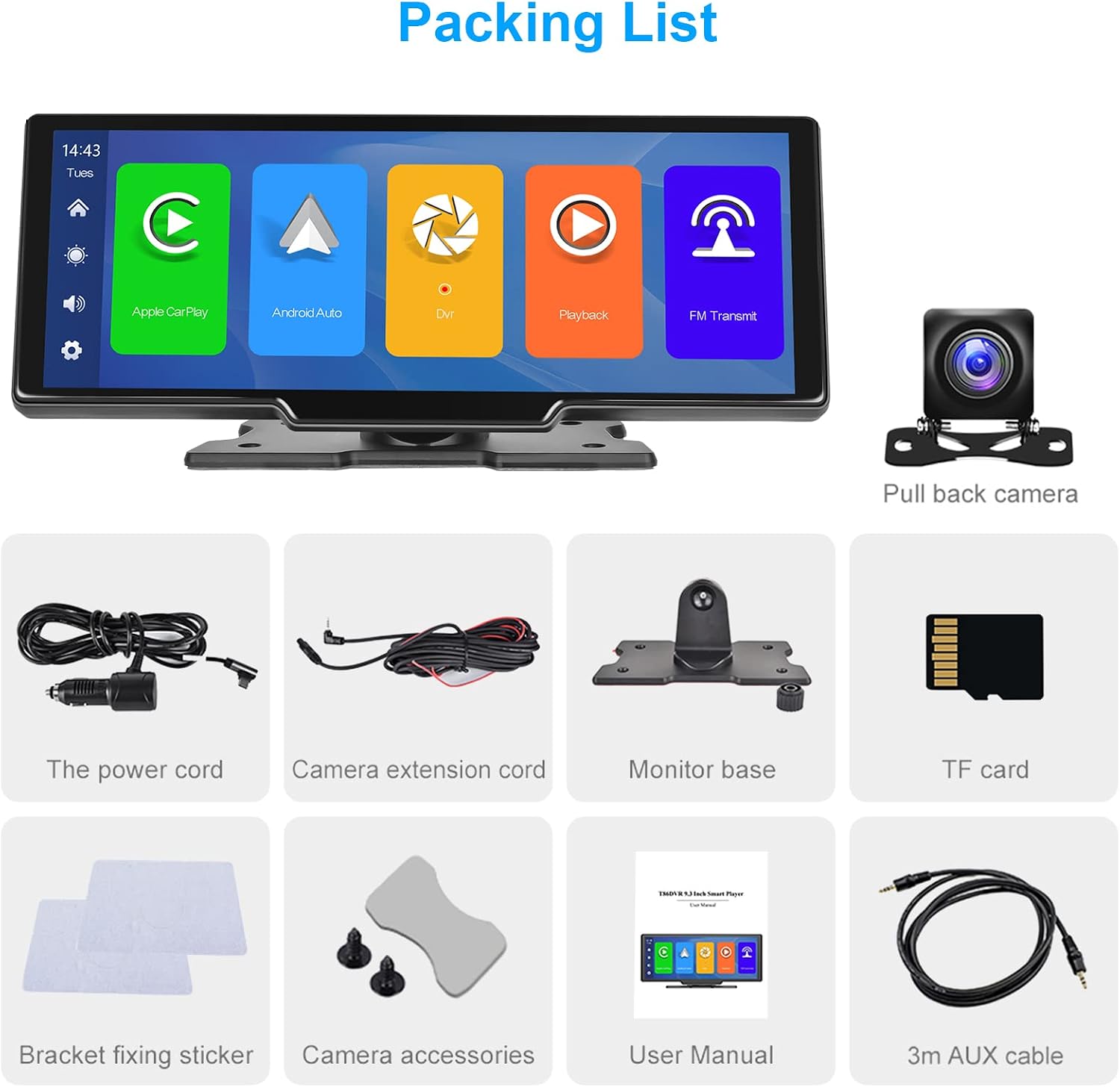
Figure 1: Package Contents
Setup
Mounting the Device
- Choose a suitable location on your dashboard that does not obstruct your view or interfere with driving controls.
- Attach the monitor base to the back of the main unit. The base allows for 360-degree rotation and angle adjustment for optimal viewing.
- Clean the dashboard surface where you intend to mount the device.
- Apply the bracket fixing stickers to the bottom of the monitor base and firmly press it onto the dashboard.

Figure 2: Product Dimensions and Mounting Details
Wiring Instructions
- Power Connection: Insert the power cord into the designated power hole on the side of the unit. Plug the other end into your car's 12V power outlet (cigarette lighter socket).
- Rear Camera Connection: Connect the camera extension cord to the 'Cable holes for rear cameras' port on the unit. Route the cable to the rear of your vehicle and connect it to the backup camera. Ensure the camera is mounted securely and provides a clear view.
- Forward Camera (Dash Cam) Connection: If applicable, connect the forward camera to its designated port.
- AUX Connection: If you wish to output audio to your car's stereo system via AUX, connect the 3m AUX cable from the 'AUX hole' on the unit to your car's AUX input.
- TF Card Insertion: Insert the provided 64GB TF card into the 'Storage slot' for recording and media playback.

Figure 3: Wiring Diagram
Initial Power On
Once all connections are made, start your vehicle. The device should power on automatically. Follow the on-screen prompts for initial setup, including language selection and time zone.
Operating Instructions
Wireless CarPlay and Android Auto
- Ensure Bluetooth and Wi-Fi are enabled on your smartphone.
- On the car stereo, select the CarPlay or Android Auto icon.
- On your phone, search for the device's Bluetooth name and pair.
- Confirm the connection on both devices. CarPlay or Android Auto will launch automatically.
- You can now access navigation, music, calls, and messages directly from the stereo screen.

Figure 4: Wireless CarPlay Interface
Voice Control
With CarPlay or Android Auto connected, you can use voice commands for hands-free operation. Activate your phone's voice assistant (Siri for iOS, Google Assistant for Android) by saying the wake word (e.g., "Hey Siri" or "OK Google") or by pressing the voice control button on the screen (if available).

Figure 5: Voice Control Interface
FM Transmitter Function
To output audio to your car's FM radio:
- Select the FM Transmitter icon on the stereo's main menu.
- Choose an unused FM frequency on the stereo.
- Tune your car's FM radio to the exact same frequency.
- Audio from the portable stereo will now play through your car's speakers.

Figure 6: FM Transmitting Interface
Bluetooth Connectivity
For direct Bluetooth audio streaming or hands-free calling without CarPlay/Android Auto:
- Select the Bluetooth icon on the stereo's main menu.
- Enable Bluetooth on your smartphone and search for available devices.
- Select the stereo's Bluetooth name (e.g., "PODOFO") from your phone's list.
- Confirm pairing on both devices.
- You can now play music or make calls via Bluetooth.

Figure 7: Bluetooth Connection Screen
Dash Cam and Backup Camera
The integrated dash cam continuously records video to the TF card. When reversing, the external backup camera automatically displays the rear view on the screen with parking guidelines.
- Dash Cam: Video files are saved in a loop recording format on the TF card. Older files are overwritten automatically when the card is full.
- Backup Camera: When the vehicle is shifted into reverse, the screen will automatically switch to the backup camera view.
- Viewing Recordings: Access recorded videos through the 'DVR' or 'Playback' application on the main menu.

Figure 8: Dash Cam Loop Recording and Backup Camera View

Figure 9: AHD Backup Camera Details
TF Card Media Playback
Insert a TF card with media files (videos, music, photos) into the storage slot. Use the 'Playback' or relevant media player application on the stereo to browse and play content.
Split Screen Function
The device supports displaying two applications simultaneously on the screen. Refer to the on-screen interface for activating and managing split-screen mode, typically by long-pressing an app icon or using a dedicated split-screen button.
Maintenance
Cleaning
Use a soft, dry cloth to clean the screen and exterior of the device. For stubborn smudges, slightly dampen the cloth with water or a screen-safe cleaner. Avoid using harsh chemicals, abrasives, or solvents.
Storage
If storing the device for an extended period, disconnect it from power and store it in a cool, dry place away from direct sunlight and extreme temperatures.
Troubleshooting
If you encounter issues, refer to the following common problems and solutions:
- No Power:
- Ensure the power cord is securely plugged into both the device and the car's 12V outlet.
- Check if the car's 12V outlet is functioning (e.g., by plugging in another device).
- Verify the car's fuse for the 12V outlet is not blown.
- CarPlay/Android Auto Connectivity Issues:
- Ensure Bluetooth and Wi-Fi are enabled on your phone.
- Forget the device from your phone's Bluetooth settings and re-pair.
- Restart both your phone and the car stereo.
- Ensure your phone's operating system is up to date.
- Poor Audio Quality (FM/AUX):
- FM Transmitter: Try different FM frequencies to find one with less interference. Ensure your car's radio is tuned precisely to the stereo's frequency.
- AUX Connection: Ensure the AUX cable is fully inserted into both the stereo and your car's AUX input. Check the volume levels on both devices. If experiencing humming or static, an audio ground loop isolator may be required (not included).
- Camera Display Problems:
- Check all camera cable connections for looseness or damage.
- Ensure the cameras are clean and free from obstructions.
- If the backup camera doesn't activate, verify its power connection and trigger wire (if applicable).
- Touchscreen Unresponsive:
- Restart the device by disconnecting and reconnecting the power.
- Ensure the screen is clean and dry.
- Avoid using sharp objects on the screen.
Specifications
| Feature | Specification |
|---|---|
| Brand | Podofo |
| Model Number | 26cb7522-ae9a-40c6-9a1c-05b4a5651427 |
| Connectivity Technology | Bluetooth |
| Controller Type | Android, iOS |
| Special Feature | Portable |
| Compatible Devices | Smartphone, Tablet |
| Total HDMI Ports | 1 |
| Audio Output Mode | Stereo |
| Surround Sound Channel Configuration | 2.0 |
| Video Encoding | F4V, MOV, MP4, TS |
| Color | Black |
| Output Power | 6 Watt |
| Number of Channels | 2 |
| Internet Applications | Apple Music, Google Play Music |
| Control Method | Touch |
| Audio Output Type | Bluetooth |
| Wireless Technology | Bluetooth |
| Format | Digital |
| Manufacturer | Podofo |
| Country of Origin | China |
| Item Weight | 64 Grams |
Warranty and Support
Warranty Information
This product is covered by a standard manufacturer's warranty. For specific warranty terms, duration, and claim procedures, please refer to the warranty card included in your package or contact the seller directly. Keep your proof of purchase for warranty claims.
Customer Support
If you require further assistance, technical support, or have questions not covered in this manual, please contact the seller or manufacturer through the platform where you purchased the product. Provide your model number and a detailed description of the issue for efficient support.