1. Introduction
This manual provides comprehensive instructions for the Aluratek 13.5" Dual-Band WiFi Touchscreen Digital Photo Frame (Model: AWS13F). This device is designed to display your digital photos and videos with clarity and vibrancy on its 3K resolution IPS LCD panel. It supports multimedia playback, wireless photo sharing via the Frametime app, and features a light sensor for automatic power management. With 32GB of built-in memory and support for MicroSD/USB, managing your media is straightforward. The frame also includes integrated clock, calendar, and weather applications.

Figure 1: Aluratek 13.5" Digital Photo Frame showcasing a vibrant family photo.
2. Package Contents
Before proceeding with the setup, please ensure all items listed below are present in your package.
- 13.5" Dual-band 2.4Ghz, 5Ghz WiFi Touchscreen Digital Photo Frame with 3K Resolution
- Frame Stand
- Power Adapter
- USB Cable
- Instructional Manual (this document)
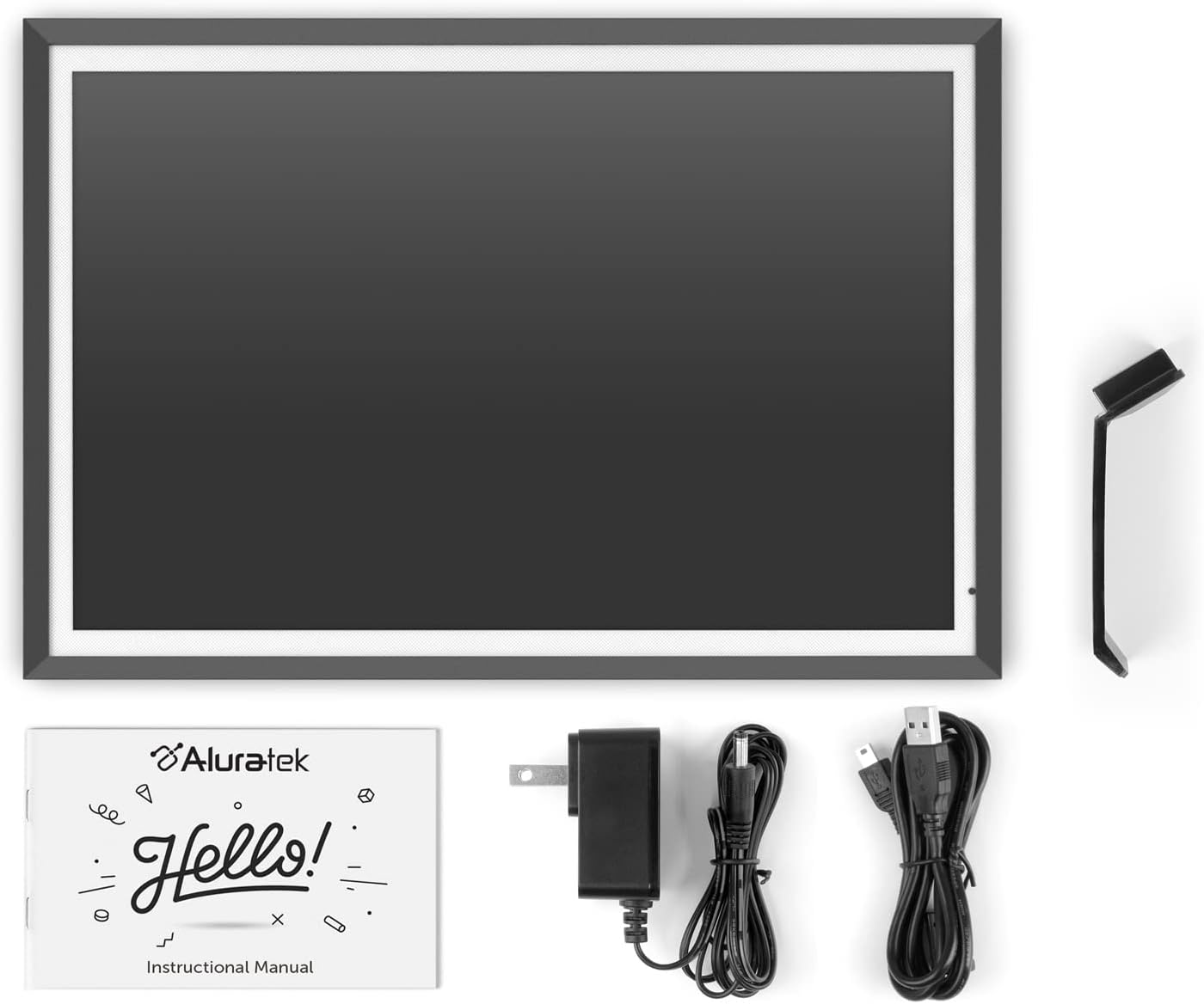
Figure 2: Included components: Digital Photo Frame, stand, power adapter, USB cable, and instructional manual.
3. Setup Guide
The Aluratek Digital Photo Frame is designed for easy setup with no complex software installation required.
3.1 Initial Placement and Power Connection
- Attach the included frame stand to the back of the digital photo frame. Ensure it is securely fastened for stable placement on a flat surface.
- Connect the power adapter to the DC input port on the frame.
- Plug the power adapter into a standard electrical outlet. The frame will power on automatically.
3.2 Network Connection
To utilize wireless photo sharing and other online features, connect the frame to a Wi-Fi network.
- On the frame's touchscreen, navigate to the Settings menu.
- Select Wi-Fi or Network Settings.
- Choose your desired 2.4Ghz or 5Ghz Wi-Fi network from the list of available networks.
- Enter the Wi-Fi password if prompted and confirm the connection.

Figure 3: The frame's intuitive touchscreen interface, showing various application icons.
4. Operating Instructions
4.1 Adding Photos and Videos
There are several methods to transfer your media files to the digital photo frame:
- Frametime App: Download the Frametime app on your mobile device (smartphone or tablet). Connect the app to your frame and send photos and videos directly. This method allows for easy sharing from anywhere.
- Email/Social Media: The frame supports receiving photos via Facebook Messenger, Twitter Messages, or even through email, providing flexible sharing options.
- MicroSD/USB: Insert a MicroSD/HC/XC card (up to 64GB) or a USB flash drive into the designated slot on the frame. The frame will automatically detect the media and allow you to view or transfer files to its 32GB built-in memory.
- PC/MAC Transfer: Connect the frame to your computer using the provided USB cable to transfer files directly to the frame's built-in memory.

Figure 4: Seamless photo sharing from a mobile device to the digital frame using the dedicated app.
4.2 Media Playback and Slideshows
The frame supports various picture, video, and audio formats.
- To view photos or play videos, select the corresponding icon from the main menu.
- You can configure photo slideshows with various interval and transition effects. Background music can also be added to enhance the slideshow experience.

Figure 5: The digital frame's screen showing video playback with on-screen controls.
4.3 Light Sensor and Smart Features
The frame is equipped with a light sensor that automatically powers the device on when ambient light is detected in the room. This feature helps conserve energy and provides convenience.
Additional built-in applications include:
- Clock: Displays the current time.
- Calendar: Shows the date and month.
- Alarm: Set alarms for reminders.
- Weather: Provides current weather conditions and forecasts.
5. Maintenance
To ensure the longevity and optimal performance of your Aluratek Digital Photo Frame, follow these maintenance guidelines:
- Cleaning: Use a soft, lint-free cloth to gently wipe the screen and frame. For stubborn smudges, slightly dampen the cloth with water or a screen-safe cleaning solution. Avoid abrasive cleaners or sprays directly on the screen.
- Placement: Place the frame on a stable, flat surface away from direct sunlight, excessive heat, or moisture. Ensure adequate ventilation around the device.
- Power: Always use the original power adapter provided with the frame. Disconnect the power adapter during electrical storms or when the device will be unused for extended periods.
- Software Updates: Periodically check for firmware updates through the frame's settings menu to ensure you have the latest features and performance improvements.
6. Troubleshooting
If you encounter issues with your digital photo frame, refer to the following common troubleshooting steps:
| Problem | Possible Cause / Solution |
|---|---|
| Frame does not power on. |
|
| Cannot connect to Wi-Fi. |
|
| Photos/Videos are not displaying. |
|
| Touchscreen is unresponsive. |
|
7. Specifications
| Feature | Detail |
|---|---|
| Display Size | 13.5 inches |
| Display Type | Touchscreen IPS LCD |
| Resolution | 3000 x 2000 (3K) |
| Aspect Ratio | 3:2 |
| Internal Memory | 32GB |
| Connectivity | Dual-band Wi-Fi (2.4Ghz, 5Ghz), USB 2.0, MicroSD |
| Supported Memory Cards | MicroSD / MicroSDHC / MicroSDXC (up to 64GB) |
| Viewing Angle (L/R/U/D) | 45 / 45 / 15 / 35 degrees |
| Dimensions (L x W x H) | 12.5 x 0.63 x 9 inches (31.7 x 1.6 x 22.8 cm) |
| Weight | Approximately 1.37 kg (3.02 lbs) |
| Model Number | AWS13F |
| UPC | 8-12658-01510-3 |
8. Warranty and Support
The Aluratek 13.5" Dual-Band WiFi Touchscreen Digital Photo Frame (Model: AWS13F) comes with a 1-year limited warranty from the date of purchase. This warranty covers defects in materials and workmanship under normal use. Please retain your proof of purchase for warranty claims.
For technical support, warranty service, or additional information, please visit the official Aluratek website or contact their customer service department.
Aluratek Official Website: www.aluratek.com