
1. Introduction
This manual provides detailed instructions for the Gnanlen iPad Pencil 2nd Generation. This stylus pen is designed to enhance your iPad experience with features such as magnetic wireless charging, tilt sensitivity, palm rejection, and shortcut functions. Please read this manual thoroughly to ensure proper use and optimal performance of your device.

Image 1.1: The Gnanlen iPad Pencil 2nd Generation shown with its retail packaging.
2. Product Overview and Features
The Gnanlen iPad Pencil 2nd Generation offers a range of features designed for intuitive and efficient interaction with compatible iPad models.
- Magnetic Wireless Charging: Easily attach the stylus to the side of your compatible iPad for convenient charging.
- Tilt Sensitivity: Adjust line thickness and shading by tilting the pen, mimicking a traditional pencil.
- Palm Rejection: Rest your palm comfortably on the iPad screen without interfering with your writing or drawing.
- Pixel Precision: A 1.2mm tip provides high accuracy for detailed tasks.
- Shortcut Key Functions: Quick access to home screen and app selection page with simple taps on the pen's top button.
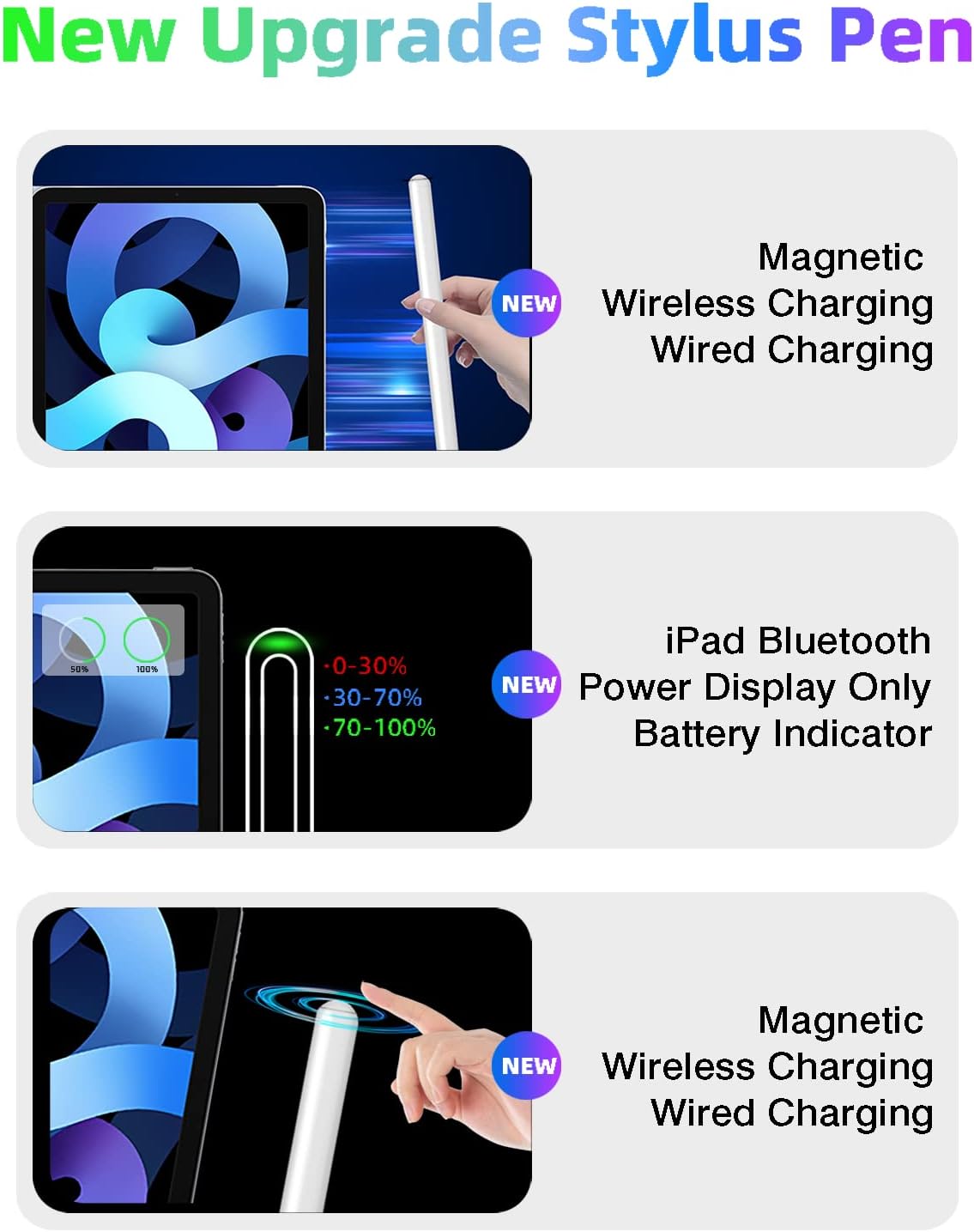
Image 2.1: Overview of the stylus pen's upgraded features, including magnetic wireless charging and iPad Bluetooth power display.
3. Compatibility
This iPad Pencil 2nd Generation is compatible with specific iPad models that support magnetic wireless charging. Please verify your iPad model before use.
3.1 Compatible Models:
- iPad Air (4th/5th Generation)
- iPad Mini (6th Generation)
- iPad Pro 11-inch (1st/2nd/3rd/4th Generation)
- iPad Pro 12.9-inch (3rd/4th/5th/6th Generation)
Note: This stylus does not support any other iPhone, Android, or non-listed iPad devices. Incompatible models will not be able to charge the stylus magnetically.
3.2 How to Identify Your iPad Model:
To confirm your iPad model, follow these steps:
- Tap on "Settings" on your iPad.
- Tap on "General".
- Select "About".
- Locate the "Model Number". It typically starts with the letter "A" followed by four numbers (e.g., A1983).
Alternatively, the model number can often be found on the back of your iPad device.

Image 3.1: Visual guide for identifying iPad models and a list of compatible and incompatible devices.
4. Setup
4.1 Initial Charging:
Before first use, ensure the stylus is fully charged. Magnetically attach the Gnanlen iPad Pencil to the charging area on the side of your compatible iPad. The iPad's screen will display the charging status. A full charge takes approximately 1.5 hours.
4.2 Bluetooth Connection:
For full functionality, including power display and shortcut keys, connect the stylus via Bluetooth:
- Ensure Bluetooth is enabled on your iPad.
- Attach the Gnanlen iPad Pencil magnetically to your iPad.
- A Bluetooth pairing request may appear on your iPad. Confirm to pair.
- Once paired, you can add a widget to your iPad's home screen to monitor the stylus's power level in real-time.
Important: If your iPad is currently connected to an Apple Pencil, please disconnect the Apple Pencil before attempting to connect the Gnanlen iPad Pencil to avoid conflicts.
5. Operating Instructions
5.1 Basic Usage:
Simply touch the stylus tip to the iPad screen to begin interacting. The stylus is ready for use in various applications for writing, drawing, and navigation.
5.2 Tilt Sensitivity:
The stylus supports tilt sensitivity. By angling the pen, you can achieve different line weights and shading effects in compatible drawing and note-taking applications.

Image 5.1: Demonstrates the 1.2mm tip for pixel precision, tilt functionality, and palm rejection during note-taking, sketching, and drafting.
5.3 Palm Rejection:
The integrated palm rejection feature allows you to rest your hand naturally on the iPad screen while writing or drawing, preventing unintended marks or actions.
5.4 Shortcut Key Functions:
After connecting via Bluetooth, the top button of the stylus provides convenient shortcut functions:
- Single Tap: Returns to the main home screen of your iPad.
- Double Tap: Opens the APP selection page (Task Manager).
- Swipe from bottom left to top right corner of iPad screen: Takes a quick screenshot.

Image 5.2: Visual explanation of the single-click and double-click shortcut functions of the stylus button.
6. Charging
The Gnanlen iPad Pencil supports magnetic wireless charging. Simply attach it to the designated charging area on the side of your compatible iPad.
- Charging Time: Approximately 1.5 hours for a full charge.
- Operating Duration: Up to 9 hours of continuous operation on a full charge.
- Automatic Sleep: The stylus will enter sleep mode after 20 minutes of inactivity to conserve battery.
- Power Display: After Bluetooth connection, the iPad's widget can display the real-time power status (0-30%, 30-70%, 70-100%).

Image 6.1: Shows the magnetic charging process and the iPad's battery display for the stylus.
7. Maintenance
To ensure the longevity and optimal performance of your Gnanlen iPad Pencil, follow these maintenance guidelines:
- Cleaning: Wipe the stylus body with a soft, dry cloth. Avoid using harsh chemicals or abrasive materials.
- Tip Care: The 1.2mm tip is durable, but avoid excessive pressure or dropping the stylus to prevent damage. Replacement tips may be available from the manufacturer.
- Storage: When not in use, store the stylus attached to your iPad or in a protective case to prevent loss or damage.
- Battery Life: For optimal battery health, avoid completely draining the battery frequently. Charge regularly.
8. Troubleshooting
If you encounter issues with your Gnanlen iPad Pencil, refer to the following common troubleshooting steps:
- Stylus not connecting/pairing:
- Ensure your iPad model is compatible (refer to Section 3).
- Check if Bluetooth is enabled on your iPad.
- Ensure the stylus is sufficiently charged.
- Disconnect any other styluses (e.g., Apple Pencil) from your iPad's Bluetooth settings.
- Restart your iPad and try pairing again.
- Stylus not charging:
- Verify your iPad model is compatible with magnetic wireless charging.
- Ensure the stylus is correctly aligned and securely attached to the magnetic charging area on your iPad.
- Check if your iPad itself has sufficient battery charge.
- Lag or unresponsiveness:
- Ensure the stylus is fully charged.
- Check for any physical damage to the tip.
- Close and reopen the application you are using.
- Restart your iPad.
If issues persist after following these steps, please contact customer support.
9. Specifications
| Feature | Specification |
|---|---|
| Model Number | Pencil-01 |
| Brand | Gnanlen |
| Color | White |
| Material | Plastic |
| Item Weight | 0.48 ounces (0.03 Pounds) |
| Package Dimensions | 7.36 x 2.48 x 0.75 inches |
| Battery Type | 1 Lithium Polymer battery (included) |
| Charging Time | 1.5 Hours |
| Battery Average Life (Standby) | 9 Hours |
| Compatible Devices | iPad mini 6th gen, iPad Air 4th/5th gen, iPad Pro 12.9 inch 3rd/4th/5th/6th gen, iPad Pro 11 inch 1st/2nd/3rd/4th gen |
10. Warranty and Support
Gnanlen is committed to providing high-quality products and excellent after-sales service. While specific warranty details are not provided in this manual, please retain your proof of purchase for any warranty claims.
For technical assistance, troubleshooting, or any inquiries regarding your Gnanlen iPad Pencil, please contact our customer support. We offer 24-hour online service to assist you.

Image 10.1: Gnanlen brand logo.