
1. Introduction
The Oikabio AT2PW 100A Tuya WIFI Din Rail Meter Smart Switch is a single-phase AC 220V digital energy meter designed for monitoring voltage, current, power, and energy consumption (KWH). It integrates smart switch functionality with WIFI connectivity, allowing remote control and data access via the Tuya or Smart Life mobile application. This device is designed for installation on a 35mm DIN rail and provides accurate energy measurement with a 2.4-inch TFT-LCD HD display.
2. Safety Information
- Installation and maintenance should only be performed by qualified personnel.
- Ensure the main power supply is disconnected before installation or any wiring work.
- Do not operate the device in wet or damp conditions.
- Verify all connections are secure and correct to prevent electrical hazards.
- The device is designed for single-phase AC 220V systems. Do not connect to other voltage systems.
3. Product Overview
The AT2PW smart meter combines energy measurement with remote control capabilities. Key features include:
- Digital Display: 2.4-inch TFT-LCD HD screen for clear data visualization.
- Measurement: Real-time monitoring of voltage, current, power, and total KWH.
- WIFI Connectivity: Connects to 2.4GHz Wi-Fi networks for remote access via mobile app.
- Smart Switch: Integrated 100A relay for remote power ON/OFF control.
- DIN Rail Installation: Designed for easy mounting on a standard 35mm DIN rail.
- Data Memory: Retains energy data upon power loss.

Figure 1: Front view of the Oikabio AT2PW 100A Tuya WIFI Din Rail Meter Smart Switch.
The device dimensions are approximately 12 x 8 x 5 cm, with specific measurements for the display and rail mounting as shown below.

Figure 2: Detailed dimensions of the AT2PW device, showing 46.0mm display height, 70.0mm depth, 36mm width, and 90.8mm overall height.
4. Setup
4.1 Physical Installation
- Ensure the main power supply is turned OFF at the circuit breaker.
- Mount the AT2PW device onto a standard 35mm DIN rail.
- Connect the incoming live (L-IN) and neutral (N-IN) wires to the corresponding input terminals on the device.
- Connect the outgoing live (L-OUT) and neutral (N-OUT) wires to the load.
- Double-check all wiring for secure connections and correct polarity.
- Restore power to the circuit. The device display should illuminate.
4.2 App Download and Device Pairing
The AT2PW device connects to your smartphone via the Tuya Smart or Smart Life application. Ensure your phone is connected to a 2.4GHz Wi-Fi network, as 5GHz networks are not supported.
- Download the "Smart Life" or "Tuya Smart" application from Google Play Store (Android) or Apple App Store (iOS).
- Register or log in to your account.
- On the device, when the meter power is on, press and hold the SET button for 5 seconds until the WIFI indicator flashes rapidly, indicating pairing mode.
- Open the app, tap "Add Device" or the "+" icon.
- The app should automatically discover the device. If not, manually select "Electrical Engineering" > "Energy Meter (Wi-Fi)" or similar.
- Confirm your 2.4GHz Wi-Fi network and enter the password.
- Follow the on-screen instructions to complete the pairing process. Once successful, the WIFI indicator on the device will stop flashing and remain solid.
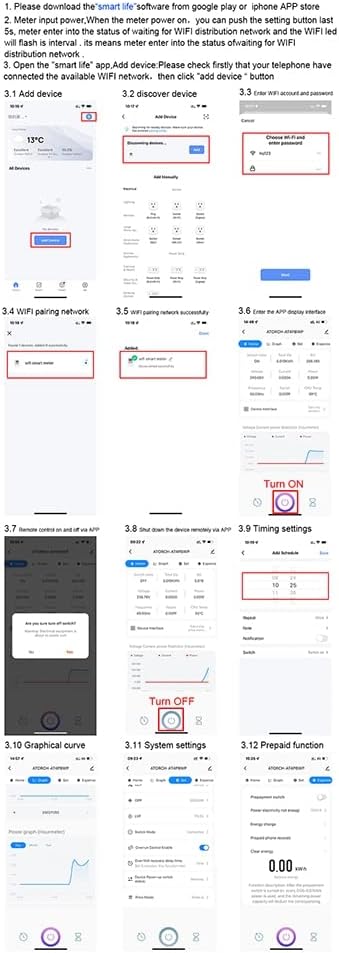
Figure 3: Step-by-step guide for connecting the device to the Smart Life app, including adding the device, entering Wi-Fi credentials, and accessing various functions like remote control, timing, and prepaid features.

Figure 4: Overview of the mobile app interface for remote control, showing the startup screen, successful networking, and measurement interface.
5. Operating Instructions
5.1 Remote Control
Once paired, you can control and monitor the AT2PW device from anywhere using the mobile app, provided your phone has internet access.
- Open the Smart Life/Tuya Smart app and select your AT2PW device.
- The main screen will display real-time data such as voltage, current, power, and total KWH.
- Use the ON/OFF button within the app to remotely switch the connected load.

Figure 5: The mobile app interface showing remote control options including ON/OFF switch, timing settings, and countdown function.
5.2 Advanced Functions via App
The app provides several advanced features for energy management:
- Timing Settings: Schedule the device to turn ON or OFF at specific times.
- Graphical Curve: View historical data for voltage, current, and power in graphical format.
- System Settings: Configure device parameters and update firmware.
- Prepaid Function: Manage prepaid electricity usage (if applicable).
- Notification Settings: Set up alerts for specific events, such as over-voltage alarms.

Figure 6: Initial steps for setting up notifications within the app, including selecting conditions like 'When device status changes' and 'Fault'.

Figure 7: Continuation of notification setup, showing options to select notification methods such as 'Message Center'.
6. Maintenance
- Keep the device clean and free from dust. Use a dry, soft cloth for cleaning.
- Do not use abrasive cleaners or solvents.
- Regularly check wiring connections for tightness and signs of wear.
- Ensure the operating environment temperature remains within -10°C to +60°C.
- Periodically check the app for firmware updates to ensure optimal performance and security.
7. Troubleshooting
- Device not powering on: Check the main power supply and all wiring connections. Ensure the voltage is AC 220V.
- WIFI indicator not flashing/pairing failed:
- Ensure your router is broadcasting a 2.4GHz Wi-Fi signal. 5GHz networks are not supported.
- Verify the Wi-Fi password is correct.
- Move the device closer to the Wi-Fi router.
- Reset the device by pressing and holding the SET button until the WIFI indicator flashes rapidly, then attempt pairing again.
- Remote control not working:
- Check if the device is connected to Wi-Fi (solid WIFI indicator).
- Ensure your smartphone has an active internet connection.
- Verify the app is updated to the latest version.
- Data not updating: Check Wi-Fi connection. If the connection is stable, restart the app.
- Relay behavior after power outage: The device's data memory retains energy readings. However, the switch state (ON/OFF) does not have power-off memory. Upon power restoration, the relay will close, and the screen will display normally.
8. Specifications
| Model Number | AT2PW (Internal Reference: 500336665) |
| Rated Voltage | AC 220V |
| Maximum Operating Current | 80A - 99A (Integrated 100A shunt) |
| Measurement Range | 0 - 99999 KWH |
| Accuracy Class | 1% |
| Display Type | 2.4-inch TFT-LCD HD (240x320 RGB Dot-Matrix) |
| Wireless Type | 2.4 GHz 802.11b/g (Does not support 5G) |
| Operating Temperature | -10°C ~ +60°C |
| Installation | 35mm DIN Rail |
| Dimensions (L x W x H) | 12 x 8 x 5 cm (approximate) |
| Power Range | Max 26.5 kW |
9. Warranty and Support
For warranty information and technical support, please refer to the product packaging or contact your retailer. Keep your purchase receipt as proof of purchase.
For app-related issues, refer to the help section within the Tuya Smart or Smart Life application.