
BIQU EZ2209 V1.0
BIGTREETECH EZ2209 V1.0 Stepper Motor Driver User Manual
Model: EZ2209 V1.0
Product Overview
The BIGTREETECH EZ2209 V1.0 Stepper Motor Driver is an advanced component designed for 3D printers, offering quiet and precise motion control. It features an innovative 2-in-1 design combining the driver and a large aluminum heat sink for improved heat dissipation and protection.
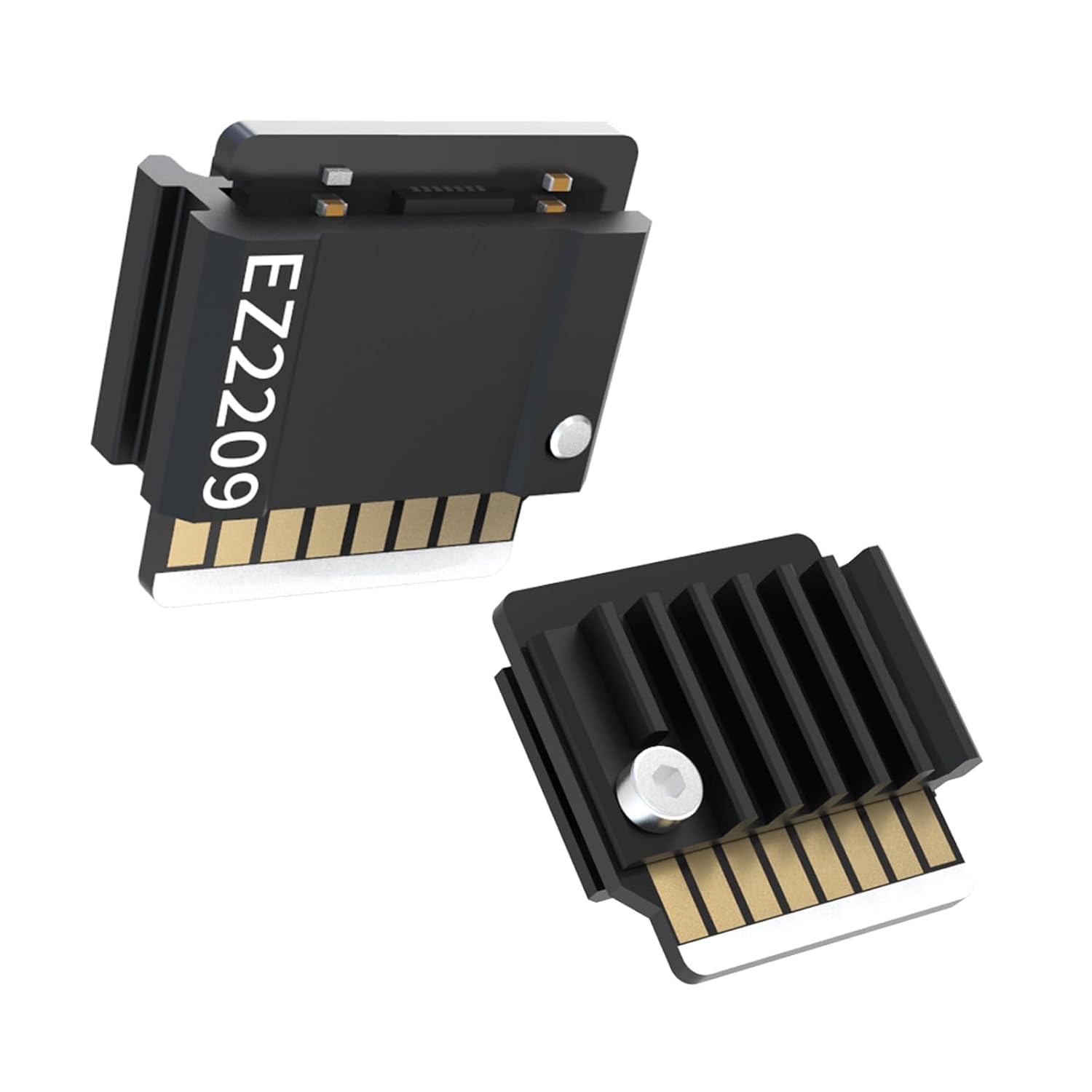
Image: The EZ2209 V1.0 Stepper Motor Driver.
Key Features:
- Wide Application: Compatible with BTT Manta E3 EZ and SKR 3 EZ motherboards. Can also be used with I3 Mega, Octopus V1.2, SKR 3, and other main boards via BTT EZ driver connector.
- Enhanced Heat Dissipation: Integrated heat sink design minimizes energy consumption and protects the driver chip from external damage.
- Easy Installation: Pinless structure prevents finger pricks and features an anti-misplugging design for correct insertion.
- Durable Construction: Manufactured with a 4-layer PCB for superior performance and extended service life.
Setup and Installation
The EZ2209 V1.0 stepper motor driver is designed for straightforward installation. Please follow the instructions below based on your motherboard type.
Installation Methods:
- Method 1: Using with Pin Slot Motherboards (via EZ Driver Connector)
For motherboards that use traditional pin slots, an EZ Driver Connector is required. Insert the EZ2209 driver into the EZ Driver Connector, then carefully align and insert the connector into the corresponding stepper motor driver slot on your motherboard. Ensure correct orientation to prevent damage.

Image: Installation Method 1 - EZ Driver Connector with Pin Slot Motherboard.
- Method 2: Direct Installation on BTT EZ Slot Motherboards
For BIGTREETECH motherboards equipped with EZ slots (e.g., Manta E3 EZ, SKR 3 EZ), the EZ2209 driver can be inserted directly. Align the driver with the EZ slot, ensuring the correct orientation as indicated by the anti-misplugging design, and gently push it into place until it is fully seated.
Image: Installation Method 2 - Direct Installation on BTT EZ Slot Motherboard.
Important Safety Note: The pinless structure of the EZ2209 driver is designed to protect against finger pricks and incorrect insertion. Always ensure the driver is oriented correctly before applying force. Incorrect insertion can damage the driver or the motherboard.

Image: Safety feature of the pinless EZ2209 driver.
Operation
Once installed, the EZ2209 V1.0 stepper motor driver operates seamlessly with compatible 3D printer mainboards to control stepper motors. Its advanced design contributes to a quieter and more efficient printing experience.
Key Operational Benefits:
- Silent Operation: The driver's design minimizes motor noise, leading to a significantly quieter 3D printing environment.
- Precise Positioning: Ensures accurate and repeatable movements of the printer's axes, crucial for high-quality prints.
- Anti-shake Performance: Contributes to smoother motion and reduced vibrations during printing, improving print quality.

Image: Operational benefits of the EZ2209 driver.
For specific configuration and tuning of the stepper drivers (e.g., current settings, microstepping), refer to the documentation of your 3D printer's mainboard and firmware (e.g., Marlin, Klipper). The EZ2209 supports 256 subdivision for fine control.
Maintenance and Durability
The EZ2209 V1.0 driver is designed for long-term reliability with minimal maintenance. Its integrated heat sink and robust construction contribute to its longevity.
Heat Dissipation:
The innovative 2-in-1 design, combining the stepper driver with a large aluminum heat sink, significantly improves heat dissipation. This helps to maintain optimal operating temperatures, reduce energy consumption, and protect the driver chip from thermal damage. No additional heat sinks are typically required for normal operation.

Image: EZ2209's integrated driver and heat sink design.
Durability:
Constructed with a 4-layer PCB (Printed Circuit Board), the EZ2209 V1.0 offers superior performance and a longer service life compared to drivers with fewer layers. This robust construction enhances its resistance to electrical interference and physical stress.

Image: Internal structure showing the 4-layer PCB for high durability.
Keep the drivers free from dust and debris. If cleaning is necessary, use a soft, dry brush or compressed air. Avoid using liquids or abrasive materials.
Troubleshooting
If you encounter issues with your EZ2209 V1.0 stepper motor drivers, consider the following common troubleshooting steps:
| Problem | Possible Cause | Solution |
|---|---|---|
| Motor not moving or erratic movement | Incorrect installation, loose connection, incorrect current setting, faulty motor. | Ensure driver is fully seated and correctly oriented. Check all wiring connections. Verify current settings in firmware. Test with a known good motor if possible. |
| TMC communication error on boot | Driver not detected, incorrect SPI speed (for certain mainboards like Octopus MAX EZ). | Re-seat the driver. For Octopus MAX EZ, try reducing SPI bus speed to 2MHz in firmware (e.g., Klipper configuration). |
| Excessive motor noise | Incorrect microstepping settings, motor resonance, driver issue. | Adjust microstepping settings in firmware. Ensure motor is properly mounted. Verify driver is functioning correctly. |
| Driver overheating | Excessive current, poor airflow, environmental temperature. | Reduce motor current in firmware. Ensure adequate ventilation around the driver. Operate in a cooler environment. |
If these steps do not resolve the issue, please contact BIQU customer support for further assistance.
Specifications
| Model | EZ2209 V1.0 |
| Drive Current | 1.6A (Peak 2A) |
| Voltage Range | 12V - 24V DC |
| Microstepping | 256 subdivision |
| PCB Layers | 4 layers |
| Dimensions | 18.5 x 19.8 mm (approx.) |
| Compatibility | BTT Manta E3 EZ, SKR 3 EZ, and other mainboards via EZ driver connector. |
Warranty and Support
Customer Support:
For any problems or inquiries regarding your BIGTREETECH EZ2209 V1.0 Stepper Motor Driver, please contact the BIQU customer service team directly through Amazon. They are always ready to offer assistance and resolve any issues you may encounter.
You can also visit the official BIQU store on Amazon for more information and products: BIQU Amazon Store
Warranty Information:
Specific warranty details may vary. Please refer to the product listing on Amazon or contact BIQU customer support for the most up-to-date warranty policy.
Related Documents - EZ2209 V1.0
 |
BIQU-B1 Dual Z Upgrade Kit Installation Guide and Datasheet Comprehensive guide and specifications for the BIQU-B1 Dual Z Upgrade Kit, detailing installation steps, component data, and connection diagrams for enhancing your BIQU-B1 3D printer. |
 |
BIQU-B1 Dual-Color 3D Printer Upgrade Kit: Installation & Slicing Guide A comprehensive guide for installing and using the BIQU-B1 two-in-one-out dual-color printing upgrade kit. It covers product specifications, step-by-step installation of the print head, extruder, and filament bracket, firmware preparation, and detailed instructions for configuring and using the upgrade with Ultimaker Cura for dual-color slicing. |
 |
Datenblatt und Sicherheitshinweise für BIQU B1 Spannfeder Umfassendes Datenblatt und detaillierte Sicherheitshinweise für die BIQU B1 Spannfeder, ein Originalersatzteil für den BIQU B1 3D-Drucker. Enthält Spezifikationen, Anwendungsbereiche, Betriebsbedingungen und wichtige Vorsichtsmaßnahmen für Handhabung und Entsorgung. |
 |
BIQU B1 SE PLUS 3D Printer User Manual: Installation, Operation, and Settings Comprehensive user manual for the BIQU B1 SE PLUS 3D printer, covering installation steps, packing list, technical parameters, screen interface, and printing instructions. |
 |
BIQU-B1 3D Printer User Manual A comprehensive guide for the BIQU-B1 3D printer, detailing assembly steps, technical specifications, calibration procedures, and essential safety precautions for optimal operation. |
 |
BIQU-B1 User Manual: Setup, Calibration, and Operation Guide Comprehensive user manual for the BIQU-B1 3D printer, covering installation, equipment parameters, platform calibration, software setup with Ultimaker Cura, printing techniques, troubleshooting, and advanced features. |
Ask a question about this manual
Ask about setup, troubleshooting, compatibility, parts, safety, or missing instructions. Manuals+ will review the question and use this page’s manual context to help answer it.