
lifoarey Q20
Lifoarey Q20 Indoor Security Camera User Manual
Model: Q20 | Brand: lifoarey
1. Introduction
This user manual provides comprehensive instructions for the setup, operation, and maintenance of your lifoarey Q20 Indoor Security Camera. Please read this manual carefully before using the device to ensure proper functionality and safety.
2. What's in the Box
Upon unboxing, please verify that all components listed below are present:
- Wifi Camera
- USB Power Cable
- Mounting Screws and Anchors
- Instruction Manual (this document)

Figure 2.1: Included components of the Lifoarey Q20 Indoor Security Camera. The image displays the white dome camera, a white USB power cable, a small bag with mounting screws and wall anchors, and a printed instruction manual.
3. Product Overview
The Lifoarey Q20 Indoor Security Camera is designed to provide comprehensive home monitoring with its advanced features:
- 1080P Full HD Resolution: Provides sharp and clear video for detailed monitoring.
- 2-Way Audio: Enables instant communication, allowing you to speak and listen through the camera.
- 360° Coverage View (Pan/Tilt): Offers a wide viewing angle with horizontal 355° and vertical 75° rotation, controllable via the app.
- Motion Detection & Tracking: Sends instant alerts to your smartphone upon motion detection and automatically tracks the activity.
- Night Vision: Ensures clear monitoring even in low-light conditions.
- Cloud & Local Storage: Supports continuous recording with an inserted Micro SD card (up to 128GB, sold separately) or optional cloud service.
- Smart Sharing: Allows sharing camera access with multiple family members.

Figure 3.1: Visual representation of the Lifoarey Q20 camera with callouts for its main features: 1080P Resolution, Motion Detection, Motion Tracking, and 2 Way Audio.

Figure 3.2: The camera's ability to provide clear images in both daytime and nighttime conditions, indicated by sun and moon icons.

Figure 3.3: Illustration of the dual storage options: Cloud storage and Micro SD Card storage (up to 128GB).
4. Setup Guide
Follow these steps to set up your Lifoarey Q20 camera:
- Download the App: Scan the QR code provided in the physical instruction manual or search for "Clink-Smart Home" in your device's app store (App Store for iOS, Google Play for Android). Look for the app with a 'C' icon.
- Register and Log In: Open the "Clink-Smart Home" app. Register a new account using your email address and create a password. Verify your email if prompted, then log in.
- Prepare for Connection: Ensure your smartphone is connected to a 2.4GHz Wi-Fi network. The camera only supports 2.4GHz Wi-Fi.
- Power On the Camera: Plug the camera into a power outlet using the provided USB power cable. The camera will go through an initial self-check, which may involve rotating and making sounds.
- Reset the Camera (if necessary): If the camera does not respond or you are setting it up for the first time, locate the reset tab. This tab is typically found under the round camera part, near the SD card slot. Press and hold this tab for 5 seconds until you hear a confirmation sound or voice prompt.
- Connect via App:
- In the "Clink-Smart Home" app, follow the on-screen prompts to add a new device.
- The camera will indicate when it is ready to connect (e.g., a voice prompt saying "Waiting for Wi-Fi configuration").
- The app will generate a QR code on your phone screen. Hold your phone's screen approximately 6-8 inches (15-20 cm) in front of the camera lens. Ensure the QR code is clearly visible to the camera.
- Once the camera successfully scans the QR code, it will beep or provide a voice confirmation that it is connecting to Wi-Fi.
- Wait for the camera to confirm successful connection. The app will then display the live camera feed.
- Placement: The camera can be placed on a desk or mounted on the ceiling. Choose a location that provides the desired viewing area.
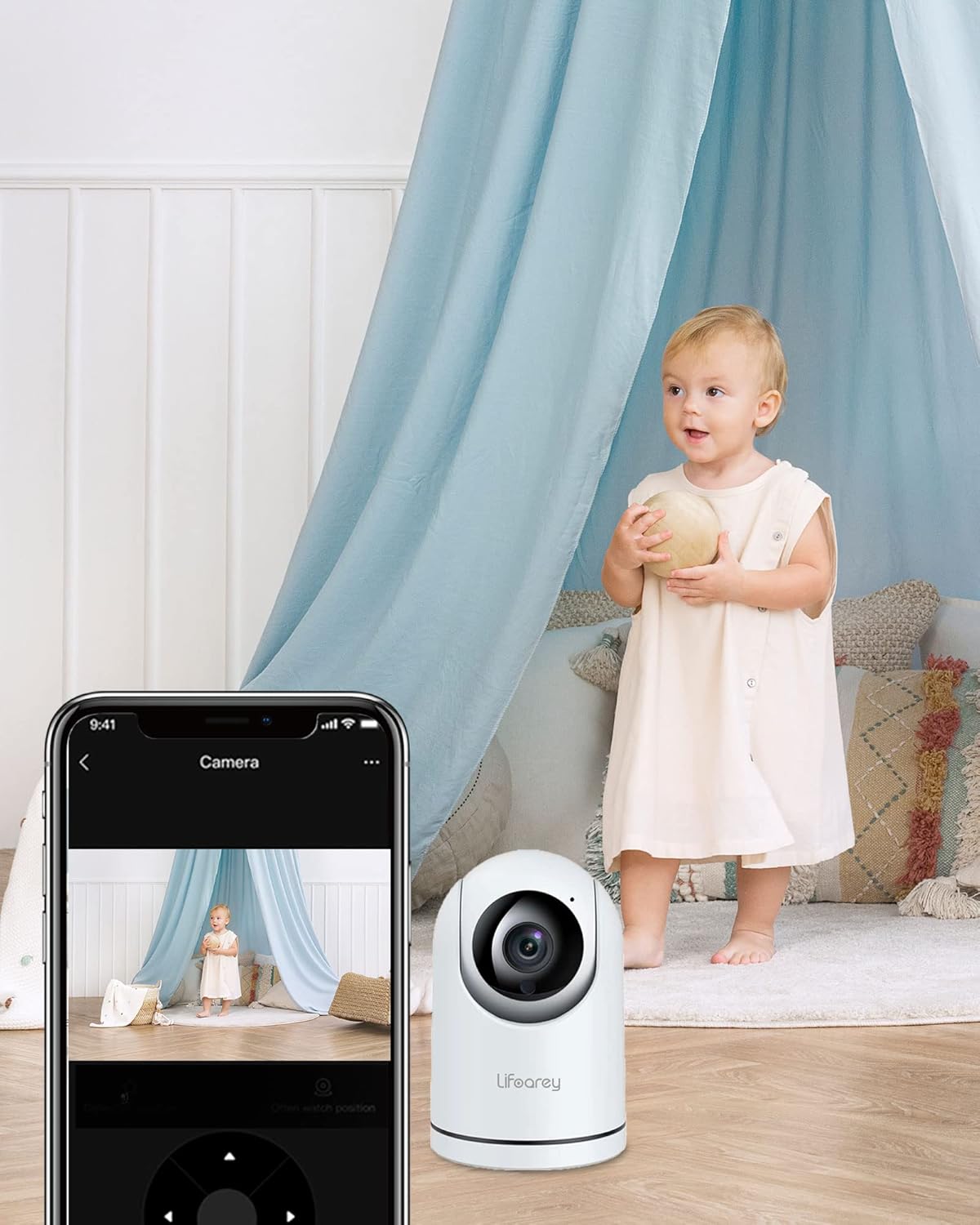
Figure 4.1: The Lifoarey Q20 camera monitoring a room, with the live feed displayed on a smartphone, demonstrating remote viewing capabilities.

Figure 4.2: The Lifoarey Q20 camera can be placed on a desk or mounted on the ceiling, offering flexible installation options.
5. Operating Instructions
5.1 Live View and Pan/Tilt Control
Once connected, open the "Clink-Smart Home" app to view the live feed. Use the directional controls within the app to pan (horizontal rotation up to 355°) and tilt (vertical rotation up to 75°) the camera lens to adjust your viewing angle.
5.2 Two-Way Audio
To use the two-way audio feature, tap the microphone icon in the live view interface of the app. You can then speak into your phone, and your voice will be transmitted through the camera's speaker. Similarly, you can hear audio from the camera's environment through your phone.

Figure 5.1: The 2-Way Audio feature allows for instant communication, enabling users to comfort children or pets remotely.
5.3 Motion Detection and Tracking
The camera is equipped with motion detection. When motion is detected, you will receive instant alerts on your smartphone. The camera can also automatically track the detected activity within its field of view.

Figure 5.2: The camera's motion detection feature sends instant notifications to your phone when activity is detected.

Figure 5.3: The camera's motion tracking feature allows it to follow detected movement within its range.
5.4 Storage Options
The Lifoarey Q20 supports two storage methods for recorded footage:
- Micro SD Card: Insert a Micro SD card (up to 128GB, purchased separately) into the designated slot on the camera. The camera will continuously record to the card.
- Cloud Service: An optional cloud storage service is available for continuous recording and remote access to your footage. Refer to the app for subscription details.

Figure 5.4: The camera offers flexible storage options, allowing users to save recordings to a Micro SD card or utilize cloud storage.
5.5 Smart Sharing
You can share access to your camera's live feed with family members or trusted individuals through the "Clink-Smart Home" app. This feature supports up to 4 users viewing simultaneously on phone and tablet.

Figure 5.5: The smart sharing feature allows multiple users to view the camera feed simultaneously, facilitating shared monitoring.
6. Maintenance
- Cleaning: Use a soft, dry cloth to clean the camera lens and body. Avoid using harsh chemicals or abrasive cleaners.
- Firmware Updates: Regularly check the "Clink-Smart Home" app for available firmware updates to ensure optimal performance and security.
- Placement: Ensure the camera is placed in a stable, dry indoor environment. Avoid direct sunlight or extreme temperatures.
7. Troubleshooting
| Problem | Possible Cause | Solution |
|---|---|---|
| Camera does not connect to Wi-Fi. | Incorrect Wi-Fi password; camera too far from router; 5GHz Wi-Fi network used; QR code not scanned properly. | Double-check Wi-Fi password. Move camera closer to router. Ensure your router is broadcasting a 2.4GHz network and your phone is connected to it. Re-scan the QR code, ensuring proper distance and lighting. Try resetting the camera (see Setup Guide). |
| Camera makes repetitive beeping sounds. | Indicates a connection issue or setup mode. | This sound often occurs when the camera is waiting for Wi-Fi configuration. Follow the app's instructions to complete the setup process, especially the QR code scanning step. If it persists after setup, check your Wi-Fi connection. |
| Motion tracking does not work. | Feature might be disabled in settings; environmental factors (e.g., too much light, reflections). | Check the camera settings in the "Clink-Smart Home" app to ensure motion tracking is enabled. Adjust camera placement to minimize environmental interference. |
| App is difficult to find or QR code doesn't work. | Outdated QR code; app name variations. | Search directly for "Clink-Smart Home" in your app store. Ensure you are looking for the correct icon (a 'C' symbol). If the QR code in the manual doesn't work, manually search for the app. |
8. Specifications
| Feature | Detail |
|---|---|
| Model Name | Q20 |
| Indoor/Outdoor Usage | Indoor |
| Power Source | DC |
| Connectivity Protocol | Wi-Fi (2.4GHz only) |
| Controller Type | iOS, Android (via App) |
| Mounting Type | Mount on ceiling or put on desk |
| Video Capture Resolution | 1080p |
| Color | White |
| Included Components | Wifi Camera |
| Wireless Communication Technology | Wi-Fi |
| Form Factor | Dome |
| Viewing Angle | 355 Degrees (Pan), 75 Degrees (Tilt) |
| Night Vision Range | 25 Feet |
| Frame Rate | 15fps |
| Material | Metal, Plastic |
| Item dimensions L x W x H | 5.8 x 3.2 x 3.2 inches |
| Water Resistance Level | Not Water Resistant |
| Focus Type | Auto Focus |
| Alert Type | Motion Only |
| Light Source Type | Infrared |
| Flash Memory Supported Size Maximum | 128 GB (Micro SD) |
| Item Weight | 11.2 ounces |
9. Warranty and Support
For any product inquiries, technical support, or warranty claims, please contact Lifoarey customer support:
- Email: support@lifoarey.com
Please retain your purchase receipt as proof of purchase for warranty purposes.
Related documentsQ20

Ask a question about this manual
Ask about setup, troubleshooting, compatibility, parts, safety, or missing instructions. Manuals+ will review the question and use this page’s manual context to help answer it.