
Introduction
This manual provides essential information for the safe and efficient use of your ONN 42-Inch Full HD LED Smart TV, Model 100018254. Please read these instructions thoroughly before operating your television and retain them for future reference.
What's in the Box
Verify that all components are present before proceeding with setup.
- ONN 42-Inch Full HD LED Smart TV
- Remote Control
- TV Stand (2 pieces)
- Screws for TV Stand
- Power Cord
- Quick Start Guide (not included in this manual)

Image: Front view of the ONN 42-inch Smart TV displaying the Roku TV home screen with various streaming app icons like Netflix, Disney+, Apple TV, Hulu, Peacock, and Roku Channel. The TV is black with slim bezels and two stand feet.
Setup
1. Attaching the TV Stand
- Carefully place the TV screen-down on a soft, clean surface to prevent damage.
- Align each stand piece with the corresponding screw holes on the bottom of the TV.
- Secure each stand piece with the provided screws. Ensure they are tightened firmly.

Image: A diagram illustrating the dimensions of the ONN 42-inch TV, showing its width as 43 inches and height as 37 inches when placed on its stand.
2. Wall Mounting (Optional)
This TV is compatible with VESA standard wall mounts. Refer to your wall mount's instructions for proper installation. Ensure the wall mount can support the weight of the television.

Image: Rear view of the ONN 42-inch TV, highlighting the VESA mounting screw holes in a square pattern and various input ports on the side and bottom right.
3. Connecting Devices
Connect your external devices such as cable boxes, gaming consoles, or Blu-ray players to the TV's input ports.
- HDMI: For high-definition audio and video. Use an HDMI cable to connect devices like set-top boxes, game consoles, or streaming sticks.
- USB: For connecting USB storage devices to play media files.
- Wi-Fi: For internet connectivity to access smart TV features and streaming services.
4. Initial Power On and Setup Wizard
- Plug the power cord into the TV and then into a wall outlet.
- Press the power button on the remote control or on the TV itself.
- Follow the on-screen instructions to complete the initial setup, including language selection, network connection (Wi-Fi), channel scanning, and linking to your Roku account (if applicable).
Operating the TV
1. Remote Control Overview
The remote control allows you to navigate the TV's interface and control various functions.
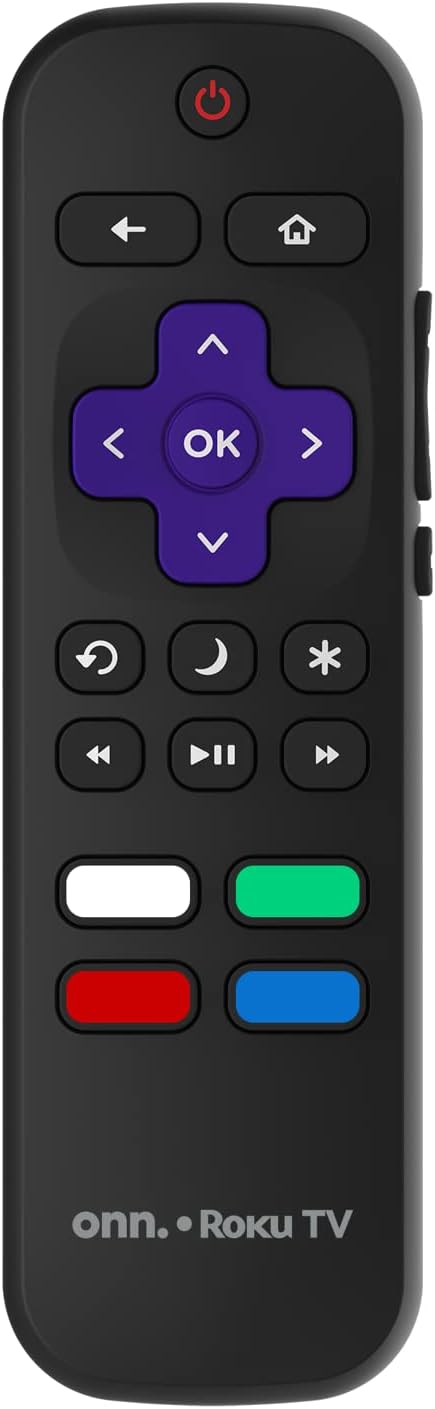
Image: The ONN Roku TV remote control, featuring a power button, directional pad, OK button, home button, back button, volume controls, and dedicated buttons for popular streaming services.
- Power Button: Turns the TV on or off.
- Directional Pad (D-Pad) & OK: Navigates menus and confirms selections.
- Home Button: Returns to the Roku TV home screen.
- Back Button: Returns to the previous screen or menu.
- Volume Up/Down: Adjusts the audio volume.
- Mute Button: Mutes or unmutes the audio.
- Channel Up/Down: Changes channels (for antenna/cable inputs).
- Dedicated App Buttons: Quick access to popular streaming services like Netflix, Hulu, etc.
2. Smart TV Features
Your ONN Smart TV provides access to a wide range of streaming content and smart functionalities.
- Streaming Services: Access pre-installed apps like Netflix, YouTube, and many more through the Roku Channel Store.
- Voice Control: Compatible with Alexa and Google Assistant for hands-free control (requires a separate compatible voice assistant device).
- Automatic Software Updates: The TV will automatically update its software when connected to the internet, ensuring you have the latest features and security.
3. Input Selection
To switch between connected devices (e.g., cable box, game console), use the Input button on your remote or select the desired input from the Roku TV home screen.
4. Picture and Sound Settings
Access the TV's settings menu to customize picture and sound preferences. Navigate to Settings > TV picture settings or Settings > Audio to adjust options like brightness, contrast, color, sound mode, and equalizer settings.
Maintenance
1. Cleaning the Screen
- Always turn off the TV and unplug it before cleaning.
- Use a soft, lint-free cloth, slightly dampened with water or a specialized screen cleaner.
- Do not spray cleaner directly onto the screen. Apply it to the cloth first.
- Avoid using abrasive cleaners, alcohol, benzene, or thinners, as these can damage the screen.
2. Software Updates
Ensure your TV is connected to the internet to receive automatic software updates. These updates improve performance, add features, and enhance security. You can manually check for updates in the Settings > System > System update menu.
Troubleshooting
If you encounter issues with your TV, refer to the following common solutions:
No Power
- Check if the power cord is securely plugged into both the TV and the wall outlet.
- Verify the wall outlet is functioning by plugging in another device.
- Try pressing the power button on the TV itself, not just the remote.
No Picture / Distorted Picture
- Ensure the correct input source is selected (e.g., HDMI 1, HDMI 2).
- Check all cable connections between the TV and external devices.
- Try a different HDMI cable if possible.
- Adjust picture settings (brightness, contrast) in the TV menu.
No Sound / Low Sound
- Check if the TV is muted or if the volume is turned down.
- Ensure external audio devices (soundbars, receivers) are properly connected and powered on.
- Check audio settings in the TV menu.
Network Connection Issues
- Verify your Wi-Fi router is powered on and functioning.
- Restart your router and modem.
- Go to Settings > Network > Check connection on your TV to diagnose the issue.
- Ensure you are entering the correct Wi-Fi password.
Specifications
| Feature | Detail |
|---|---|
| Model Number | 100018254 |
| Screen Size | 42 Inches |
| Display Technology | LED |
| Resolution | 1080p (Full HD) |
| Refresh Rate | 60 Hz |
| Connectivity | USB, Wi-Fi |
| Supported Internet Services | Netflix, YouTube (and others via Roku platform) |
| Control Method | Voice (via Alexa & Google Assistant compatible devices), Remote Control |
| Mounting Type | Wall Mount (VESA compatible) |
| Color | Black |
| UPC | 671227025567 |

Image: Energy Guide label for Television Model 100018254, indicating an estimated yearly energy cost of $11 based on 12 cents per kWh and 5 hours use per day.
Warranty and Support
For warranty information and technical support, please refer to the documentation included with your purchase or visit the official ONN support website. Keep your purchase receipt for warranty claims.