
1. Introduction
The Cat S75 is a robust 5G smartphone designed for reliability and durability in challenging environments. It features advanced satellite connectivity, ensuring communication even without traditional mobile or Wi-Fi networks. This manual provides essential information for setting up, operating, maintaining, and troubleshooting your Cat S75 smartphone.

Image 1.1: Front and back view of the Cat S75 Smartphone, showcasing its design and included car charger.
2. Getting Started: Setup
2.1 Package Contents
Before proceeding, ensure your package contains the following:
- Cat S75 Smartphone
- USB-C Charging Cable
- Quick Start Guide
- SIM Ejector Tool
2.2 Inserting SIM Card(s) and MicroSD Card
- Locate the SIM tray on the side of the device.
- Use the provided SIM ejector tool to open the tray.
- Carefully place your Nano-SIM card(s) and/or MicroSD card into the designated slots. The Cat S75 supports Dual SIM functionality.
- Gently push the tray back into the device until it clicks into place.
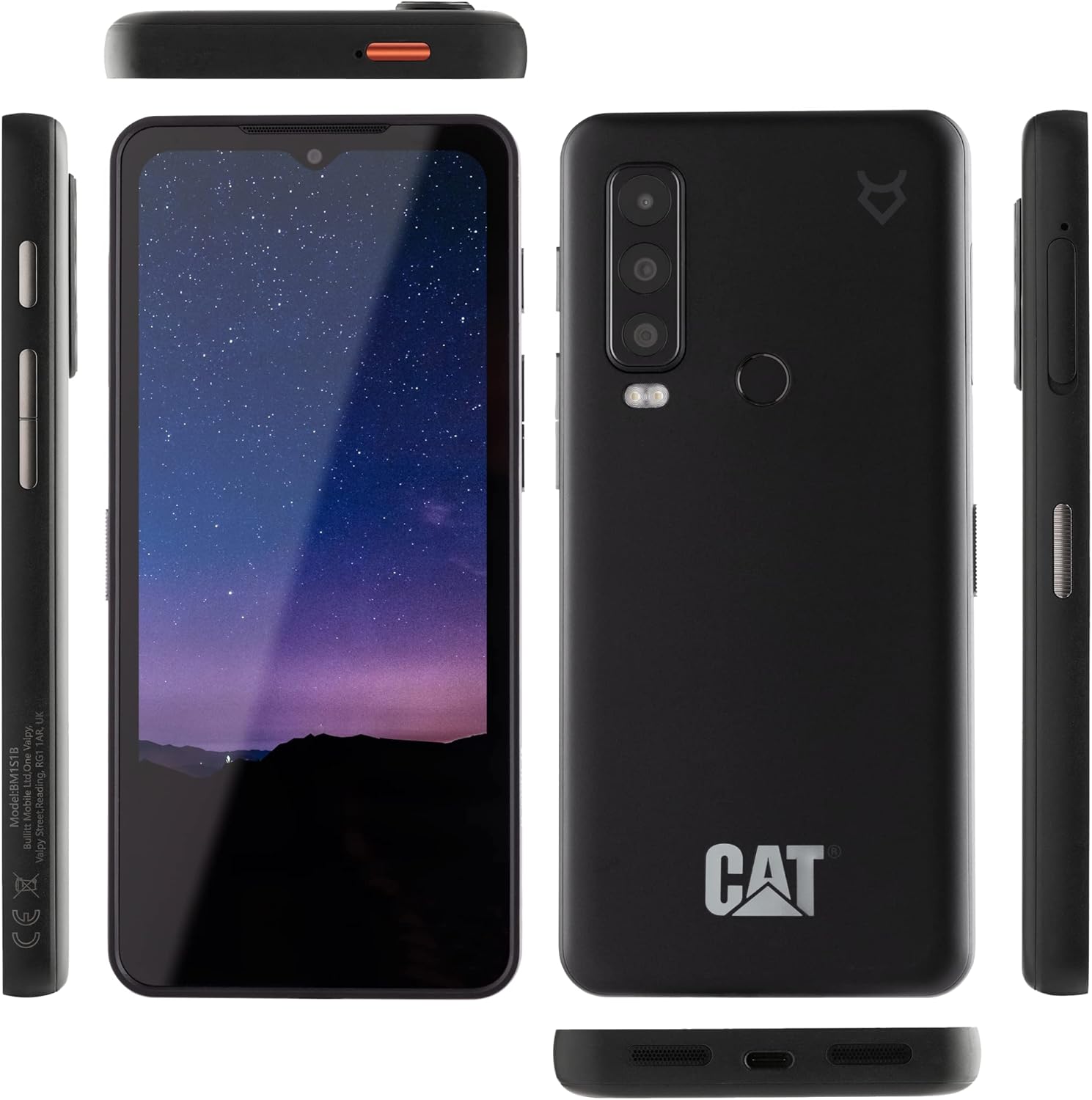
Image 2.1: The Cat S75 Smartphone viewed from multiple angles, illustrating its robust construction and button placement.
2.3 Initial Charging and Power On
For optimal performance, fully charge your Cat S75 before first use. The device supports 15W fast charging and 15W Qi wireless charging.
- Connect the USB-C cable to the phone's charging port and the other end to a compatible power adapter.
- Alternatively, place the phone on a Qi-compatible wireless charging pad.
- Once charged, press and hold the power button (located on the side) until the Cat logo appears.
- Follow the on-screen instructions to complete the initial setup, including language selection, Wi-Fi connection, and Google account setup.
2.4 Activating Bullitt Satellite Connect
The Cat S75 features Bullitt Satellite Connect for two-way satellite messaging and SOS functionality. A 3-month free trial of the "Essentials" plan is included (activation required before December 31, 2023).
- Ensure your phone has an active internet connection (Wi-Fi or mobile data).
- Locate and open the "Bullitt Satellite Messenger" application on your device.
- Follow the in-app instructions to activate your service and claim your free trial.
- For best satellite reception, ensure a clear view of the sky.

Image 2.2: A user holding the Cat S75 Smartphone, displaying the Bullitt Satellite Messenger application on its screen.
3. Operating Your Cat S75
3.1 Basic Phone Functions
- Making Calls: Open the Phone app, dial the number, and tap the call icon.
- Sending Messages: Open the Messages app, start a new conversation, enter the recipient and message, then send.
- Internet Browsing: Use a web browser app (e.g., Chrome) to access the internet via Wi-Fi or mobile data.
- App Management: Download and install apps from the Google Play Store.
3.2 Satellite Messaging
The Bullitt Satellite Messenger app allows you to send and receive messages via satellite when cellular and Wi-Fi networks are unavailable. This feature is crucial for remote areas.
- Open the Bullitt Satellite Messenger app.
- Compose your message as usual. The app will automatically detect if a satellite connection is needed and available.
- For SOS emergencies, use the dedicated SOS function within the app. This sends your location and a distress message to a 24/7 monitoring center.

Image 3.1: A user holding the Cat S75 Smartphone, illustrating general use or messaging functionality.
3.3 Camera Features
The Cat S75 features a triple rear camera system (50 MP, 8 MP, and 2 MP) and supports underwater photography.
- Open the Camera app.
- Select your desired mode (Photo, Video, Portrait, etc.).
- Underwater Mode: Before submerging, ensure all ports are securely closed. Activate underwater mode in the camera settings to disable touchscreen input and use physical buttons for capture. The phone is waterproof up to 5 meters for 35 minutes.

Image 3.2: A person using the Cat S75 Smartphone to capture a photo in an outdoor setting.
3.4 Display and Interaction
The 6.58" FHD+ 120 Hz display is protected by Corning Gorilla Glass 7 (Victus) and is designed for use with wet fingers and gloves, enhancing usability in various conditions.
- Wet Finger Tracking: The screen remains responsive even when wet.
- Glove Mode: Activate glove mode in display settings for improved touch sensitivity when wearing gloves. Note that not all glove types may be compatible.
4. Maintenance and Durability
4.1 Cleaning Instructions
The Cat S75 is designed to be hygienically cleanable and resistant to various substances.
- The phone can be cleaned with warm soapy water, bleach, alcohol, and chemical disinfectants.
- Ensure all ports are closed before cleaning with liquids.
- Rinse thoroughly with fresh water after cleaning with harsh chemicals or saltwater.
- Do not use abrasive materials or high-pressure water jets.
4.2 Rugged Features
The Cat S75 meets stringent durability standards, including IP68/IP69K and MIL-SPEC 810H.
- Waterproof: Submersible up to 5 meters for 35 minutes.
- Dust and Sand Proof: Fully protected against ingress of dust and fine particles.
- Drop Resistant: Tested to withstand drops onto steel from 1.8 meters.
- Extreme Temperatures: Operates reliably in extreme temperatures and high humidity.
- Antimicrobial: Designed with antimicrobial properties for enhanced hygiene.

Image 4.1: The Cat S75 Smartphone in mid-air, illustrating its drop-resistant design.
5. Troubleshooting
5.1 Common Issues and Solutions
- Device not powering on: Ensure the battery is charged. Connect to a charger for at least 30 minutes, then try powering on again.
- Poor satellite signal: Move to an open area with a clear view of the sky. Avoid obstructions like buildings or dense foliage.
- Touchscreen unresponsive: If wet, ensure wet finger tracking is enabled. If wearing gloves, activate glove mode. If still unresponsive, restart the device.
- Network connectivity issues: Check if airplane mode is off. Verify SIM card insertion. Restart the device. Contact your mobile carrier if issues persist.
- Apps crashing: Clear the app's cache and data in Settings > Apps. If the issue continues, uninstall and reinstall the app.
For more complex issues, refer to the official Cat Phones support website or contact customer service.
6. Specifications
| Feature | Detail |
|---|---|
| Brand | Caterpillar |
| Model Name | CAT S75 Smartphone |
| Model Number | CS75-DAB-ROE-NN |
| Operating System | Android 12 or later |
| Display Size | 6.58 Inches |
| Resolution | 2408 x 1080 pixels |
| Refresh Rate | 120 Hz |
| CPU Speed | 2 GHz Octa Core |
| RAM | 6 GB |
| Storage Capacity | 128 GB (expandable via MicroSD) |
| Rear Camera | 50 MP, 8 MP, 2 MP (Triple Camera) |
| Battery Capacity | 5000 mAh Lithium-polymer |
| Charging | 15W Fast Charging, 15W Qi Wireless Charging |
| Connectivity | 5G, Bluetooth, Wi-Fi, USB Type C |
| Durability Ratings | IP68/IP69K, MIL-SPEC 810H |
| Special Features | Satellite Messaging, Rugged Body, Dual SIM, Integrated GPS, Water Resistant, Wireless Charging |
7. Warranty and Support
7.1 Software Updates
The Cat S75 is guaranteed to receive security updates for five years from launch, with patches every 90 days for the first three years, followed by two years of emergency security maintenance releases. It also guarantees at least two Android version upgrades (to Android 13 and 14).
7.2 Customer Support
For further assistance, technical support, or warranty claims, please visit the official Caterpillar Phones support website or contact your local retailer.
Note: Information regarding specific warranty periods for hardware components was not available in the provided product details. Please refer to your purchase documentation or the manufacturer's official website for detailed warranty terms.


