
1. Introduction
Thank you for choosing the ANYPLUS 11-in-1 USB C Hub. This versatile docking station is designed to expand the connectivity of your USB-C enabled devices, providing a comprehensive solution for your peripheral needs. It offers multiple ports including HDMI, VGA, USB-A, USB-C PD, Ethernet, and card readers, making it an ideal partner for laptops, tablets, and other compatible devices.
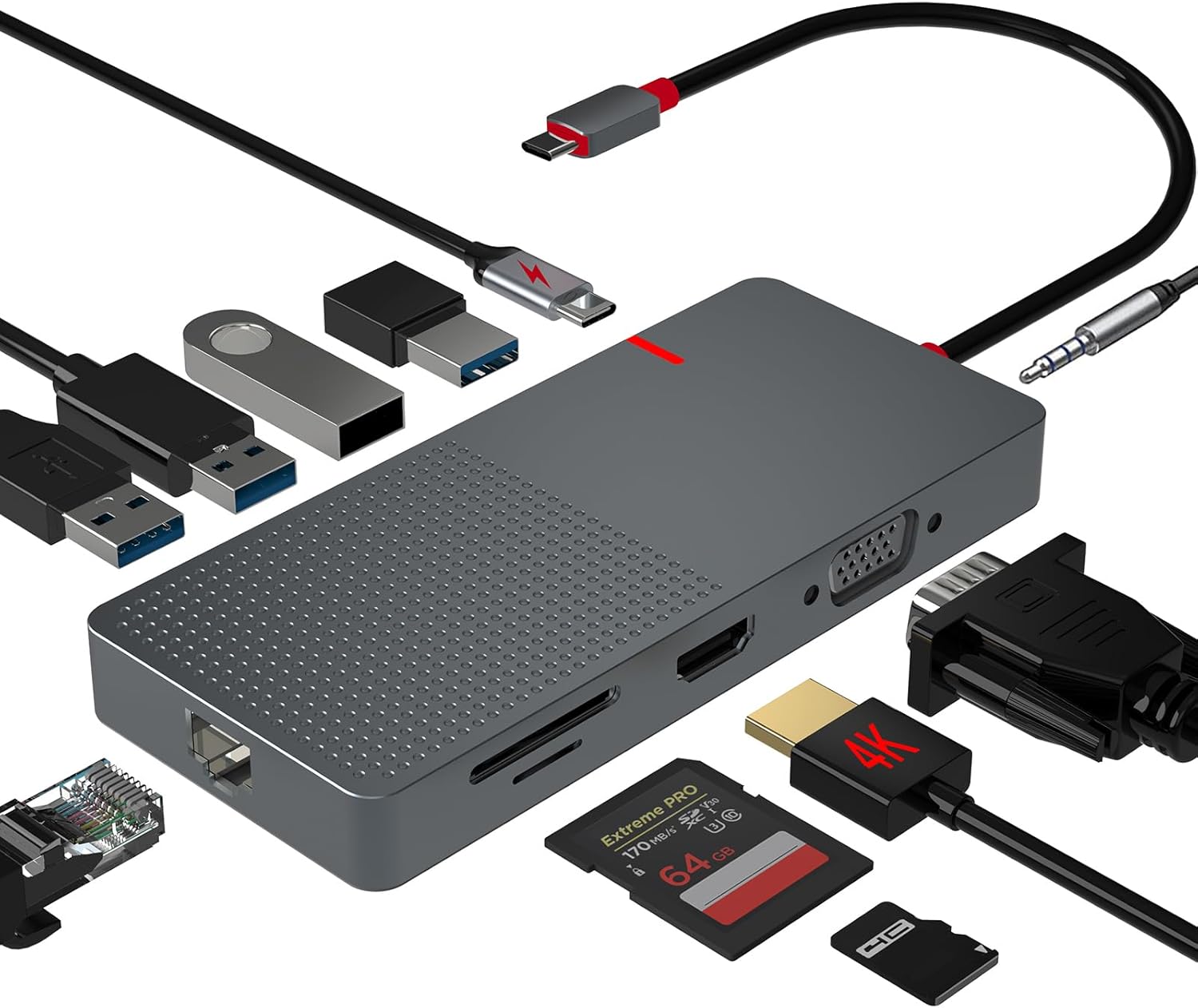
Figure 1: The ANYPLUS 11-in-1 USB C Hub and its various connectivity options.
2. Key Features
- 11-in-1 Connectivity: Provides 1 HDMI output, 1 USB-C PD fast charging port, 2 USB 3.0 Type-A Ports, 2 USB 2.0 Type-A Ports, 1080p VGA port, 1 Ethernet port (up to 1000Mbps), 1 3.5mm AUX port, and 2 SD/microSD card slots.
- 4K HDMI Output: Supports video output up to 4K@30Hz for mirroring or extending your screen to HDTVs, monitors, or projectors.
- Stable Gigabit Ethernet: Offers faster and more secure data transfers compared to Wi-Fi, ideal for unstable network conditions.
- High-Speed USB Ports: Two USB 3.0 ports for data transfer up to 5Gbps, and two USB 2.0 ports for stable connection with wireless peripherals like mouse and keyboard.
- 100W Power Delivery: Allows charging of your laptop (up to 100W) while using multiple peripherals.
- Universal SD/TF Card Compatibility: Easy access to files from universal SD and Micro SD memory cards with speeds up to 104MB/s.
- Durable and Portable Design: Constructed from aluminum alloy for efficient heat dissipation, small and easy to carry.

Figure 2: Detailed view of the 11-in-1 USB C Hub ports.
3. Setup Instructions
- Connect to Host Device: Plug the USB-C input connector of the hub into the USB-C port of your laptop, tablet, or compatible device. The hub is plug-and-play, requiring no driver installation.
- Power Delivery (Optional): For charging your host device, connect your USB-C power adapter to the USB-C PD fast charging port on the hub. This allows power passthrough up to 100W.
- Connect Peripherals:
- HDMI/VGA Displays: Connect your monitor, HDTV, or projector to the HDMI or VGA ports for video output.
- USB Devices: Plug in your USB-A devices (e.g., external hard drives, flash drives, keyboards, mice) into the USB 3.0 or USB 2.0 ports.
- Ethernet: For a wired network connection, connect an Ethernet cable to the RJ45 Gigabit Ethernet port.
- Audio: Connect headphones or speakers to the 3.5mm AUX port for audio output.
- Memory Cards: Insert SD or microSD cards into the dedicated slots for data access.

Figure 3: Overview of the hub's ports and their specifications.

Figure 4: Connecting the hub for fast charging.
4. Operating Instructions
4.1 Display Modes
The hub supports various display configurations depending on your operating system.
- Windows: Supports triple displays (laptop screen + 2 external monitors) in extended mode. If mirrored, the resolution will match the laptop's display.
- Mac: For Apple laptops, it does not support expanding two different screens. The display is only in mirror mode (A-A), meaning the two external monitors will show the same content. However, the laptop screen can display different content from them. Note: M1/M2 MacBooks only support output to one display. MacBook Pro/Air models do not support dual displays.

Figure 5: Display configurations for Windows and Mac.
4.2 Data Transfer
Utilize the USB 3.0 ports for high-speed data transfer up to 5Gbps, suitable for large files and external storage. The USB 2.0 ports are ideal for connecting devices like keyboards, mice, and other peripherals that do not require high bandwidth, ensuring stable connections without wireless interference.

Figure 6: High-speed data transfer capabilities.
5. Maintenance
- Keep the hub clean by wiping it with a soft, dry cloth.
- Avoid exposing the hub to extreme temperatures, humidity, or direct sunlight.
- Do not attempt to disassemble or repair the device yourself. Contact customer support for assistance.
- Ensure proper ventilation around the hub during prolonged use to prevent overheating, although its aluminum alloy construction aids in heat dissipation.
6. Troubleshooting
- No Display Output:
- Ensure the USB-C connection to your host device is secure.
- Verify that the HDMI/VGA cable is properly connected to both the hub and the display.
- Check the display input source settings.
- Confirm your host device supports video output over USB-C (DisplayPort Alternate Mode).
- USB Devices Not Recognized:
- Reconnect the USB device to a different port on the hub.
- Ensure the hub is receiving sufficient power, especially if connecting high-power devices.
- Try connecting the USB device directly to your host device to rule out device issues.
- Slow Ethernet Speed:
- Verify your Ethernet cable is functioning correctly.
- Check your network settings on the host device.
- Ensure your router/modem is providing the expected speed.
- Charging Issues:
- Ensure your power adapter is connected to the USB-C PD port on the hub.
- Verify your power adapter has sufficient wattage (e.g., 100W) for your laptop and connected peripherals.
7. Specifications
| Attribute | Value |
|---|---|
| Product Dimensions | 5 x 0.55 x 2.2 inches |
| Item Weight | 2.93 ounces |
| Item Model Number | HJ-003 |
| Brand | ANYPLUS |
| Color | Grey-11 IN 1 |
| Hardware Interface | Ethernet, HDMI, MicroSD, USB 2.0, USB 3.0, USB Type C, VGA |
| Special Feature | Fast Data Transfer |
| Power Delivery | Up to 100W |
| Ethernet Speed | Up to 1000Mbps |
| HDMI Resolution | Up to 4K@30Hz |
8. Warranty and Support
ANYPLUS is committed to providing excellent customer service. If you encounter any problems with your product, please feel free to contact our 24-hour online customer service. We will do our best to solve your problem.
For further assistance, please refer to the contact information provided with your product packaging or visit the official ANYPLUS store online.