
METEESER METEESER
METEESER Portable Carplay/Android Auto Screen User Manual
Model: METEESER | Brand: METEESER
1. Introduction
Thank you for choosing the METEESER Portable Apple CarPlay and Android Auto Screen. This device is designed to enhance your driving experience by bringing smart connectivity, navigation, and entertainment directly to your vehicle's dashboard. Featuring a 10.26-inch IPS HD touchscreen, wireless connectivity, and multiple audio output options, this unit provides a safe and intelligent way to interact with your smartphone's features while on the road.
2. What's in the Box
Please ensure all items are present before proceeding with installation:
- 10.26-Inch Smart Player x 1
- Universal Mount x 1
- User Manual x 1
- Cigarette Lighter Plug x 1
- AUX Cable x 1
- Accessories x 1 (may include bracket fixing stickers)
- Camera Extension Cable (if included with optional camera)

3. Setup and Installation
3.1 Mounting the Device
The universal mount provides a stable and adjustable base for your device. Attach the screen to the mount, ensuring it clicks securely into place. The mount features a 360° rotating angle adjuster, allowing you to position the screen for optimal viewing without obstructing your driving view.
3.2 Power Connection
Connect the provided cigarette lighter plug to the device's power input port and then insert it into your vehicle's 12V power outlet. The device will power on automatically.

3.3 Audio Output Options
The device offers four primary audio output modes to integrate with your car's audio system:
- Built-in Speaker: The device has an internal speaker for direct audio output.
- Bluetooth Audio: Connect the device to your car's OEM Bluetooth system for audio playback through your car speakers. This allows for dual Bluetooth connectivity (phone to device, device to car).
- FM Transmitter: Transmit audio wirelessly to your car's FM radio. Select an unused FM frequency on the device and tune your car radio to the same frequency.
- AUX Cable: Use the provided AUX cable to connect the device's AUX output to your car's AUX input for a wired audio connection.

3.4 Optional Reverse Camera Input
If you have an optional reverse camera, connect its video output to the AV-IN port on the device. When the vehicle is shifted into reverse gear, the screen will automatically display the camera feed, providing a clear view for parking and maneuvering. The camera supports features like night vision, wide-angle view, and adjustable reversing lines.

4. Operating Instructions
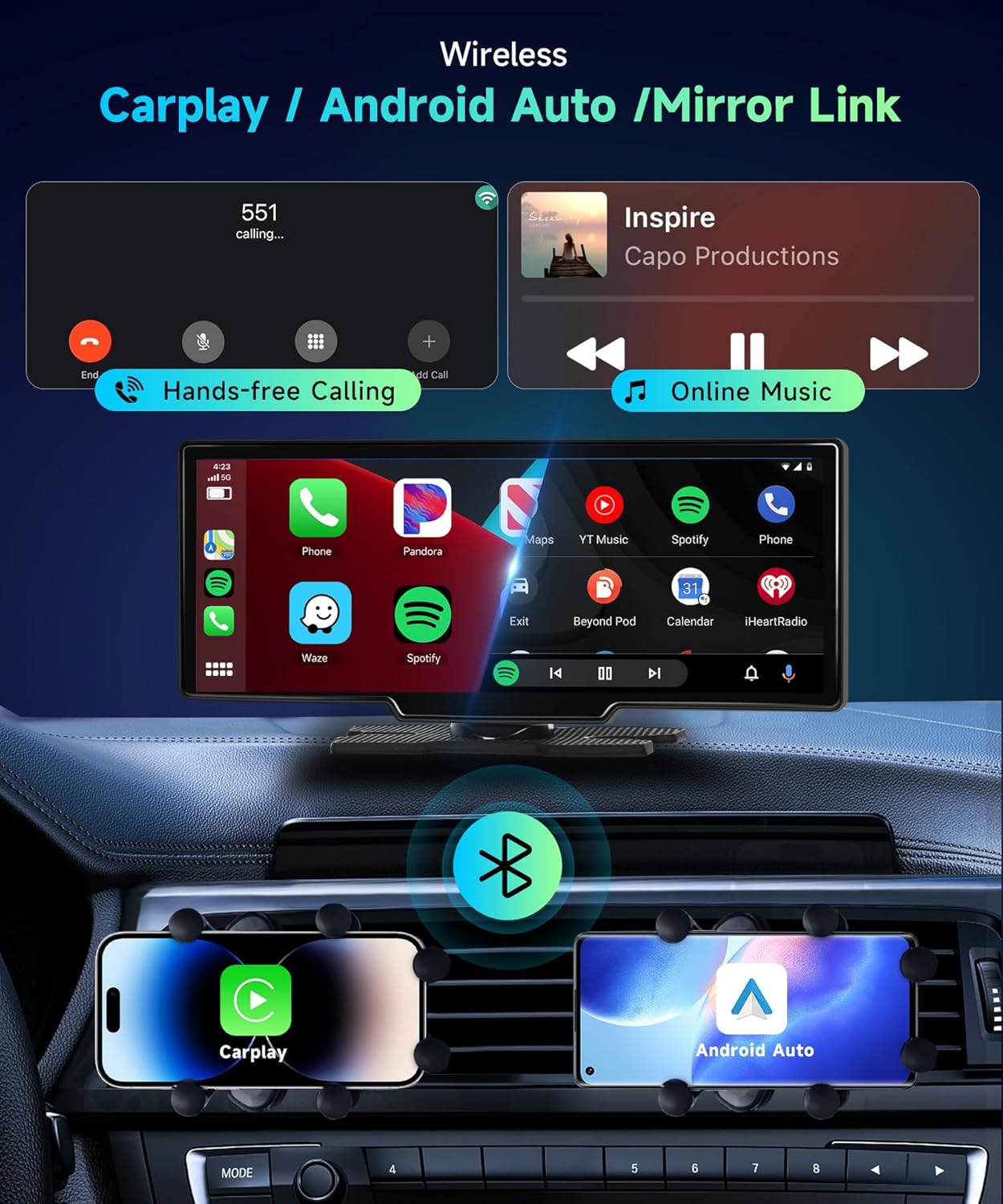
4.1 Wireless Apple CarPlay & Android Auto
The device supports wireless Apple CarPlay and Android Auto for seamless smartphone integration. To connect:
- Ensure Bluetooth is enabled on your smartphone.
- On the device, navigate to the "Connected Apple CarPlay" or "Android Auto" icon and select it.
- On your phone, search for the device's Bluetooth name (usually "METEESER" or similar) and pair.
- Once paired via Bluetooth, the device will automatically establish a Wi-Fi connection for CarPlay or Android Auto functionality.
- Your phone's interface will now be displayed on the screen, allowing access to navigation, music, calls, and messages.


4.2 Voice Control
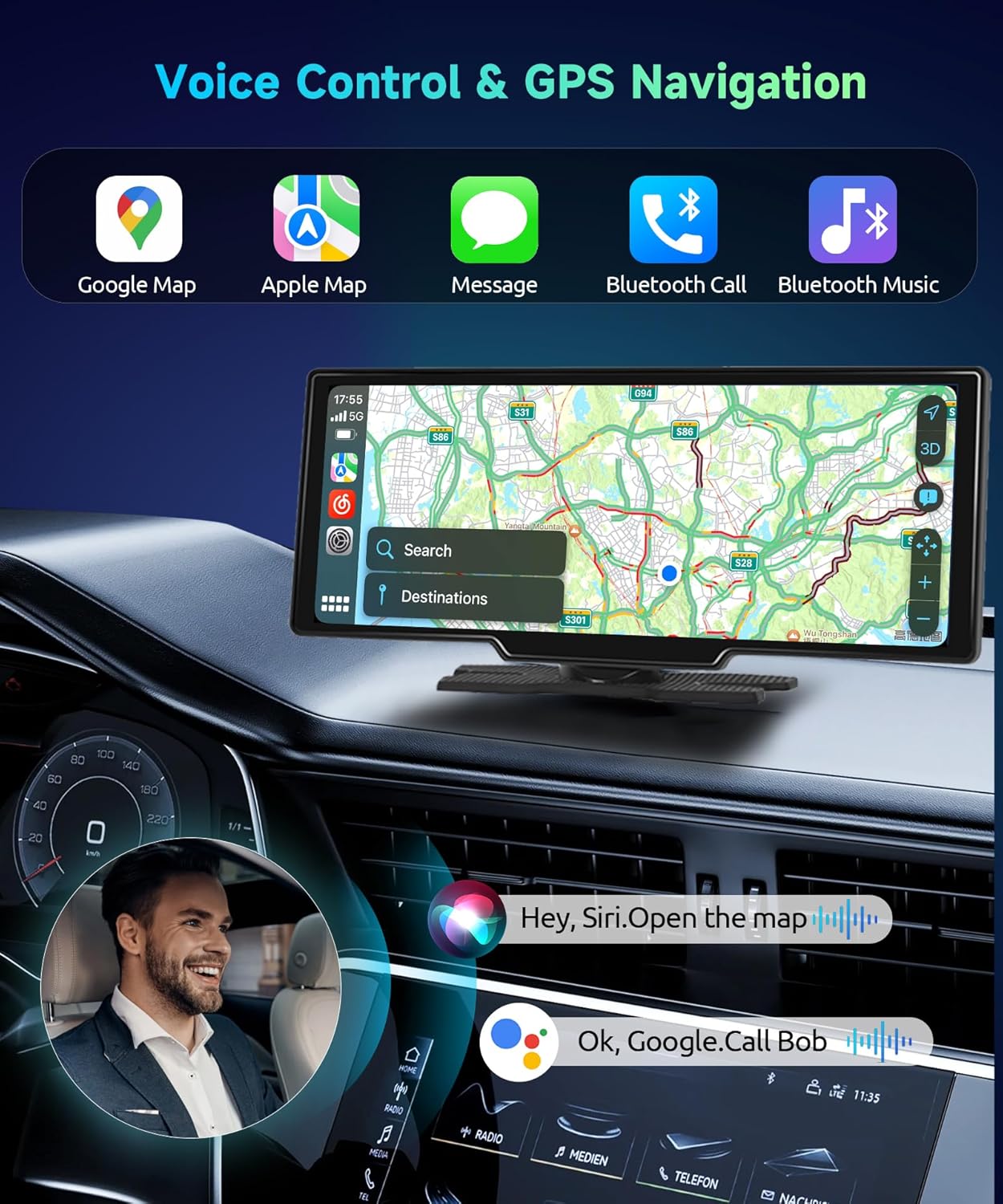
Utilize voice commands (Siri for Apple CarPlay, Google Assistant for Android Auto) to control navigation, make calls, send messages, and play music without taking your hands off the wheel. This feature enhances driving safety.
4.3 Wireless Mirror Link
The Mirror Link function allows you to cast your smartphone's screen directly onto the device's display. This is useful for apps not natively supported by CarPlay or Android Auto. Ensure your phone and the device are connected via Wi-Fi for optimal performance.

4.4 Screen Functions
- Brightness Adjustment: The 10.26-inch IPS screen supports automatic brightness adjustment for comfortable viewing in various lighting conditions. You can also manually adjust brightness via the settings menu.
- Volume Control: Adjust the device's internal speaker volume using the on-screen controls. For car speaker volume, use your vehicle's audio system controls.
- Screen Saver: Enable or disable the screen saver feature in the settings to prevent screen burn-in and reduce distractions.
5. Media Integration
The METEESER Portable Carplay Screen offers various ways to enjoy your media:
- Music Playback: Stream music directly from your phone via Apple CarPlay, Android Auto, or Bluetooth.
- GPS Navigation: Utilize popular navigation apps like Google Maps and Waze through CarPlay or Android Auto for real-time positioning and route guidance.
- Hands-free Calling: Make and receive calls safely using the device's integrated microphone and your car's speakers (via selected audio output).
5.1 Official Product Video: Wireless Carplay Screen Radio
6. Maintenance
To ensure the longevity and optimal performance of your METEESER Portable Carplay Screen, follow these maintenance guidelines:
- Cleaning: Use a soft, lint-free cloth to gently wipe the screen and exterior. Avoid abrasive cleaners or solvents that may damage the surface.
- Temperature: The device is designed to operate within a temperature range of -22°F to 176°F. Avoid prolonged exposure to extreme temperatures, which can affect performance and lifespan.
- Storage: If storing the device for an extended period, disconnect it from power and store it in a cool, dry place.
7. Troubleshooting
If you encounter issues with your device, please refer to the following common problems and solutions:
| Problem | Possible Cause | Solution |
|---|---|---|
| Device does not power on. | No power from cigarette lighter socket; loose connection. | Check if the cigarette lighter plug is fully inserted and if the vehicle's 12V socket is functional. Ensure the power cable is securely connected to the device. |
| Wireless CarPlay/Android Auto fails to connect. | Bluetooth not paired; Wi-Fi interference; phone settings. |
|
| No audio or poor audio quality. | Incorrect audio output mode; loose AUX cable; FM frequency interference. |
|
| Screen brightness issues. | Auto-dimming setting; environmental lighting. | Check the auto-dimming setting in the device's menu. Adjust manual brightness settings as needed. Ensure no direct sunlight is hitting the screen. |
| Loud startup sound. | Device design characteristic. | This is a characteristic of the device. There is currently no setting to disable or lower the startup sound. |
8. Specifications
| Feature | Detail |
|---|---|
| Product Dimensions | 2.3"D x 9.4"W x 4.5"H |
| Item Weight | 1.81 pounds |
| Screen Size | 10.26 inches |
| Display Type | IPS 1600*600P Touchscreen |
| Wireless Communication | Bluetooth, Wi-Fi |
| Connectivity Technologies | Wireless CarPlay, Bluetooth, Wireless Android Auto |
| Special Features | Automatic brightness, Wireless CarPlay & Android Auto, Mirror Link |
| Compatible Devices | Smartphone (iPhone 5 and above for CarPlay, Android 6.0 and above for Android Auto) |
| Audio Output Modes | Built-in Speaker, Bluetooth Audio, FM Transmitter, AUX |
| Video Encoding | H.264, H.265/HEVC |
| Manufacturer | FuHeShun Store |
| Country of Origin | China |
9. Warranty and Support
The METEESER Portable Carplay Screen comes with a 2-Year Warranty, ensuring peace of mind regarding product quality and performance. For any technical assistance, troubleshooting, or warranty claims, please contact our customer support team:
- Email: asd85hk@163.com
- Online Support: Visit the METEESER Store on Amazon and click "Ask a question" to reach our support team.

Ask a question about this manual
Ask about setup, troubleshooting, compatibility, parts, safety, or missing instructions. Manuals+ will review the question and use this page’s manual context to help answer it.