
Introduction
The XTUGA PR6X is a professional 6-channel audio mixing console designed for various audio applications, including studio recording, live performances, and events. It features advanced functionalities such as a 99 DSP effects processor, a 7-band graphic equalizer, independent +48V phantom power for condenser microphones, Bluetooth connectivity, and USB recording capabilities. This manual provides comprehensive instructions for the proper setup, operation, and maintenance of your PR6X mixer.
Product Features
- 6-Channel Input: Includes 4 mono MIC inputs and 2 stereo inputs (5/6).
- +48V Phantom Power: Independent phantom power available for each microphone channel, supporting condenser microphones.
- 99 DSP Effects Processor: Integrated high-quality digital signal processing with 99 selectable effects for enhanced audio.
- 7-Band Graphic Equalizer: Provides precise control over the overall sound output.
- Bluetooth Functionality: Allows wireless audio streaming from compatible smart devices.
- USB Interface: Supports U-DISK MP3 input for playback and recording directly to a USB flash drive.
- Mute Button: Individual mute control for each channel.
- AUX SEND Controls: For external effects or monitor mixes.
Setup
Follow these steps to set up your XTUGA PR6X mixer:
- Power Connection: Connect the provided power adapter to the DC IN adapter connector (31) on the rear panel and plug it into a suitable power outlet. Press the POWER switch (30) to turn on the mixer.
- Microphone Connection: Connect dynamic or condenser microphones to the XLR or 1/4" COMBI inputs (1) for channels 1-4. For condenser microphones, activate the +48V phantom power switch (2) for the respective channel.
- Stereo Input Connection: Connect stereo line-level devices (e.g., keyboards, media players) to the L/MONO 5/6 inputs (3).
- Output Connection: Connect your main speakers or amplifier to the L & R OUTPUT jacks (24). For monitoring, connect headphones to the PHONE jack (18) or monitor speakers to the AUX1 MON output (9).
- USB/Computer Connection: For USB playback or recording, insert a USB flash drive into the USB port (14) or connect the mixer to a computer using a USB cable.

Image: Rear and top view of the XTUGA PR6X mixer with all controls and ports labeled for easy identification. This diagram shows the power input, various audio inputs (XLR, 1/4"), USB port, and output connections.
Operating Instructions
Channel Controls
- GAIN (4): Adjusts the input sensitivity for each channel. Set this to an appropriate level to prevent clipping.
- HIGH (6), MID (7), LOW (8): 3-band equalizer controls for adjusting the treble, midrange, and bass frequencies of each individual channel.
- EFF (10): Controls the amount of signal sent from the channel to the internal DSP effects processor.
- VOL (11): Adjusts the output volume level for each channel.
- MUTE Button: Press to mute or unmute the corresponding channel.
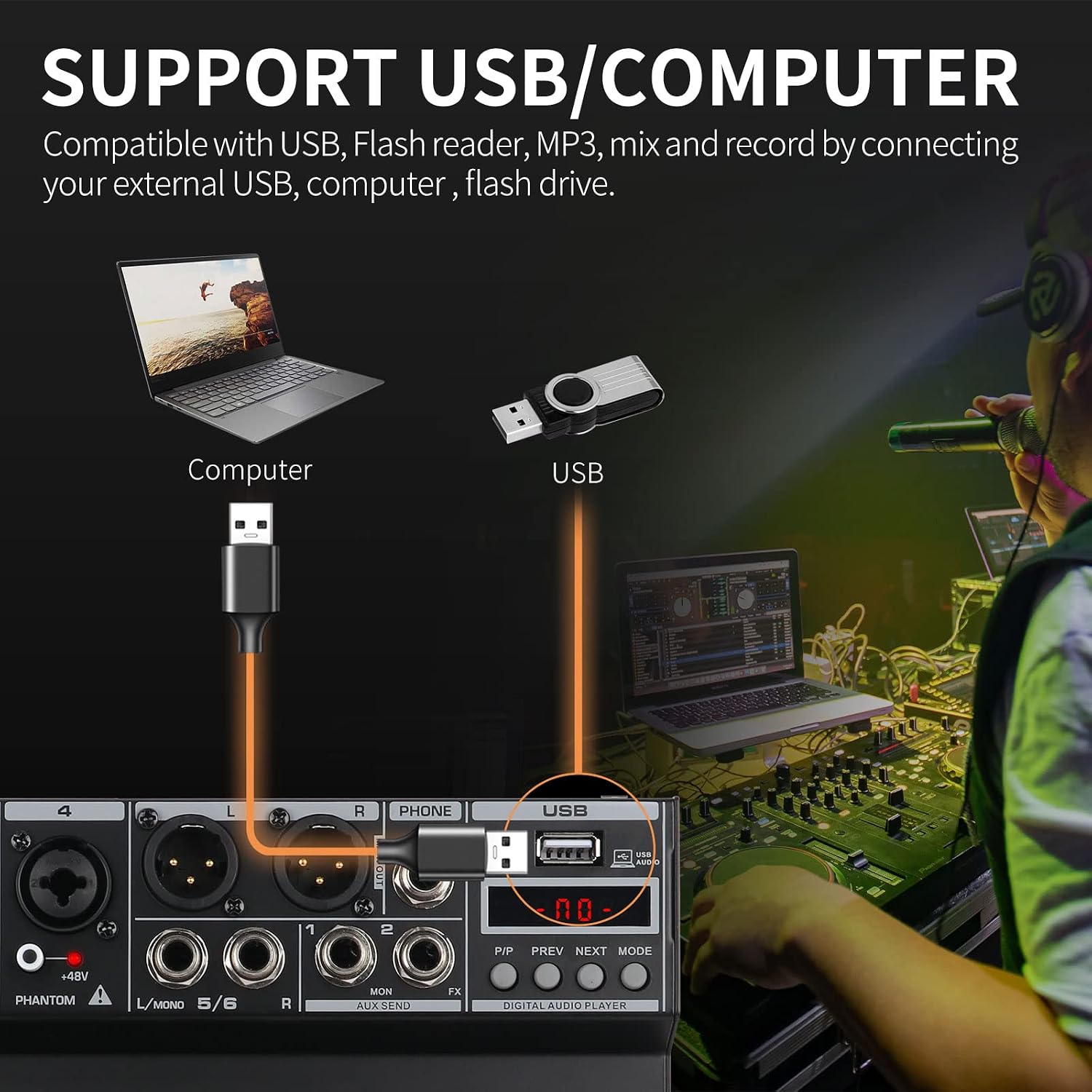
Image: Close-up view of the 3-band EQ knobs (HIGH, MID, LOW) for individual channels on the XTUGA PR6X mixer. This image highlights the range of adjustment for each frequency band, allowing for precise tonal shaping.
DSP Effects Processor
The PR6X features 99 built-in DSP effects. To use them:
- Rotate the PROGRAM/PARAMETER (26) knob to select the desired effect number (01-99). The selected effect number will be displayed on the digital screen.
- Press the PROGRAM/PARAMETER (26) knob to confirm the selection and activate the effect.
- Adjust the EFF VOL (28) knob to control the overall level of the applied effect.
- Use the FX TO AUX1 (23) knob to send the effect signal to the AUX1 output for monitoring or external processing.

Image: Section of the XTUGA PR6X mixer showing the digital display for DSP effects and the PROGRAM/PARAMETER knob. The image illustrates how to rotate the knob to select an effect type and press it to apply the effect, with a visual representation of the 99 DSP reverb effects.
7-Band Graphic Equalizer
The 7-band stereo graphic equalizer (20) allows for fine-tuning of the main mix's frequency response. Adjust the sliders for each frequency band (63Hz, 160Hz, 400Hz, 1kHz, 2.5kHz, 6.3kHz, 16kHz) to boost or cut specific frequencies, shaping the overall sound to your preference.

Image: Detailed view of the 7-band stereo graphic equalizer on the XTUGA PR6X mixer. This image shows the frequency bands and their respective sliders, along with example frequency response curves for high, mid, and low EQ adjustments.
Bluetooth Function
To connect a Bluetooth device:
- Ensure the mixer is powered on.
- On your smart device (phone, tablet), enable Bluetooth and search for available devices.
- Select "AUDIO MP3" from the list of devices to pair.
- Once connected, you can stream audio wirelessly to the mixer.

Image: The XTUGA PR6X mixer displaying "BT" on its digital screen, indicating Bluetooth mode. A smartphone is shown connected, illustrating wireless music streaming capability. The image also shows the Bluetooth search name "AUDIO MP3".
USB Playback and Recording
The mixer supports USB flash drives for MP3 playback and recording.
- Playback: Insert a USB flash drive containing MP3 files into the USB port (14). Use the P/P (Play/Pause), PREV (Previous), NEXT (Next), and MODE buttons to control playback.
- Recording: The mixer can record audio directly to a USB flash drive. Refer to the specific recording instructions in the full manual for detailed steps on initiating and managing recordings.

Image: Illustration of the XTUGA PR6X mixer connected to a computer via USB and a USB flash drive inserted. This image demonstrates the mixer's compatibility with USB devices for mixing and recording audio, showing a user interacting with a computer setup.
Headset and Microphone Connection
The mixer includes a dedicated 3.5mm HEADSET input for connecting a headset with an integrated microphone, improving compatibility for recording devices.

Image: A user wearing headphones and speaking into a microphone connected to the XTUGA PR6X mixer. The image highlights the 3.5mm HEADSET input, indicating improved compatibility for various recording devices.
Maintenance
To ensure the longevity and optimal performance of your XTUGA PR6X mixer:
- Cleaning: Use a soft, dry cloth to clean the exterior of the mixer. Avoid using liquid cleaners or solvents, as they may damage the finish or internal components.
- Storage: Store the mixer in a cool, dry place away from direct sunlight, extreme temperatures, and excessive dust.
- Handling: Avoid dropping or subjecting the mixer to strong impacts. Disconnect all cables before moving the unit.
- Power Off: Always power off the mixer and disconnect it from the power source when not in use for extended periods.
Troubleshooting
If you encounter issues with your XTUGA PR6X mixer, refer to the following common problems and solutions:
- No Sound Output:
- Check all cable connections (input, output, power).
- Ensure channel volume (VOL) and main output volume (L MAIN R) knobs are turned up.
- Verify that channels are not muted.
- Check the connected speakers/amplifier for power and proper function.
- Distorted Sound:
- Reduce the GAIN knob for the input channel to prevent clipping.
- Lower the channel volume (VOL) or main output volume.
- Check input source for distortion.
- Bluetooth Not Connecting:
- Ensure Bluetooth is enabled on your smart device and the mixer is in Bluetooth mode.
- Make sure no other device is currently paired with the mixer.
- Try restarting both the mixer and your smart device.
- Phantom Power Not Working:
- Ensure the +48V phantom power switch (2) is activated for the specific channel.
- Verify that the microphone cable is an XLR type, as phantom power is typically delivered via XLR connections.
Specifications
| Feature | Specification |
|---|---|
| Brand | XTUGA |
| Model | PR6X |
| Number of Channels | 6 (4 Mono MIC + 2 Stereo) |
| DSP Effects | 99 Built-in Effects |
| Equalizer | 7-Band Stereo Graphic EQ, 3-Band Channel EQ |
| Phantom Power | Independent +48V per MIC channel |
| Connectivity | Bluetooth, USB (U-DISK MP3 input/recording) |
| Product Type Name | Audio Mixer |
| Package Dimensions | 30.5 x 26.5 x 10.5 cm |
| Weight | 1.97 kilograms |
Warranty and Support
XTUGA Audio products come with a 12-month manufacturer assurance. For technical support, warranty claims, or further assistance, please contact XTUGA customer service through their official channels. Keep your purchase receipt as proof of purchase for warranty services.

