
1. Introduction
This manual provides comprehensive instructions for the ienRon 5-Port PoE Gigabit Switch. It covers product features, setup procedures, operational guidelines, maintenance tips, troubleshooting steps, and detailed technical specifications. Please read this manual thoroughly before using the device to ensure proper operation and to maximize its performance.
2. Product Overview
2.1 Key Features
- 5 Ports PoE Gigabit Switch: Includes 4 Gigabit PoE ports and 1 Gigabit uplink port, supporting 1000Mbps PoE and uplink connections for excellent data transmission.
- AI Detection: Automatically detects abnormal port connections and intelligently restarts PoE ports when a PoE device is disconnected or unresponsive.
- 4KV Lightning Protection: Designed to withstand 4000 volts or more lightning, preventing circuit failure. Built-in protection circuits automatically fuse ports during short circuits or overloads to protect the switch and other ports.
- VLAN Mode: When enabled, ports 1 to 4 are isolated from each other but can communicate with uplink ports, enhancing network processing capacity and LAN security.
- Wide Applications: Compatible with both PoE and non-PoE devices such as PoE cameras, wireless access points, switches, routers, and computers. Operates silently and is suitable for offices, homes, and commercial locations requiring high bandwidth.
2.2 Physical Description


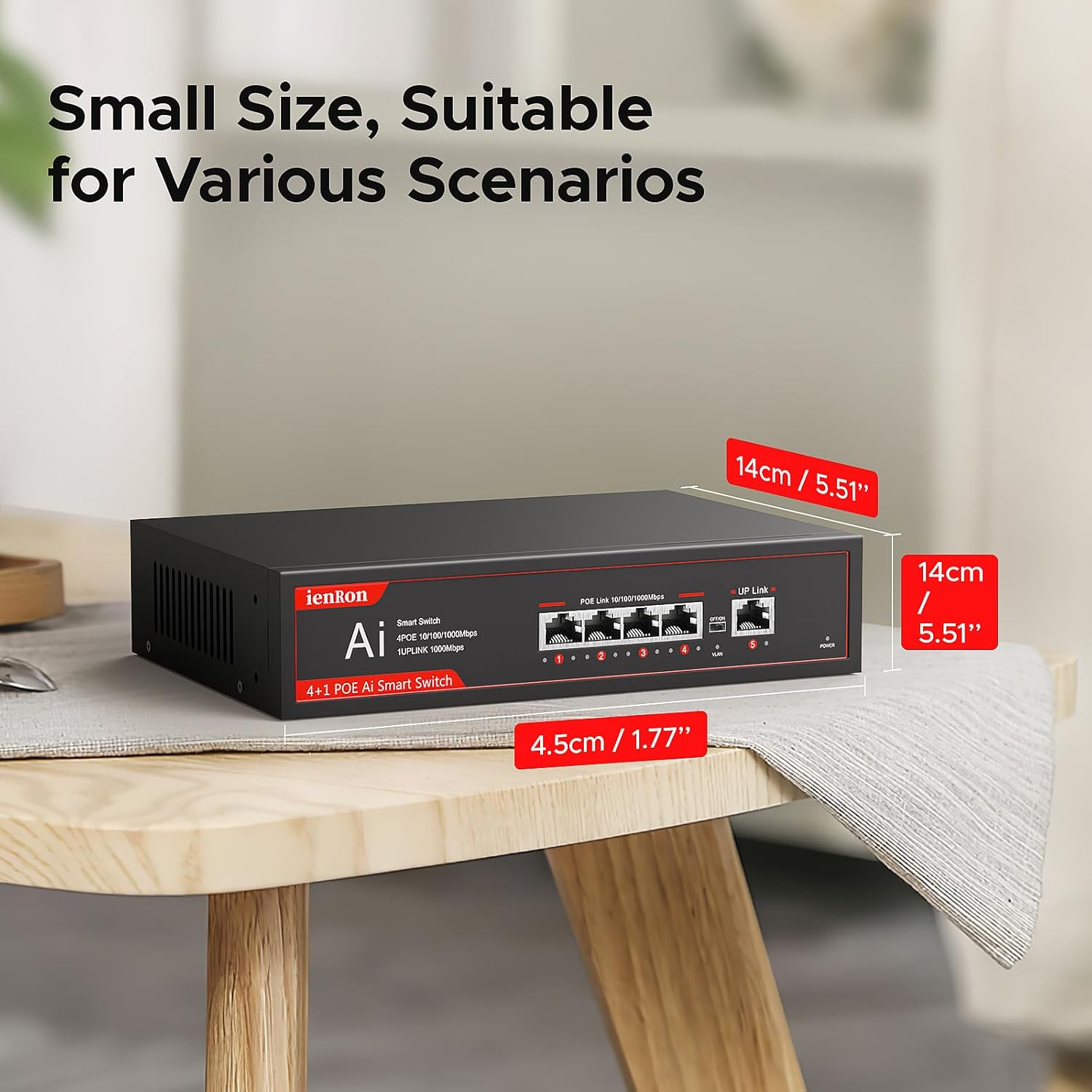
3. Setup Instructions
The ienRon 5-Port PoE Gigabit Switch is designed for plug-and-play operation, requiring minimal setup.
- Power Connection: Connect the provided power adapter to the switch's power input port and then to a standard AC power outlet. The power indicator light on the front panel should illuminate.
- Uplink Connection: Connect your router, modem, or main network device to the dedicated Uplink port (Port 5) on the switch using a standard Ethernet cable.
- Device Connections: Connect your network devices (e.g., computers, network printers, IP cameras, wireless access points) to the PoE ports (Ports 1-4) using Ethernet cables. For PoE-compatible devices, the switch will automatically provide power and data. For non-PoE devices, only data will be transmitted.
- VLAN Mode (Optional): If network segmentation is desired, locate the VLAN switch on the front panel. Refer to Section 4.2 for details on enabling and disabling VLAN mode.

4. Operating Instructions
4.1 Basic Operation
Once connected as described in the Setup section, the ienRon 5-Port PoE Gigabit Switch operates automatically. It functions as an unmanaged switch, meaning no configuration is required for basic network connectivity. Data and power (for PoE devices) are transmitted automatically through the connected ports.


4.2 VLAN Mode
The switch features a VLAN mode to enhance network security and performance by isolating traffic between ports.
- Enabling VLAN Mode: Locate the VLAN switch on the front panel. Toggle the switch to the 'ON' position. In this mode, ports 1 through 4 are isolated from each other, preventing direct communication between devices connected to these ports. All isolated ports can still communicate with the uplink port (Port 5).
- Disabling VLAN Mode: Toggle the VLAN switch to the 'OFF' position. In this mode, all ports (1-5) can communicate freely with each other, functioning as a standard unmanaged switch.

4.3 AI Detection
The switch incorporates an AI detection feature for improved reliability of PoE-powered devices.
- Automatic Restart: If a PoE device connected to ports 1-4 becomes disconnected or unresponsive, the switch will automatically detect this abnormality. It will then intelligently restart the affected PoE port to attempt to restore functionality to the device. This feature helps maintain continuous operation of PoE devices without manual intervention.

5. Maintenance
To ensure the longevity and optimal performance of your ienRon PoE Gigabit Switch, follow these maintenance guidelines:
- Cleaning: Regularly clean the exterior of the switch with a soft, dry cloth. Avoid using liquid cleaners or aerosols, which can damage the device.
- Ventilation: Ensure that the switch is placed in a well-ventilated area. Do not block the ventilation openings on the sides of the device.
- Environmental Conditions: Operate the switch within the recommended temperature and humidity ranges (refer to Specifications). Avoid exposing the device to extreme temperatures, direct sunlight, or high moisture.
- Cable Management: Keep network cables neatly organized to prevent strain on ports and to ensure proper airflow around the device.
- Power Supply: Use only the power adapter supplied with the switch. If a replacement is needed, ensure it meets the exact specifications.

6. Troubleshooting
If you encounter issues with your ienRon PoE Gigabit Switch, refer to the following common problems and solutions:
| Problem | Possible Cause | Solution |
|---|---|---|
| No power indicator light | Power adapter not connected or faulty; power outlet not working. | Ensure the power adapter is securely connected to the switch and a working power outlet. Test the outlet with another device. Try a different power adapter if available. |
| No network connectivity on a port | Ethernet cable faulty or improperly connected; device not powered on or configured correctly. | Check the Ethernet cable connection at both ends. Try a different cable. Ensure the connected device is powered on and its network settings are correct. |
| PoE device not receiving power | Device is not PoE compatible; cable issue; switch port fault. | Verify that your device is PoE (IEEE 802.3af) compatible. Check the Ethernet cable for damage. Try connecting the device to a different PoE port. The AI Detection feature may automatically restart the port. |
| Slow network speed | Cable quality; network congestion; device limitations. | Ensure you are using Cat5e or Cat6 Ethernet cables. Check for other high-bandwidth activities on your network. Verify that connected devices support Gigabit speeds. |
| Devices on ports 1-4 cannot communicate with each other | VLAN mode is enabled. | Toggle the VLAN switch to the 'OFF' position if you require direct communication between these ports. |

7. Specifications
| Feature | Specification |
|---|---|
| Model Number | 5-Port | 4 PoE+1 Uplink |
| Number of Ports | 5 (4 PoE Gigabit Ports, 1 Gigabit Uplink Port) |
| Data Transfer Rate | 1000 Mbps (Gigabit Ethernet) |
| PoE Standard | IEEE 802.3af |
| Maximum Power Output (per PoE port) | Up to 30W |
| Total PoE Power Budget | 65 Watts |
| Interface Type | RJ45 |
| Voltage | 52 Volts (Input) |
| Current Rating | 1.25 Amps |
| Product Dimensions | 7.6"L x 5.3"W x 1.6"H |
| Item Weight | 1.94 pounds |
| Case Material | Metal |
| Upper Temperature Rating | 55 Degrees Celsius |
| Features | AI Detection, VLAN Mode, 4KV Lighting Protection, Plug and Play |
| Compatible Devices | Desktop, Gaming Console, Laptop, PoE Cameras, Wireless APs, Routers |
8. Warranty and Support
ienRon products are designed for reliability and performance. For specific warranty information and support inquiries, please refer to the documentation included with your purchase or visit the official ienRon website. If you experience any issues that cannot be resolved using this manual, please contact ienRon customer support for assistance.
You can visit the ienRon store at: ienRon Store on Amazon