
Hikity 702248604766
Hikity Android 13 Car Stereo User Manual
Model: 702248604766
For 2002-2006 Honda CRV
Introduction
Thank you for choosing the Hikity Android 13 Car Stereo. This 9-inch touchscreen unit is specifically designed for 2002-2006 Honda CRV models, offering a seamless upgrade to your vehicle's infotainment system. It integrates advanced features such as wireless Apple CarPlay and Android Auto, in-dash GPS navigation, Wi-Fi connectivity, Bluetooth 4.0, FM/RDS radio, and support for a backup camera. This manual provides essential information for installation, operation, maintenance, and troubleshooting to ensure optimal performance and user experience.
What's in the Box
Please verify that all the following components are included in your package:
- Hikity Car Stereo Unit (9-inch touchscreen)
- Power Cable
- USB Adapter Cable (Dual USB Cable)
- RCA Harness
- GPS Antenna
- AHD Backup Camera
- External Microphone
- Rear Camera Input Cable
- Installation Tool
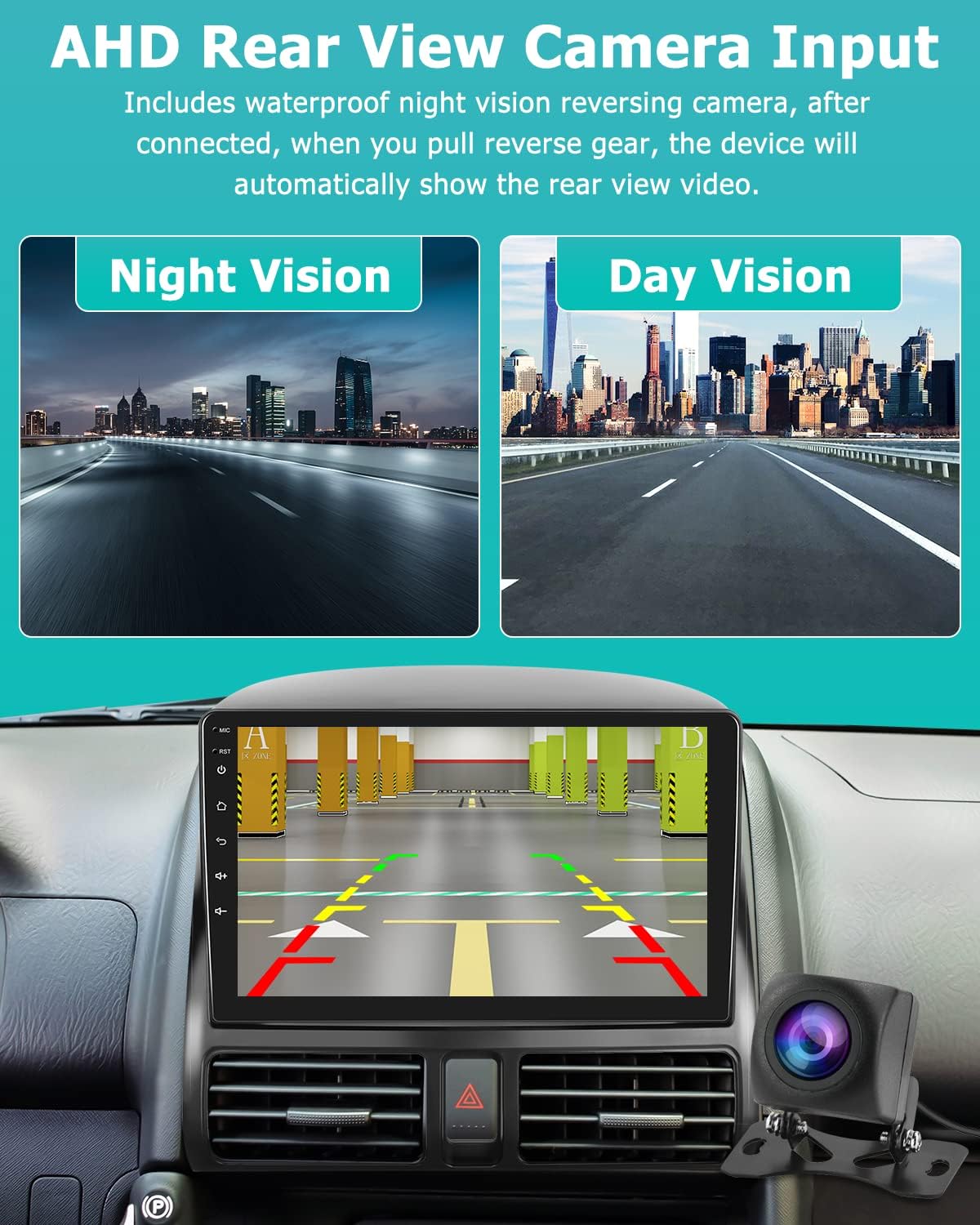
Image: The complete package contents, showing the main stereo unit, power cable, USB cables, RCA harness, GPS antenna, AHD backup camera, external microphone, rear camera input cable, and an installation tool kit.
Installation Guide
This section provides general installation steps. Due to variations in vehicle models, it is recommended to consult a professional installer or refer to specific Honda CRV 2002-2006 car stereo installation guides for detailed instructions tailored to your vehicle.
Preparation:
- Disconnect Battery: Before starting, disconnect the negative terminal of your vehicle's battery to prevent electrical shorts.
- Remove Old Stereo: Carefully remove the existing car stereo and dashboard trim. Use the provided installation tool to avoid damaging the plastic.
- Identify Wiring: Familiarize yourself with the vehicle's wiring harness. The included power cable and RCA harness are designed to connect to your CRV's existing system.
Connecting the Unit:
- Power and Speaker Connections: Connect the main power cable harness from the new stereo to your vehicle's wiring harness. Ensure all connections are secure.
- GPS Antenna: Connect the GPS antenna and route it to a location with a clear view of the sky (e.g., dashboard corner, under the windshield).
- USB Cables: Connect the dual USB cables. These can be routed to your glove compartment or center console for easy access.
- RCA Harness: Connect the RCA harness for audio output (e.g., subwoofer) and input (e.g., external video sources).
- Backup Camera: Install the AHD backup camera at the rear of your vehicle. Connect its video output to the "Rear Camera Input Cable" on the stereo and its power to the reverse light circuit.
- External Microphone: Connect the external microphone for improved call quality and voice commands. Position it near the driver for optimal performance.
Testing and Final Assembly:
- Initial Test: Before fully reassembling the dashboard, reconnect the battery and turn on the vehicle's ignition to test the stereo's basic functions (power, audio, touchscreen, GPS signal, backup camera display).
- Secure Unit: Once confirmed working, carefully mount the new stereo into the dashboard opening.
- Reassemble Trim: Reinstall all dashboard trim pieces, ensuring they snap securely into place.

Image: The Hikity 9-inch Android car stereo seamlessly integrated into the dashboard of a Honda CRV.

Image: A visual comparison showing the original car stereo setup and the upgraded Hikity Android stereo installed in the dashboard.
Initial Setup
First Boot:
Upon the first power-on, the system will boot into the Android interface. You may be prompted to select your language and time zone. Follow the on-screen instructions to complete the initial setup wizard.

Image: The Android 13 operating system interface on the car stereo, displaying a variety of application icons.
Wi-Fi Connection:
To access online features, connect the stereo to a Wi-Fi network or your mobile hotspot:
- Go to Settings > Network & Internet > Wi-Fi.
- Turn on Wi-Fi and select your desired network from the list.
- Enter the password if prompted and connect.

Image: A split screen view demonstrating the GPS navigation on one side and various online applications accessible via Wi-Fi on the other.
Wireless CarPlay & Android Auto:
The unit supports wireless CarPlay and Android Auto via the pre-installed Z-Link app. Ensure Bluetooth and Wi-Fi are enabled on your smartphone.
- Open the Z-Link app on the car stereo.
- On your smartphone, search for the stereo's Bluetooth name and pair.
- Once paired via Bluetooth, the system will automatically establish a Wi-Fi connection for CarPlay/Android Auto.

Image: The Z-Link application interface on the car stereo, demonstrating its compatibility with both wired and wireless Apple CarPlay and Android Auto connections.

Image: An illustration highlighting the wireless Apple CarPlay and Android Auto functionalities, including voice control, USB connection, and Bluetooth/Wi-Fi connectivity.
Operating Instructions
GPS Navigation:
The unit comes with a built-in GPS receiver and supports both online and offline navigation. Pre-installed map applications can be used, or you can download your preferred navigation apps from the Google Play Store (requires Wi-Fi connection).
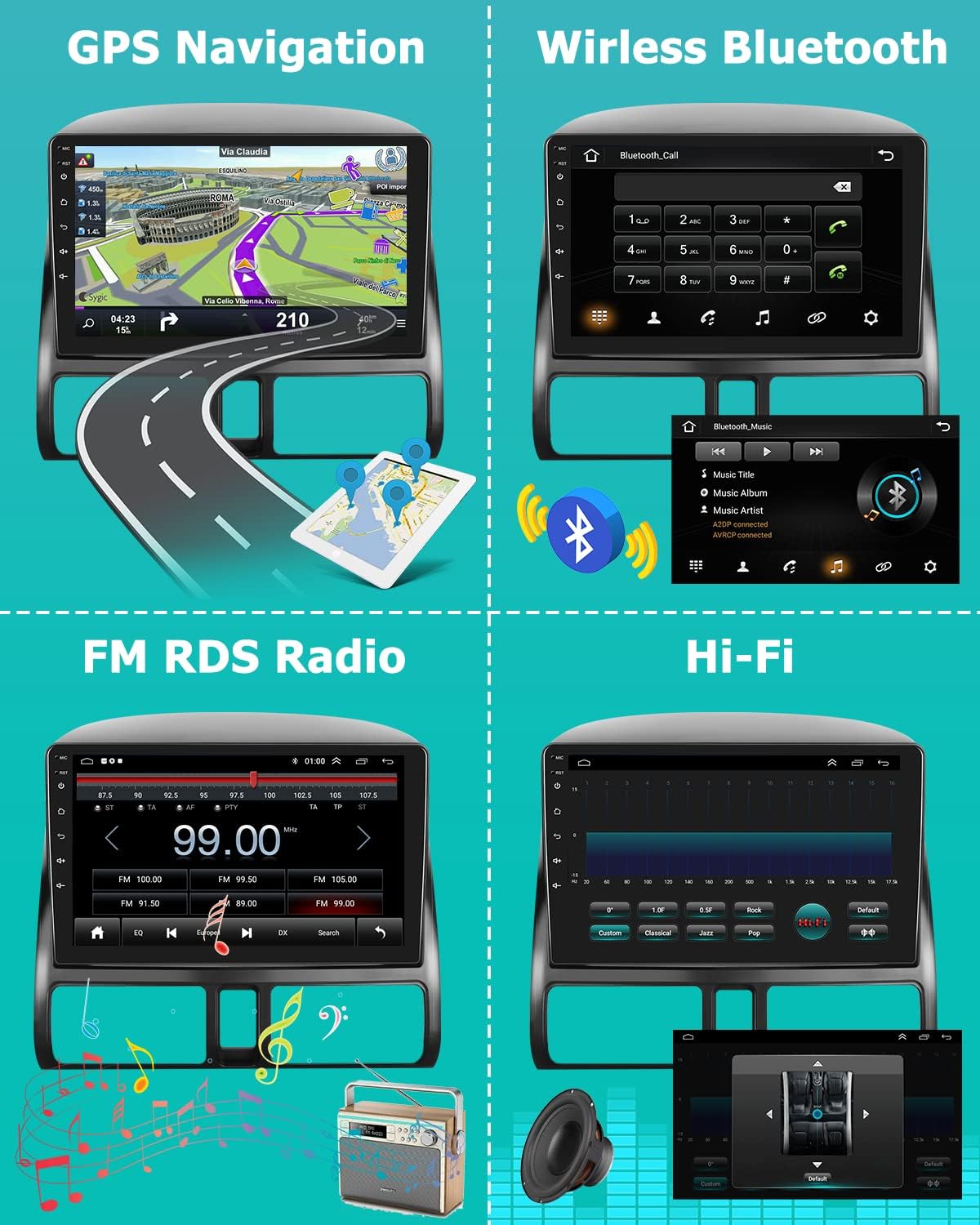
Image: A composite image showcasing the GPS navigation interface, wireless Bluetooth call screen, FM/RDS radio tuner, and Hi-Fi audio equalizer settings.
Bluetooth Functionality:
Connect your smartphone via Bluetooth for hands-free calling and audio streaming.
- Go to Bluetooth in the main menu.
- Enable Bluetooth on your phone and search for the stereo (e.g., "Hikity Car Stereo").
- Pair the devices. Once connected, you can make/receive calls and play music through the car speakers.

Image: The Bluetooth interface on the car stereo, showing a dial pad for making calls and a phone icon indicating connectivity.
FM/RDS Radio:
Access your favorite radio stations with the built-in FM/RDS tuner.
- Select the Radio app from the main menu.
- Use the scan function to find available stations or manually tune to a frequency.
- RDS (Radio Data System) provides additional information like station name and song title where available.

Image: The FM/RDS radio interface on the car stereo, displaying frequency tuning options and preset station buttons.
HiFi & EQ Settings:
Customize your audio experience with the 16-band graphic equalizer and HiFi sound processing.
- Access EQ Settings from the main menu or audio settings.
- Choose from preset modes (Pop, Rock, Jazz, Classical, Flat, User, Voice) or adjust individual bands to create your custom sound profile.
- The unit also supports subwoofer output for enhanced bass.
Split Screen Functionality:
Multitask efficiently by running two applications simultaneously on the screen.
- While an app is open, long-press the recent apps button or drag from the side (depending on Android version) to activate split-screen mode.
- Select a second app to display alongside the first.

Image: The split-screen feature in action, displaying a YouTube video on one side and a navigation map on the other, demonstrating multitasking capabilities.
AHD Backup Camera:
The included AHD backup camera provides a clear view of your vehicle's rear when reversing.
- When the vehicle is shifted into reverse gear, the stereo will automatically display the rear view video.
- Parking guidelines are overlaid on the video feed to assist with parking maneuvers.
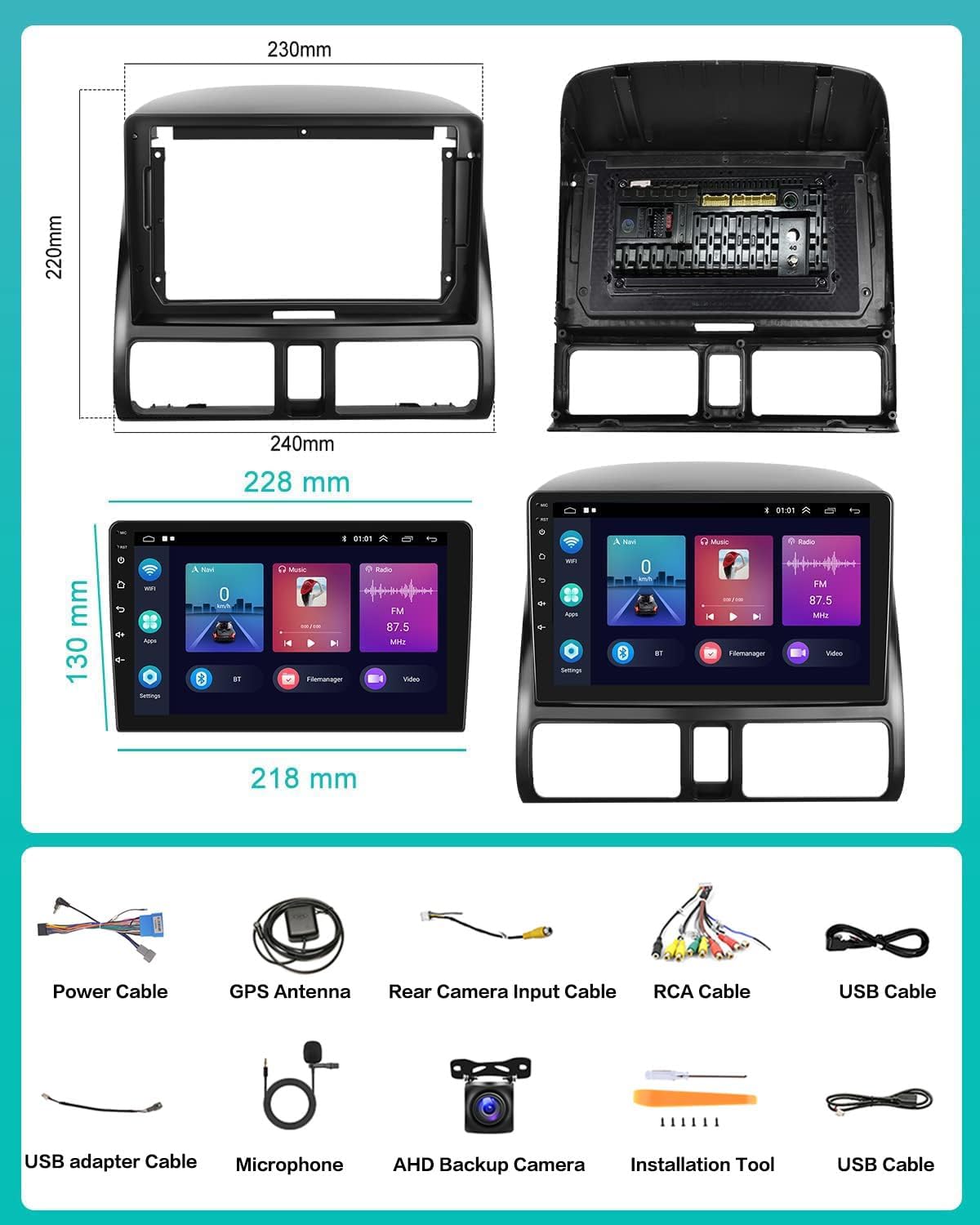
Image: A comparison of the AHD rear view camera's performance in both night vision and day vision conditions, showing clear visibility.

Image: A composite image illustrating the AHD backup camera's view with parking lines and the steering wheel control interface for managing stereo functions.
Steering Wheel Control:
The unit supports steering wheel remote control, allowing you to manage audio and calls without taking your hands off the wheel. Configuration may be required in the settings menu.
- Navigate to Settings > Steering Wheel Learning.
- Follow the on-screen prompts to assign functions to your vehicle's steering wheel buttons.
Maintenance
Screen Cleaning:
To clean the 9-inch touchscreen, use a soft, lint-free cloth. For stubborn smudges, lightly dampen the cloth with water or a screen-safe cleaner. Avoid abrasive materials or harsh chemicals that could damage the screen.
Software Updates:
Periodically check for software updates to ensure optimal performance and access to new features. Updates can typically be found in the system settings under "About device" or "System updates." A stable Wi-Fi connection is required for downloads.
General Care:
- Avoid exposing the unit to extreme temperatures or direct sunlight for prolonged periods.
- Do not spill liquids on the unit.
- Ensure proper ventilation around the unit to prevent overheating.
Troubleshooting
| Problem | Possible Cause | Solution |
|---|---|---|
| Unit does not power on. | Loose power connection; Blown fuse; Vehicle battery issue. | Check power cable connections. Inspect vehicle's fuse box and replace any blown fuses. Ensure vehicle battery is charged. |
| No sound from speakers. | Incorrect speaker wiring; Volume too low; Mute activated. | Verify speaker wire connections. Increase volume. Check if unit is muted. |
| GPS signal weak or lost. | GPS antenna obstructed or improperly placed; Poor satellite coverage. | Ensure GPS antenna has a clear view of the sky. Relocate antenna if necessary. Wait for better satellite reception. |
| Bluetooth not connecting. | Bluetooth not enabled on phone/stereo; Incorrect pairing process. | Ensure Bluetooth is on for both devices. Delete previous pairings and re-pair. Restart both devices. |
| Backup camera not displaying. | Camera not powered; Video cable loose; Incorrect input selected. | Check camera power connection to reverse light. Verify video cable connection to stereo. Ensure vehicle is in reverse. |
| Touchscreen unresponsive or slow. | System overload; Software glitch. | Restart the unit (press and hold power button). Perform a factory reset if issues persist (note: this will erase data). |
If you encounter issues not listed here or require further assistance, please contact Hikity customer support.
Specifications
| Model Number | 702248604766 |
| Operating System | Android 13 |
| Screen Size | 9 Inches |
| Display Resolution | 1024 x 600 |
| RAM | 1GB (Pro, 1+16GB, 4 Core variant) |
| Internal Storage | 16GB (Pro, 1+16GB, 4 Core variant) |
| Processor | 4 Core |
| Connectivity | Bluetooth 4.0, Wi-Fi, GPS |
| Special Features | Wireless CarPlay, Android Auto, HiFi, 16-band EQ, Split Screen, RDS/FM Radio, AHD Backup Camera Support, Steering Wheel Control |
| Audio Output Mode | APE/FLAC/WAV/MP3/WMA etc. |
| Product Dimensions | 9.45 x 4.72 x 8.27 inches |
| Item Weight | 3.48 pounds |
Warranty and Technical Support
Hikity provides comprehensive support for your product:
- 30-Day Money Back Guarantee: If you are not satisfied with your purchase, you may return it within 30 days for a full refund.
- 12-Month Replacement Warranty: The product is covered by a 12-month replacement warranty for manufacturing defects.
- Life-time Technical Support: For any installation or usage issues, Hikity offers life-time technical support.
To contact technical support, please refer to the seller's contact information on the product page or use the provided email address: hikityoffice@163.com. Please include your product model and a detailed description of the issue for faster assistance.
Ask a question about this manual
Ask about setup, troubleshooting, compatibility, parts, safety, or missing instructions. Manuals+ will review the question and use this page’s manual context to help answer it.