
1. Introduction
Thank you for choosing the ZNIARAKL WDC901-4K 4K Waterproof Digital Camera. This manual provides essential information for the safe and effective use of your new camera. Please read it thoroughly before operation and retain it for future reference.
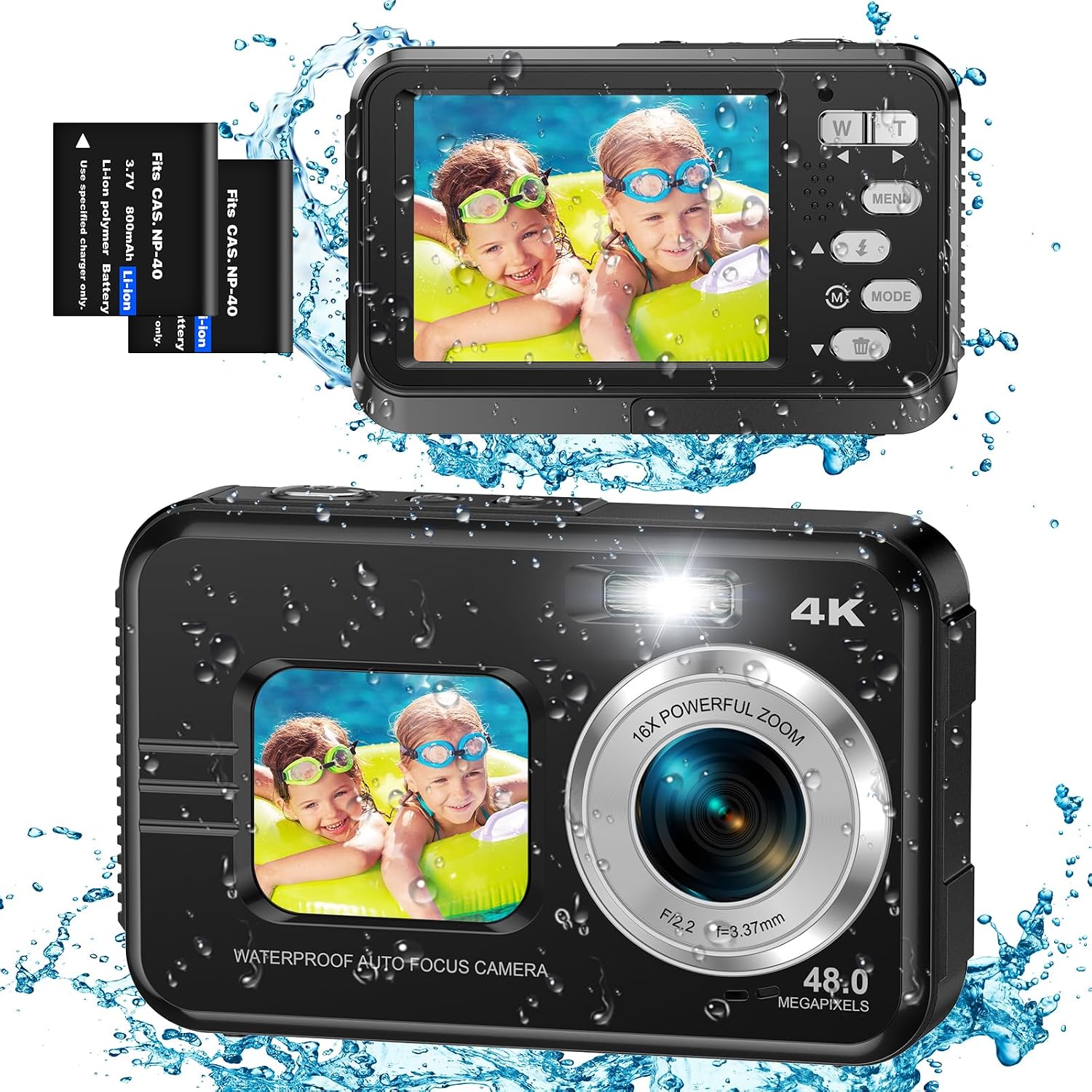
Figure 1.1: ZNIARAKL WDC901-4K 4K Waterproof Digital Camera and included batteries.
2. Package Contents
Verify that all items are present in your package:
- 1 x ZNIARAKL WDC901-4K Digital Camera
- 2 x 700mAh Lithium Batteries
- 1 x USB Cable
- 1 x User Manual
- 1 x Wrist Strap
- 1 x Camera Pouch
- 1 x Charger
Video 2.1: Unboxing and demonstration of the ZNIARAKL WDC901-4K camera and its contents.
3. Setup
3.1 Battery Installation
- Locate the battery compartment cover on the side of the camera.
- Use one hand to push the cover lock, and simultaneously use the other hand to push out the battery cover. (Note: The battery compartment is designed to be compact for waterproofing and may require firm force to open.)
- Insert the 700mAh lithium battery into the compartment, ensuring correct polarity.
- Close the battery cover firmly until it clicks into place, and ensure the security lock is in the LOCK position.
3.2 Micro SD Card Installation
This camera supports Micro SD cards up to 128GB (not included). Please format the Micro SD card before first use.
- With the battery cover open, locate the Micro SD card slot.
- Insert the Micro SD card into the slot until it clicks.
- Close the battery cover securely.
3.3 Charging the Battery
Connect the camera to the charger using the provided USB cable. The charging indicator will illuminate. Charging time may vary. The camera supports shooting while charging.
Video 3.1: Demonstration of battery and Micro SD card installation, and initial camera power-on.
4. Operating Instructions
4.1 Power On/Off
Press and hold the power button (usually located on the top or side) to turn the camera on or off.
4.2 Switching Modes (Photo/Video)
Use the 'Mode' button to switch between photo and video recording modes. The current mode will be displayed on the screen.
4.3 Autofocus Function
To use autofocus:
- Half-press the shutter button. A yellow focus frame will appear on the screen.
- Once the frame turns green, the camera has achieved focus.
- Fully press the shutter button to capture the image.
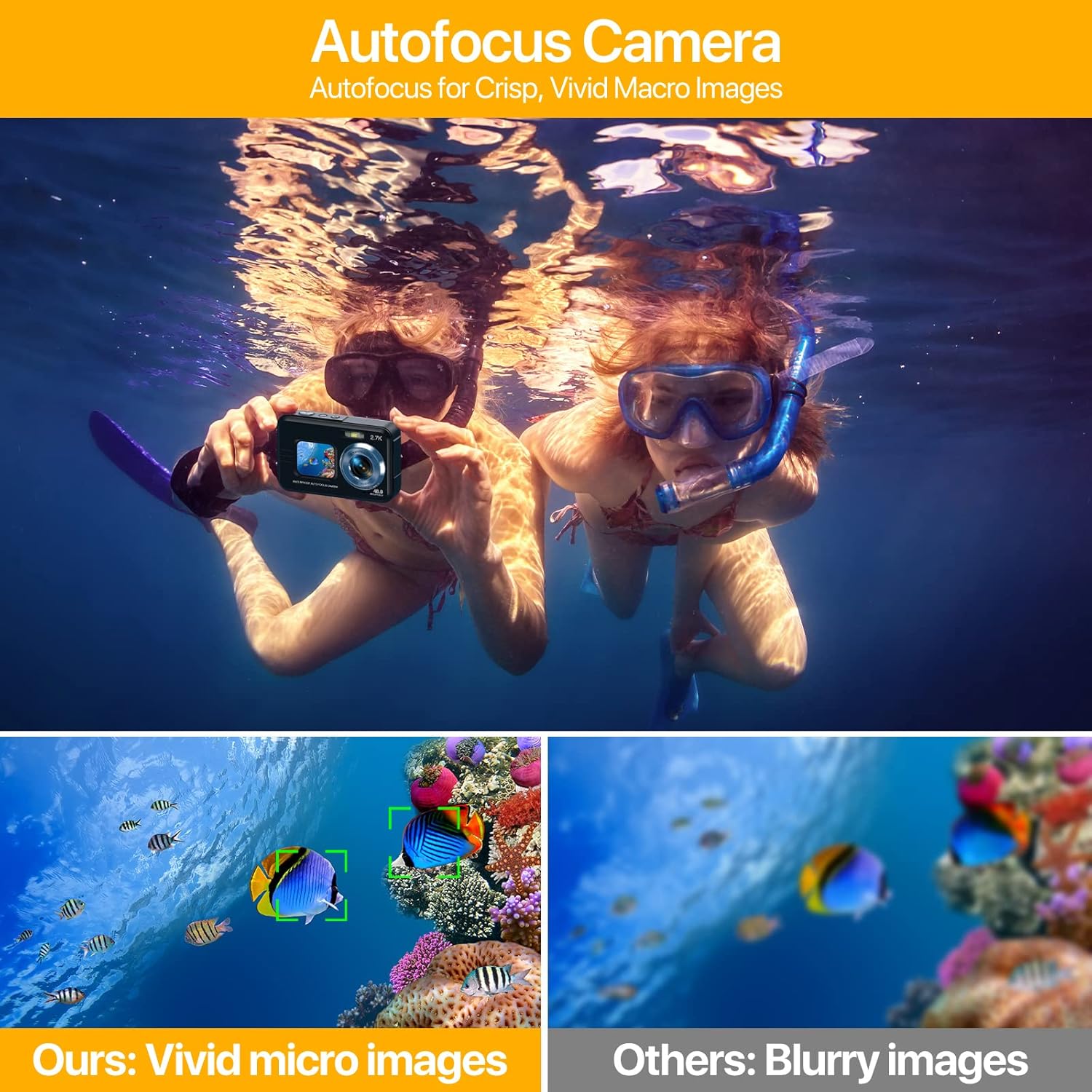
Figure 4.1: Autofocus function for clear images.
4.4 Dual Screen & Selfie Mode
The camera features a 1.7-inch front display and a 2.8-inch rear display. To activate selfie mode, flip the camera to face you. The front screen will activate, allowing you to frame your self-portraits. Utilize the built-in 2s, 5s, or 10s self-timer for convenience.

Figure 4.2: Dual screen functionality for easy selfies.
4.5 Digital Zoom
The camera supports 16X digital zoom. Use the 'W' (Wide) and 'T' (Telephoto) buttons to adjust the zoom level.
4.6 Anti-Shake Function
The anti-shake feature helps to stabilize images and videos, reducing blur caused by camera movement. This function is automatically enabled in certain modes or can be toggled via the menu settings.

Figure 4.3: Anti-shake function for stable images.
4.7 Connecting to a PC
To transfer photos and videos, connect the camera to your computer using the provided USB cable. The camera will appear as a removable disk, allowing you to access your files.
5. Maintenance
5.1 Waterproof Usage Guidelines
The camera is waterproof up to 11 feet (3.5 meters). To ensure its waterproof integrity:
- Always ensure the battery door is securely closed and locked before submerging the camera in water.
- Avoid opening the battery compartment while the camera is wet or underwater.
- Rinse the camera with fresh water after use in saltwater and allow it to air dry completely.
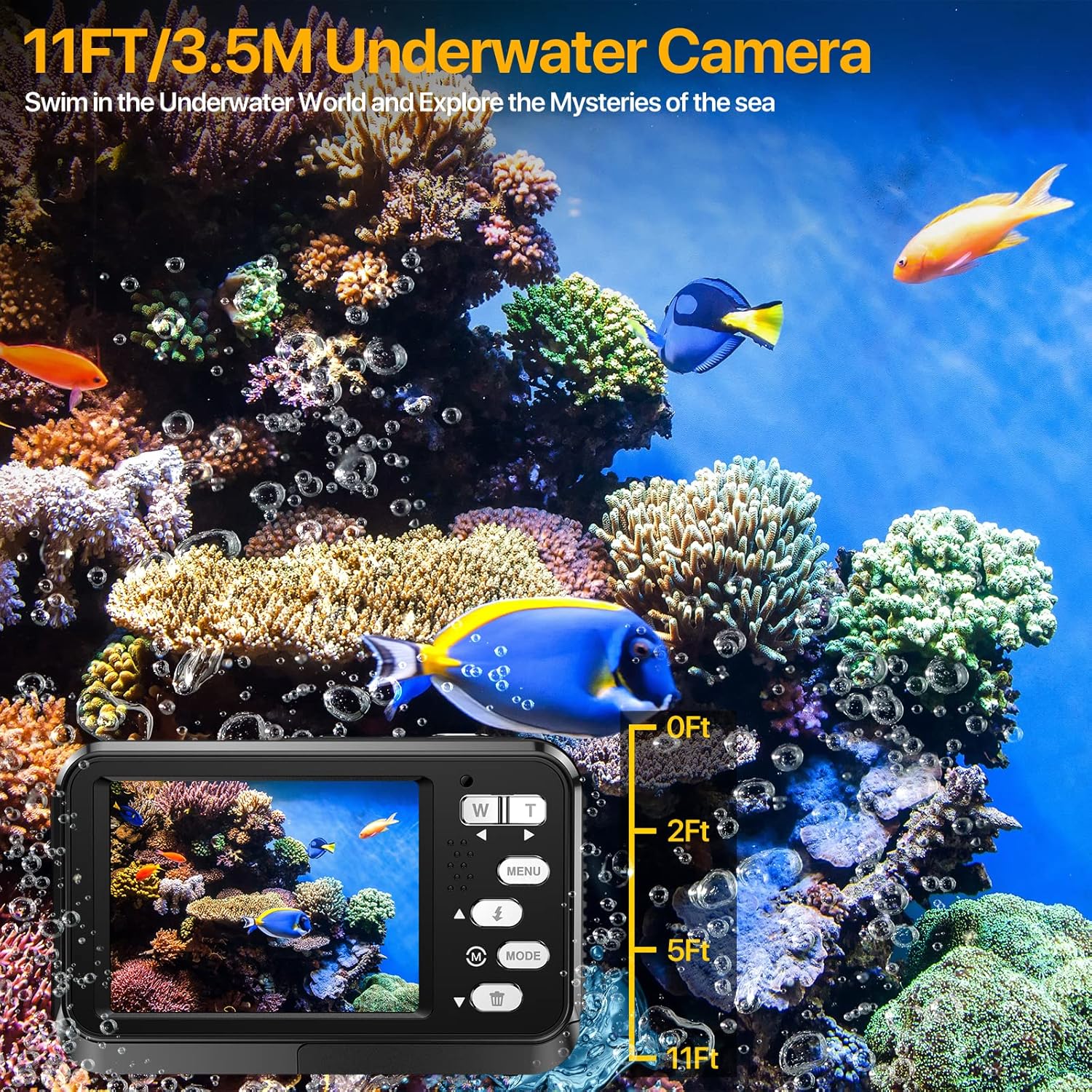
Figure 5.1: Camera designed for underwater use up to 11 feet.
5.2 Cleaning
Use a soft, lint-free cloth to clean the camera body and screens. For stubborn smudges, slightly dampen the cloth with water. Do not use harsh chemicals or abrasive materials.
5.3 Battery Care
Store batteries in a cool, dry place. Avoid exposing them to extreme temperatures. If the camera will not be used for an extended period, remove the batteries.
6. Troubleshooting
- Camera will not power on: Ensure the battery is correctly inserted and fully charged.
- "No Card" error: Verify that a Micro SD card is inserted correctly and is not damaged. Try reformatting the card (this will erase all data).
- Blurry images: Ensure autofocus is properly engaged (yellow frame turns green). Check for smudges on the lens.
- Water leakage: Immediately remove the camera from water. Open the battery compartment and remove the battery and SD card. Allow the camera to dry completely. Contact customer support if issues persist.
7. Specifications
| Feature | Specification |
|---|---|
| Model Name | WDC901 |
| Maximum Webcam Image Resolution | 48 MP |
| Video Resolution | 4K (2160p) |
| Digital Zoom | 16X |
| Water Resistance Level | Waterproof (up to 11 feet / 3.5 meters) |
| Front Display Screen | 1.7-inch, 240*280 IPS HD |
| Rear Display Screen | 2.8-inch, 640*480 IPS HD |
| Battery Type | Lithium Ion (700mAh) |
| Supported File Format | JPEG, MP4 |
| Connectivity Technology | USB |
| Special Features | Autofocus, Dual Screens, Anti-Shake, Self-Timer |
8. Warranty and Support
For any questions or issues regarding your ZNIARAKL WDC901-4K camera under normal use, please contact our customer support team. We are committed to providing assistance and will respond within 12 hours to resolve your concerns.