
Samsung QN55S95CAFXZA
Samsung 55-Inch Class OLED 4K S95C Series Smart TV User Manual
Brand: Samsung | Model: QN55S95CAFXZA
1. Introduction
This manual provides essential information for setting up, operating, and maintaining your Samsung 55-Inch Class OLED 4K S95C Series Smart TV. Please read this manual thoroughly before using your TV to ensure safe and optimal performance.
Key Features
- Samsung OLED Technology: Experience incredible detail, unbelievable screen brightness, pure blacks, and over a billion shades of color powered by QD technology with 8.3 million self-illuminating pixels.
- Infinity One Design with Slim One Connect: A sleek, impossibly thin profile with an attachable Slim One Connect solution to neatly organize cords and cables.
- Quantum HDR OLED+: Optimized picture with bright whites and pure blacks, offering rich contrast through dynamic tone mapping.
- Neural Quantum Processor with 4K Upscaling: AI-powered processor transforms content into sharp 4K resolution scene by scene.
- Dolby Atmos & Object Tracking Sound+: Enjoy dramatic 3D audio as AI Sound tracks on-screen action with pinpoint accuracy.
- Q-Symphony 3.0: Synchronizes TV speakers with a compatible Samsung soundbar for a masterfully orchestrated sound experience.
- Motion Xcelerator Turbo Pro: Delivers crisp 4K visuals at up to 120Hz, with Game Motion Plus supporting up to 144Hz for PC-connected content.
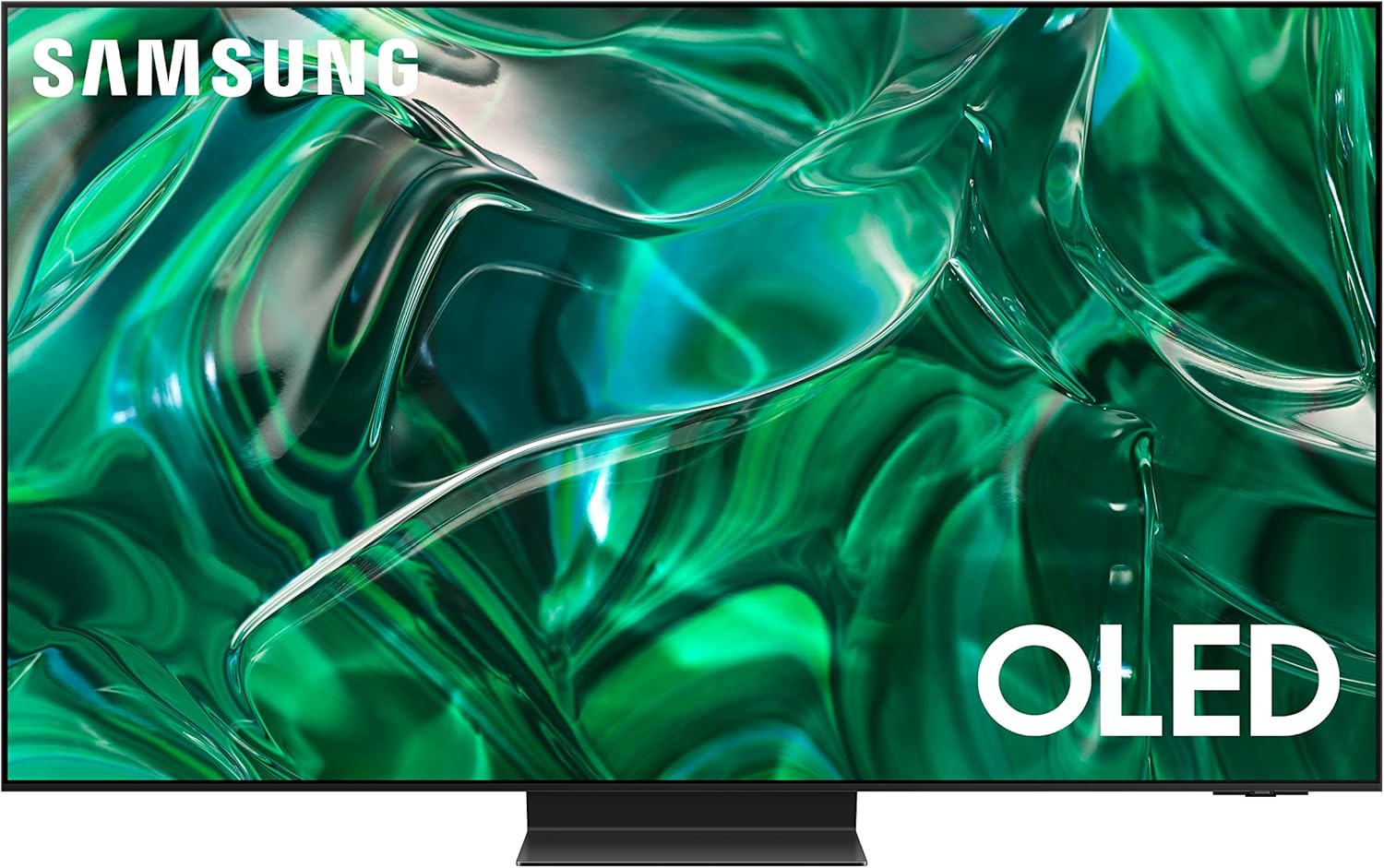
Front view of the Samsung 55-Inch Class OLED 4K S95C Series Smart TV.
2. What's in the Box
Upon unpacking, please ensure all the following items are present:
- Samsung 55-Inch Class OLED 4K S95C Series Smart TV
- One Connect Box
- Power Cable
- Slim Cable (for One Connect Box)
- User Manual (this document)
- E-Manual (digital version)
- SolarCell Remote Control (TM2360E)

Illustration of the TV, One Connect Box, and included accessories.
3. Setup
Unpacking and Placement
Carefully remove the TV from its packaging. It is recommended to have two people for this process due to the size and delicate nature of the screen. Place the TV on a stable, flat surface or mount it securely to a wall using a compatible VESA mount (sold separately).
Connecting the One Connect Box
The Samsung S95C features an Infinity One Design with a Slim One Connect Box. This external box houses all your input and output ports, allowing for a cleaner setup with a single cable running to the TV.
- Connect the Slim Cable from the One Connect Box to the One Connect port on the back of the TV.
- Connect your external devices (Blu-ray players, gaming consoles, soundbars, etc.) to the appropriate HDMI, USB, or other ports on the One Connect Box.
- Connect the power cable to the One Connect Box and then to a wall outlet.

The Slim One Connect Box, showing various input ports.
Initial Power On and Setup Wizard
Once all connections are made, press the Power button on the remote control. The TV will guide you through an initial setup wizard, including:
- Language selection
- Network connection (Wi-Fi or Ethernet)
- Channel scanning (for antenna/cable connections)
- Smart Hub setup and app installation
- Account login (Samsung account recommended for full features)
4. Operating Your TV
Using the SolarCell Remote Control
The included SolarCell Remote Control can be charged by indoor lighting or USB-C. Familiarize yourself with its buttons for navigation, volume, channel, and Smart Hub access.

The Samsung SolarCell Remote Control.
Smart Hub and Applications
The Smart Hub is your central access point for streaming apps, live TV, connected devices, and more. Navigate using the directional pad on your remote. You can download additional apps from the Samsung App Store.
Picture and Sound Settings
Access the Settings menu to customize your viewing and listening experience. Adjust picture modes (Standard, Dynamic, Movie, Filmmaker Mode), brightness, contrast, color, and sharpness. For audio, explore options like Sound Mode, Equalizer, Dolby Atmos, Object Tracking Sound+, and Q-Symphony settings.
Gaming Hub
The Samsung Gaming Hub provides a dedicated interface for cloud gaming services and connected consoles. Access it directly from the Smart Hub to quickly launch your favorite games. Ensure a high-speed internet connection and compatible controller for cloud gaming.

The Samsung Gaming Hub interface.
Voice Assistants
Your TV supports multiple voice assistants, including Bixby and Alexa Built-in. Use the microphone button on your remote to activate the voice assistant and control your TV, search for content, or get information using voice commands.
5. Maintenance and Care
Screen Cleaning
To clean the screen, gently wipe it with a soft, dry microfiber cloth. For stubborn smudges, lightly dampen the cloth with distilled water. Avoid using harsh chemicals, abrasive materials, or direct spraying of liquids onto the screen.
General Care
- Keep the TV away from direct sunlight and heat sources.
- Ensure adequate ventilation around the TV and One Connect Box.
- Avoid placing heavy objects on the TV or One Connect Box.
- Regularly check for software updates to ensure optimal performance and security.
Pixel Refreshing (OLED)
As an OLED TV, your S95C may feature a pixel refreshing function to maintain picture quality and prevent image retention. This process typically runs automatically when the TV is off or can be initiated manually through the settings menu. Refer to the E-Manual for specific instructions on this feature.
6. Troubleshooting
If you encounter issues with your TV, try the following basic troubleshooting steps:
- No Power: Ensure the power cable is securely connected to the One Connect Box and the wall outlet. Try a different outlet.
- No Picture/Sound: Check all HDMI and other input connections to the One Connect Box. Ensure the correct input source is selected on the TV. Restart connected devices.
- Remote Not Working: Check the remote's charge level (for SolarCell remote) or replace batteries (if applicable). Ensure there are no obstructions between the remote and the TV/One Connect Box.
- Network Connection Issues: Restart your router and modem. Reconnect the TV to your Wi-Fi network or check the Ethernet cable connection.
For more detailed troubleshooting, please refer to the comprehensive E-Manual accessible directly from your TV's settings menu or download the PDF version from the Samsung support website.
7. Technical Specifications
| Feature | Specification |
|---|---|
| Brand Name | Samsung |
| Model Number | QN55S95CAFXZA |
| Screen Size | 55 Inches |
| Display Technology | OLED |
| Resolution | 4K |
| Refresh Rate | 120 Hz |
| Product Dimensions (D x W x H) | 10.5"D x 48.2"W x 30.4"H |
| Item Weight | 52.7 Pounds |
| Connectivity Technology | Bluetooth, Wi-Fi, USB, Ethernet, HDMI |
| Voltage | 120 Volts |
| Speaker Type | Built-In |
| Color Name | Titan Black |

Side view illustrating the impossibly thin design of the TV.
8. Warranty and Support
For information regarding your product's warranty, please refer to the warranty card included in the packaging or visit the official Samsung support website. Samsung provides comprehensive customer support for technical assistance, service, and parts.
You can access the full User Manual (E-Manual) directly on your TV through the Smart Hub or download a PDF version from the Samsung support website for detailed instructions and advanced features.
Official User Manual (PDF): Download Here
For further assistance, please contact Samsung Customer Service.
Related Documents - QN55S95CAFXZA
 |
Samsung S90D OLED TV Digital Launch Toolkit Comprehensive digital launch toolkit for the Samsung S90D OLED TV, detailing product headlines, feature copy, image carousel information, specifications, compatible accessories, and keywords for marketing and SEO. |
 |
Samsung S95C TV Unpacking and Installation Guide A comprehensive guide for unpacking and installing Samsung S95C series TVs, including setup instructions, component identification, and safety precautions. |
 |
Samsung S85D OLED 4K TV: Key Features and Specifications Explore the Samsung S85D OLED 4K TV, highlighting its OLED technology, 4K AI Upscaling, Dolby Atmos, and various smart features. Details on screen sizes, dimensions, and included accessories are provided. |
 |
Samsung Smart TV User Guide: Setup, Features, and Troubleshooting A comprehensive user guide for Samsung Smart TVs, detailing setup, connections, smart features, picture and sound settings, troubleshooting, and accessibility options to enhance your viewing experience. |
 |
Samsung Neo QLED 8K Smart TV User Manual - Setup, Safety, and Specifications This user manual provides essential information for Samsung Neo QLED 8K Smart TVs, covering safety instructions, installation, operation, troubleshooting, specifications, and internet security. Learn how to set up and use your Samsung TV safely and effectively. |
 |
Samsung TV E-Manual: Comprehensive Guide to Features, Setup, and Troubleshooting Explore the Samsung TV E-Manual for detailed instructions on setup, smart features, connectivity, picture and sound settings, troubleshooting, and accessibility. Enhance your viewing experience with Samsung's advanced technology. |
Ask a question about this manual
Ask about setup, troubleshooting, compatibility, parts, safety, or missing instructions. Manuals+ will review the question and use this page’s manual context to help answer it.