
1. Introduction
This manual provides detailed instructions for the Hiearcool USB C Hub, model UCN3286. This intelligent USB C adapter is designed to expand the connectivity of your USB-C enabled devices, offering multiple ports for various peripherals and power delivery.
Key features include:
- Two USB 3.0 ports for high-speed data transfer.
- One 4K@30Hz HDMI port for video output.
- SD and TF card readers for memory card access.
- Up to 100W/20V/5A Type C Power Delivery (PD) charging port.
The Hiearcool USB C Hub UCN3286 is UL/SGS approved, ensuring quality and reliability.
2. Product Overview
Familiarize yourself with the components and ports of your Hiearcool USB C Hub UCN3286.
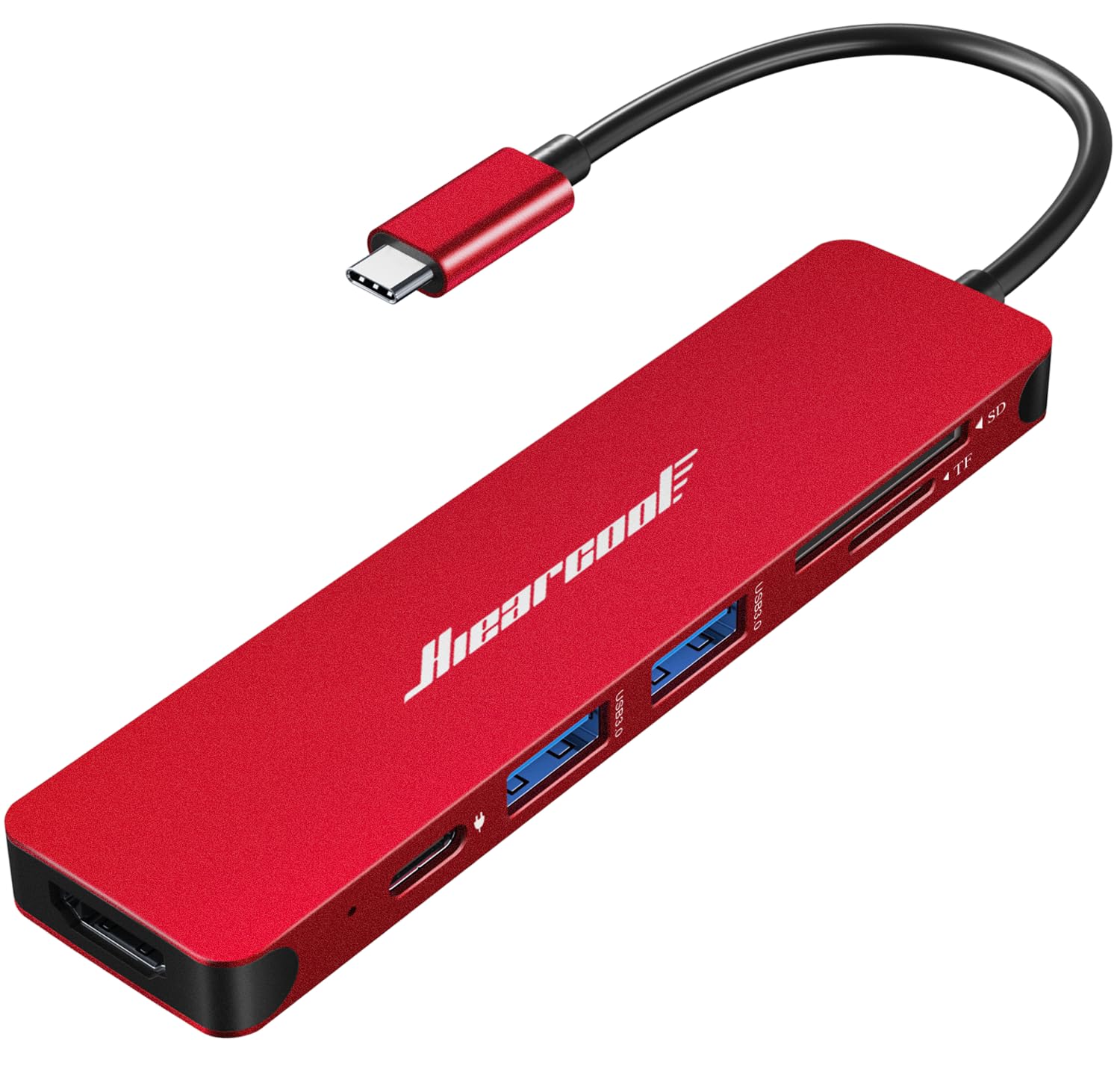
Figure 1: Hiearcool USB C Hub UCN3286. This image displays the compact, red USB C hub with its integrated USB-C cable, highlighting its sleek design and port layout.

Figure 2: Detailed view of the Hiearcool USB C Hub UCN3286 ports. This image provides a clear look at the various input/output options available on the hub, including USB-A, HDMI, and card reader slots.
3. Setup Instructions
- Connect the Hub to Your Device: Insert the USB-C connector of the Hiearcool USB C Hub into an available USB-C port on your laptop, tablet, or smartphone. Ensure the connection is firm.
- Connect Power (Optional): If your device requires charging or if you are connecting power-intensive peripherals, connect your USB-C power adapter to the Power Delivery (PD) port on the hub. The hub supports up to 100W power pass-through.
- Connect Peripherals:
- USB Devices: Plug your USB-A devices (e.g., mouse, keyboard, USB flash drive) into the USB 3.0 ports.
- HDMI Display: Connect an HDMI cable from your monitor or TV to the HDMI port on the hub for video output. Ensure your display is set to the correct HDMI input.
- Memory Cards: Insert your SD or TF (Micro SD) cards into the corresponding slots.
- Driver Installation: The Hiearcool USB C Hub is plug-and-play and typically does not require additional drivers for most operating systems (Windows, macOS, Chrome OS, Android). If a device is not recognized, try reconnecting the hub or restarting your host device.
4. Operating Instructions
4.1 USB 3.0 Ports
The two USB 3.0 ports support data transfer speeds up to 5Gbps. These ports are backward compatible with USB 2.0 devices. Use them to connect external hard drives, USB flash drives, keyboards, mice, and other USB peripherals.
4.2 HDMI Port
The HDMI port supports resolutions up to 4K (3840x2160) at 30Hz. Connect an HDMI-enabled display to extend or mirror your device's screen. Ensure your device's USB-C port supports DisplayPort Alternate Mode (Alt Mode) for video output.
4.3 SD/TF Card Readers
The integrated SD and TF (Micro SD) card slots allow you to read and write data from memory cards simultaneously. Insert the cards firmly until they click into place. To remove, push the card in slightly to release it.
4.4 USB-C Power Delivery (PD) Port
This port is for power input only and does not support data transfer. Connect your original USB-C power adapter to this port to charge your host device (laptop, tablet) while using the hub. It supports power delivery up to 100W.
5. Maintenance
- Cleaning: Use a soft, dry cloth to clean the hub. Avoid liquid cleaners or solvents.
- Storage: Store the hub in a cool, dry place away from direct sunlight and extreme temperatures.
- Handling: Avoid dropping the hub or subjecting it to strong impacts. Do not attempt to disassemble or modify the device.
- Cable Care: Do not bend the integrated USB-C cable excessively or pull on it forcefully.
6. Troubleshooting
- No Display via HDMI:
- Ensure your host device's USB-C port supports DisplayPort Alt Mode.
- Check the HDMI cable connection to both the hub and the display.
- Verify the display input source is correctly selected.
- Try a different HDMI cable or display if possible.
- USB Devices Not Recognized:
- Ensure the USB device is properly inserted into the hub's USB 3.0 port.
- Try connecting the USB device directly to your host device to confirm it functions independently.
- If connecting a high-power USB device (e.g., external hard drive), ensure the hub is connected to a power source via its PD port.
- Reconnect the hub to your host device.
- Charging Not Working:
- Ensure your USB-C power adapter is connected to the hub's PD port and is functioning correctly.
- Verify that your host device supports USB-C Power Delivery.
- Check the power adapter's wattage; it should be sufficient for your device.
- Intermittent Connectivity/Sound Buffering:
- Ensure all connections are secure and free from dust or debris.
- Avoid using excessively long or low-quality cables with the hub.
- If experiencing audio buffering with an external display, try reducing the display resolution or refresh rate, or ensure the hub is receiving adequate power.
- Disconnect and reconnect the hub. If issues persist, try connecting the hub to a different USB-C port on your host device, if available.
7. Specifications
| Feature | Detail |
|---|---|
| Model Number | UCN3286 |
| Brand | Hiearcool |
| Ports | 2x USB 3.0, 1x HDMI, 1x SD Card, 1x TF Card, 1x USB-C PD |
| HDMI Resolution | Up to 4K@30Hz (3840x2160@30Hz) |
| USB 3.0 Data Speed | Up to 5Gbps |
| Power Delivery | Up to 100W (input only) |
| Dimensions (LxWxH) | 4.17 x 1.4 x 0.34 inches |
| Weight | 1.8 ounces |
| Compatible Devices | Macbook M1/M2, Type C Laptops, iPad Air/Pro/Mini, iMac, Steam Deck, Type C Smartphones, Mouse, Keyboard, iPhone 15 series |
8. Warranty and Support
Hiearcool offers a Two-Year Support for this product. Additionally, a 30-Day Trial period is available. For any inquiries or technical assistance, please contact our support team.
Contact Us: Hiearcool@outlook.com
This product is UL/SGS Approved, ensuring it meets high quality and safety standards. It is also protected by the Transparency Program, which verifies its authenticity. Look for the Transparency logo and code on the product packaging to verify authenticity using the Transparency app.


