
Westods P101 Wireless
Westods P101 Wireless Car Stereo User Manual
Upgraded 10.26" Wireless Carplay Screen & Android Auto with 2.5K Dash Cam, 1080P Backup Camera, GPS Navigation, HD IPS Display
Introduction
Thank you for purchasing the Westods P101 Wireless Car Stereo. This device integrates a 10.26-inch HD IPS display with wireless CarPlay and Android Auto capabilities, a 2.5K dash camera, and a 1080P backup camera. It is designed to enhance your driving experience with advanced navigation, entertainment, and safety features. Please read this manual thoroughly before operation to ensure proper use and optimal performance.
Safety Information
- Always operate the device responsibly and in accordance with local traffic laws.
- Do not attempt to install or service the device while driving.
- Ensure all cables are securely connected and do not obstruct the driver's view or vehicle controls.
- Avoid exposing the device to extreme temperatures, direct sunlight for prolonged periods, or excessive moisture.
- Use only the provided power adapter and accessories.
Package Contents
Verify that all items listed below are present in your package:
- Westods P101 Main Unit (10.26" Display with integrated Front Dash Cam)
- 1080P Rear View Camera
- 64GB MicroSD Card
- Power Cord (for Car DVR)
- Camera Extension Cord
- AUX Cable
- User Manual

Image: Visual representation of all items included in the Westods P101 package, including the main unit, cameras, cables, and microSD card.
Product Overview and Features
The Westods P101 offers a comprehensive set of features for an enhanced in-car experience:
- 10.26-inch Detachable IPS HD Screen: Adjustable viewing angle for optimal visibility. The screen can be detached for security or convenience.
- Wireless CarPlay & Android Auto: Seamless integration with your smartphone for navigation, music, calls, and messages via voice control.
- HD Loop Recording: Built-in 2.5K front dash cam and included 1080P rear camera for continuous recording. Supports split-screen display for front and rear views.
- Superior Sound Quality: Multiple audio output options including local speaker, AUX, and FM transmission. Bluetooth transmit for car speaker playback.
- Screen Casting (MirrorCast): Supports mirroring content from most iOS and Android phones to the display.
- Voice Control: Compatible with Siri and Google Assistant for hands-free operation.
- Wide Compatibility: Supports 7-32V vehicles, including cars, trucks, RVs, and vans.

Image: The Westods P101 display showing the CarPlay interface on the left and a road view on the right, with illustrations of the screen's adjustability and detachability.

Image: Detailed diagram showing the dimensions (10.26 inches diagonal, 9.37 inches width, 3.54 inches height) and various angles of the Westods P101 unit, highlighting its adjustable and detachable design.

Image: Illustration of the dual camera system, featuring the 2.5K front dash camera and the 1080P backup camera, with examples of recorded video quality and loop recording function.
Setup and Installation
1. DVR Installation (Main Unit)
- Place the main unit on your vehicle's dashboard in a position that does not obstruct your view or interfere with airbags.
- Connect the power cord to the main unit's Type-C port.
- Plug the other end of the power cord into your vehicle's cigarette lighter socket.
- Route the cable neatly to avoid tangles and ensure it is not in the way of vehicle operation.
2. Backup Camera Installation
- Mount the backup camera at the rear of your vehicle, typically above the license plate or near the trunk handle, ensuring a clear view.
- Connect the camera extension cord to the backup camera.
- Route the camera extension cord from the rear of the vehicle to the main unit.
- Connect the camera extension cord to the "Rear Camera In" port on the main unit.
- Reverse Trigger Connection: For automatic display of the rear view when reversing, connect the red wire of the backup camera cable to the reverse light anode (positive wire) of your vehicle. This will trigger the display when the vehicle is put into reverse.

Image: Step-by-step visual guide for installing the main DVR unit by plugging into the cigarette lighter, and installing the backup camera with its connection to the main unit and the reverse light trigger.
Operating Instructions
1. Wireless CarPlay and Android Auto
- Ensure Bluetooth and Wi-Fi are enabled on your smartphone.
- On the P101 unit, navigate to the CarPlay or Android Auto icon.
- Follow the on-screen prompts to pair your phone via Bluetooth.
- Once paired, the unit will automatically connect to your phone's Wi-Fi for wireless CarPlay/Android Auto functionality.
- You can now access navigation, music, calls, and messages directly from the P101 display.
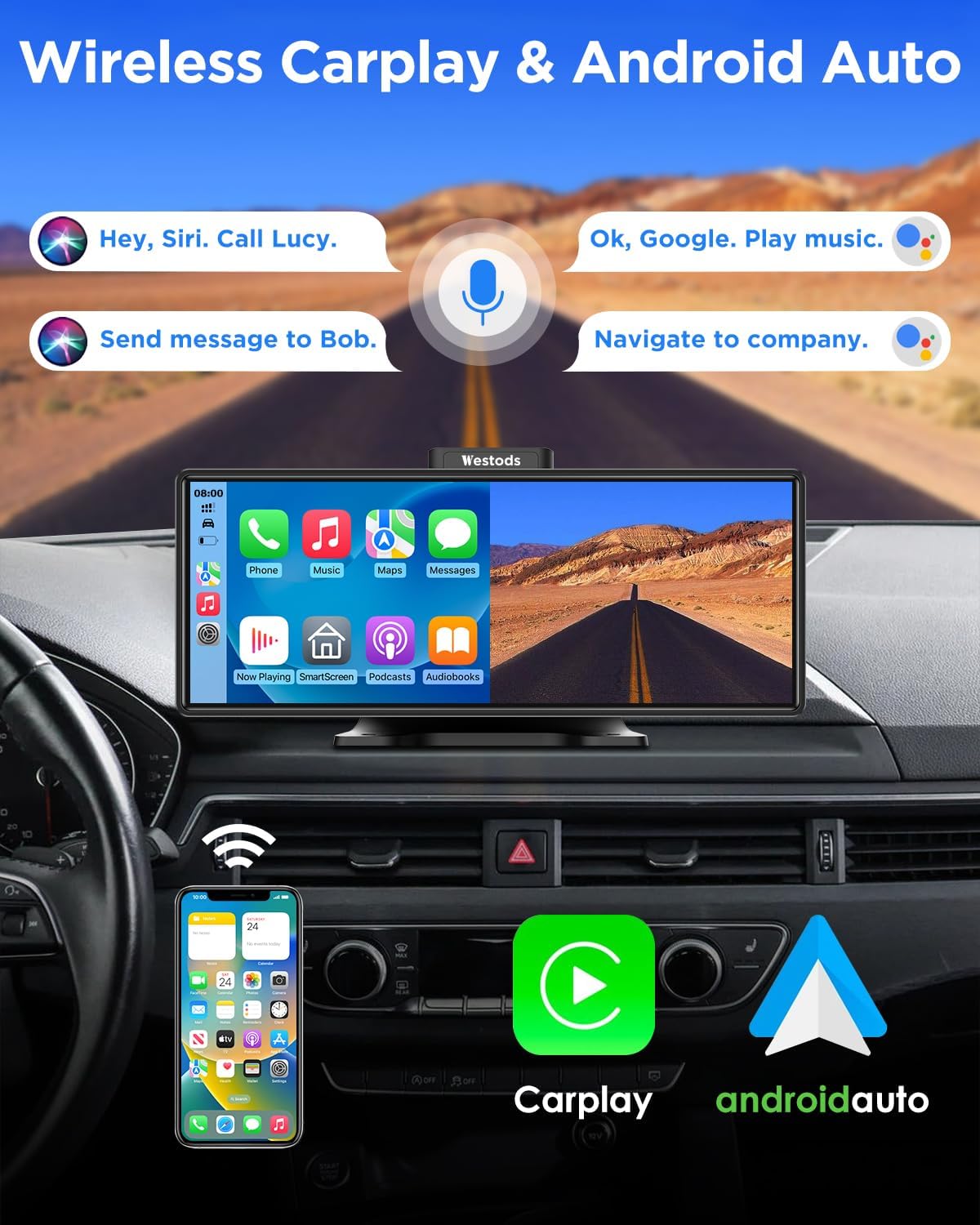
Image: Depicts the Westods P101 unit installed in a car, showcasing the wireless CarPlay and Android Auto connectivity with voice command examples like "Hey Siri. Call Lucy." and "Ok, Google. Play music."

Image: A broader view of the wireless CarPlay and Android Auto functionality, showing the unit's interface with various app icons and the integration with a smartphone.
2. Screen Casting (MirrorCast)
The unit supports screen mirroring from compatible iOS and Android devices. This allows you to display content from your phone directly on the P101 screen.
- Navigate to the "Screen Casting" or "MirrorCast" option on the P101 unit.
- Follow the specific instructions displayed on the screen for iOS AirPlay or Android Cast to connect your device.
- Note: System version iOS 17.2 or above is not supported for screen casting.

Image: Demonstrates the screen casting feature, showing a phone's display mirrored onto the P101 unit, along with details about the HD IPS screen's resolution (1600*600), 2.5D curved design, and 178° view angle.
3. Audio Output Options
The P101 offers several ways to output audio:
- Local Speaker: The unit has a built-in speaker for direct audio playback.
- AUX Output: Connect the provided AUX cable from the P101 unit to your car's AUX input for high-quality audio through your vehicle's sound system.
- FM Transmit: Transmit audio wirelessly to your car's FM radio.
- On the P101 unit, select the FM Transmit function.
- Choose an unused FM frequency on the P101.
- Tune your car's FM radio to the exact same frequency.
- Audio from the P101 will now play through your car's speakers.
- Bluetooth Transmit: For CarPlay/Android Auto audio, the unit can transmit sound to your car's original Bluetooth system.

Image: Four-panel image illustrating the different audio output methods: FM Transmit (setting frequency), Bluetooth Transmit (connecting to phone), AUX Output (connecting via cable), and the built-in Local Speaker.

Image: Close-up view of the Westods P101 unit highlighting its built-in speaker with sound waves emanating from it.

Image: Demonstrates connecting the AUX cable from the Westods P101 unit to a car's AUX input for audio playback through the car's speakers.

Image: Shows the FM Transmitter interface on the Westods P101 screen and how to match the frequency on the car's radio for audio transmission.
4. Voice Control
With your smartphone connected via CarPlay or Android Auto, you can use voice commands for various functions:
- Activate Siri (for iOS) or Google Assistant (for Android) by saying the wake word or pressing the voice control button on the unit (if available).
- Issue commands for navigation, making calls, sending messages, playing music, and more, all hands-free.

Image: A multi-panel image demonstrating key features including map navigation, voice control (showing a call in progress), Bluetooth audio transmission, and loop recording with multiple camera views.
5. Loop Recording and Camera Views
The integrated dash cam and backup camera provide continuous recording and real-time views:
- The unit automatically records video from both the front (2.5K) and rear (1080P) cameras onto the included 64GB MicroSD card.
- When the storage is full, the oldest files will be overwritten by new recordings (loop recording).
- During reversing, the screen will automatically display the rear view. The unit also supports split-screen display, showing both front and rear views simultaneously for enhanced safety.
- Recorded videos can be accessed and played back directly on the unit.
Maintenance
- Cleaning: Use a soft, dry cloth to clean the screen and exterior of the unit. Do not use abrasive cleaners or solvents.
- Temperature: Avoid leaving the unit in direct sunlight or extreme temperatures for extended periods, as this can damage the display and internal components.
- MicroSD Card: Periodically format the MicroSD card (e.g., once a month) to ensure optimal recording performance and prevent data corruption. Back up any important recordings before formatting.
- Detaching the Screen: If you frequently detach the screen, ensure the connection points are clean and free of debris to maintain a secure connection.
Troubleshooting
| Problem | Possible Cause | Solution |
|---|---|---|
| Unit does not power on. | No power from cigarette lighter; loose connection; blown fuse in vehicle. | Check cigarette lighter connection. Test lighter with another device. Check vehicle's fuse box. |
| Wireless CarPlay/Android Auto not connecting. | Bluetooth/Wi-Fi off on phone; incorrect pairing; phone OS version not supported. | Ensure phone's Bluetooth and Wi-Fi are on. Re-pair the device. Check phone's OS version (iOS 17.2+ not supported for MirrorCast). |
| No audio from car speakers via FM Transmit. | Incorrect FM frequency; interference. | Ensure P101 and car radio are on the exact same, clear FM frequency. Try a different frequency. |
| Backup camera not displaying. | Loose cable connection; reverse trigger not connected or faulty. | Check all camera cable connections. Verify the reverse trigger wire is correctly connected to the reverse light anode. |
| Screen casting not working. | Phone compatibility; network issues. | Ensure your phone's OS version is compatible (iOS 17.2+ not supported). Check Wi-Fi connection. |
Specifications
| Feature | Detail |
|---|---|
| Display Size | 10.26 inches |
| Display Type | IPS HD Touchscreen |
| Display Resolution | 1600x600 |
| Front Camera Resolution | 2.5K (2560x1440P) |
| Rear Camera Resolution | 1080P (1920x1080P) |
| Connectivity | Wireless CarPlay, Android Auto, Bluetooth, Wi-Fi, MirrorCast |
| Audio Output | Built-in Speaker, AUX, FM Transmitter |
| Power Input | 7-32V (compatible with cars, trucks, RVs) |
| Storage | Supports MicroSD card (64GB included) |
| Dimensions (Package) | 10.71 x 5.47 x 4.21 inches |
| Item Weight | 3.19 pounds |

Image: Illustrates the wide voltage compatibility (7-32V) of the Westods P101, showing various types of vehicles it can be installed in, including sedans, SUVs, trucks, and vans.
Warranty and Support
For warranty information, technical support, or any inquiries regarding your Westods P101 unit, please refer to the contact details provided on the product packaging or the official Westods website. Keep your purchase receipt as proof of purchase for warranty claims.
For further assistance, you may also visit the Westods Store on Amazon.
Related documentsP101 Wireless

Ask a question about this manual
Ask about setup, troubleshooting, compatibility, parts, safety, or missing instructions. Manuals+ will review the question and use this page’s manual context to help answer it.