
Introduction
Thank you for choosing the DIGIROOT Stylus Pen for iPad. This manual provides essential information for the proper setup, operation, and maintenance of your new stylus. Please read this manual thoroughly before use to ensure optimal performance and longevity of your device.
Compatibility
The DIGIROOT Stylus Pen is designed to be compatible ONLY with iPad models released in 2018 or later. To confirm your iPad's model, navigate to Settings > General > About on your device.
Compatible models include:
- iPad Pro 13" (M4)
- iPad Pro 12.9" (3rd, 4th, 5th, 6th Generations)
- iPad Pro 11" (All Generations)
- iPad Air M3, M2, 5th, 4th, 3rd Generations
- iPad 11th, 10th, 9th, 8th, 7th, 6th Generations
- iPad Mini 6th, 5th Generations

Figure 1: Visual guide to compatible iPad models.
What's in the Box
Upon unboxing your DIGIROOT Stylus Pen, please ensure all components are present:
- DIGIROOT Stylus Pen
- USB Charging Cable
- Replacement Tips (Quantity may vary)

Figure 2: Contents of the DIGIROOT Stylus Pen package.
Setup
Charging the Stylus
The stylus features fast charging capabilities. A full charge takes approximately 13 minutes and provides up to 9 hours of continuous use.
- Connect the provided USB charging cable to the charging port on the stylus.
- Connect the other end of the cable to a compatible USB power source.
- The indicator lights on the stylus will illuminate to show charging progress.
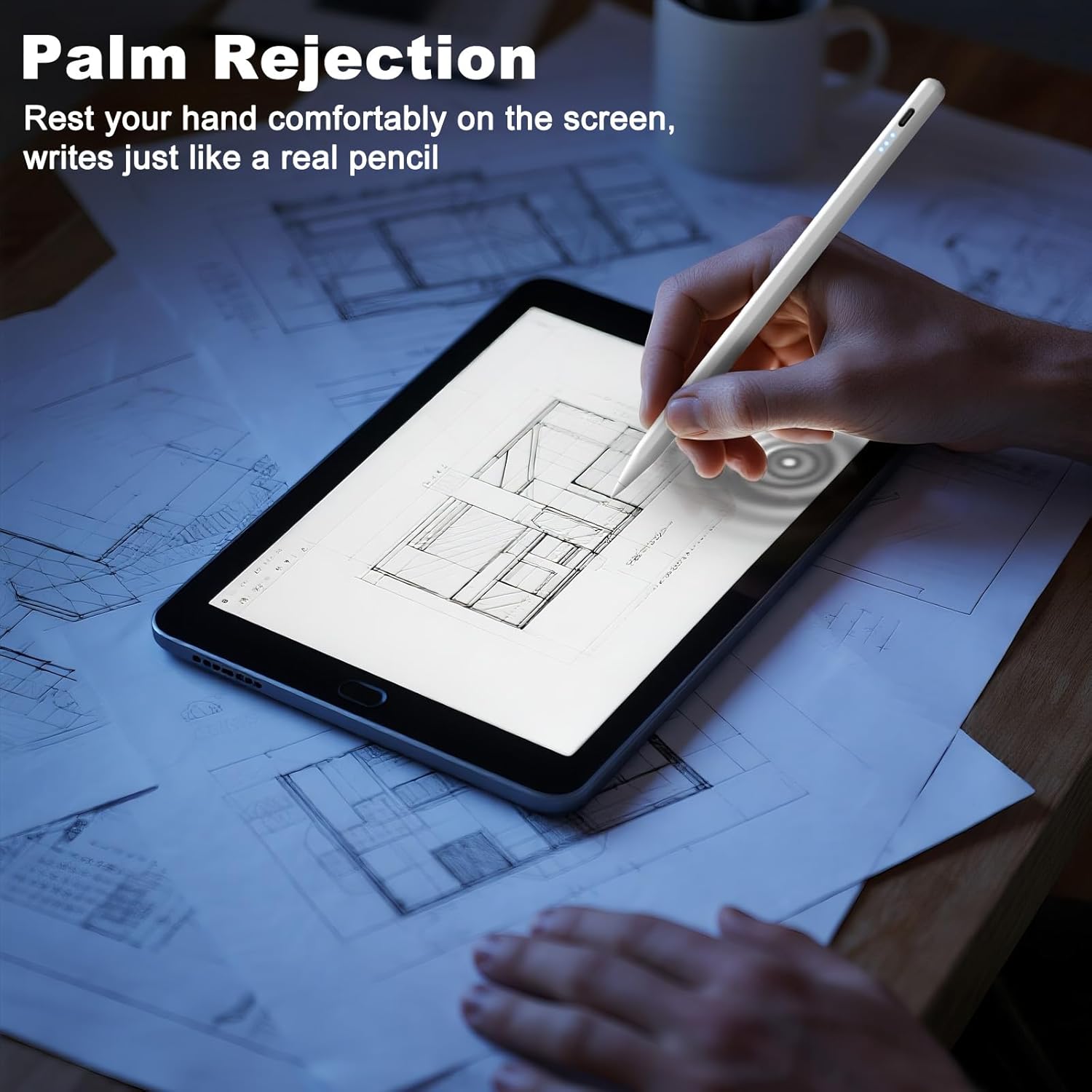
Figure 3: Stylus charging via USB cable.
Power On/Off
The DIGIROOT Stylus Pen does not require Bluetooth pairing for basic functionality. Simply press the top button to power it on or off.
- To turn on: Single press the top button.
- To turn off: Single press the top button again.
Bluetooth Disconnection (Important)
If you experience issues with the stylus not working after turning it on, ensure that any previously paired Apple Pencils are disconnected from your iPad. The DIGIROOT Stylus Pen does not use Bluetooth for its primary functions, and an active Apple Pencil connection can interfere with its operation.
To disconnect an Apple Pencil:
- Go to Settings > Bluetooth on your iPad.
- Locate "Apple Pencil" in the list of devices.
- Tap the "i" icon next to "Apple Pencil".
- Select Forget This Device.
Alternatively, you can simply turn off Bluetooth on your iPad via Settings > Bluetooth > Turn off Bluetooth.
Operating Instructions
Palm Rejection
The stylus features palm rejection technology, allowing you to rest your hand comfortably on the iPad screen while writing or drawing without causing unintended marks or interactions.

Figure 4: Palm rejection in action.
Tilt Sensitivity
The stylus supports tilt sensitivity, enabling you to create lines of varying thickness by adjusting the angle at which you hold the pen against the screen. This feature enhances the natural feel of writing and drawing.
Note: This stylus does not support pressure sensitivity.

Figure 5: Demonstrating tilt sensitivity.
Magnetic Attraction
The DIGIROOT Stylus Pen features a built-in magnet for convenient attachment to the side of compatible iPad models. This allows for easy storage and reduces the risk of misplacing the stylus.

Figure 6: Stylus magnetically attached to iPad.
Power Display
The stylus is equipped with indicator lights that provide a clear display of the remaining battery power:
- Three lights on: 60%-100% power
- Two lights on: 20%-59% power
- One light on: Less than 20% power (recharge recommended)
The stylus will automatically shut down after 10 minutes of inactivity to conserve power. During the last minute of this sleep mode, the lights will flash. The stylus will reactivate when picked up.
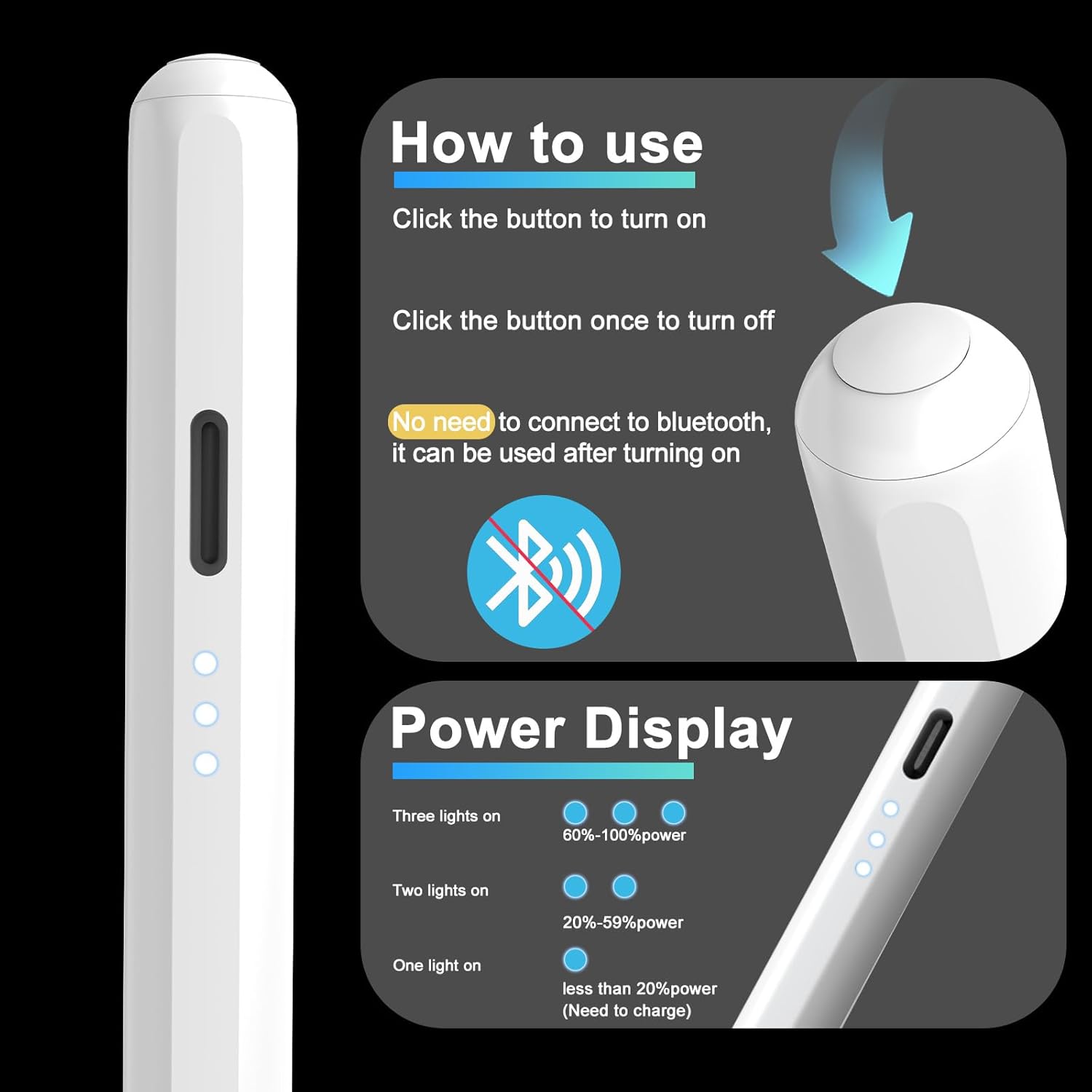
Figure 7: Power indicator lights and their meaning.
Maintenance
Replacing Tips
The stylus comes with replacement tips to ensure continued smooth performance. If the tip becomes worn or damaged, follow these steps:
- Gently twist the old tip counter-clockwise to remove it.
- Align a new tip with the stylus and twist clockwise until it is securely fastened.
For additional replacement tips, please search for B0CCY67B9Y on Amazon.
Troubleshooting
- Stylus not responding: Ensure the stylus is powered on and charged. Verify that no Apple Pencil is actively connected to your iPad via Bluetooth (refer to "Bluetooth Disconnection" section).
- Inaccurate input or skipping: Check if the stylus tip is securely attached and not worn. Replace the tip if necessary. Ensure your iPad screen is clean.
- Charging issues: Confirm the charging cable is properly connected to both the stylus and the power source. Try a different USB port or power adapter.
- Magnetic attachment not working: Ensure your iPad model supports magnetic attachment for styluses. Some older models may not have this feature.
Specifications
| Feature | Detail |
|---|---|
| Product Dimensions | 6.3 x 0.35 x 0.35 inches |
| Item Weight | 0.564 ounces (16 Grams) |
| Battery Type | 1 Lithium Polymer battery (included) |
| Charging Time | Approximately 13 minutes for full charge |
| Continuous Use Time | Up to 9 hours |
| Auto Shut-off | 10 minutes of inactivity |
| Material | Aluminum |
| Color | White |
Warranty and Support
For warranty information, technical support, or any inquiries regarding your DIGIROOT Stylus Pen, please refer to the contact information provided on the product packaging or visit the official DIGIROOT website. Keep your purchase receipt as proof of purchase for warranty claims.

