
WIKICO W01
WIKICO Digital Camera User Manual
Model: W01
1. Product Overview
This WIKICO Digital Camera (Model W01) is designed for both photography and video recording, offering 4K video and 56MP photos. It features 16X digital zoom, video pause, recording while charging, loop recording, continuous shooting, silent mode, and a self-timer. The upgraded chip ensures high-definition, true-to-life images. It is a compact and lightweight camera, ideal for beginners.

Figure 1.1: WIKICO Digital Camera (Pink) with its primary accessories.

Figure 1.2: Key features of the WIKICO Digital Camera.
2. What's in the Box
Upon unboxing your WIKICO Digital Camera, please ensure all the following components are present:
- Digital Camera (W01)
- 2 x 1500mAh Lithium-ion Batteries
- Battery Charger
- 52mm Wide Angle Lens
- 52mm Macro Lens
- USB 2.0 Data Cable
- 32GB TF Card
- User Manual (this document)

Figure 2.1: All components included in the product package.
3. Setup Guide
3.1. Charging the Battery
Before first use, fully charge both included 1500mAh Lithium-ion batteries. Insert the batteries into the dual charger and connect the charger to a power source using the provided adapter and USB cable. The charging indicator light will show the charging status.
3.2. Inserting the TF Card
Locate the TF card slot on the side of the camera. Gently insert the 32GB TF card with the metal contacts facing down until it clicks into place. To remove, press the card inward until it springs out.
3.3. Attaching Lenses
The camera comes with a detachable 52mm wide-angle lens and a macro lens. To attach a lens, align the threads on the lens with the threads around the camera's built-in lens and gently twist clockwise until secure. To switch between wide-angle and macro, the macro lens typically screws onto the wide-angle lens, or directly onto the camera if used alone for close-up shots.

Figure 3.1: Attaching the Wide Angle and Macro Lenses.
4. Operating Instructions
4.1. Powering On/Off
Press and hold the Power button (usually located on the top or side) to turn the camera on or off. The 3.0-inch LCD screen will illuminate.
4.2. Mode Selection
Use the top-mounted knob to select desired modes: Photo, Video, Time-lapse, Playback, or Slow Motion Recording. Refer to Figure 4.1 for control layout.

Figure 4.1: Camera Controls and Mode Dial.
4.3. Taking Photos
In Photo mode, frame your shot using the LCD screen. Press the Shutter button (typically on top) halfway to focus, then fully press to capture the image. The camera supports 56MP photos.
4.4. Recording Videos
In Video mode, press the Record button to start and stop recording. The camera supports 4K video resolution. Use the pause function to temporarily stop and resume recording within the same file. The camera also supports recording while charging for extended sessions.
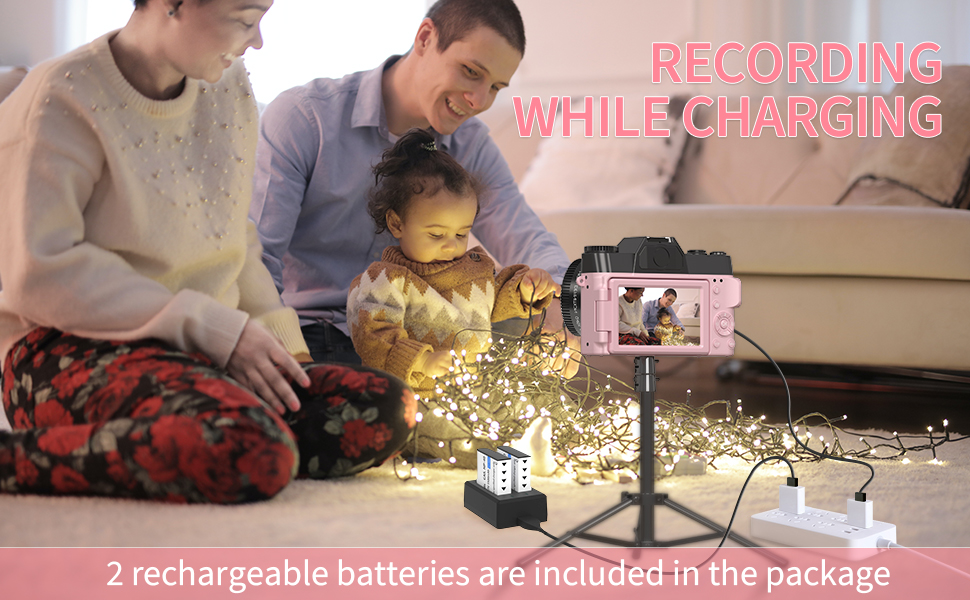
Figure 4.2: Recording while Charging.
4.5. Zoom Function
Utilize the T (Telephoto) and W (Wide) buttons to adjust the 16X digital zoom. Note that digital zoom may affect image quality compared to optical zoom.
4.6. Wi-Fi Connectivity
The camera features Wi-Fi for easy transfer of photos and videos to your smartphone or other devices. Consult the detailed user manual for specific instructions on connecting to your device via Wi-Fi.
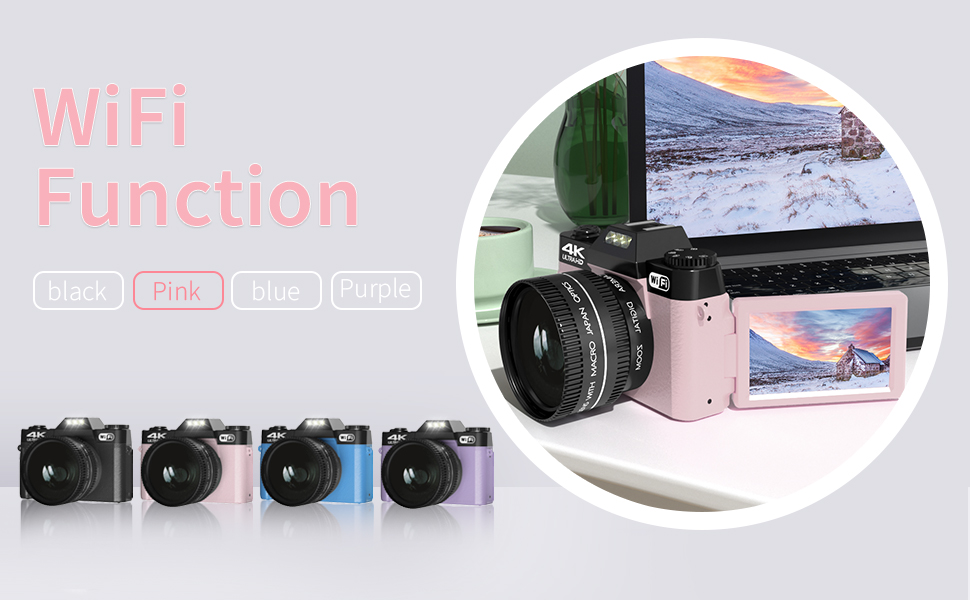
Figure 4.3: Wi-Fi Functionality.
4.7. Webcam Function
Connect the camera to your computer via the USB cable to use it as a webcam for live streaming, video calls, or online meetings. This function is ideal for creating professional-quality content for platforms like YouTube or Zoom.

Figure 4.4: Webcam Functionality for Vlogging and Live Streaming.
4.8. Built-In Filters
Enhance your creativity with the camera's built-in filters. Access these through the camera's menu settings to add style and personality to your photos and videos effortlessly.
4.9. LED Fill Light
The camera is equipped with an LED fill light to improve photo clarity in low-light conditions. Activate this feature through the camera's settings or a dedicated button (refer to Figure 4.1 for control layout).
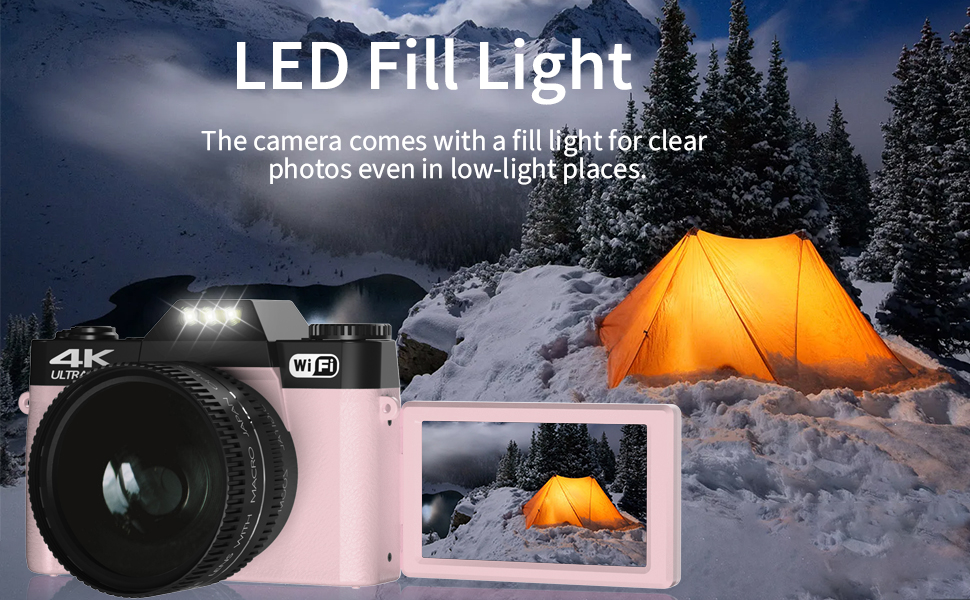
Figure 4.5: LED Fill Light in action.
5. Maintenance
5.1. Cleaning the Camera
Use a soft, lint-free cloth to clean the camera body. For the lens, use a specialized lens cleaning cloth and solution. Avoid using abrasive materials or harsh chemicals that could damage the camera's surface or lens coatings.
5.2. Battery Care
Store batteries in a cool, dry place when not in use. Avoid fully discharging batteries frequently to prolong their lifespan. If storing for an extended period, charge them to about 50% capacity.
5.3. Storage
When not in use, store the camera in a protective case to prevent dust accumulation and accidental damage. Keep it away from extreme temperatures, high humidity, and direct sunlight.
6. Troubleshooting
| Problem | Possible Cause | Solution |
|---|---|---|
| Camera does not turn on. | Battery is dead or incorrectly inserted. | Ensure batteries are fully charged and correctly inserted. Try a different charged battery. |
| Poor image/video quality. | Low light conditions, dirty lens, digital zoom overuse, incorrect settings. | Ensure adequate lighting (use LED fill light if needed). Clean the lens. Avoid excessive digital zoom. Check camera settings (e.g., resolution, white balance). |
| No sound or poor audio quality in videos. | Internal microphone issues, environmental noise. | Ensure recording is done in a quiet environment. Consider using an external microphone connected via the hot shoe for improved audio quality. |
| TF card error. | Card not inserted correctly, card is full, or card is corrupted. | Reinsert the TF card. Delete unnecessary files or use a new card. Format the card (this will erase all data). |
| Wi-Fi connection issues. | Incorrect password, out of range, or software glitch. | Verify Wi-Fi password. Ensure camera is within range of the Wi-Fi network. Restart both camera and connecting device. |
7. Specifications
| Feature | Detail |
|---|---|
| Brand | WIKICO |
| Model Name | W02 (Note: Product listing shows W01, specifications show W02. Using W01 as per product title/model) |
| Effective Still Resolution | 48 MP (Max 56MP) |
| Video Resolution | 4K UHD 2160p |
| Digital Zoom | 16 x |
| Screen Size | 3 Inches |
| Display Type | LCD |
| Focus Type | Manual Focus |
| Image Stabilization | Digital |
| Connectivity Technology | USB, Wi-Fi |
| External Memory Size | 32 GB (Supports up to 128 GB) |
| Battery Type | Lightweight Lithium-ion battery (2 included) |
| Item Weight | 230 Grams |
| Item Dimensions (D x W x H) | 1.7"D x 4.5"W x 3"H |
| Color | Pink |
8. Warranty and Support
WIKICO is committed to providing high-quality products and professional customer support. We offer lifetime 24-hour responsive customer support to assist with any issues you may encounter. Additionally, we provide free accessory replacement within one year of purchase.
For support, please contact WIKICO customer service through the official channels provided at the time of purchase or visit the WIKICO store on Amazon: WIKICO Store.
Ask a question about this manual
Ask about setup, troubleshooting, compatibility, parts, safety, or missing instructions. Manuals+ will review the question and use this page’s manual context to help answer it.