
Spodus Kids Smart Watch Boys
Spodus Kids Smart Watch Instruction Manual
Model: Kids Smart Watch Boys
1. Introduction
Welcome to the Spodus Kids Smart Watch. This multifunctional device is designed to provide entertainment and educational value for children aged 3-12. It features a range of functions including learning games, an audio story player, camera, music player, and a pedometer, all within a child-friendly design.
This manual provides detailed instructions on how to set up, operate, and maintain your new smart watch, ensuring a safe and enjoyable experience for your child.
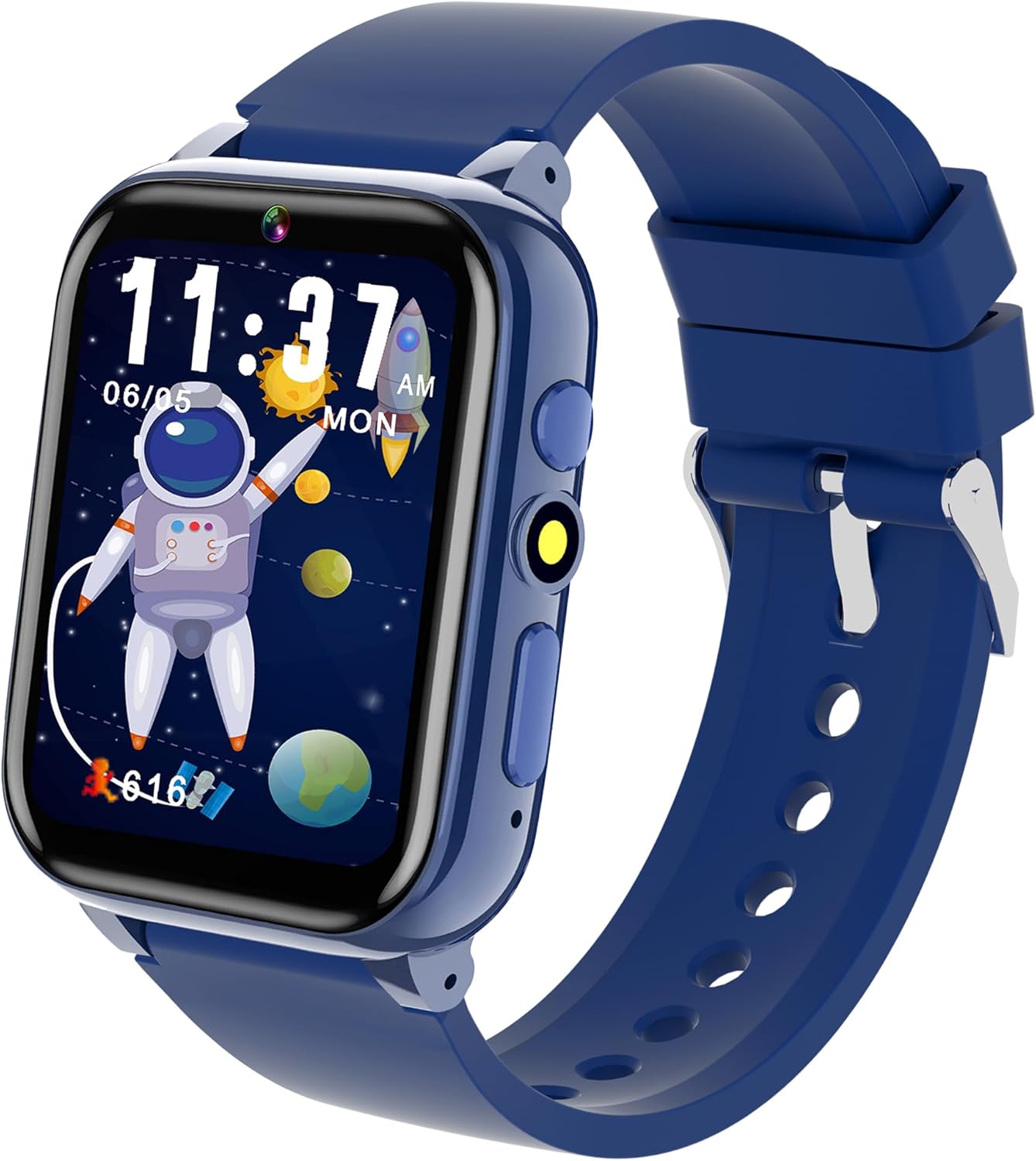
Image 1.1: The Spodus Kids Smart Watch, featuring a blue strap and a digital display showing a space-themed watch face.
2. Safety Information
To ensure safe operation and prevent damage, please observe the following:
- Do not expose the watch to extreme temperatures or direct sunlight for prolonged periods.
- Keep the watch away from water unless specified as water-resistant. This model is not designed for submersion.
- Use only the provided USB cable for charging.
- Supervise young children during use, especially when interacting with small parts or charging.
- The watch contains a Lithium Metal battery. Do not attempt to open or replace the battery.
- Avoid dropping the watch or subjecting it to strong impacts.
3. Getting Started
3.1 What's in the Box
Upon opening your Spodus Kids Smart Watch package, you should find the following items:
- Spodus Kids Smart Watch (Blue)
- USB Charging Cable
- User Manual (this document)
3.2 Charging the Watch
Before first use, fully charge the smart watch. A full charge typically takes approximately 2 hours and provides 3-7 days of standby time.
- Locate the USB socket on the side of the watch.
- Connect the provided USB charging cable to the watch's USB socket.
- Plug the other end of the USB cable into a compatible USB power adapter (not included) or a computer's USB port.
- The watch screen will indicate charging status.
3.3 Powering On/Off
To power on the watch, press and hold the Home Button (located on the side) until the screen illuminates. To power off, press and hold the Home Button until the power-off option appears on the screen, then confirm.

Image 3.1: Detailed view of the watch, highlighting the USB Socket, Quick Camera Key, Flashlight, Home Button, and Skin-Friendly Silicone Strap.
4. Operating Instructions
The Spodus Kids Smart Watch features a touch screen interface. Swipe left or right to navigate through applications and tap to select.

Image 4.1: A display of the various applications available on the smart watch, including Selfie Camera, Photo, Music Player, Games, Audio Book, Learn Cards, Video Player, Alarm Clock, Habit Tracker, Calculator, Recorder, Time Tools, Torch, Calendar, Pedometer, Themes, and Settings.
4.1 Camera & Video Recording
The watch includes an HD camera for capturing photos and videos. Children can also add dynamic stickers to their selfies.
- To access the camera, tap the 'Camera' icon on the main menu.
- Tap the screen to take a photo or switch to video recording mode.
- The watch can store over 10,000 HD photos or more than 6 hours of video footage.

Image 4.2: A child smiling while taking a selfie using the smart watch, demonstrating the camera feature.
4.2 Learning Games
The watch comes pre-installed with 26 interactive games designed to nurture cognitive skills and provide entertainment for children aged 3-12.
- Tap the 'Games' icon to view the selection of puzzle games.
- Select a game by tapping its icon to begin playing.

Image 4.3: A visual representation of the 26 puzzle games available on the watch, alongside an illustration of the parental control feature.
4.3 Audio Story Player
The watch includes an audio story player with pre-installed audiobooks. This feature allows children to listen to stories directly from their wrist.
- Tap the 'Audio Book' icon to access the audio story library.
- Select a story to play.
4.4 Music Player
Children can enjoy their favorite tunes using the built-in music player. Music files can be transferred to the watch via the USB cable.
- Tap the 'Music Player' icon to open the music interface.
- Use the on-screen controls to play, pause, skip tracks, and adjust volume.
4.5 Pedometer
The integrated pedometer tracks steps, calories burned, and distance, encouraging physical activity.
- Access the 'Pedometer' application to view daily activity statistics.

Image 4.4: The Habit Tracker feature, illustrating how the watch can help children manage their daily routines, alongside images of children engaged in various activities like waking up, going to school, and doing homework.
4.6 Flashlight
A convenient flashlight function is included for use in low-light conditions.
- Tap the 'Torch' icon to turn the flashlight on or off.
4.7 Alarm Clock
Set multiple alarms to help children manage their time, such as waking up for school or reminding them of activities.
- Tap the 'Alarm Clock' icon to set new alarms or manage existing ones.
4.8 Calendar
The calendar function allows children to view dates and plan their schedule.
- Tap the 'Calendar' icon to open the calendar view.

Image 4.5: A collage showcasing various features of the smart watch, including the Audio Book player, Torch, Alarm Clock, Video Player, Calculator, and Music player, with children interacting with these features.
4.9 Parental Control
The watch includes parental controls to manage screen time and access to certain features, ensuring a balanced experience.
- Access the 'Parental Control' settings to configure time limits or restrict access to specific applications.
Video 4.1: An official product video demonstrating various features of the Spodus Kids Smart Watch, including talking flash cards, audiobooks, alarm clock, timer, calendar, pedometer, flashlight, and puzzle games. This video is provided by the seller, Spodus.
5. Care & Maintenance
5.1 Cleaning
To clean the watch, gently wipe it with a soft, dry cloth. Do not use abrasive cleaners or immerse the watch in water.
5.2 Battery Life & Charging
The watch is equipped with a Lithium Metal battery. For optimal battery life, avoid fully discharging the watch frequently. Charge the watch using only the provided USB cable. If the watch will not be used for an extended period, charge it periodically to maintain battery health.
6. Troubleshooting
If you encounter issues with your Spodus Kids Smart Watch, please refer to the following common solutions:
- Watch not turning on: Ensure the watch is fully charged. Connect it to the charger and wait a few minutes before attempting to power it on again.
- Screen unresponsive: Try restarting the watch by holding down the Home Button until the power-off option appears, then power it back on. If unresponsive, allow the battery to fully drain and then recharge.
- Features not working: Ensure the watch's software is up to date (if applicable, check manufacturer's website for updates). Restarting the watch can often resolve minor software glitches.
- Short battery life: Reduce screen brightness, close unused applications, and limit continuous use of power-intensive features like video recording or games.
If problems persist, please contact customer support for further assistance.
7. Product Specifications
| Feature | Detail |
|---|---|
| Product Dimensions | 1.9 x 6.1 x 0.1 inches |
| Item Weight | 3.52 ounces |
| Model Number | Kids Smart Watch Boys |
| Recommended Age | 36 months - 12 years |
| Battery Type | 1 Lithium Metal battery (included) |
| Manufacturer | Spodus |
8. Warranty and Support
Spodus products are designed for quality and reliability. For information regarding warranty coverage, technical support, or service inquiries, please refer to the contact information provided on the product packaging or visit the official Spodus website. Please retain your proof of purchase for warranty claims.
Ask a question about this manual
Ask about setup, troubleshooting, compatibility, parts, safety, or missing instructions. Manuals+ will review the question and use this page’s manual context to help answer it.