
1. Introduction and Overview
The InHand Networks IR302 is an industrial-grade 4G LTE VPN cellular router designed for Internet of Things (IoT) applications. It provides reliable and secure cellular connectivity for various industrial and commercial environments. This router supports LTE Cat 4, offering robust data transmission capabilities without Wi-Fi functionality in this specific model (IR302-FQ38-IO). It is compatible with major mobile carriers such as T-Mobile, AT&T, and Verizon, ensuring broad network coverage.
Key features include dual SIM card slots for failover, industrial-grade rugged metal casing, wide operating temperature and voltage ranges, and comprehensive security features like VPN and firewall protection. The IR302 is engineered for high reliability and efficient remote management, making it suitable for critical infrastructure and remote monitoring applications.
2. Product Features
- 4G LTE Connectivity: Supports LTE CAT4 with FDD bands B2/B4/B5/B12/B13/B14/B66/B71 and WCDMA bands B2/B4/B5, providing high-speed cellular access.
- Dual SIM Card Slots: Ensures network redundancy and failover capabilities for continuous operation.
- Industrial Design: Features a rugged metal casing, compact size, and supports both panel and DIN-rail installation. Designed to operate in harsh environments with a temperature range of -20°C to 70°C (-4°F to 158°F) and a voltage range of DC 9V to 36V.
- Strong Security Protection: Includes VPN support (OPENVPN protocols, CA digital certificate), firewall protections (SPI, DoS attack defense, ACL, URL filter, port mapping), and user authorization management.
- High Reliability: Equipped with watchdog and multi-layer link detection mechanisms, automatic redial and recovery, dual-SIM failover, and VRRP mechanism for backup.
- Efficient Remote Management: Compatible with the InHand Device Manager cloud platform for remote monitoring, configuration, and firmware updates.
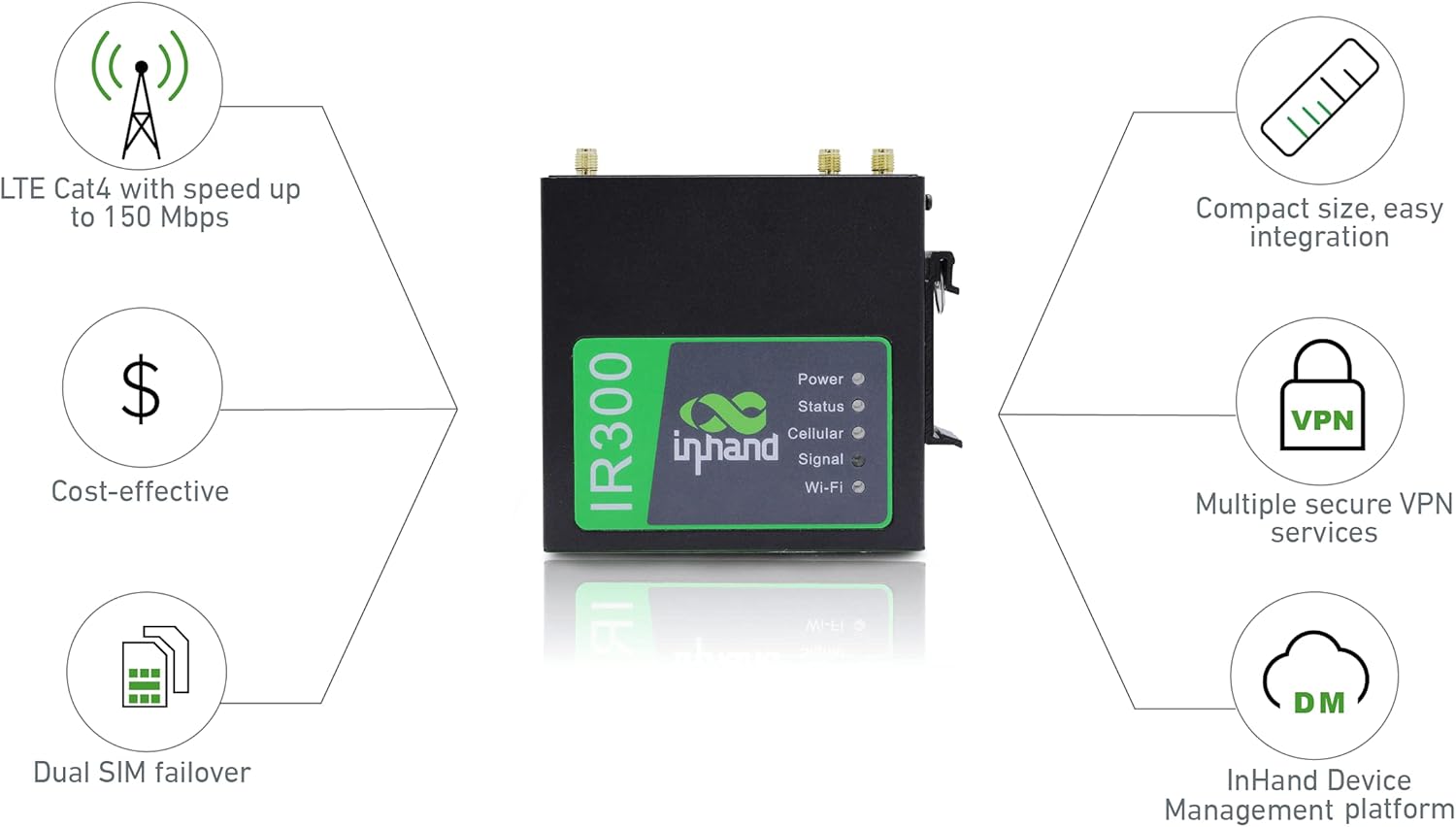
Figure 2.1: The InHand Networks IR302 router, showcasing its compact industrial design.
3. Setup Instructions
3.1 Package Contents
Before proceeding with the installation, ensure all components are present:
- IR302 Cellular Router
- Antennas (included)
- Power Adapter (may be sold separately or included depending on package)
- Mounting Accessories (DIN-rail clip or panel mounting screws)
3.2 Hardware Installation
Follow these steps to install the hardware components:
- Insert SIM Cards: Locate the SIM card slots on the side of the router. Insert up to two Nano-SIM cards into the designated slots (SIM1 and SIM2) until they click into place. Ensure the SIM cards are correctly oriented.
- Attach Antennas: Connect the provided cellular antennas to the "MAIN" and "AUX" antenna ports on the router. Ensure they are securely tightened.
- Connect Ethernet Cables: Connect your local network devices to the "LAN1" and "LAN2" Ethernet ports. For WAN connectivity, connect an Ethernet cable from your wired network source to the "WAN/LAN1" port.
- Connect Power: Connect the power adapter to the DC 9V-36V power input terminal. Ensure the power source matches the router's voltage requirements.
- Mounting (Optional): The IR302 supports DIN-rail and panel mounting. Attach the appropriate mounting accessories to the router and secure it in your desired location.

Figure 3.1: Location of the SIM card slots on the IR302 router.

Figure 3.2: The IR302 router with cellular antennas attached to the MAIN and AUX ports.

Figure 3.3: The IR302 router's side panel, showing WAN/LAN ports and power input.
3.3 Initial Configuration
After hardware installation, power on the device. Access the router's web-based management interface via an Ethernet connection to one of the LAN ports. Refer to the separate Software Configuration Guide for detailed instructions on network settings, VPN setup, and firewall rules.
4. Operating Instructions
4.1 Powering On and Status Indicators
Once connected to power, the router will initiate its startup sequence. Observe the LED indicators on the front panel:
- Power LED: Indicates power status. Solid green when powered on.
- Status LED: Indicates system operational status. Refer to the full user manual for specific blink patterns.
- Cellular LED: Indicates cellular module status. Solid green when connected to the cellular network.
- Signal LED: Indicates cellular signal strength. More lights typically mean stronger signal.
4.2 Network Connectivity
The IR302 provides robust network access through various methods:
- Cellular Network Access: Utilizes 4G LTE Cat 4 for high-speed data. The dual SIM feature allows for automatic failover to a secondary SIM if the primary network becomes unavailable.
- Wired Network Access: Connects to existing wired networks via the Ethernet WAN/LAN ports.

Figure 4.1: The IR302 supports various networking scenarios, providing reliable connectivity for diverse applications.
4.3 Remote Management
The InHand Device Manager cloud platform allows for efficient remote management of your IR302 router. This platform enables:
- Real-time device status monitoring and data usage tracking.
- Remote firmware upgrades and configuration updates.
- Support for grouping management and access control.
- Geographical tracking of devices.

Figure 4.2: The InHand Device Manager platform for remote management of IR302 routers.
5. Maintenance
To ensure optimal performance and longevity of your IR302 router, consider the following maintenance guidelines:
- Environmental Conditions: Operate the router within the specified temperature (-20°C to 70°C) and humidity (5-95%) ranges. Avoid exposure to direct sunlight, excessive dust, or moisture.
- Firmware Updates: Regularly check for and apply firmware updates through the InHand Device Manager or the router's web interface. Updates often include security patches and performance improvements.
- Physical Inspection: Periodically inspect the router for any physical damage, loose connections, or signs of overheating. Ensure antennas are securely attached.
- Cleaning: Use a soft, dry cloth to clean the exterior of the router. Do not use liquid cleaners or solvents.
6. Troubleshooting
This section provides solutions to common issues you might encounter with your IR302 router.
6.1 No Power
- Symptom: Power LED is off.
- Solution:
- Verify the power adapter is correctly connected to the router and a working power outlet.
- Ensure the power source voltage is within the DC 9V-36V range.
- Check the power cable for any damage.
6.2 No Cellular Signal/Connectivity
- Symptom: Cellular LED is off or blinking, Signal LED shows low strength.
- Solution:
- Ensure SIM cards are correctly inserted and activated with your carrier (T-Mobile, AT&T, Verizon).
- Check that antennas are securely attached to the "MAIN" and "AUX" ports.
- Relocate the router to an area with better cellular reception.
- Verify APN settings in the router's web interface are correct for your carrier.
- If using dual SIM, check the status of both SIMs in the management interface.
6.3 Network Access Issues
- Symptom: Connected devices cannot access the internet or local network.
- Solution:
- Check Ethernet cable connections to LAN ports.
- Verify IP address settings on connected devices (DHCP enabled or correct static IP).
- Access the router's web interface to check network status, firewall rules, and VPN configurations.
- Perform a soft reboot of the router from the web interface or by power cycling.
6.4 Resetting the Router
If the router is unresponsive or you need to restore factory settings, use the reset button. With the router powered on, press and hold the reset button (located near the SIM slots) for approximately 5-10 seconds until the LEDs change, then release. This will restore the router to its default factory configuration.
7. Specifications
| Feature | Description |
|---|---|
| Model Name | IR302-FQ38-IO |
| Brand | inhandgo (InHand Networks) |
| Connectivity Technology | Ethernet, Cellular (4G LTE) |
| Cellular Bands (LTE CAT4) | FDD: B2/B4/B5/B12/B13/B14/B66/B71, WCDMA: B2/B4/B5 |
| SIM Card Support | Dual SIM card slots |
| Number of Ports | 1 WAN/LAN, 1 LAN (Ethernet) |
| Data Transfer Rate | Up to 150 Mbps (LTE Cat 4) |
| LAN Port Bandwidth | 1000 Mbps (Gigabit Ethernet) |
| Antenna Type | Fixed (2 antennas included) |
| Operating Temperature | -20°C to 70°C (-4°F to 158°F) |
| Working Voltage | DC 9V to 36V |
| Security Protocol | OPENVPN, Firewall (SPI, DoS, ACL) |
| Control Method | Web-based management |
| Included Components | Antenna |
8. Warranty and Support
The InHand Networks IR302 router comes with a 3-year warranty from the date of purchase. This warranty covers defects in materials and workmanship under normal use.
InHand Networks also provides free technical support for this product. If you encounter any issues or have questions regarding the product details, setup, or operation, please contact InHand Networks customer support. Contact information can typically be found on the official InHand Networks website or through your purchase channel.
For the latest documentation, FAQs, and support resources, please visit the InHand Networks official website.