
Carlinkit CPC200-TBOX-MAX
Carlinkit CarPlay Ai Box Android 13.0 System User Manual
Comprehensive guide for your Carlinkit CarPlay Ai Box, Model CPC200-TBOX-MAX.
1. Product Overview
The Carlinkit CarPlay Ai Box transforms your wired CarPlay system into a full Android 13.0 multimedia experience. It supports wireless CarPlay and Android Auto, offering access to various applications and enhanced navigation capabilities.

Image: The Carlinkit CarPlay Ai Box device next to a car display showing Netflix and YouTube.
2. Package Contents
Ensure all items are present in your package:
- Carlinkit CarPlay Ai Box (1 unit)
- USB/Type-C Data Cable (1 unit)
- Instruction Manual (1 unit)

Image: Contents of the Carlinkit Ai Box package, including the device, cables, and user manual, with dimensions shown.
3. Installation & Initial Setup
Follow these steps for initial installation and setup:
- Verify Wired CarPlay: Ensure your car's system has built-in wired CarPlay or Android Auto functionality. This device is compatible only with wired CarPlay touch screen cars.
- Connect the Device: Select the appropriate USB/Type-C data cable based on your car's vehicle connectivity port. Plug one end into the Carlinkit Ai Box and the other into your car's USB/Type-C port.
- First-Time Recognition: When connecting for the first time, the car system will adapt to the product's resolution and may reboot after recognition.
- SIM/TF Card Insertion (Optional):
The device supports Nano SIM and Micro SD (TF) cards for 4G network access and storage expansion. Insert the TF card with the metal face down. Insert the SIM card with the metal face down.
Video: Tutorial on how to correctly insert SIM and TF cards into the Carlinkit Ai Box.
Note: Do not insert the SIM/TF card backward, as this may damage the product's card slot.

Image: Visual guide demonstrating the three steps to connect the Carlinkit Ai Box to your car's USB port and initiate the system.
4. Operating Instructions
4.1 Wireless CarPlay Connection
To enable wireless CarPlay, follow these steps:
- Tap the "AutoKit" icon on your car's screen to access the product's wireless CarPlay/Android Auto connectivity interface.
- On your iPhone, turn on Wi-Fi and Bluetooth.
- Search for the Bluetooth name displayed on the car screen (e.g., "AutoKit-TBox Plus") in your phone's Bluetooth settings and click to pair.
- Confirm pairing on your iPhone. Wireless CarPlay will become available once the connection is matched.
Video: Step-by-step guide on connecting your iPhone to the Carlinkit Ai Box for Wireless CarPlay functionality.
Video: Detailed tutorial on how to pair your iPhone with the Carlinkit Ai Box for Wireless CarPlay.
4.2 Wireless Android Auto Connection
To enable wireless Android Auto, follow these steps:
- Tap the "AutoKit" icon on your car's screen to access the product's wireless CarPlay/Android Auto connectivity interface.
- On your Android phone, turn on Wi-Fi and Bluetooth.
- Search for the Bluetooth name displayed on the car screen (e.g., "AutoKit-TBox Plus") in your phone's Bluetooth settings and click to pair.
- Confirm pairing on your Android phone. Wireless Android Auto will become available after successful pairing.
Video: Step-by-step guide on connecting your Android phone to the Carlinkit Ai Box for Wireless Android Auto functionality.
Video: Detailed tutorial on how to pair your Android phone with the Carlinkit Ai Box for Wireless Android Auto.
4.3 Multimedia and Navigation
The Carlinkit Ai Box allows you to enjoy various multimedia and navigation applications directly on your car's screen.
- Streaming Services: Access popular streaming platforms like Spotify, Netflix, and YouTube.
- Navigation: Utilize built-in GPS + Glonass + BeiDou satellite positioning for accurate navigation with apps like Google Maps and Waze.
- App Downloads: Download additional applications from the Google Play Store.
- Voice Control: Supports voice input for commands, phone calls, and music playback.
- External Devices: Connect Bluetooth wireless mouse, remote control, keyboard, and other OBD devices.

Image: Demonstrates the use of music, navigation, and phone functions through the Carlinkit Ai Box interface.
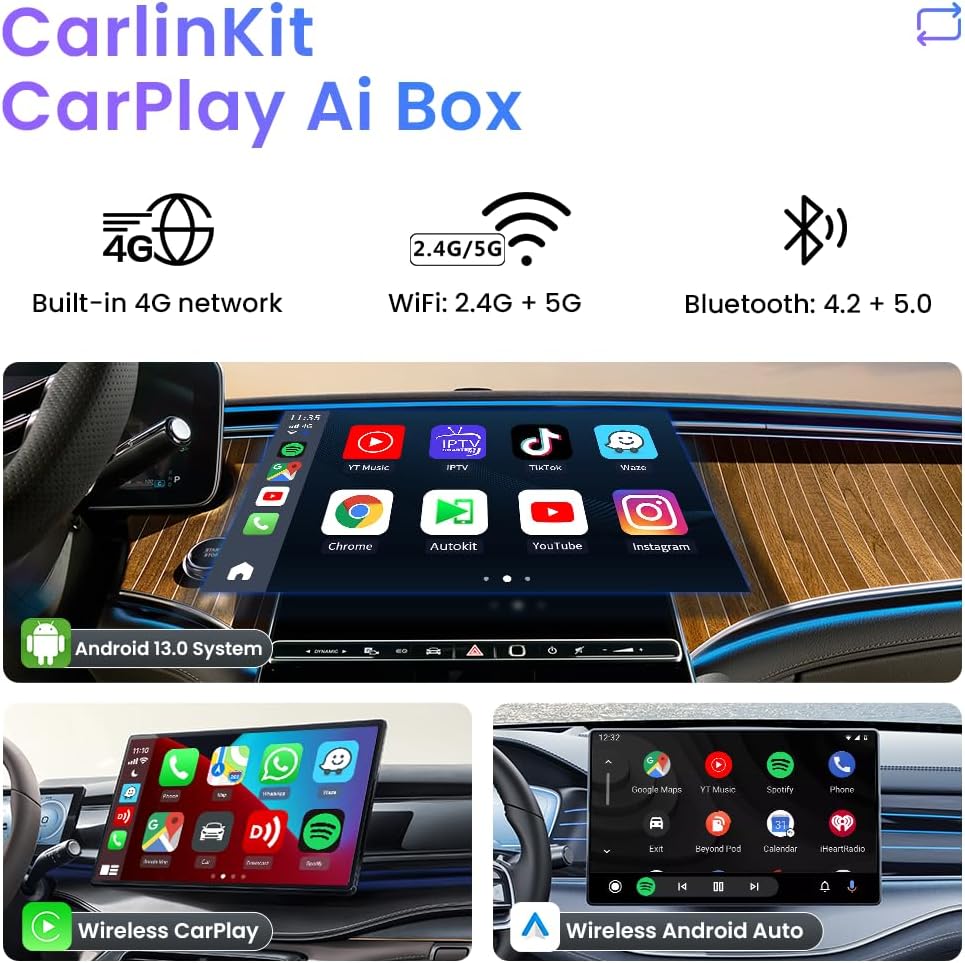
Image: Highlights the built-in GPS, Glonass, and BeiDou satellite positioning for precise navigation.
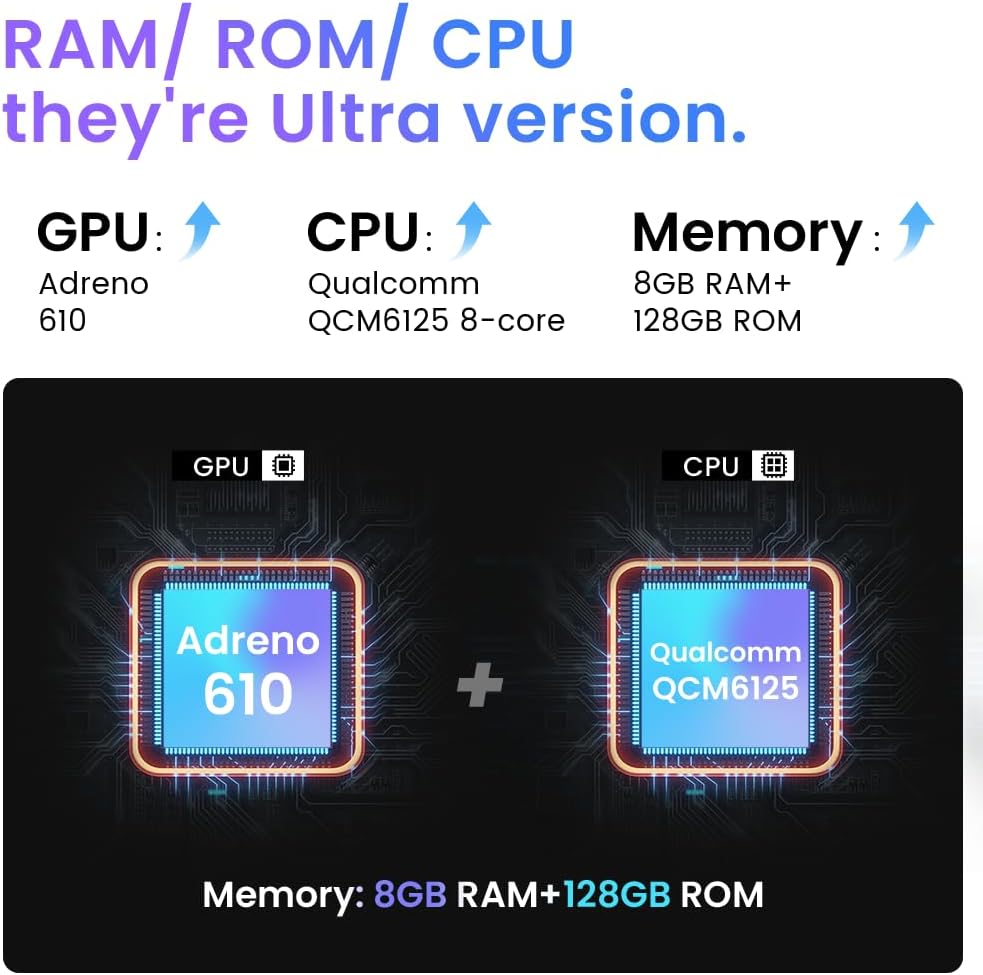
Image: Illustrates the smart voice control feature for hands-free operation.
5. Maintenance
To ensure the longevity and optimal performance of your Carlinkit CarPlay Ai Box, consider the following maintenance tips:
- Keep the device clean and free from dust and debris. Use a soft, dry cloth for cleaning.
- Avoid exposing the device to extreme temperatures (hot or cold) or direct sunlight for prolonged periods.
- Store the device in a cool, dry place when not in use.
- Handle the device and cables with care to prevent physical damage.
6. Troubleshooting & FAQ
Here are solutions to common issues you might encounter:
- Q: What should I do if the SIM card is not recognized when inserted?
A: 1. Confirm whether the card insertion method is correct (SIM Card inserted with metal side down, and the notch end is facing inward); 2. Do not insert or remove the SIM card when the product is turned on. The product must be turned off to remove and insert the SIM card.
- Q: The SIM card is recognized, but the internet connection does not work.
A: 1. Settings -> Network and Internet -> APN, manually adjust it; 2. Insert the SIM card into the Android phone and check the information parameters of the APN in the phone. Then in the product settings network and Internet - APN - right upper corner "+" sign, add APN parameters (add according to the parameters in the mobile phone); 3. If you need a video tutorial of the operation, please contact the store customer service directly.
- Q: What if Netflix display needs to be updated?
A: After clicking on the "Netflix" APP that comes with the box, "Cancel" and "OK" will appear, you need to click on "Cancel". Do not download Netflix from Google Store. Do not update or delete the software preloaded on the product.
- Q: The device is slow to boot up or connect.
A: Ensure a stable USB connection. For first-time use, the system may take longer to adapt. Subsequent connections should be faster. Ensure your phone's Wi-Fi and Bluetooth are enabled and properly paired.
7. Technical Specifications
| Feature | Detail |
|---|---|
| Model Number | CPC200-TBOX-MAX |
| Operating System | Android 13.0 |
| Processor | Qualcomm Snapdragon 6125 8-core 2.0 GHz 11nm process technology |
| Memory | 8GB RAM + 128GB ROM (expandable via SD card) |
| Wireless Connectivity | Wi-Fi 802.11 a/b/g/n/ac (2.4G+5G), Bluetooth 4.2 BLE + 5.0 BLE |
| Positioning | Built-in GPS + Glonass + BeiDou |
| Network | Built-in 4G Network (SIM card required, sold separately) |
| Compatible Cars | Only compatible with cars with built-in Wired CarPlay touchscreen (Not for BMW and Tesla cars) |
| Compatible Phones | iPhone: Support iPhone 6 and above, for iOS 10 and above. Android: Support Android 10.0 and above, some require Android 11.0 and above. |
| Dimensions | 7.24 x 5.31 x 1.85 inches |
| Item Weight | 2.25 ounces |

Image: Visual representation of the device's internal components, highlighting the Qualcomm QCM6125 8-core CPU and 8GB RAM + 128GB ROM.
8. Warranty and Customer Support
Carlinkit provides comprehensive after-sales support for your product.
- Warranty: The product comes with a one-year warranty from the date of purchase (for failure caused by quality issues, excluding non-human damage).
- Support: For any issues, software upgrades, or technical service, please contact the Carlinkit after-sales team. They are available 24 hours a day to assist you.
- Returns & Exchanges: Returns and exchanges are supported for non-human damaged products.
For direct assistance, please refer to the contact information provided by the seller or through your purchase platform.
Ask a question about this manual
Ask about setup, troubleshooting, compatibility, parts, safety, or missing instructions. Manuals+ will review the question and use this page’s manual context to help answer it.