
Camnoon JZC4157546704941TM
YT1200 Face Motorized Pan Tilt Head User Manual
Model: JZC4157546704941TM | Brand: Camnoon
Introduction
The Camnoon YT1200 Face Motorized Pan Tilt Head is an advanced 2-axis device designed for dynamic video recording, live streaming, and photography. It features AI smart face tracking, 360° panoramic rotation, and wireless remote control, making it an ideal tool for content creators using smartphones, mirrorless cameras, or DSLRs. This manual provides comprehensive instructions for setup, operation, maintenance, and troubleshooting to ensure optimal performance and longevity of your device.
Product Overview and Components
Familiarize yourself with the main components of your YT1200 Pan Tilt Head:

Figure 1: Labeled components of the YT1200 Pan Tilt Head.
- Alcamera: Integrated AI camera for face tracking.
- 1/4 nut: Standard 1/4-inch screw for mounting cameras or phone clips.
- Speed selection key: Button to adjust the rotation speed. Long press to start/stop face mode.
- Code-butt: Supports multi-remote control operation.
- Off button: Power on/off button.
- Display: Shows current power level and speed settings.
- Type-C charging port: For charging the built-in battery.
- Rotating scale: Indicates the horizontal rotation angle.
- Level: Bubble level for precise horizontal alignment.

Figure 2: YT1200 Pan Tilt Head and Remote Control.
The YT1200 Face Motorized Pan Tilt Head is a versatile device designed for stable and dynamic camera and smartphone positioning. It comes with a dedicated wireless remote control for convenient operation.
Setup
1. Unboxing and Initial Inspection
Upon receiving your YT1200 Pan Tilt Head, carefully open the packaging and inspect all contents for any signs of damage. Ensure all listed items are present:
- YT1200 Face Motorized Pan Tilt Head
- Wireless Remote Control
- USB Type-C Charging Cable
- Phone Clip
- User Manual (this document)
2. Charging the Device
The pan tilt head has a built-in 2000mAh lithium battery. Before first use, fully charge the device.
- Connect the provided USB Type-C cable to the charging port on the pan tilt head.
- Connect the other end of the cable to a USB power adapter (not included) or a computer USB port.
- The display will indicate charging status. A full charge typically takes a few hours.
- Short press the power button to check the remaining battery power on the display.
3. Mounting a Device (Camera/Smartphone)
The YT1200 is compatible with mirrorless cameras, DSLR cameras (up to 1kg), and smartphones.
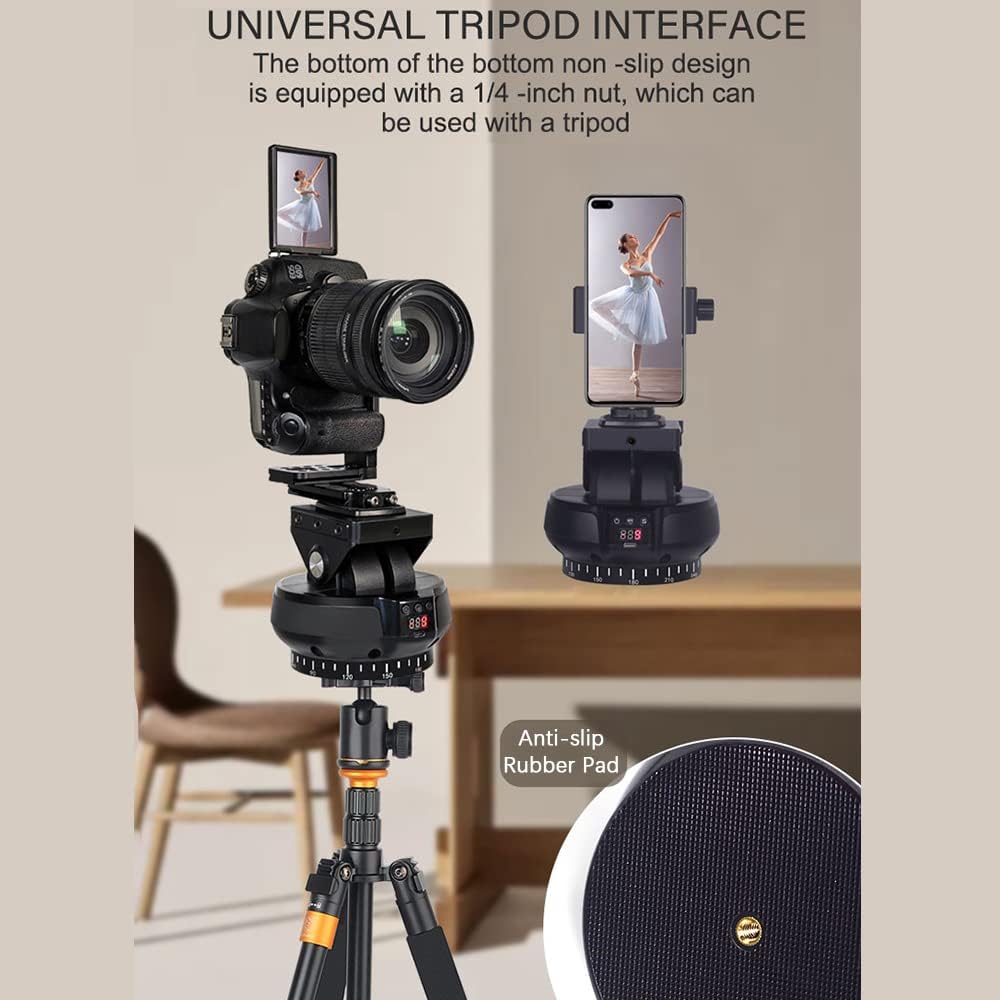
Figure 3: Universal Tripod Interface and Device Mounting.
The pan tilt head features a universal 1/4-inch screw at the top for mounting cameras (DSLR, mirrorless) or the included phone clip. The bottom also has a 1/4-inch screw hole for tripod mounting.

Figure 4: Compatibility with various equipment.
The top of the pan tilt head is equipped with a 1/4-inch screw fast-loading board, which adapts to multiple types of equipment including cameras, mobile phones, live cameras, and fill lights.
- For cameras: Screw your camera onto the 1/4-inch screw on the top of the pan tilt head. Ensure it is securely fastened.
- For smartphones: Attach the phone clip to the 1/4-inch screw on the top of the pan tilt head. Then, secure your smartphone within the phone clip.
- For tripod mounting: The bottom of the pan tilt head has a 1/4-inch screw hole. Screw the pan tilt head onto your tripod's 1/4-inch screw.
Operating Instructions
1. Powering On/Off
- To power on: Press and hold the "Off button" until the display lights up.
- To power off: Press and hold the "Off button" again until the display turns off.
2. Basic Movement Control (Remote Control)
The YT1200 comes with a 2.4G wireless remote control for precise movement.
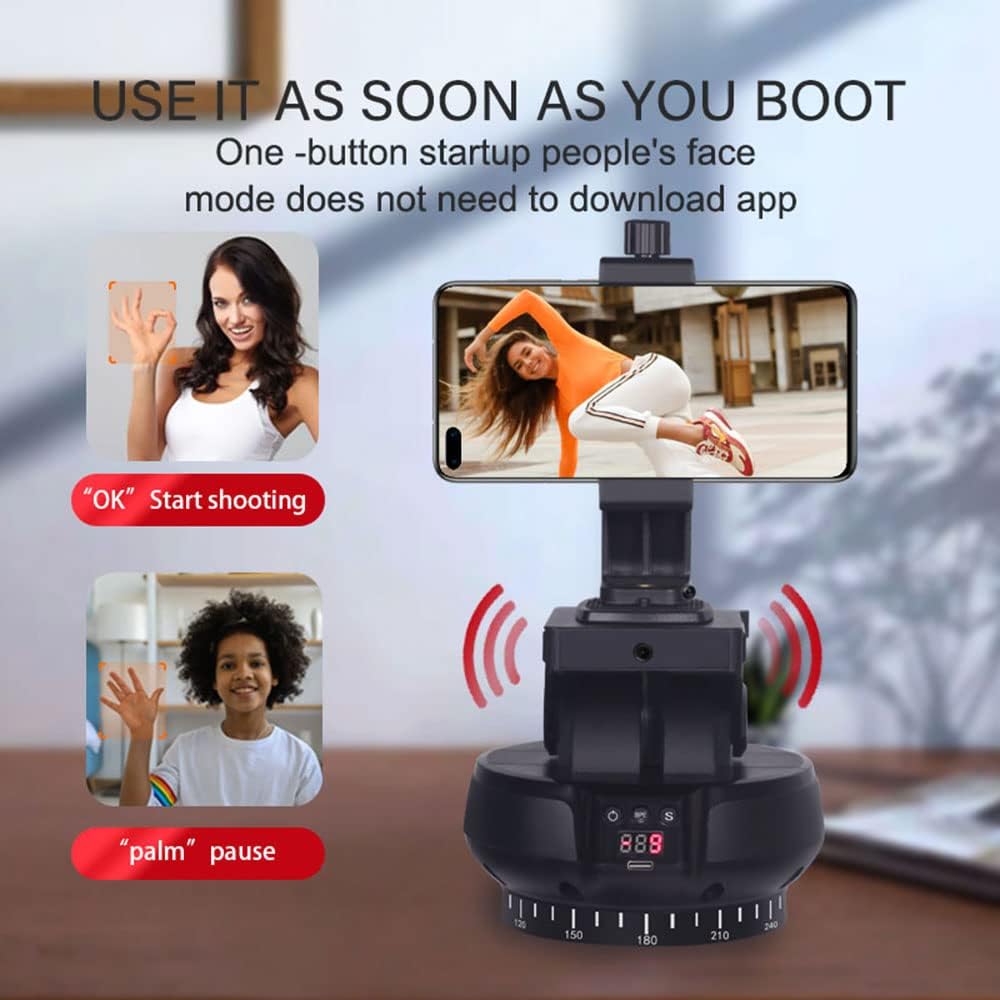
Figure 5: Wireless Remote Control Operation.
The included 2.4G wireless remote control allows for precise adjustments of the pan and tilt movements from up to 100 meters away. It supports 99 remote control channels, ensuring strong anti-interference ability.
- Use the directional arrows on the remote control to pan (left/right) and tilt (up/down) the head.
- The effective wireless control distance can reach up to 100M line-of-sight.
3. Smart Face Tracking Mode
The built-in AI smart camera enables automatic human face tracking without needing any external app.

Figure 6: Gesture Recognition for Face Tracking.
The YT1200 features an AI smart camera for human face tracking. Simply make an "OK" gesture to start tracking and a "palm" gesture to pause. No app download is required for this function, making follow video recording more flexible.
- To activate face tracking: Make an "OK" gesture with your hand in front of the device's camera. The device will begin tracking your face.
- To pause face tracking: Make a "palm" gesture with your hand in front of the device's camera.
- To exit face tracking mode: Long press the "Speed selection key".
4. Adjusting Speed
The pan tilt head offers 9 levels of adjustable speed for both horizontal and vertical movements.
- Press the "Speed selection key" to cycle through the available speed settings. The current speed level will be shown on the display.
5. Horizontal and Vertical Shooting
The included phone clip allows for quick and easy switching between horizontal and vertical shooting orientations.

Figure 7: Switching between Vertical and Horizontal Shooting.
The phone clip allows for quick switching between vertical and horizontal shooting orientations to suit different content creation needs.
- To switch orientation, simply rotate your smartphone within the phone clip. Ensure it is securely held in place.

Figure 8: 360° Surrounding Rotation and Tilt.
The device supports 360-degree horizontal rotation and +/- 35-degree vertical tilt, allowing for flexible camera positioning and dynamic shots.
Maintenance
Proper maintenance ensures the longevity and optimal performance of your YT1200 Pan Tilt Head.
- Cleaning: Use a soft, dry cloth to wipe the exterior of the device. Do not use harsh chemicals or abrasive cleaners. For the lens of the AI camera, use a lens cleaning cloth.
- Storage: Store the device in a cool, dry place away from direct sunlight and extreme temperatures. If storing for extended periods, ensure the battery is partially charged (around 50%) to preserve battery health.
- Battery Care: Avoid fully discharging the battery frequently. Recharge the device when the battery level is low. If the device will not be used for a long time, charge it every 3 months to prevent deep discharge.
- Handling: Handle the device with care. Avoid dropping it or subjecting it to strong impacts, which can damage internal components.
Troubleshooting
If you encounter issues with your YT1200 Pan Tilt Head, refer to the table below for common problems and solutions.
| Problem | Possible Cause | Solution |
|---|---|---|
| Device does not power on. | Battery is depleted. | Charge the device using the provided USB Type-C cable. |
| Remote control not responding. | Remote control battery is low or depleted; out of range; interference. | Replace remote control batteries. Ensure you are within 100M line-of-sight. Move away from sources of strong electromagnetic interference. |
| Face tracking not working. | Incorrect gesture; poor lighting conditions; face not clearly visible. | Ensure you are making the correct "OK" gesture to start. Improve lighting. Ensure your face is clearly visible to the AI camera. |
| Motor movement is jerky or noisy. | Overload (device too heavy); low battery. | Ensure the mounted device does not exceed the 1kg load capacity. Charge the battery. |
| Cannot switch between horizontal/vertical shooting. | Phone not properly seated in clip. | Ensure the smartphone is correctly and securely placed in the phone clip, allowing for rotation. |
Specifications
| Feature | Detail |
|---|---|
| Model Number | JZC4157546704941TM |
| Brand | Camnoon |
| Product Dimensions | 4.84 x 5.08 x 4.84 inches (12.3 x 12.9 x 12.3 cm) |
| Item Weight | 1.21 pounds (550 Grams) |
| Maximum Weight Recommendation | 1 Kilogram (2.2 pounds) |
| Battery Capacity | 2000mAh Lithium Battery |
| Rotation Angle (Pan) | 360° Horizontal |
| Rotation Angle (Tilt) | ±35° Vertical |
| Adjustable Speed Levels | 9 Levels |
| Remote Control Frequency | 2.4G |
| Remote Control Distance | Up to 100M (line-of-sight) |
| Mounting Screw | 1/4 inch (top and bottom) |
| Compatible Devices | Mirrorless Cameras, DSLR Cameras, Smartphones |
Safety Information
Please read the following safety warnings carefully before using the product.

Figure 9: Important Safety Warning.
Warning: To avoid suffocation hazard, keep this plastic bag away from babies and children.
Warranty and Support
This product comes with a standard manufacturer's warranty. Please refer to the warranty card included in your packaging for specific terms and conditions. For technical support, troubleshooting assistance beyond this manual, or warranty claims, please contact Camnoon customer service through the retailer where you purchased the product or visit the official Camnoon website for contact information.
Keep your purchase receipt as proof of purchase for warranty purposes.
Ask a question about this manual
Ask about setup, troubleshooting, compatibility, parts, safety, or missing instructions. Manuals+ will review the question and use this page’s manual context to help answer it.