
1. Introduction
Welcome to the user manual for your new LETTON v2020 Wireless Keyboard and Mouse Combo. This manual provides essential information for setting up, operating, maintaining, and troubleshooting your device. Please read it thoroughly to ensure optimal performance and longevity of your product.
2. Product Overview
The LETTON v2020 Wireless Keyboard and Mouse Combo offers a comfortable and efficient typing experience with its 104-key typewriter-style design and quiet operation. The accompanying wireless mouse provides silent clicking and precise navigation. Both devices connect wirelessly via a single 2.4GHz USB Nano receiver, ensuring a stable and smooth connection up to 28 feet.
Key Features:
- 104 Quiet Keys: Designed for comfortable and silent typing.
- Typewriter Retro Round Keycaps: Unique and ergonomic design.
- 2.4GHz Wireless Connection: Stable and reliable connection up to 28 feet.
- Single Nano Receiver: Connects both keyboard and mouse with one USB receiver.
- 22 Shortcut Keys: Convenient hotkeys for media, email, screen control, and internet functions.
- Silent Wireless Mouse: Provides whisper-quiet clicking.
- Energy-Saving Sleep Mode: Automatically activates after inactivity to conserve battery life.
- Wide Compatibility: Supports Windows 7, 8, 10, XP, PC, and Mac.
Product Visuals:

Figure 2.1: The LETTON v2020 Wireless Keyboard and Mouse Combo, showcasing its multi-green color scheme and retro round keycaps.

Figure 2.2: A detailed view of the keyboard's unique retro rounded keycaps, designed for comfortable typing.

Figure 2.3: The top-down perspective of the keyboard highlights the smart indicator lights for Caps Lock, Num Lock, and Power (also serving as a low battery indicator).

Figure 2.4: The underside and side view of the wireless mouse, detailing its battery compartment, the slot for the USB receiver, and the scroll wheel with forward/backward buttons.

Figure 2.5: A technical diagram illustrating the precise dimensions of the keyboard (445 x 136 x 30 mm), mouse (99 x 71 x 38 mm), and the compact USB receiver.
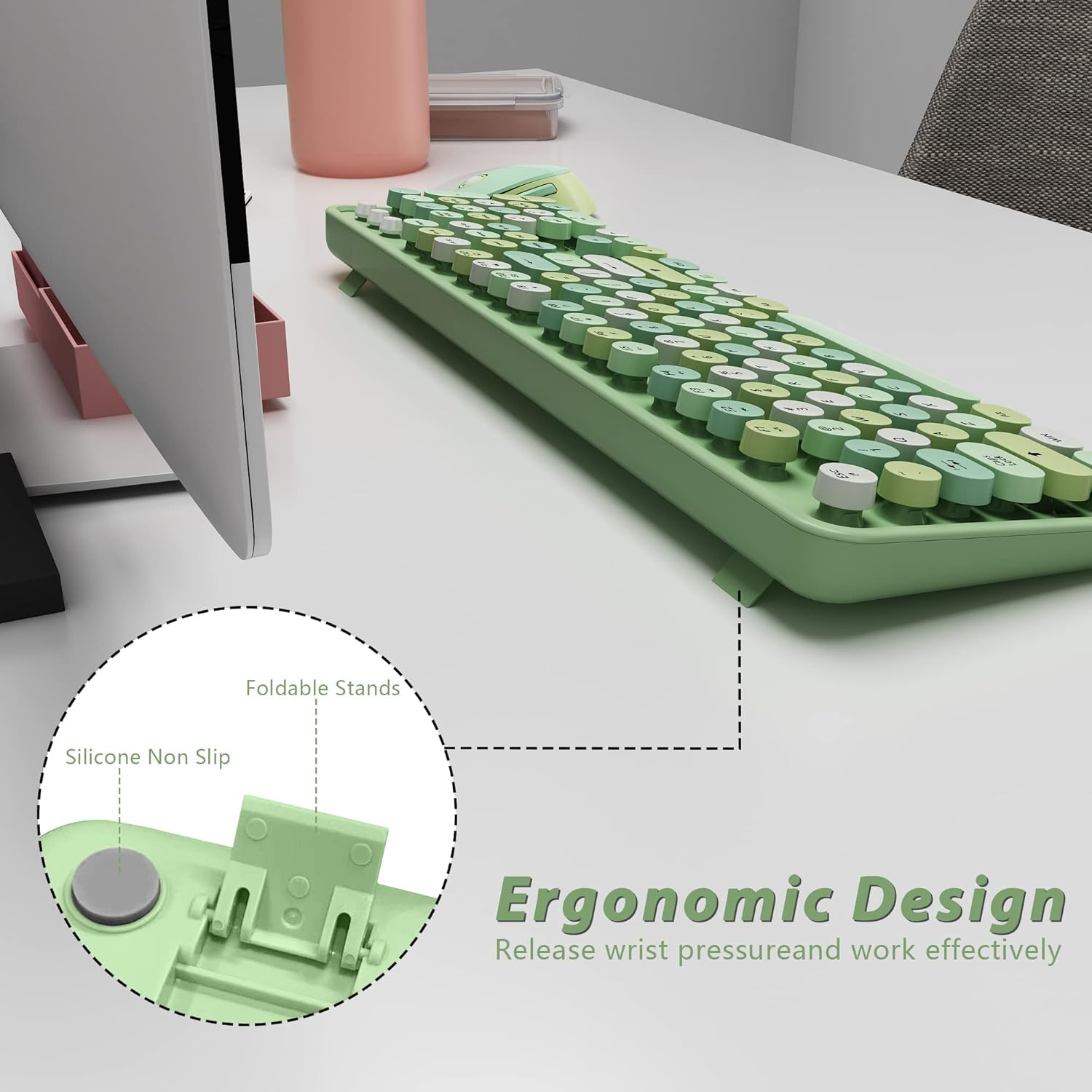
Figure 2.6: The ergonomic design of the keyboard's underside, featuring foldable stands for adjustable tilt and non-slip silicone pads for stability.
3. Setup Instructions
Follow these steps to quickly set up your LETTON v2020 Wireless Keyboard and Mouse Combo.
- Install Batteries:
- For the keyboard: Open the battery compartment on the underside and insert one AAA battery (included).
- For the mouse: Open the battery compartment on the underside and insert one AA battery (included).
- Locate the USB Nano Receiver: The small USB Nano receiver is typically stored within the mouse's battery compartment for safekeeping. Gently remove it.
- Connect the Receiver: Plug the USB Nano receiver into an available USB 2.0 port on your computer (PC or Mac).
- Power On: Ensure both the keyboard and mouse are switched ON. The devices are designed for plug-and-play functionality and should connect automatically within seconds.

Figure 3.1: The USB Nano receiver is inserted into a laptop, establishing a wireless connection for both the keyboard and mouse.
Video 3.1: This video demonstrates the simple plug-and-play setup process for the wireless keyboard and mouse combo, including inserting the USB receiver.
4. Operating Instructions
Your LETTON v2020 combo is designed for intuitive use. Here are some key operational aspects:
Keyboard Functions:
- Standard Typing: The 104-key layout provides a full range of alphanumeric, function, and navigation keys.
- Shortcut Keys: Utilize the 22 dedicated shortcut keys for quick access to media controls (play/pause, volume), email, screen functions, and internet browsing. Refer to the keycap legends for specific functions.
- Indicator Lights: The keyboard features indicator lights for Caps Lock, Num Lock, and a Power/Low Battery indicator. A blinking power light signifies low battery.
Mouse Functions:
- Silent Clicking: Enjoy a quiet working environment with the mouse's silent click design.
- Scroll Wheel: The scroll wheel allows for smooth vertical navigation.
- Forward/Backward Buttons: Convenient side buttons for quick navigation in web browsers or file explorers.
Energy Saving:
- Automatic Sleep Mode: The keyboard enters energy-saving sleep mode after 8 minutes of inactivity, and the mouse after 5 minutes.
- Wake-Up: Simply click any key or button to wake the devices within seconds.

Figure 4.1: The keyboard and mouse are shown on a desk, with text indicating their auto-sleep feature after periods of inactivity to conserve battery.
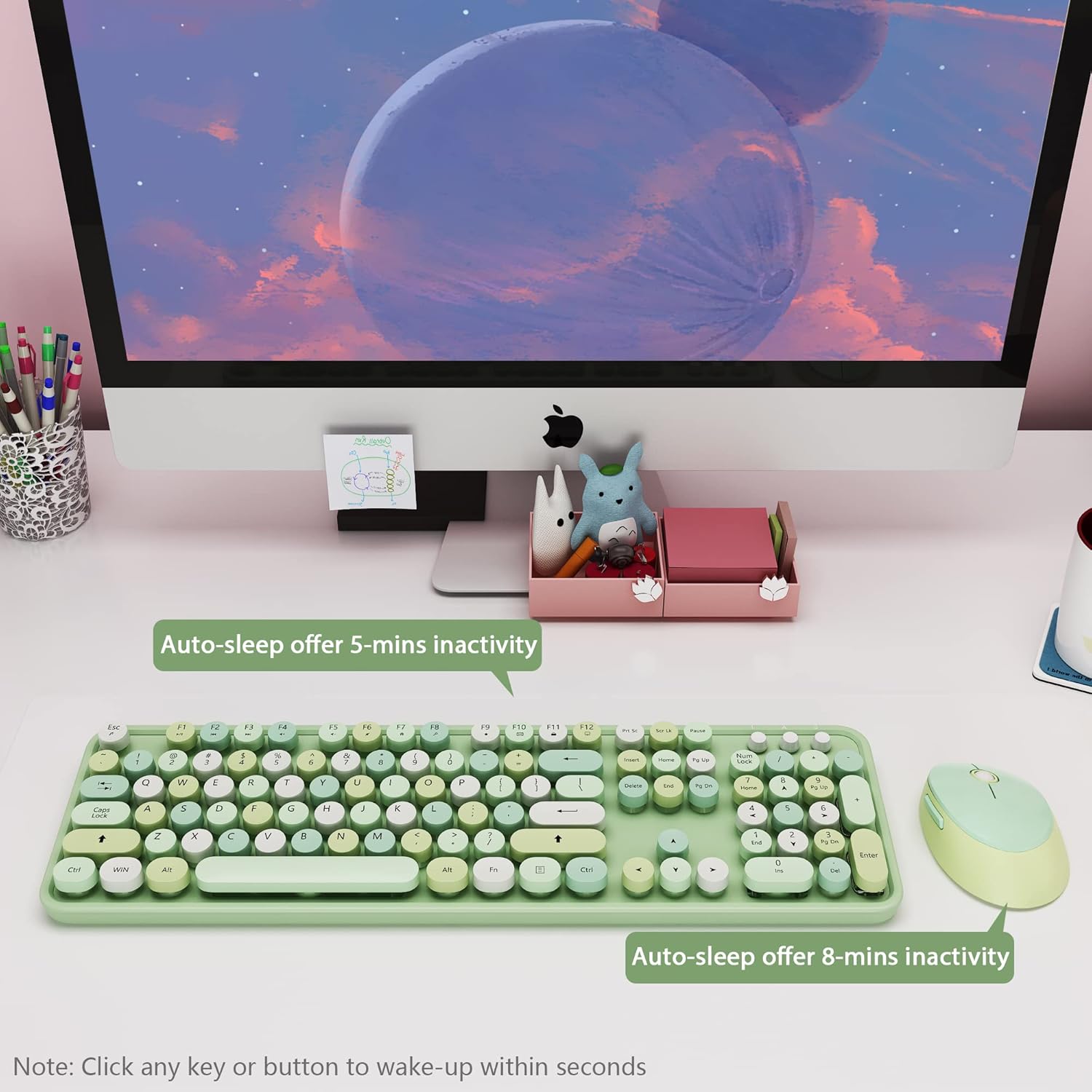
Figure 4.2: This image highlights the wide compatibility of the keyboard and mouse with Windows 7, Windows 8, Windows 10, Windows XP, and Mac operating systems.
Video 4.1: A short video showcasing the stylish design and practical features of the wireless keyboard and mouse set.
5. Maintenance
Proper maintenance ensures the longevity and performance of your wireless combo.
- Battery Replacement: When the low battery indicator on the keyboard blinks, replace the AAA battery. Replace the AA battery in the mouse when its performance degrades.
- Cleaning: Use a soft, dry cloth to clean the surfaces of the keyboard and mouse. For deeper cleaning, a slightly damp cloth can be used, ensuring no moisture enters the internal components. Avoid harsh chemicals.
- Storage: When not in use for extended periods, turn off both devices and store them in a cool, dry place.
6. Troubleshooting
If you encounter issues with your wireless keyboard and mouse combo, try the following solutions:
- No Connection/Lag:
- Ensure the USB Nano receiver is securely plugged into a working USB port on your computer.
- Check that both the keyboard and mouse are switched ON.
- Replace batteries in both devices if the low battery indicator is active or if performance is inconsistent.
- Move the devices closer to the USB receiver to rule out range issues (maximum 28 feet).
- Try plugging the receiver into a different USB port.
- Keys Not Responding:
- Check battery levels and replace if necessary.
- Ensure the keyboard is not in sleep mode (press any key to wake).
- Re-establish connection by unplugging and re-plugging the USB receiver.
- Mouse Not Moving/Clicking:
- Check battery levels and replace if necessary.
- Ensure the mouse is switched ON and not in sleep mode (click any button to wake).
- Clean the optical sensor on the underside of the mouse.
- Ensure the mouse is used on a suitable surface.
7. Specifications
| Feature | Detail |
|---|---|
| Brand | LETTON |
| Model Number | v2020 |
| Color | Multi-Green |
| Connectivity Technology | Radio Frequency, USB (2.4GHz) |
| Special Feature | Round Key, Ergonomic Design, Hotkeys |
| Compatible Devices | Laptop, Personal Computer |
| Compatible Operating System Family | Windows (Windows 7, 8, 10, XP), Mac |
| Keyboard Layout | QWERTY (104 Keys) |
| Mouse Hand Orientation | Ambidextrous |
| Keyboard Dimensions | 445 x 136 x 30 mm (approx. 17.5 x 5.3 x 1.2 inches) |
| Mouse Dimensions | 99 x 71 x 38 mm (approx. 3.9 x 2.8 x 1.5 inches) |
| Item Weight | 0.4 Kilograms (approx. 0.88 lbs) |
| Power Source | Battery Powered (1x AAA for keyboard, 1x AA for mouse, included) |
8. Warranty and Support
The LETTON v2020 Wireless Keyboard and Mouse Combo comes with a 1-Year Warranty from the date of purchase. This warranty covers manufacturing defects and ensures your product is free from material and workmanship flaws under normal use.
For warranty claims, technical support, or any inquiries regarding your product, please contact LETTON customer service through the retailer where you purchased the item or visit the official LETTON brand store online. Please retain your proof of purchase for warranty validation.