
Introduction
This manual provides essential instructions for setting up, operating, maintaining, and troubleshooting your BLU C5L MAX C0172WW smartphone. Please read this guide carefully to ensure optimal performance and longevity of your device.
Important Note:
This phone is designed for GSM networks and will not function on Verizon or Sprint networks.
1. Getting Started
1.1 Package Contents
Verify that your package contains the following items:
- BLU C5L MAX Smartphone
- Charger
- USB Cable
- Quick Start Guide (this manual)
1.2 SIM Card and MicroSD Card Installation
The BLU C5L MAX supports dual SIM cards and a MicroSD card for expanded storage.
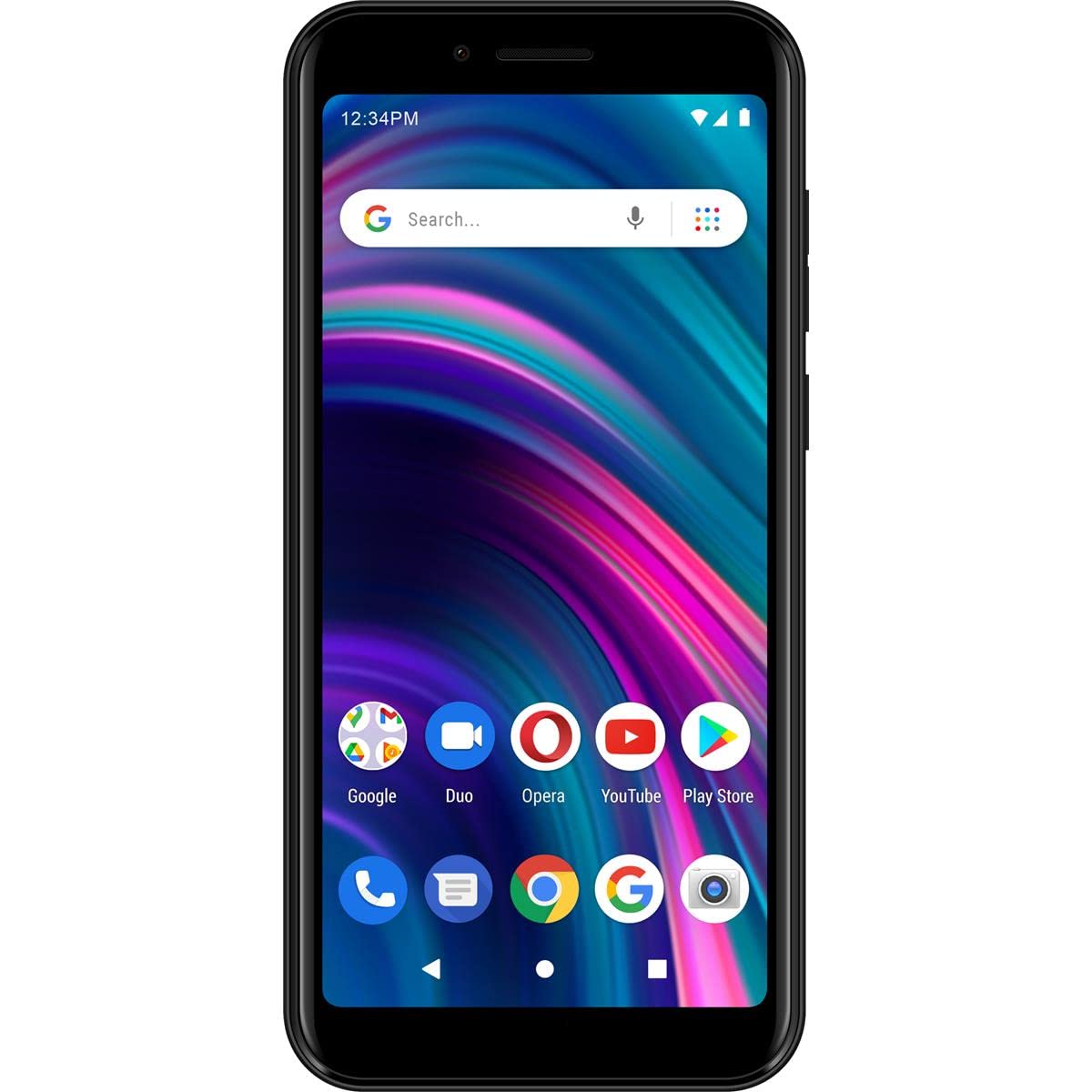
Image: Rear view of the BLU C5L MAX, illustrating the location of the SIM/MicroSD tray (typically on the side or under the back cover).
- Locate the SIM/MicroSD card tray on the side of the device or remove the back cover if applicable.
- Insert the SIM ejection tool (if provided) into the small hole next to the tray to eject it.
- Place your Nano-SIM cards into the designated slots (SIM1, SIM2) and the MicroSD card into its slot, ensuring correct orientation.
- Carefully reinsert the tray into the phone until it clicks into place.
1.3 Initial Charging
Before first use, fully charge your BLU C5L MAX. Connect the USB cable to the phone's charging port and the other end to the power adapter. Plug the adapter into a wall outlet. The battery indicator will show charging status.
1.4 Powering On and Initial Setup
Press and hold the Power button until the BLU logo appears. Follow the on-screen instructions to complete the initial setup, including language selection, Wi-Fi connection, Google account setup, and security settings.
2. Basic Operation
2.1 Navigating the Interface

Image: Front view of the BLU C5L MAX, showing the display and Android interface.
Your BLU C5L MAX runs on Android 11. Use touch gestures to navigate:
- Tap: Select an item or open an app.
- Swipe: Scroll through screens or lists.
- Pinch: Zoom in or out on photos and web pages.
- Long Press: Access contextual menus or move app icons.
2.2 Making and Receiving Calls
To make a call, open the Phone app, enter the number, and tap the call icon. To answer an incoming call, swipe up on the green phone icon. To decline, swipe up on the red phone icon.
2.3 Sending Messages
Open the Messages app, tap the "Start chat" or "+" icon, enter the recipient's number or select from contacts, type your message, and tap send.
2.4 Connecting to Wi-Fi
Go to Settings > Network & internet > Wi-Fi. Turn Wi-Fi on, select your desired network, and enter the password if prompted.
2.5 Using the Camera
Open the Camera app. Tap the shutter button to take a photo. Switch between photo and video modes as needed. The phone features a 5MP rear camera and a 2MP front camera.
2.6 Fingerprint Recognition
To set up fingerprint unlock, go to Settings > Security > Fingerprint. Follow the on-screen instructions to register your fingerprint. This allows for quick and secure unlocking of your device.
2.7 Dual SIM Management
With two SIM cards installed, you can manage which SIM is used for calls, messages, and mobile data. Go to Settings > Network & internet > SIM cards to configure your preferences.
3. Device Maintenance
3.1 Cleaning Your Device
Use a soft, lint-free cloth to clean the screen and body of your phone. Avoid using harsh chemicals or abrasive materials. Do not expose the phone to excessive moisture.
3.2 Software Updates
Regularly check for software updates to ensure your device has the latest features and security patches. Go to Settings > System > System update to check for and install available updates.
3.3 Battery Care
To prolong battery life, avoid extreme temperatures. Do not leave the phone charging for extended periods after it's fully charged. For optimal performance, use the original BLU charger and cable.
3.4 Storage Management
To free up storage space (32GB internal), regularly clear cache, uninstall unused apps, and move large files to a MicroSD card or cloud storage. Go to Settings > Storage to manage your device's storage.
4. Troubleshooting Common Issues
If you encounter problems with your BLU C5L MAX, refer to the following solutions:
- Phone not turning on: Ensure the battery is charged. Press and hold the Power button for at least 10-15 seconds.
- Poor signal or no network: Check SIM card installation. Ensure you are within network coverage. Restart the phone.
- Apps crashing or freezing: Close and reopen the app. Clear the app's cache (Settings > Apps > [App Name] > Storage & cache). Restart the phone.
- Battery draining quickly: Reduce screen brightness, close background apps, disable unnecessary features like Wi-Fi/Bluetooth when not in use.
- Touchscreen unresponsive: Restart the device. If the issue persists, a factory reset might be necessary.
4.1 Factory Reset
Warning:
A factory reset will erase all data from your phone, including apps, photos, and settings. Back up important data before proceeding.
To perform a factory reset, go to Settings > System > Reset options > Erase all data (factory reset). Confirm your decision when prompted.
5. Product Specifications
| Feature | Specification |
|---|---|
| Brand | BLU |
| Model Name | C5L Max |
| Operating System | Android 11.0 |
| Display | 5.7" Curved Glass Display, 1520 x 720 Resolution |
| RAM | 2 GB |
| Internal Storage | 32 GB |
| Rear Camera | 5 MP with LED Flash (720p video capture) |
| Front Camera | 2 MP (480p video capture) |
| SIM Card Slot | Dual SIM |
| Cellular Technology | 4G LTE, GSM |
| Connectivity | Wi-Fi, Bluetooth, 3.5 mm Headphone Jack |
| Battery Capacity | 2000 mAh Lithium-Ion |
| Biometric Security | Fingerprint Recognition |
| Color | Black |
| Item Dimensions | 9.25 x 6.75 x 3.25 inches |
Note: Item dimensions provided may refer to packaging.
6. Warranty and Support
Your BLU C5L MAX smartphone is covered by a manufacturer's warranty. For specific warranty terms and conditions, please refer to the warranty card included in your product packaging or visit the official BLU website.
For technical support, troubleshooting assistance, or to find service centers, please visit the official BLU Mobile website or contact their customer service department. Keep your purchase receipt and device's IMEI number handy for support inquiries.


