
1. Introduction
This manual provides essential information for the safe and efficient use of your LG 32GQ750-B Ultragear 4K UHD Gaming Monitor. Please read it thoroughly before operating the device and retain it for future reference.
The LG 32GQ750-B is a 32-inch 4K UHD (3840 x 2160) gaming monitor featuring a 144Hz refresh rate and 1ms (GtG) response time. It supports AMD FreeSync Premium, HDR10, and includes built-in speakers with Waves MaxxAudio. The monitor offers a gamer-centric design with tilt, height, and pivot adjustments for optimal viewing comfort.

Figure 1: Front view of the LG 32GQ750-B Ultragear Gaming Monitor.
2. Important Safety Instructions
Always follow these basic safety precautions to reduce the risk of fire, electric shock, or injury:
- Do not open the monitor casing. There are no user-serviceable parts inside.
- Place the monitor on a stable, level surface to prevent it from falling.
- Keep the monitor away from water, moisture, and extreme temperatures.
- Ensure proper ventilation; do not block ventilation openings.
- Use only the power cord and adapter supplied with the monitor.
- Unplug the monitor during lightning storms or when unused for long periods.
3. Package Contents
Verify that all items are present in your product box:
- LG 32GQ750-B Monitor Display
- Monitor Stand Base
- Monitor Stand Neck
- Power Adapter
- Power Cord
- HDMI Cable
- DisplayPort Cable
- User Manual (this document)
4. Setup and Installation
4.1 Assembling the Stand
- Carefully place the monitor screen face down on a soft, clean cloth to prevent scratches.
- Attach the stand neck to the back of the monitor until it clicks into place.
- Secure the stand base to the stand neck using the provided screw.
- Lift the monitor upright and place it on a stable desk.
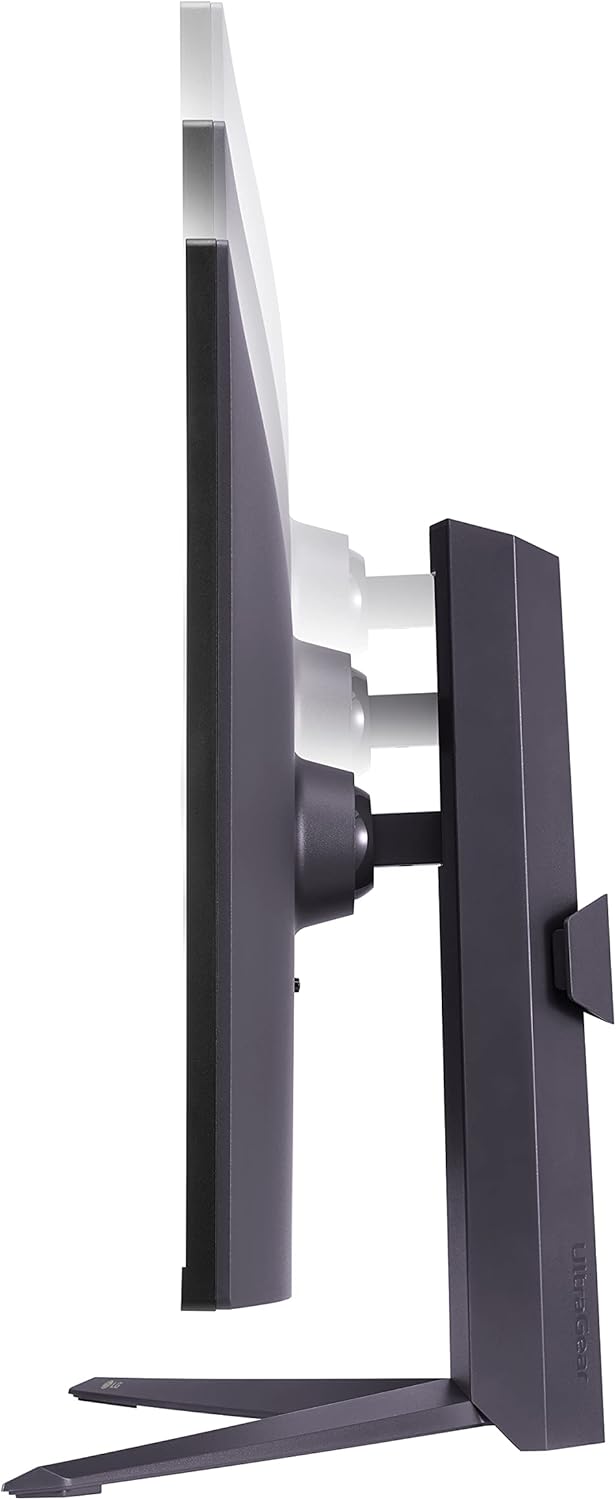
Figure 2: Side view illustrating the monitor's height adjustment capability.
4.2 Connecting Cables
Refer to the rear view of the monitor for port locations:
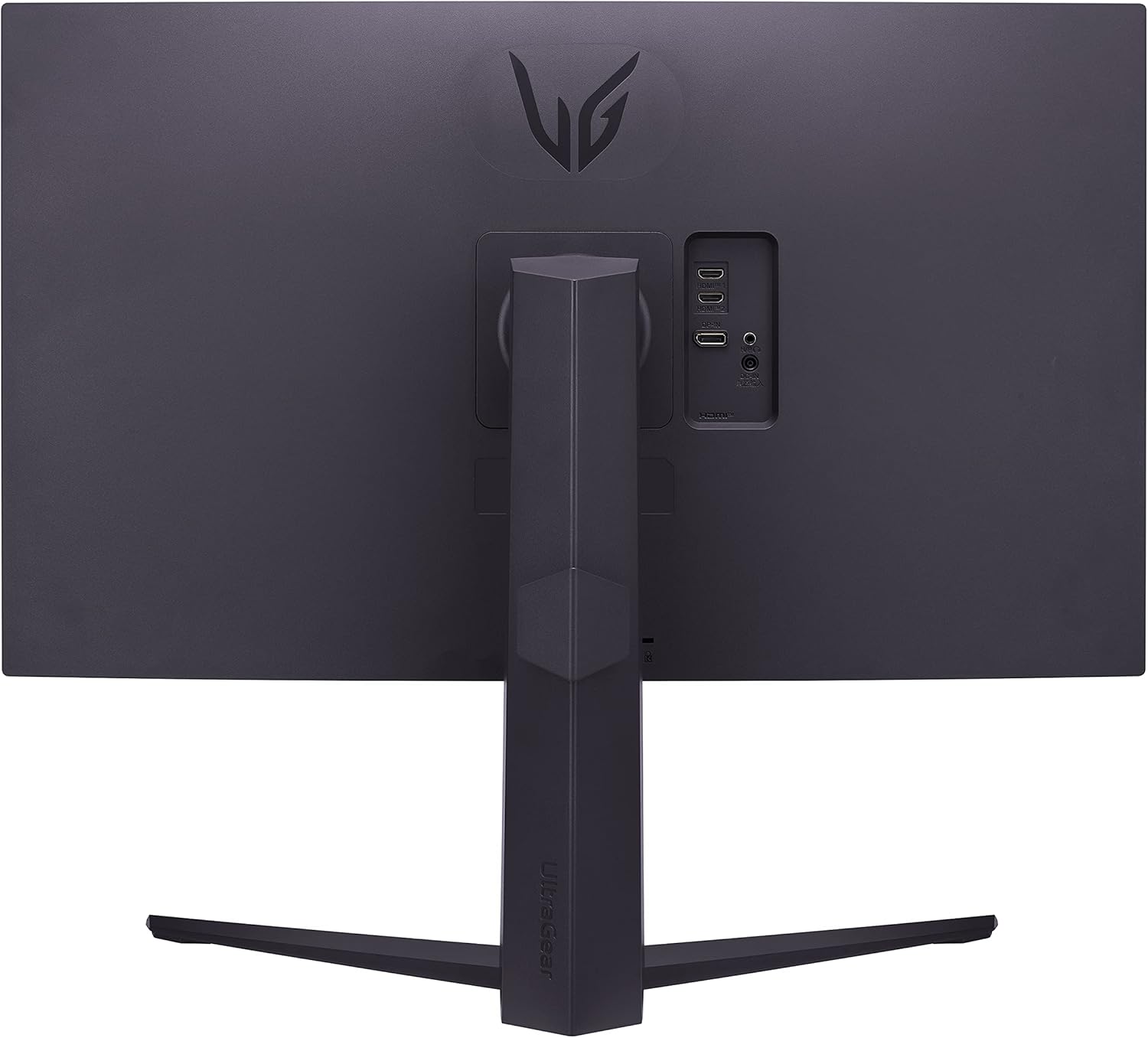
Figure 3: Rear view of the monitor showing various input ports.
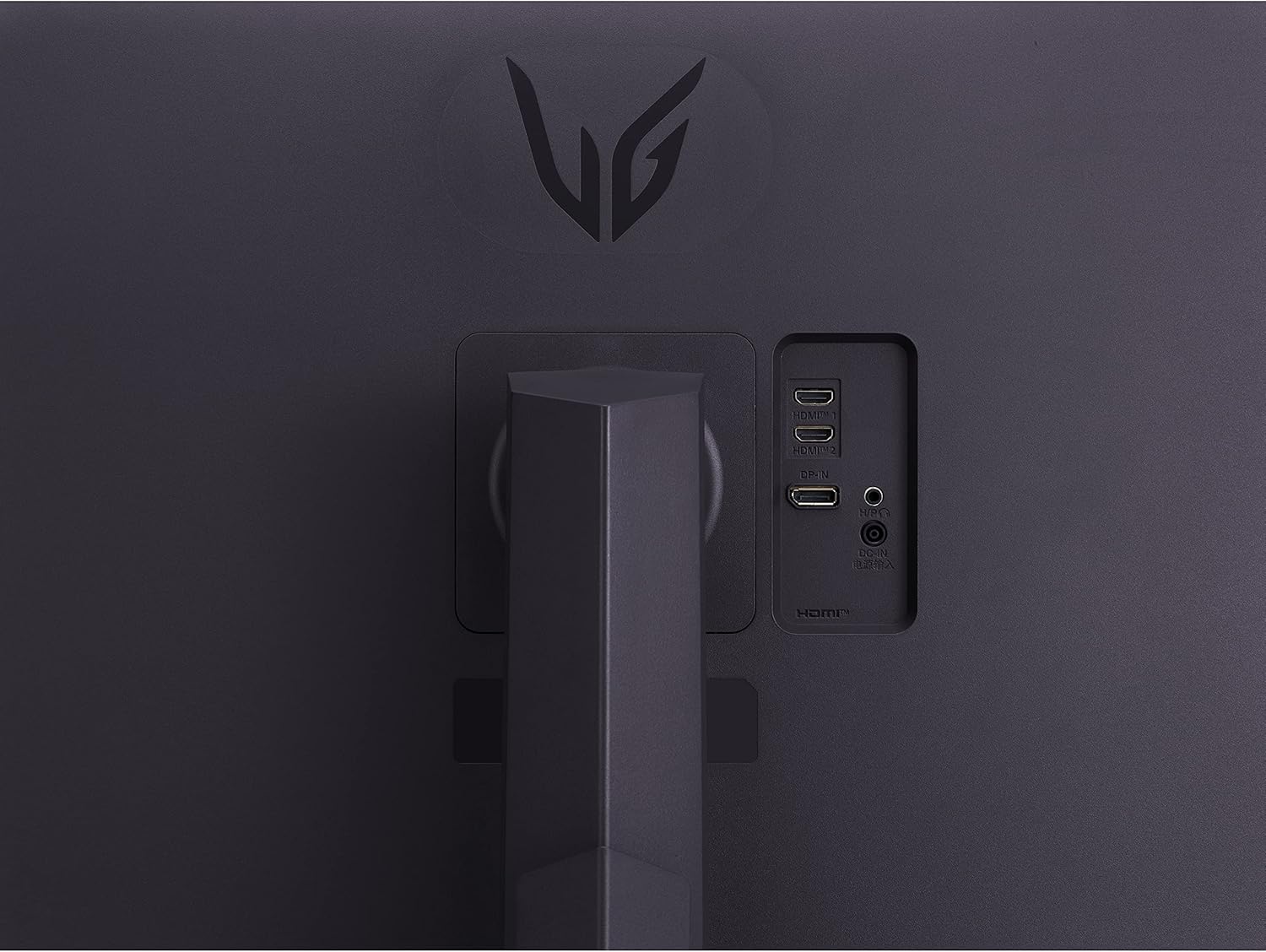
Figure 4: Close-up of the monitor's input and output ports.
- Power Connection: Connect the power adapter to the monitor's power input, then plug the power cord into a wall outlet.
- Video Connection: Connect one end of the HDMI or DisplayPort cable to the corresponding port on your computer's graphics card and the other end to an HDMI or DisplayPort input on the monitor. For 4K UHD at 144Hz, use DisplayPort 1.4 or HDMI 2.1.
- Audio Connection (Optional): If using external speakers or headphones, connect them to the headphone output port on the monitor. The monitor also has built-in speakers.
5. Operating the Monitor
5.1 Power On/Off
Press the power button (usually located on the bottom center or right side of the monitor) to turn the monitor on or off. The power indicator light will illuminate when the monitor is on.
5.2 On-Screen Display (OSD) Menu
The OSD menu allows you to adjust various monitor settings. Access it by pressing the joystick button (often located on the bottom center of the monitor). Navigate the menu using the joystick:
- Picture: Adjust brightness, contrast, sharpness, gamma, and color temperature.
- Game Mode: Select predefined gaming modes (Gamer, FPS, RTS) or customize settings like Dynamic Action Sync, Black Stabilizer, FPS Counter, and Crosshair.
- Input: Select the active input source (HDMI1, HDMI2, DisplayPort).
- Audio: Adjust volume for built-in speakers or headphone output.
- General: Access language settings, OSD transparency, power-saving options, and factory reset.
5.3 Key Features
- AMD FreeSync Premium: Synchronizes the monitor's refresh rate with your AMD graphics card's frame rate to eliminate screen tearing and stuttering. Ensure this feature is enabled in both the monitor OSD and your graphics card settings.
- HDR10: Provides enhanced contrast and color for compatible content. Activate HDR in your operating system display settings.
- Reader Mode: Reduces blue light emissions to minimize eye strain during long reading sessions.
- Built-in Speakers with Waves MaxxAudio: Delivers integrated audio. Adjust volume via the OSD or your connected device.
6. Maintenance and Cleaning
To maintain your monitor's performance and appearance:
- Always unplug the monitor from the power outlet before cleaning.
- Use a soft, lint-free cloth slightly dampened with water to clean the screen. Avoid using alcohol, solvents, or abrasive cleaners.
- For the monitor casing, use a soft, dry cloth.
- Do not spray cleaning solutions directly onto the screen or casing.
7. Troubleshooting
If you encounter issues with your monitor, refer to the following common solutions:
| Problem | Possible Solution |
|---|---|
| No power | Ensure the power cord is securely connected to the monitor and the power outlet. Check if the power outlet is functional. |
| No signal / Blank screen | Verify that the video cable (HDMI/DisplayPort) is correctly connected to both the monitor and the computer. Select the correct input source via the OSD menu. Ensure the computer is powered on and not in sleep mode. |
| Image flickering or distortion | Check the video cable for damage or loose connections. Update your graphics card drivers. Disable or enable AMD FreeSync Premium in the OSD and graphics card settings. |
| No sound from speakers | Adjust the volume in the monitor's OSD menu and on your computer. Ensure the correct audio output device is selected in your computer's sound settings. |
8. Technical Specifications
| Feature | Specification |
|---|---|
| Brand | LG |
| Model | 32GQ750-B |
| Screen Size | 31.5 Inches |
| Resolution | 4K UHD (3840 x 2160) |
| Aspect Ratio | 16:9 |
| Refresh Rate | Up to 144Hz (via HDMI 2.1 / DisplayPort 1.4) |
| Response Time | 1ms (GtG) |
| Panel Type | VA |
| HDR Support | HDR10 |
| Color Gamut | DCI-P3 90% (Typ.) |
| Adaptive Sync | AMD FreeSync Premium |
| Built-in Speakers | Yes (5W x 2 with Waves MaxxAudio) |
| Connectivity | HDMI, DisplayPort, Headphone Out |
| Stand Adjustments | Tilt, Height, Pivot |
| Screen Surface | Matte |

Figure 5: Monitor dimensions for space planning.
9. Warranty and Support
LG provides a limited warranty for this product. For detailed warranty terms and conditions, please refer to the warranty card included in your product packaging or visit the official LG website. For technical support, driver downloads, or service inquiries, please contact LG customer service or visit their support portal.
Online Support: www.lg.com/us/support
10. Product Videos
No official product video links were provided in the product data for embedding in this manual.