Introduction
This manual provides detailed instructions for the installation, configuration, and operation of your ASRock IMB-X1314 Micro ATX Motherboard. Please read this manual thoroughly before beginning the installation process to ensure proper setup and to maximize the performance of your system.
Product Overview
The ASRock IMB-X1314 is a Micro ATX motherboard designed to support Intel 13th/12th Gen (Raptor Lake-S/Alder Lake-S) Core Processors, featuring the W680 chipset. It offers robust connectivity and expansion options for industrial and workstation applications.
Key Features:
- Supports Intel 13th/12th Gen Core Processors with W680 chipset.
- Four 288-pin ECC/non-ECC Long-DIMM slots for DDR4 3200 MHz, supporting up to 128GB.
- Multiple expansion slots: 1 x PCIex16 (Gen4), 1 x PCIex8 (Gen4), 2 x PCIex4 (Gen4).
- Extensive USB connectivity: 1 x USB 3.2 Gen2x2 Type C, 5 x USB 3.2 Gen2, 2 x USB 3.2 Gen1, 4 x USB 2.0.
- Storage options: 1 x M.2 Key E, 2 x M.2 Key M, 1 x M.2 Key B, 8 x SATA3 ports.
- Networking: 3 x Intel 2.5 Gigabit LAN ports.
- Quad display support: 1 x HDMI2.0b, 1 x DP 1.4a, 1 x VGA, 1 x LVDS.
- Integrated TPM2.0 IC and support for Intel vPro, AMT, VMD RAID 0/1/5/10.
Motherboard Layout
Familiarize yourself with the various components and connectors on the ASRock IMB-X1314 motherboard.

Figure 1: Top-down view of the ASRock IMB-X1314 motherboard, highlighting the CPU socket, DIMM slots, PCIe slots, and various headers.
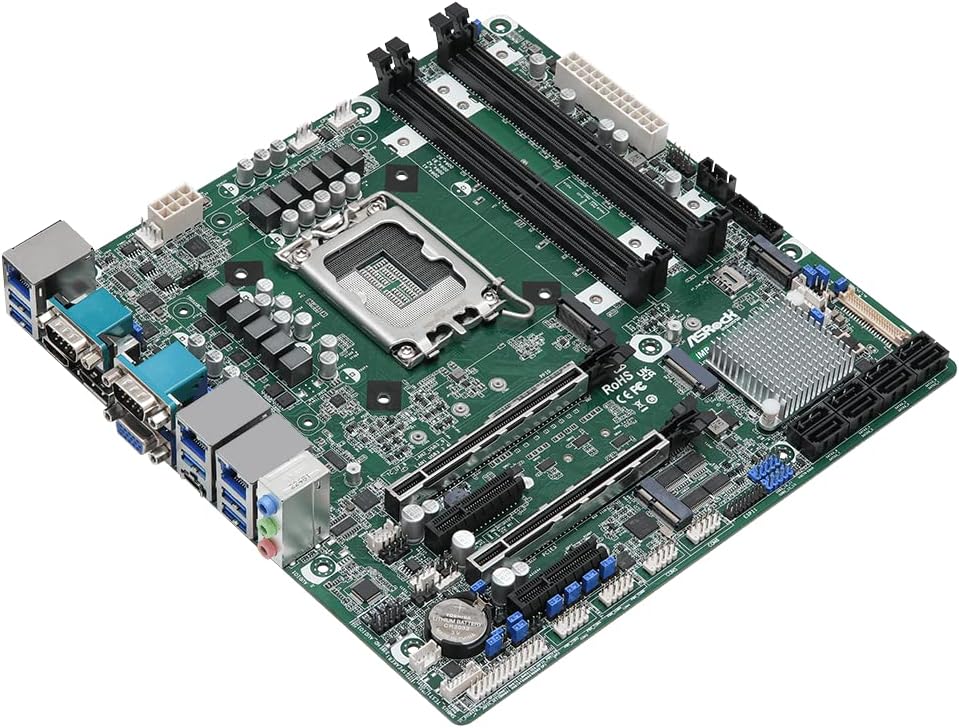
Figure 2: Angled view of the ASRock IMB-X1314 motherboard, showing the heatsinks, I/O shield area, and M.2 slots.

Figure 3: Close-up of the rear I/O panel, detailing the USB ports, LAN ports, display outputs (HDMI, DisplayPort, VGA), and audio jacks.
Setup and Installation
1. Safety Precautions
- Always disconnect the power supply before installing or removing any components.
- Wear an anti-static wrist strap to prevent electrostatic discharge (ESD) damage.
- Handle components by their edges, avoiding contact with pins or circuitry.
2. CPU Installation
- Open the CPU socket lever.
- Carefully align the CPU with the socket, ensuring the triangular mark on the CPU matches the mark on the socket.
- Gently place the CPU into the socket without forcing it.
- Close the CPU socket lever to secure the CPU.
- Install the CPU cooler according to its manufacturer's instructions.
3. Memory (RAM) Installation
- Open the clips at both ends of the DDR4 DIMM slots.
- Align the memory module with the slot, ensuring the notch on the module matches the key in the slot.
- Press down firmly on both ends of the memory module until the clips snap into place.
- Install additional memory modules as needed, following the recommended dual-channel configuration if applicable (refer to the motherboard's detailed manual for specific slot pairing).
4. Storage Device Installation
M.2 SSD Installation:
- Locate the M.2 slots on the motherboard.
- Remove the M.2 standoff screw.
- Insert the M.2 SSD into the slot at an angle.
- Gently push down the SSD and secure it with the standoff screw.
SATA Drive Installation:
- Connect one end of a SATA data cable to a SATA port on the motherboard.
- Connect the other end of the SATA data cable to your SATA hard drive or SSD.
- Connect a SATA power cable from your power supply to the SATA drive.
5. Expansion Card Installation (PCIe)
- Locate the desired PCIe slot (PCIex16, PCIex8, or PCIex4).
- Remove the corresponding expansion slot cover from your chassis.
- Align the expansion card with the slot and press down firmly until it is fully seated.
- Secure the card with a screw to the chassis.
6. Power Supply Connections
- Connect the 24-pin ATX power connector from your power supply to the main power connector on the motherboard.
- Connect the 8-pin ATX 12V power connector (CPU power) from your power supply to the corresponding connector near the CPU socket.
7. Front Panel Connections
Connect the front panel cables (Power LED, HDD LED, Power Switch, Reset Switch, USB, Audio) to their respective headers on the motherboard. Refer to the detailed motherboard diagram for exact pin assignments.
8. Rear Panel Connections
Connect your peripherals such as keyboard, mouse, monitor, and network cables to the appropriate ports on the rear I/O panel.
Operating Instructions
1. Initial Boot-Up
After all components are installed and connected, power on your system. The system will perform a Power-On Self-Test (POST). If successful, you will see the ASRock logo and have the option to enter the BIOS/UEFI setup.
2. BIOS/UEFI Setup
To enter the BIOS/UEFI setup utility, press the Delete or F2 key during the POST process. Here you can configure system settings, boot order, and enable/disable various features.
3. Driver Installation
After installing your operating system, install the necessary drivers for the motherboard components (chipset, LAN, audio, graphics) from the ASRock support website or the provided driver disk (if applicable). This ensures optimal performance and stability.
4. Intel vPro, AMT, VMD RAID
This motherboard supports Intel vPro technology, Active Management Technology (AMT), and Volume Management Device (VMD) RAID. Refer to Intel's documentation and ASRock's advanced manual for detailed configuration and usage of these features.
Maintenance
1. System Cleaning
Regularly clean your computer's interior to prevent dust buildup, which can lead to overheating. Use compressed air to remove dust from fans, heatsinks, and vents. Ensure the system is powered off and unplugged before cleaning.
2. BIOS/UEFI Updates
Periodically check the ASRock website for updated BIOS/UEFI firmware. Updates can improve system stability, compatibility, and performance. Follow the provided instructions carefully when performing a BIOS/UEFI update to avoid system damage.
3. Driver Updates
Keep your system drivers updated to ensure compatibility with new software and to benefit from performance improvements and bug fixes. Obtain drivers from the ASRock support website or component manufacturers.
Troubleshooting
This section provides solutions to common issues you might encounter.
No Power / No POST:
- Ensure all power cables (24-pin ATX, 8-pin ATX 12V) are securely connected to the motherboard and power supply.
- Verify that the CPU, RAM, and expansion cards are correctly seated.
- Check if the power supply is functioning correctly.
- Try booting with minimal components (CPU, one RAM stick, integrated graphics if available) to isolate the issue.
Display Issues:
- Ensure your monitor is connected to the correct display output on the motherboard or graphics card.
- Check display cable connections.
- Verify that the monitor is powered on and set to the correct input source.
- If using a discrete graphics card, ensure it is properly seated and has adequate power.
System Instability / Crashes:
- Check for overheating. Ensure CPU cooler and case fans are functioning.
- Verify RAM compatibility and stability. Run memory diagnostic tools.
- Ensure all drivers are correctly installed and up to date.
- Check for BIOS/UEFI updates.
Contacting Support:
If you encounter issues that cannot be resolved using this manual, please visit the official ASRock support website for further assistance or to contact technical support.
Specifications
Detailed technical specifications for the ASRock IMB-X1314 Micro ATX Motherboard.
| Feature | Detail |
|---|---|
| Brand | ASRock |
| Model Name | IMB-X1314 |
| CPU Socket | LGA 1700 |
| Compatible Processors | Intel 12th Gen, Intel 13th Gen (Raptor Lake-S/Alder Lake-S) Core Processors |
| Chipset Type | Intel W680 |
| RAM Memory Technology | DDR4 ECC/non-ECC Long-DIMM |
| Memory Speed | 3200 MHz |
| Maximum Memory Capacity | 128 GB (32GB per DIMM) |
| PCIe Expansion Slots | 1 x PCIex16 (Gen4), 1 x PCIex8 (Gen4), 2 x PCIex4 (Gen4) |
| USB Ports | 1 x USB 3.2 Gen2x2 Type C, 5 x USB 3.2 Gen2, 2 x USB 3.2 Gen1, 4 x USB 2.0 |
| M.2 Slots | 1 x M.2 Key E, 2 x M.2 Key M, 1 x M.2 Key B |
| SATA Ports | 8 x SATA3 |
| COM Ports | 6 x COM |
| LAN | 3 x Intel 2.5 Gigabit LAN |
| Display Outputs | 1 x HDMI2.0b, 1 x DP 1.4a, 1 x VGA, 1 x LVDS (Quad display support) |
| TPM | TPM2.0 on board IC |
| Intel Technologies | Intel vPro, AMT, VMD RAID 0/1/5/10 |
| Form Factor | Micro ATX |
| Product Dimensions | 14.2 x 11.8 x 2.8 inches |
| Item Weight | 2.27 pounds |
Warranty and Support
ASRock provides a limited warranty for its products. For detailed warranty terms, conditions, and duration, please refer to the warranty information included with your product packaging or visit the official ASRock website.
For technical support, driver downloads, BIOS updates, and frequently asked questions, please visit the ASRock support portal:


