
Introduction
The Yubico Security Key NFC is a hardware security key designed to provide strong, phishing-resistant authentication for your online accounts. It supports FIDO2 (passkeys) and FIDO U2F protocols, offering a secure and convenient way to protect your digital identity. This key is built for basic compatibility, focusing on essential security features without requiring batteries or network connectivity.

Figure 1: Front view of the Yubico Security Key NFC, showing the USB-A connector and the gold touch sensor with the Yubico logo.

Figure 2: Back and side view of the Yubico Security Key NFC, highlighting its slim profile and the 'FIDO' inscription.
Key Features
- FIDO-Only Functionality: Supports FIDO2 (passkeys) and FIDO U2F protocols for passwordless and second-factor authentication. This model does not support OTP, TOTP, Smart Card (PIV), or other advanced features.
- Device & OS Compatibility: Compatible with Windows, macOS, ChromeOS, and Linux. Works seamlessly with supported services like Google and Microsoft accounts, and major password managers.
- Affordable Security Solution: Designed as a cost-effective option for users focused on FIDO2 and U2F protocol-based authentication needs.
- Portable & Easy to Use: Authenticate by plugging into USB-A ports or tapping on NFC-enabled devices. No batteries or network required.
- Durable & Reliable: Resistant to tampering, water, and crushing. No batteries or network connectivity required, offering dependable authentication without any downtime. Securely manufactured in USA & Sweden.
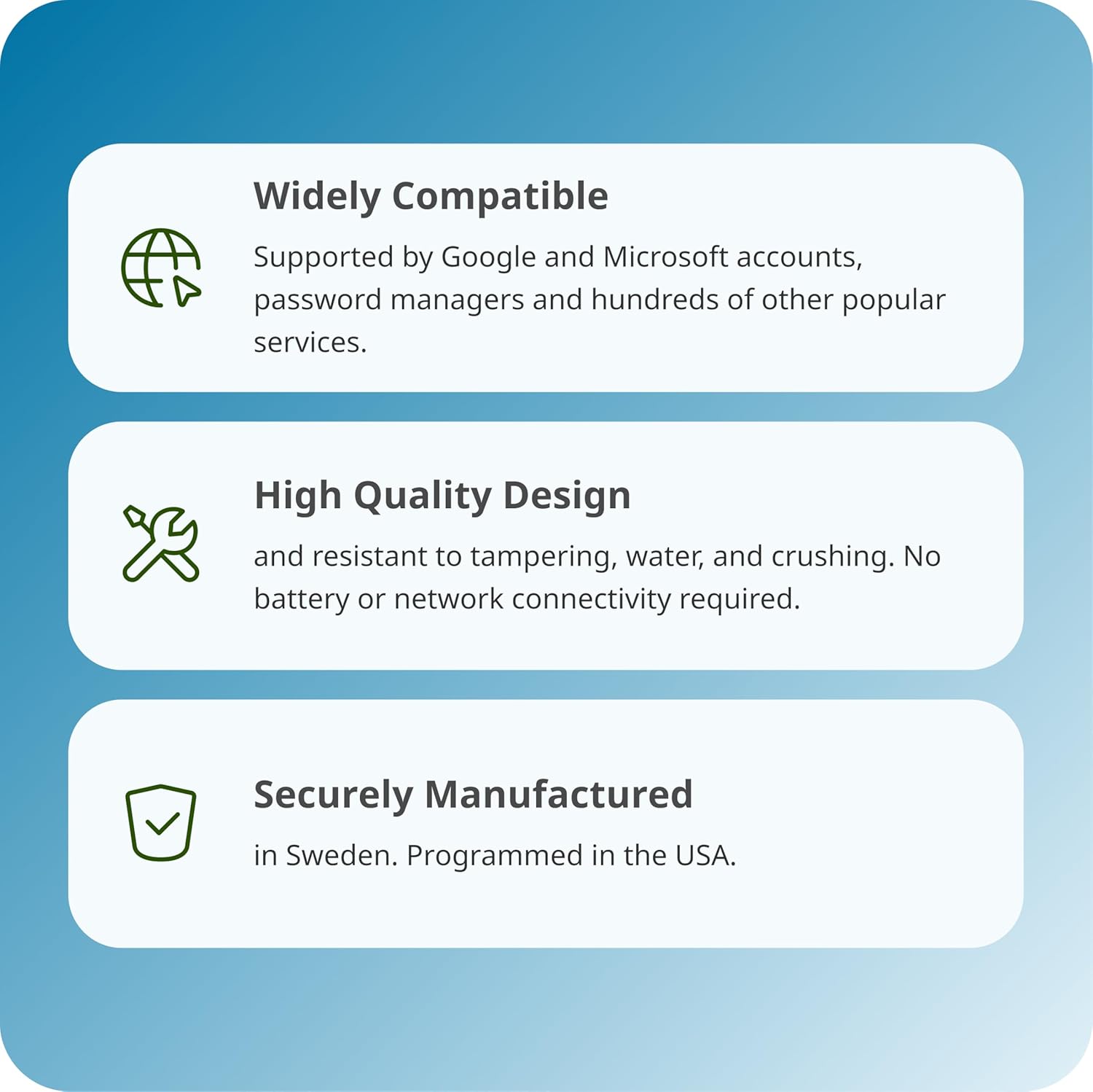
Figure 3: Visual representation of the key features, including wide compatibility, high-quality design, and secure manufacturing.
Setup Instructions
Follow these simple steps to get started with your Yubico Security Key NFC:
- Log in to the service: Log in to the online service you wish to secure and check if it supports security keys. A list of compatible services can often be found by searching for "Works With YubiKey".
- Go to security settings: Navigate to the security settings or two-factor authentication section of the service. Look for the option to add a security key or two-factor authentication. Setup instructions may vary slightly depending on the service.
- Register your YubiKey: Follow the on-screen instructions to register your YubiKey. This typically involves plugging it into a USB-A port on your computer or tapping it on your NFC-enabled device (e.g., smartphone or tablet).
- Ready to use: Once registered, your YubiKey is ready to use for secure logins. It is highly recommended to register a spare key as a backup in case your primary key is lost or stolen.

Figure 4: Visual guide to the four-step setup process for the YubiKey.
Operating the Security Key
The Yubico Security Key NFC offers two primary methods for authentication:
- USB-A Connection: For desktop and laptop computers, simply insert the YubiKey into an available USB-A port. When prompted by the service, touch the gold sensor on the key to complete the authentication.
- NFC (Near Field Communication): For compatible mobile devices (smartphones, tablets), hold the YubiKey near the NFC reader area of your device. The device will detect the key and prompt you to complete the authentication, typically by tapping the gold sensor.

Figure 5: Demonstrates the YubiKey NFC being used with a laptop via USB-A connection.

Figure 6: Illustrates NFC authentication with the YubiKey NFC and a smartphone.
Maintenance and Care
The Yubico Security Key NFC is designed for durability and reliability. It is resistant to tampering, water, and crushing, and contains no batteries or moving parts, minimizing the need for extensive maintenance. To ensure its longevity:
- Keep the USB-A connector clean and free from debris.
- Avoid exposing the key to extreme temperatures or harsh chemicals.
- Store the key in a safe place when not in use, ideally attached to a keychain for easy access and to prevent loss.
Troubleshooting
If you encounter issues with your Yubico Security Key NFC, consider the following:
- Key Not Recognized: Ensure the key is fully inserted into the USB-A port or properly tapped on the NFC reader area. Try a different USB port or adjust the position for NFC.
- Authentication Failure: Verify that the service you are trying to access supports FIDO2/U2F and that your YubiKey is correctly registered with that specific service.
- Browser/OS Compatibility: Ensure your web browser and operating system are up-to-date and support FIDO standards.
- Lost Key: If you lose your primary key, use your registered backup key to access your accounts. If no backup key was registered, you will need to follow the account recovery procedures for each service you secured.
For more detailed troubleshooting or support, please visit the official Yubico support website.
Specifications
| Attribute | Value |
|---|---|
| Model Name | Security Key |
| Product Dimensions | 3.94"D x 3.94"W x 3.94"H |
| Flash Memory Type | USB |
| Manufacturer | Yubico |
| Hardware Connectivity Technology | USB Type A |
| Hard Disk Size | 16 GB |
| Compatible Phone Models | NFC Enabled Devices |
| Item Model Number | 5060408465295 |
| Hardware Platform | Mobile, Laptop, Desktop, Windows, macOS, ChromeOS, Linux |
| Item Weight | 0.353 ounces |
| Item Dimensions LxWxH | 3.35 x 2.17 x 0.04 inches |
| Hardware Interface | USB |
| Color | black |
Compatibility
The Yubico Security Key NFC is designed for broad compatibility with various operating systems and services:
- Operating Systems: Windows, macOS, ChromeOS, and Linux.
- Devices: Desktops, Laptops, and NFC-enabled Mobile devices (smartphones, tablets).
- Protocols: FIDO2/WebAuthn and FIDO U2F.
- Services: Widely supported by major online services including Google, Microsoft accounts, Dropbox, 1Password, Bitwarden, Coinbase, and many others that support FIDO standards.

Figure 7: Examples of services compatible with the Yubico Security Key NFC.

Figure 8: Detailed compatibility table for the Security Key NFC, highlighting its FIDO-only functionality.