
1. Introduction
This manual provides comprehensive instructions for the setup, operation, and maintenance of your Menggood Indoor Security Camera MG-CAMERA002. Please read this manual thoroughly before using the device to ensure proper functionality and safety.

Image: The Menggood Indoor Security Camera MG-CAMERA002, a white dome-shaped camera, shown next to a smartphone displaying a live feed of a baby.
2. Package Contents
Verify that all items listed below are present in your package:
- 1x Pan/Tilt Indoor Camera
- 1x 4.9 Ft Power Cable
- 1x Camera Base
- 1x Power Adapter
- 1x Screw Kit (for wall mounting)
- 1x User Manual (this document)
- 1x 64GB Micro SD Card (pre-installed or included separately)
3. Setup Guide
3.1 Initial Power On
- Unpack the Camera: Carefully remove the camera and all accessories from the packaging.
- Connect Power: Plug the 4.9 Ft power cable into the camera's power port and connect the power adapter to a standard electrical outlet. The camera will power on and initiate its self-test.
3.2 App Installation and Account Creation
- Download the App: Search for the official Menggood security camera app in your smartphone's app store (iOS App Store or Google Play Store).
- Install and Register: Install the app and follow the on-screen instructions to create a new user account.
3.3 Wi-Fi Connection
The camera supports both 2.4GHz and 5GHz Wi-Fi networks for flexible connectivity.
- Add Device: Open the app and select "Add Device" or the '+' icon.
- Select Camera Type: Choose the appropriate camera model from the list.
- Follow In-App Instructions: The app will guide you through connecting the camera to your Wi-Fi network. This typically involves scanning a QR code displayed on your phone with the camera, or entering your Wi-Fi credentials.
- Confirmation: Once connected, the camera will indicate a successful connection (e.g., a voice prompt or LED indicator change), and the live feed will appear in the app.

Image: A diagram illustrating a home with Wi-Fi coverage, highlighting the camera's compatibility with both 2.4GHz and 5GHz networks.
3.4 Micro SD Card Installation (Optional)
The camera supports Micro SD cards up to 128GB for local storage. A 64GB SD card is included.
- Locate SD Card Slot: Gently tilt the camera lens upwards to reveal the Micro SD card slot.
- Insert SD Card: Insert the Micro SD card into the slot with the gold contacts facing down, until it clicks into place.
- Format SD Card: Within the app settings, navigate to storage options and format the newly inserted SD card. This ensures proper recording functionality.

Image: Illustration of the Micro SD card slot on the camera and the process of inserting an SD card, highlighting both local and cloud storage options.
3.5 Mounting the Camera (Optional)
The camera can be placed on a flat surface or mounted to a wall using the included screw kit.
- Choose Location: Select a suitable indoor location with good Wi-Fi signal and a clear view of the area you wish to monitor.
- Mark Drilling Points: Use the camera base as a template to mark the drilling points on the wall.
- Drill Holes: Drill pilot holes at the marked points.
- Secure Base: Insert wall anchors (if necessary) and secure the camera base to the wall using the provided screws.
- Attach Camera: Attach the camera to the secured base.
4. Operating Instructions
4.1 Live View and Pan/Tilt Control
- Access Live Feed: Open the Menggood app and select your camera to view the live video stream.
- Pan/Tilt: Use the directional controls within the app to remotely rotate the camera 355° horizontally and 70° vertically, providing 360° coverage of your room.
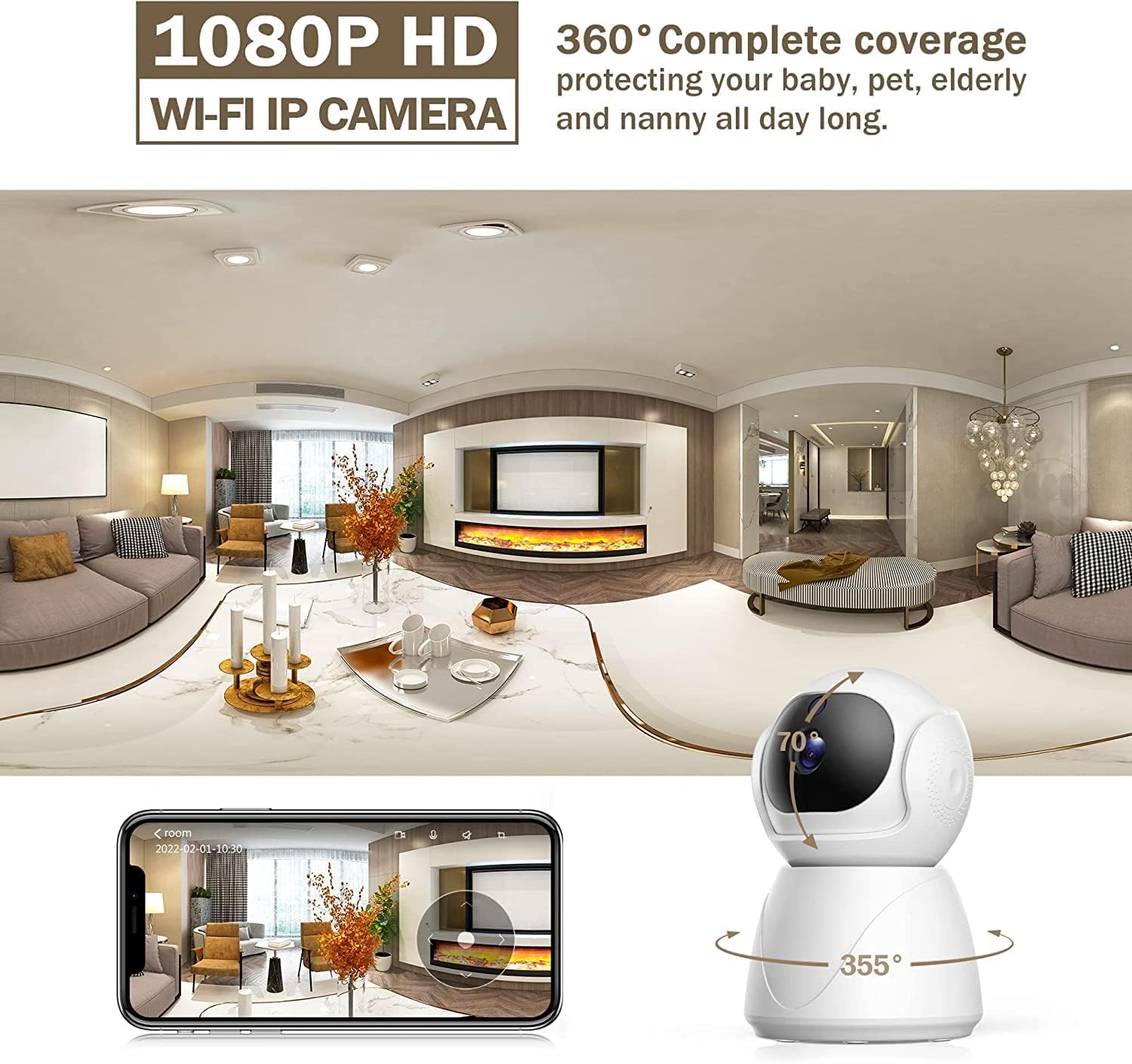
Image: A panoramic view of a room demonstrating the camera's 360° coverage capability through 355° horizontal and 70° vertical rotation.
4.2 Two-Way Audio
The camera features a built-in microphone and speaker for two-way communication.
- Speak: Tap the microphone icon in the app to speak through the camera's speaker.
- Listen: The camera's microphone will transmit audio to your smartphone.

Image: A visual representation of the two-way audio function, showing a child's distress and a parent's voice message through the camera.
4.3 Motion and Sound Detection
The camera can detect motion and sound, sending instant alerts to your phone.
- Enable Alerts: In the app settings, enable motion and sound detection.
- Customize Settings: Adjust sensitivity levels, alert frequency, and set an alarm schedule to suit your needs.
- Automatic Tracking: When motion is detected, the camera can automatically track the moving object.
- Alarm Video: A 6-second alarm video will be automatically recorded to the cloud upon detection.
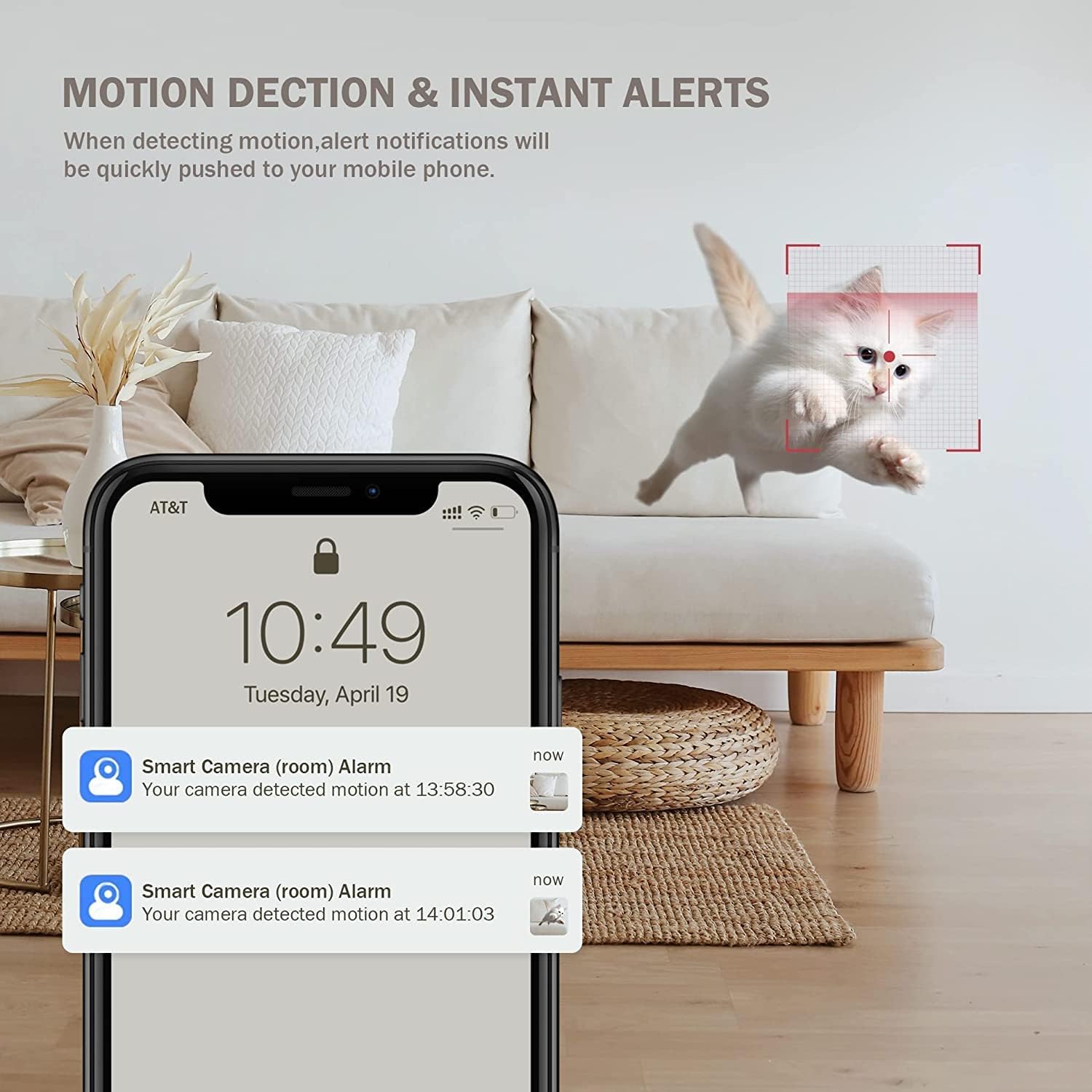
Image: A smartphone screen showing push notifications for motion detection alerts, with a cat in the background indicating the source of motion.

Image: A graphic illustrating the customizable alert frequency and sensitivity levels for motion detection within the camera's app settings.
4.4 Night Vision
The camera provides clear visibility up to 33ft (10m) in low-light conditions using its night vision feature.
- Automatic Activation: Night vision activates automatically in low light.
- Clarity: Provides 2.5K HD resolution even in dark environments.

Image: A split image demonstrating the camera's ability to capture clear video in both daylight and dark conditions, showcasing its night vision feature.
4.5 Recording and Playback
Recordings can be stored locally on the Micro SD card or via optional cloud storage.
- SD Card Recording: The included 64GB SD card allows for continuous recording. Access playback through the app's timeline.
- Cloud Storage: A free 30-day trial is available. Cloud storage typically records event-triggered videos.
- Playback: Use the app's playback feature to review recorded footage.

Image: A smartphone displaying the camera's video playback interface, illustrating how to access recordings from both SD card and cloud storage.
4.6 Alexa Integration
The camera is compatible with Amazon Alexa for voice control.
- Enable Skill: In the Alexa app, search for and enable the Menggood camera skill.
- Link Account: Link your Menggood account with your Alexa account.
- Voice Commands: Use commands like "Alexa, show me the [camera name]" on compatible Alexa devices (e.g., Echo Show) to view the live feed.

Image: A woman interacting with an Amazon Echo Show, demonstrating how to use Alexa voice commands to display the camera's live feed.
5. Maintenance
5.1 Cleaning the Camera
- Power Off: Disconnect the camera from power before cleaning.
- Lens: Use a soft, dry microfiber cloth to gently wipe the camera lens. Avoid abrasive materials or harsh chemicals.
- Body: Wipe the camera body with a slightly damp cloth. Ensure no moisture enters any openings.
5.2 SD Card Management
- Regular Formatting: Periodically format the Micro SD card through the app settings to maintain optimal recording performance and prevent data corruption.
- Capacity: Ensure the SD card has sufficient free space. The camera will typically overwrite the oldest footage when full.
5.3 Firmware Updates
Keep your camera's firmware updated to ensure the latest features, security patches, and performance improvements.
- Check for Updates: The app will usually notify you of available firmware updates. You can also manually check in the camera's settings.
- Update Process: Follow the in-app instructions carefully. Do not disconnect power during a firmware update.
6. Troubleshooting
6.1 Camera Not Connecting to Wi-Fi
- Check Wi-Fi Band: Ensure your router is broadcasting both 2.4GHz and 5GHz networks, and you are attempting to connect to the correct one if prompted. The camera supports both.
- Signal Strength: Place the camera closer to your Wi-Fi router to improve signal strength.
- Router Reboot: Try restarting your Wi-Fi router.
- Reset Camera: Use the reset button on the camera (refer to the camera's physical layout for location) and attempt the setup process again.
6.2 No Motion/Sound Alerts
- App Settings: Verify that motion and sound detection are enabled in the app settings.
- Sensitivity: Adjust the sensitivity level. A low sensitivity might miss subtle events.
- Notification Permissions: Ensure your phone's operating system has granted notification permissions for the Menggood app.
- Alarm Schedule: Check if an alarm schedule is active and if it's within the desired monitoring times.
6.3 Poor Image Quality / Blurry Video
- Clean Lens: Gently clean the camera lens with a soft, dry cloth.
- Lighting: Ensure adequate lighting in the monitored area during the day. For night vision, ensure no direct light sources are interfering.
- Wi-Fi Bandwidth: A weak Wi-Fi connection can affect streaming quality. Try moving the camera closer to the router or reducing other network traffic.
- App Resolution Settings: Check if the app allows for resolution adjustments and ensure it's set to the highest available (2.5K HD).
6.4 SD Card Recording Issues
- Card Insertion: Ensure the SD card is correctly inserted and clicked into place.
- Format Card: Format the SD card through the app. If issues persist, try a different compatible Micro SD card.
- Card Capacity: Verify the SD card is not full.
- App Settings: Confirm that continuous recording or event recording to the SD card is enabled in the app.
7. Specifications
| Feature | Detail |
|---|---|
| Model Number | MG-CAMERA002 |
| Brand | Menggood |
| Connectivity | Wi-Fi (2.4GHz/5GHz), USB |
| Video Resolution | 2.5K HD (3 MP Effective Still Resolution) |
| Pan/Tilt Range | 355° Horizontal, 70° Vertical |
| Night Vision | Up to 33ft (10m), Night Color Low Light Technology |
| Audio | Two-Way Audio (Built-in Microphone & Speaker) |
| Storage Options | Micro SD Card (up to 128GB, 64GB included), Cloud Storage (optional) |
| Motion/Sound Detection | Yes, with customizable alerts and auto-tracking |
| Compatibility | Amazon Alexa, Mobile App |
| Power Source | Corded Electric |
| Installation Type | Wall-Mounted, Desktop |
| Indoor/Outdoor Usage | Indoor |
| Material | Plastic |
| Item Weight | 1.44 ounces |
| Dimensions (Package) | 6.54 x 3.7 x 3.46 inches |
| International Protection Rating | IP65 (Note: Product is specified for indoor use) |
8. Warranty Information
For detailed warranty information regarding your Menggood Indoor Security Camera MG-CAMERA002, please refer to the warranty card included in your product packaging or visit the official Menggood website. Warranty terms and conditions may vary by region and purchase date.
9. Customer Support
If you encounter any issues or have questions not covered in this manual, please contact Menggood customer support through one of the following channels:
- Official Website: Visit the Menggood official website for FAQs, support resources, and contact forms.
- Email Support: Refer to your product packaging or the official website for the customer support email address.
- In-App Support: Some issues can be resolved directly through the support section within the Menggood mobile application.
When contacting support, please have your product model number (MG-CAMERA002) and purchase information readily available.